
Adding up a week of shifts and getting the pay right
How to fill in your hours for the week, what each field and option does, how overtime and pay are worked out, the decimal-hours trap that catches almost everyone, and a full worked example with real shift times.
What the calculator does and who it is for
The tool adds up start and finish times for every day of the week, subtracts breaks, and gives you total hours in two forms: hours and minutes, and decimal hours. If you enter an hourly rate it also works out regular pay, overtime pay, and total pay.
Freelancers filling in weekly invoices, shift workers keeping a personal record, and small business owners checking a staff timesheet all need the same arithmetic. The hard part is not the addition. It is the conversion from clock times to decimal hours, the overnight shifts that wrap past midnight, and the rounding rules that differ from one employer to the next. Getting any of those wrong means submitting an inaccurate timesheet, which either costs you money or creates payroll headaches.
Filling in the days you worked
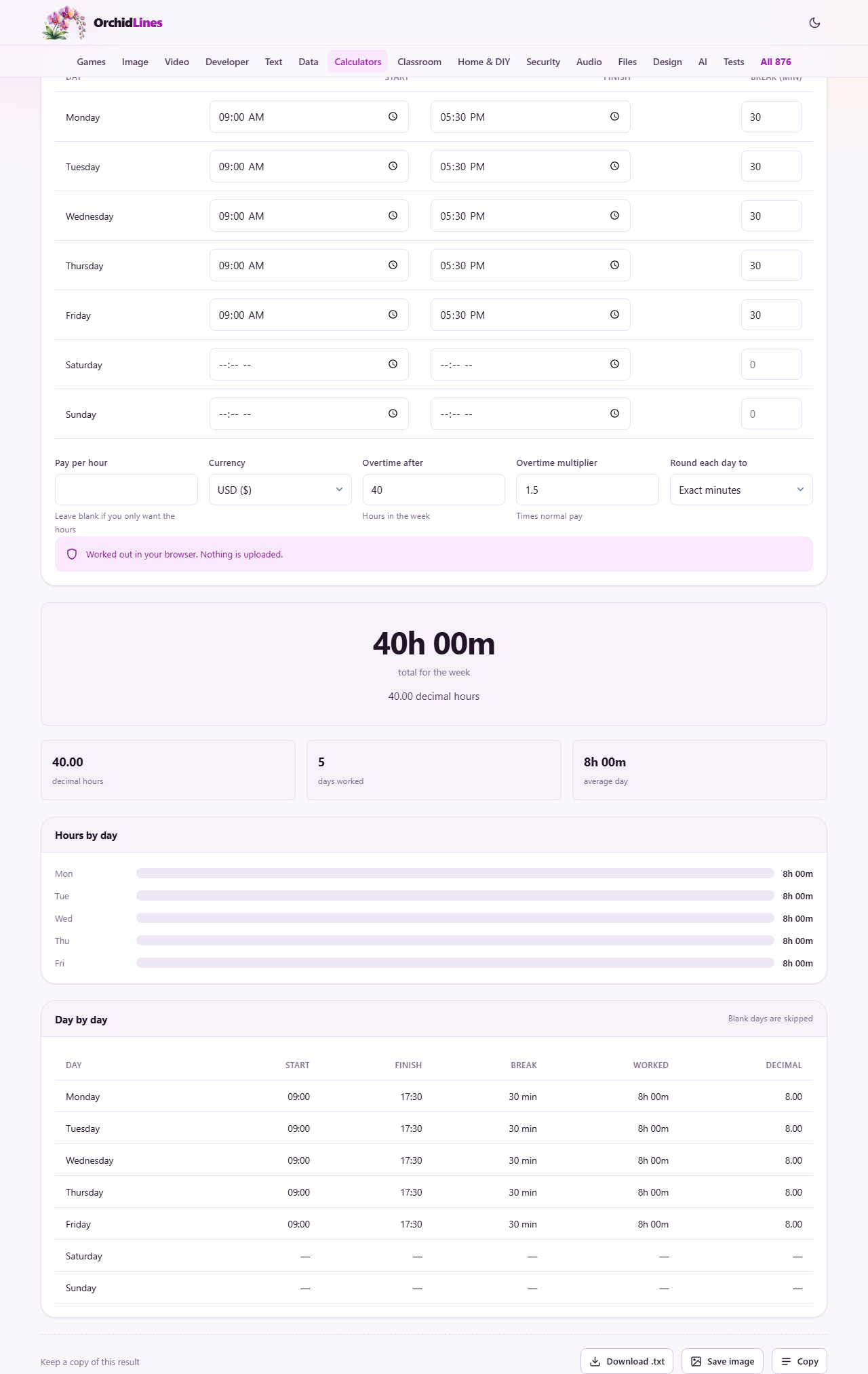
The main table has one row for each day, Monday through Sunday. Each row has three fields: Start, Finish, and Break (min).
Start and Finish are time inputs. On a desktop you type the time directly. On a phone you get a time picker. Use the 24-hour format your browser offers, or the 12-hour format if that is what it shows. Either way the tool reads the value correctly.
Break (min) is the number of minutes you were not paid for that day. A half-hour unpaid lunch is 30. A 15-minute tea break is 15. If you took no unpaid break, leave the field empty or enter 0.
Any day left completely blank is simply skipped. You do not need to mark a day off or remove it. A four-day week means four rows filled in and three left empty.
The pay and overtime fields
Below the daily table sit five more fields. None of them are required. If you only need the hour totals, leave them all alone.
Pay per hour is your regular hourly rate. Enter the number without a currency symbol. If you fill this in, the result includes a pay breakdown. If you leave it blank, you get hours alone, which is all most people need for a timesheet.
Currency is a dropdown that sets the symbol shown beside pay figures. It does not convert anything. Pick the currency you are paid in.
Overtime after sets the weekly hour threshold above which overtime kicks in. It defaults to 40. Any hours past that number in the week are counted as overtime.
Overtime multiplier is the factor applied to your regular rate for overtime hours. It defaults to 1.5, which is time-and-a-half. Change it to 2 for double time, or to 1 if your employer pays overtime at the same rate.
Round each day to controls how each shift is rounded before the weekly total is added up. The choices are Exact minutes, Nearest 5 minutes, Nearest tenth of an hour, Nearest quarter hour, and Nearest half hour. Match whatever your employer does. If you are unsure, leave it on Exact minutes.
How overnight shifts are handled
If your finish time is earlier than your start time, the tool assumes the shift ran past midnight into the next day. A shift from 22:00 to 06:00 counts as eight hours, not minus sixteen. A shift from 23:00 to 07:30 with a 30-minute break counts as eight hours. The logic is the same regardless of which day the shift falls on.
This is almost always the correct reading. The one case it cannot handle is a single shift longer than 24 hours. It would read that as a short one because the finish time wraps around twice. If you ever work a shift that long, split it across two rows in the table. Put the first half on one day and the second half on the next.
What the results show
The result appears below the input table as soon as you have at least one complete day. It updates live as you type.
Each day is listed with its hours in two forms. The first is hours and minutes: 7 h 45 min. The second is decimal hours: 7.75. Both are there because writing the wrong one is the classic timesheet mistake.
At the bottom you see the weekly total, also in both forms, the number of days worked, and the average hours per day. If you entered a pay rate, you also see regular hours, overtime hours, regular pay, overtime pay, and total pay. All figures respect the rounding option you chose.
Decimal hours and why they trip people up
Payroll systems almost always want decimal hours, not hours and minutes. Seven hours and 45 minutes is 7.75 hours, not 7.45. The difference comes from the fact that there are 60 minutes in an hour, not 100.
To convert by hand, divide the minutes by 60. Forty-five divided by 60 is 0.75. Twenty divided by 60 is 0.33. Thirty divided by 60 is 0.50. The tool does this for every day and for the weekly total, so you never have to work it out yourself.
Getting this wrong is not a small error. On a 40-hour week at 20 dollars an hour, the difference between 7.45 and 7.75 on one day is six dollars. Over a year of weekly timesheets that adds up to over 300.
A full worked example
A warehouse worker does five shifts. Monday: 08:00 to 16:30 with a 30-minute lunch. Tuesday: 07:00 to 15:30, same break. Wednesday: 08:00 to 17:00, 30 minutes. Thursday: 22:00 to 06:00 (overnight), no break. Friday: 08:00 to 16:00, 30 minutes.
Fill in each row. Monday gives 8 hours after the break. Tuesday gives 8 hours. Wednesday gives 8.5 hours. Thursday gives 8 hours, handled correctly despite crossing midnight. Friday gives 7.5 hours. The weekly total is 40 hours exactly.
Now set Pay per hour to 18, leave Overtime after at 40 and the multiplier at 1.5. The result shows 40 regular hours, 0 overtime hours, and total pay of 720. Change Wednesday's finish to 18:00 and the total jumps to 41 hours. That extra hour is overtime, paid at 18 times 1.5, which is 27. The new total pay is 747.
It remembers your week between visits
Every time and setting you type is stored in your browser on your device. Close the tab, come back tomorrow, and your entries are still there. This means you can build up a timesheet across the week, adding one day at a time as you finish each shift.
The Reset button wipes everything and returns the page to its defaults. That is the only way to clear the stored data. There is no undo for a reset, so be sure you have noted down the totals before you press it.
The storage is per browser and per device. If you use one browser at home and a different one at work, each one has its own copy. Clearing your browser's site data also removes the saved entries.
Breaks you should and should not enter
Only enter breaks you are not paid for. If your employer pays you through a 15-minute tea break, that time is already included in the gap between your start and finish times. Entering it in the Break column would subtract it again and your total would come up short.
An unpaid lunch is the most common entry. If you take 30 minutes unpaid and 15 minutes paid in the same day, enter 30, not 45. When in doubt, check your contract or pay stub.
Common mistakes to avoid
- Writing 7.45 instead of 7.75 for seven hours and 45 minutes. The decimal form divides by 60, not by 100.
- Entering paid breaks. That subtracts time you were actually paid for and produces a lower total than your employer expects.
- Setting the overtime threshold to a daily figure instead of a weekly one. The tool computes overtime on the week as a whole, not day by day.
- Rounding to the nearest quarter hour when your employer rounds to the nearest tenth. A small rounding difference on each shift can add up to a meaningful error by Friday.
- Forgetting to update the currency. The symbol is cosmetic but a payslip in the wrong currency looks unprofessional.
Everything stays on your own machine
All the arithmetic runs inside your browser. Your times, your rate, and your pay figures are never sent to any server. The stored entries live in your browser's local storage on your device and nowhere else. Nobody can see them but you, and closing the browser or clearing site data removes them entirely.