
Counting down, counting up, and working in focused bursts
How the three timing modes work, what every button and setting does, why the clock stays accurate when you leave the tab, and a hands-on walkthrough of each mode with real numbers.
Three jobs that look alike but are not
A countdown counts backward from a number you choose. A stopwatch counts forward from zero. A pomodoro alternates between timed work and timed rest. All three live on a single page because they share a display and a start button, yet each one solves a different problem.
Cooking, exam practice, and exercise intervals all need a countdown. Timing a run, a speech rehearsal, or a board game turn needs a stopwatch. Staying productive through a long writing or study session needs a pomodoro cycle. Knowing which mode fits the job is the first decision you make.
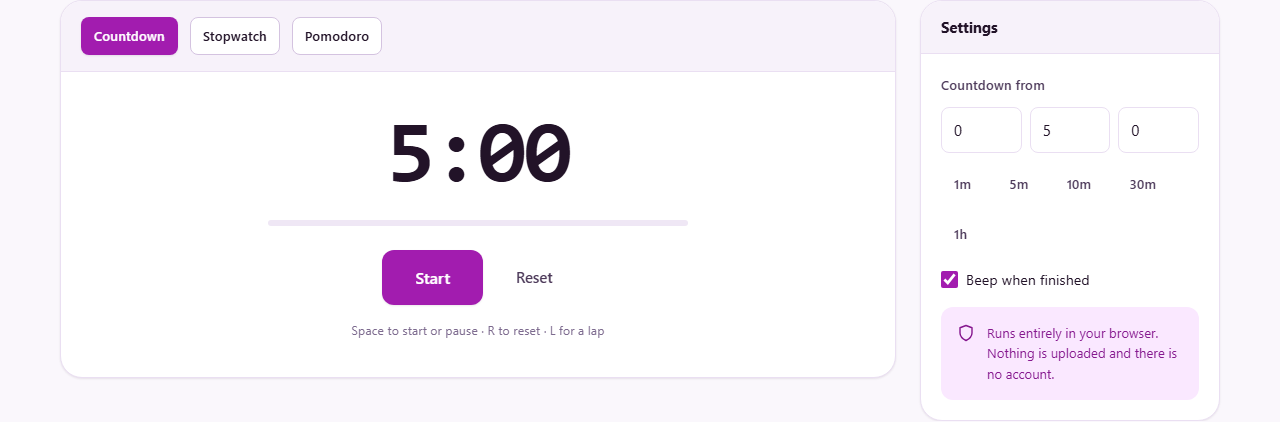
The page loads in countdown mode with a default of five minutes. That is probably the most common use: set a number, press a button, and wait for the beep.
Choosing a mode
Three buttons sit at the top of the panel: Countdown, Stopwatch, and Pomodoro. One is always highlighted. Pressing a different button switches immediately and resets the display to zero, so finish with one mode before you move to the next.
The settings panel on the right changes to match. Countdown shows fields for hours, minutes, and seconds along with a row of preset buttons. Pomodoro shows fields for Work, Short break, and Long break. Stopwatch needs no settings at all because it simply counts up from the moment you press Start.
Setting up a countdown
The three number boxes under Countdown from take hours, minutes, and seconds. Hours go up to 99, minutes to 59, seconds to 59. A five-minute egg timer is 0 hours, 5 minutes, 0 seconds, which is the default.
Below those boxes sit five preset buttons: 1m, 5m, 10m, 30m, and 1h. Press one and the boxes fill in for you. They save a few taps when you want a round number, and you can still adjust the boxes afterward if you need something like 1 hour and 15 minutes.
Press Start or hit the space bar and the display counts down. A progress bar beneath the numbers fills as time passes, giving a quick visual sense of how far along you are. When it reaches zero the page shows a green alert message and, if Beep when finished is ticked, plays a short sound. The progress bar reaches full width at the exact moment the countdown ends.
Using the stopwatch and recording laps
Switch to Stopwatch and the display starts at 0:00. Press Start or hit space and it counts upward with no limit. A Lap button appears once the clock is running. Press it, or hit L on the keyboard, and the current reading is recorded without stopping the clock.
Each lap appears in a Laps panel below the main display. Two figures are shown for every entry: the time for that individual lap and the total elapsed time since the start. The first is the number you compare across laps to find which segment was fastest or slowest. The second is a running total so you can see where each lap fell in the whole session.
Press Pause to freeze the display. Press Start again to continue from where you stopped. Reset clears the laps and puts the clock back to zero. There is no upper limit on laps or on total time.
Working in pomodoro cycles
The pomodoro technique breaks work into short focused blocks separated by rest. The classic pattern is 25 minutes of work, then a 5-minute break, repeated four times, with a longer break after the fourth round.
Three fields control the cycle. Work (minutes) defaults to 25. Short break defaults to 5. Long break defaults to 15. Change any of them to fit your preference. Some people work better with 50-minute sessions and 10-minute breaks. Others prefer 15-minute sprints. The tool does not judge.
Press Start and a label above the display shows which phase you are in. When a work session ends it switches to a break automatically. After every fourth work session the break is the longer one. The cycle keeps going until you stop it. A beep marks each transition if the sound option is on.
The progress bar shows how far through the current phase you are, not the whole cycle. It resets at the start of each work or break period. That makes it easy to see at a glance whether you are near the end of a session.
The sound alert and when it cannot play
Beep when finished is a checkbox in the settings panel. It is on by default. The sound plays at the end of a countdown and at each transition in a pomodoro cycle.
On a desktop browser the beep works reliably even if the tab is in the background. On some mobile browsers the story is different. When the screen is off or the tab is not visible, the browser may suspend audio entirely to save battery. If the alert sound matters, keep the tab visible on your phone rather than locking the screen.
The beep is scheduled through the Web Audio API rather than a simple audio element. That means it fires at the correct time even if the browser has been throttling the tab, because the audio engine runs on its own clock.
Why it stays accurate in the background
Most browser timers work by running a callback once a second and adding one to a counter. That falls apart when you switch tabs. Browsers throttle background timers to save battery, sometimes running them only once a minute, so a simple counter can lose several minutes during a long session.
This tool takes a different approach. It records the clock time when you press Start and works out elapsed time by subtraction on every frame. If the tab was in the background for ten minutes, the next time the browser updates the display it subtracts the start time from now and shows the correct figure. No ticks are counted, so none can be lost.
You can test this yourself. Start a five-minute countdown, switch to another tab for three minutes, then come back. The display will show about two minutes remaining, not about four minutes and fifty-seven seconds. That three-second gap is the kind of drift a tick-counting timer would show.
Keyboard shortcuts
Three keys cover everything. Space starts and pauses the active timer. R resets it. L records a lap when the stopwatch is running.
Space is faster than reaching for the mouse when you are timing something live, like reaction drills or interval training. Your hand can stay on the keyboard and your eyes on whatever you are actually doing. During a pomodoro session, pressing space to pause when someone interrupts you is far quicker than clicking.
A worked example in each mode
Countdown: you are boiling eggs for exactly seven minutes. Switch to Countdown, type 0, 7, 0 into the hours, minutes, and seconds boxes, and press Start. The display counts down from 7:00 and beeps when it hits zero. Walk away and do something else. The reading will still be right when you come back.
Stopwatch: you are timing a presentation that must be under ten minutes. Switch to Stopwatch, press Start when the speaker begins, press Lap at each slide transition, and press Pause when they finish. The total tells you whether they ran over. The laps tell you which slides took too long.
Pomodoro: you have a four-hour study block. Leave the defaults at 25, 5, and 15. Press Start and study until the beep. Take your five-minute break. After the fourth session, take the full fifteen-minute break. Over four hours you get roughly six focused work sessions and a clear record of how you spent the time.
Common mistakes and edge cases
- Switching modes while a timer is running. The switch resets everything, so your current session is lost. Pause or finish first.
- Setting a countdown to all zeros. There is nothing to count down from, so pressing Start has no useful effect.
- Expecting the beep on a phone with the screen off. Some mobile browsers suspend audio for background tabs entirely. Keep the tab visible if the sound matters.
- Forgetting that laps are only available in stopwatch mode. Countdown and pomodoro do not show a Lap button.
- Closing the tab. There is no background process or saved state. Once the tab is gone, the timer is gone.
Nothing leaves your device
The entire tool runs inside your browser. No server is involved, no account is needed, and no data is uploaded anywhere. You can load the page, disconnect from the internet, and every mode still works exactly as before. Closing the tab is the only cleanup required.