
A scientific calculator that reads whole expressions
This article explains how the calculator works, what each key and function does, how the angle setting changes trigonometry, why the history panel saves time, and what happens inside when your expression is checked rather than blindly executed.
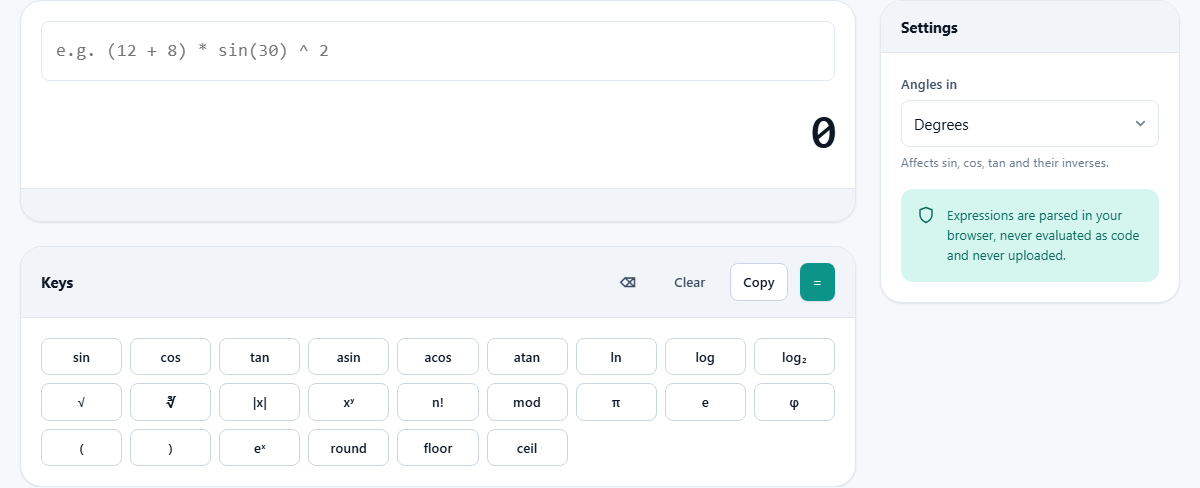
Typing an expression like you would write it on paper
Most online calculators work like a handheld one. You press a number, then an operator, then another number, and the screen updates after each step. This one works differently. You type the entire expression into a single input field, brackets and all, and the answer appears while you type.
That means you can write something like (12 + 8) * 3 and see the result before you press anything else. If a bracket is wrong, the answer disappears immediately. You do not have to finish and then hunt for the mistake.
The input field sits at the top. Below it, the current answer is shown in large type that updates with every keystroke. A placeholder in the input shows an example expression to get you started.
Numbers, operators and brackets
The four basic operations are the ones you expect: plus, minus, multiply and divide. You can type them from the keyboard or press the on-screen keys. Brackets group parts of an expression and are handled in the usual way: innermost first.
The caret symbol raises a number to a power. Typing 2^10 gives 1024. Powers follow the mathematical convention of grouping right to left, so 2^3^2 is treated as 2 raised to the power of 9, which is 512. This matches what a textbook would say.
The exclamation mark gives a factorial. Typing 5! gives 120. The percent symbol gives the remainder after division, sometimes called modulo. Typing 10%3 gives 1. You can combine any of these freely in one expression. For example, (2^3 + 5!) * 2 works exactly as you would expect, evaluating the power and the factorial first, then the addition, then the multiplication.
The function keys
The keypad is laid out the way a calculator is, not as a wrapping row of equal buttons. On the right sit the digits, in the arrangement every calculator on earth uses, with the operators down the side and a wide equals below them, so your hand learns where they are. On the left are the function keys, six across. Each one inserts a piece of text at the cursor: pressing sin types sin( into the input, ready for you to add a number and a closing bracket.
Trigonometric functions come in two rows. The first row has sin, cos and tan. The second has their inverses: asin, acos and atan. All six are affected by the angle setting in the side panel.
Logarithms come in four flavours. The ln button gives the natural logarithm, base e. The log button gives the common logarithm, base ten. The log2 button gives the binary logarithm, base two. And log_b takes two numbers, so logb(81, 3) gives 4 — any base you like.
Roots and rounding fill the remaining spots. The square root button inserts sqrt(. The cube root inserts cbrt(. The absolute value button inserts abs(. The three rounding functions are round, floor and ceil. Round goes to the nearest whole number. Floor always goes down. Ceil always goes up.
The exp button inserts exp(, which raises e to whatever power you give it. This is the inverse of ln.
Everything the keypad can do
The function keys cover far more than the six trigonometric ones. The three main functions sin, cos and tan each have an inverse, a hyperbolic form and an inverse hyperbolic form, and the three reciprocal functions — sec, csc and cot — are there with their inverses too. All of them respect the angle setting.
Roots and powers: square root, cube root, and an nth root that takes two numbers, so root(32, 5) gives 2. There are shortcuts for squaring, cubing and reciprocals, and the caret still raises anything to anything.
Whole-number work: round, floor, ceil and trunc, plus frac for the part after the decimal point and sign for whether a number is positive or negative. gcd and lcm take two numbers each and work on whole numbers.
Combinatorics: n! for factorials, and nCr and nPr for combinations and permutations, each taking two numbers. ncr(5, 2) gives 10 — the number of ways to choose two things from five when the order does not matter. npr(5, 2) gives 20, when it does.
Two-number helpers round it out: hypot for the hypotenuse of a right triangle, mod for the remainder, min and max, and pow as a written-out alternative to the caret. Converting between the angle units by hand is what todeg and torad are for.
A function given the wrong number of arguments says so plainly. Typing gcd(12) answers “gcd takes 2 numbers, not 1” rather than quietly returning something meaningless, which is the same principle the parser follows everywhere else on this page.
Constants you can use by name
Seven mathematical constants can be used by name. Pressing the pi key types the word pi into the expression, which evaluates to 3.14159 and so on with full precision. The e key gives Euler's number, about 2.71828. The phi key gives the golden ratio, about 1.61803. The tau key gives two pi, about 6.28319, which some people prefer for circle work. Typed by name there are also sqrt2, ln2 and ln10.
Using the name instead of typing an approximation matters when you chain operations. Each time you round a constant and feed the rounded version into the next step, the error grows. The built-in values carry about fifteen significant digits, which is the full precision of the number format the browser uses.
Degrees and radians
The Angles in dropdown in the side panel has two choices: Degrees and Radians. Degrees is the default. It affects sin, cos, tan and their inverses.
In degree mode, sin(90) gives 1, which is what most geometry problems expect. In radian mode the same expression gives about 0.894, because 90 radians is a very different angle from 90 degrees.
Switch to radians when you are doing calculus or working with formulas that assume radian measure. A full circle is 360 degrees or roughly 6.283 radians. If your textbook writes sin(pi/2), it expects radians.
Getting the mode wrong is one of the most common causes of a puzzling answer. If a trigonometry result looks wildly different from what you expected, the angle mode is the first thing to check. The setting stays wherever you left it until you change it.
The history and how to use it
Every time you press Enter or click the equals button, the current expression and its result are added to the history panel below the keys. The panel appears as soon as it has something to show.
Click any line in the history to load it back into the input field. This is useful when you need to run a long expression again with one number changed. Instead of retyping the whole thing, bring it back, change the one piece, and press Enter again.
The Clear button next to the history heading empties the entire list. The history is kept in your browser for the current session only. It is not saved between visits.
Why the expression is parsed, not blindly executed
There is a shortcut available to anyone building a calculator on a web page: hand the typed string straight to the language engine and let it run as code. It works, but it means whatever someone types into the box is executed as a program. That is a security problem if anyone ever shares a link that contains an expression, or pastes text they were sent by someone else.
This calculator takes a different path. It reads the expression with a proper parser. The text is broken into tokens: numbers, operators, function names, brackets. Those tokens are checked for structure. If they form a valid expression, the result is computed step by step. If they do not, the error message tells you what is wrong.
The practical benefit is that error messages actually help. An unmatched bracket is reported as an unmatched bracket, not as a cryptic system error. A misspelled function name is flagged by name. And nothing you type can do anything beyond arithmetic.
Precision and its limits
The calculator uses the same number format that every browser uses internally, which gives about fifteen to seventeen significant digits of precision. For everyday arithmetic and for homework, that is more than enough. For numbers beyond that range, the display switches to scientific notation.
Certain results are inherently imprecise. The tangent of values near ninety degrees grows without bound. Very large factorials exceed the format's capacity. The calculator does not pretend otherwise. It shows Infinity or NaN when the result is outside what the format can represent, which is the honest answer.
For most school and engineering work, fifteen digits is far more than you need. A bridge design might need four significant figures. A physics problem might need six. The calculator has headroom for both, and the trailing digits only become unreliable for numbers so large or so small that you would reach for specialised software anyway.
Keyboard shortcuts and the action buttons
The input field accepts anything you can type. Letters for function names and constants, digits, operators, brackets. Press Enter to commit the expression to the history. Press Backspace to delete one character at a time.
Above the keys panel sit four buttons. The backspace button deletes the last character. Clear empties the input. Copy puts the current result on your clipboard so you can paste it elsewhere. The equals button commits the expression to the history, exactly like Enter.
You can also type function names directly without pressing the on-screen keys. Typing sqrt(49) works the same as pressing the square root button and then typing 49).
Privacy and offline use
The parser and all its functions are part of the page itself. Once loaded, nothing is fetched from a server. You can disconnect from the network after the page appears and the calculator keeps working. No expression you type is sent anywhere.
There is no account, no tracking of what you calculate, and no data stored beyond your own browser session. For schoolwork, engineering problems, or quick conversions, the tab is all you need and closing it is all the cleanup there is. It works on a phone as well as a desktop, and the on-screen keys are sized to be easy to press on a touch screen.