
What pixel density tells you about a screen
This article explains what pixels per inch means, how the calculator derives it from a diagonal and a resolution, why the same resolution looks sharp on one screen and soft on another, and how to use the numbers when choosing a monitor, phone or television.
Why resolution alone says nothing about sharpness
A 4K display has 3840 pixels across and 2160 down, no matter what size it is. On a 27-inch desktop monitor that gives about 163 pixels per inch. On a 65-inch television the same resolution produces only 68 pixels per inch, less than half as dense. On a 6-inch phone it would be over 700. The resolution is identical in all three cases. The sharpness is completely different.
This is why the raw pixel count on a spec sheet is misleading. What actually determines how sharp a screen looks is the number of pixels packed into each inch of physical surface, which is called the pixel density and measured in PPI, pixels per inch. The Screen Size Calculator works this out for you from two numbers you already know: the diagonal size and the resolution.
Entering your screen's details
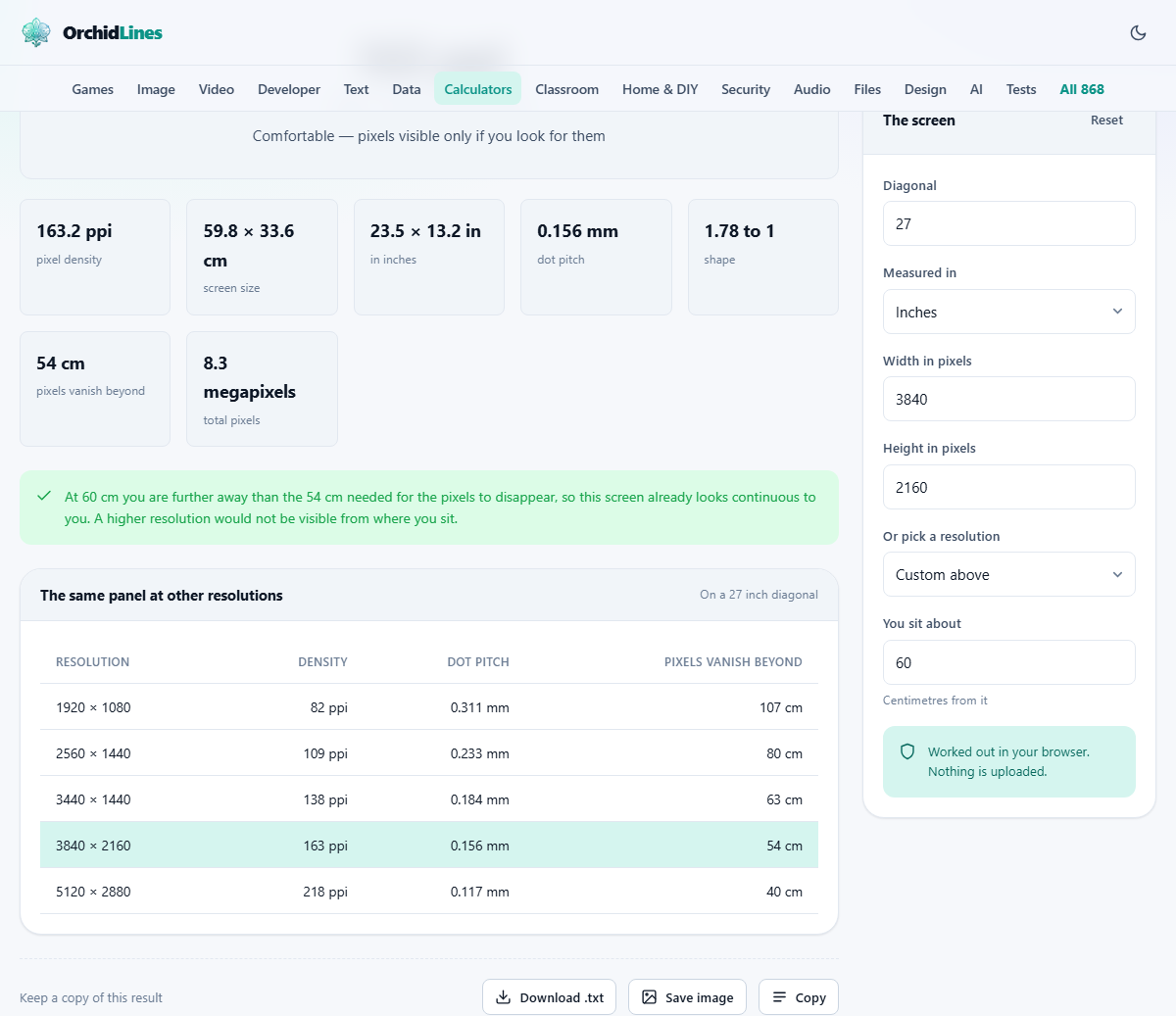
The side panel is headed The screen. The first input, Diagonal, takes the figure screens are sold by: the distance from one corner to the opposite corner. Below it, a dropdown labelled Measured in lets you switch between inches and centimetres.
Width in pixels and Height in pixels take the resolution. If you would rather pick from a list, the dropdown labelled Or pick a resolution fills both boxes for you. It offers common standards from old laptop panels through Full HD, QHD, ultrawide, 4K, 5K, 8K, and two phone resolutions. Choose Custom above to enter numbers that are not on the list.
A final input, You sit about, takes your viewing distance in centimetres. It defaults to 60, which is a typical arm's-length desk distance. The tool uses this figure to tell you whether you would actually be able to see individual pixels from where you sit.
How the density is calculated
The diagonal of the pixel grid is not the same as the diagonal of the screen. You find the pixel diagonal using the Pythagorean theorem: the square root of the width squared plus the height squared. For a 3840 by 2160 display, that comes out to about 4406 pixels measured corner to corner.
Divide that pixel diagonal by the physical diagonal in inches and you get the pixel density. For our 27-inch 4K example, 4406 divided by 27 gives roughly 163 pixels per inch. That single number is more useful than the resolution and the size put together, because it tells you directly how fine the detail is.
Real width and height in centimetres
A screen's diagonal tells you surprisingly little about how big it actually is, because the shape matters. A 34-inch ultrawide monitor is barely taller than a standard 27-inch display, even though the diagonal is seven inches greater. Most of the extra size goes sideways.
The calculator works out the true width and height from the diagonal and the aspect ratio implied by your resolution. For a 27-inch 16:9 panel, that comes to about 60 centimetres wide and 34 centimetres tall. These figures are useful when you are checking whether a new monitor will fit on your desk or inside a cabinet.
The aspect ratio is inferred from the resolution you entered, so it handles every shape automatically. A 21:9 ultrawide, a 16:10 productivity panel, and a nearly square old display all produce different width-to-height proportions from the same diagonal measurement, and the calculator accounts for each one.
Dot pitch and what it means
Dot pitch is the older way of expressing the same idea as pixel density, but from the opposite direction. Instead of counting how many pixels fit in an inch, it measures how wide one pixel is in millimetres. A screen with 163 PPI has a dot pitch of about 0.156 millimetres. Smaller is sharper.
You will still see dot pitch quoted in specifications for professional monitors and medical displays, where the figure carries regulatory weight. For everyday use, PPI is the more common measure and the easier one to compare across devices, but the two carry exactly the same information. Knowing one gives you the other. To convert, divide 25.4 by the PPI to get the dot pitch in millimetres, or divide 25.4 by the dot pitch to get the PPI. The calculator shows both so you do not need to do the conversion yourself.
The distance at which pixels disappear
The human eye can resolve about 60 pixels per degree of arc under good conditions. Beyond that density, individual pixels become invisible and the image looks continuous. The calculator uses this figure together with your pixel density to work out the viewing distance at which the pixels stop being visible.
If you sit closer than that distance, you can pick out individual pixels. If you sit farther away, extra density is wasted because your eyes cannot take advantage of it. For a 27-inch 4K monitor, the crossover is roughly 53 centimetres. At a typical desk distance of 60 centimetres, you are already past the point where more pixels would help, which is why 4K on a 27-inch panel is sometimes called retina-grade for desktop use.
Comparing screens side by side
The fastest way to compare two screens is to run the calculator once for each, note the PPI, and see which is denser. But density alone does not settle whether an upgrade is worth it, because viewing distance matters too.
A 1440p 27-inch monitor at 109 PPI sits at a desk where you are 60 centimetres away. A 4K 27-inch monitor at 163 PPI sits on the same desk. Both are sharp enough that you cannot easily see pixels, but the 4K panel renders text with noticeably smoother curves because it has 50% more pixels along each edge of every letter. Whether that difference justifies the price is a personal call, but the calculator gives you the numbers to make it with open eyes.
Scaling and what you actually see on screen
A high-density screen does not automatically give you more workspace. Most operating systems scale the interface up on dense displays so that text and buttons stay the same physical size they would be on a lower-density panel. The result is sharper text and sharper icons, but the same number of windows fitting side by side.
You can override the scaling and run a 4K monitor at native resolution with no scaling, which gives you an enormous desktop but makes text very small. Most people settle somewhere in between. The calculator tells you the density, and your operating system's display settings let you decide how to spend it: on crispness or on space. Understanding density helps you predict which scaling factor will feel natural before you buy.
Phones, tablets and television distances
The preset list includes two phone resolutions. Phones are held at about 25 to 35 centimetres, so they need much higher pixel densities to look sharp. A typical large phone at around 460 PPI is well past the threshold where the eye can see individual pixels at normal holding distance. Pushing beyond 500 PPI has diminishing returns.
Televisions sit at the other extreme. A 55-inch 4K set watched from three metres away has a pixel density of about 80 PPI, but at that distance 80 is more than enough. The rule of thumb for television viewing is to sit at a distance of about 1.5 times the screen height for 4K. The calculator can confirm this: enter the diagonal, the resolution, and your couch distance, and check whether the viewing distance exceeds the pixel-invisibility threshold.
Privacy and how the tool runs
The entire calculation runs inside your browser on your own device. No screen dimensions or viewing distances are sent anywhere. There is no account, no stored history, and no data that survives closing the tab. The Reset button in the panel clears all inputs back to their defaults.
The maths behind the tool is straightforward geometry and optics, and the numbers match what display-review sites publish independently. The preset list covers the most common resolutions on the market, but you can enter any resolution and any diagonal to model a screen that is not listed. If you are shopping for a new display, running a few different combinations through the calculator before you buy saves you from discovering that the numbers on the box do not mean what you thought they did.