
Getting real work done with a pomodoro timer
This article explains the pomodoro technique, walks through every control the timer offers, and shares the practical habits that separate people who use a timer from people who actually get more done because of one.
The method in one paragraph
Pick one task. Work on it for twenty-five minutes without stopping. When the timer goes off, take a five-minute break. After four of these rounds, take a longer break of fifteen minutes. That is the entire technique. It was invented in the late 1980s by a university student who used a kitchen timer shaped like a tomato, which is what pomodoro means in Italian. The power of the method has nothing to do with the specific numbers. It works because the breaks are compulsory. Most people can push themselves to start something if they know the clock will tell them to stop.
Starting a session
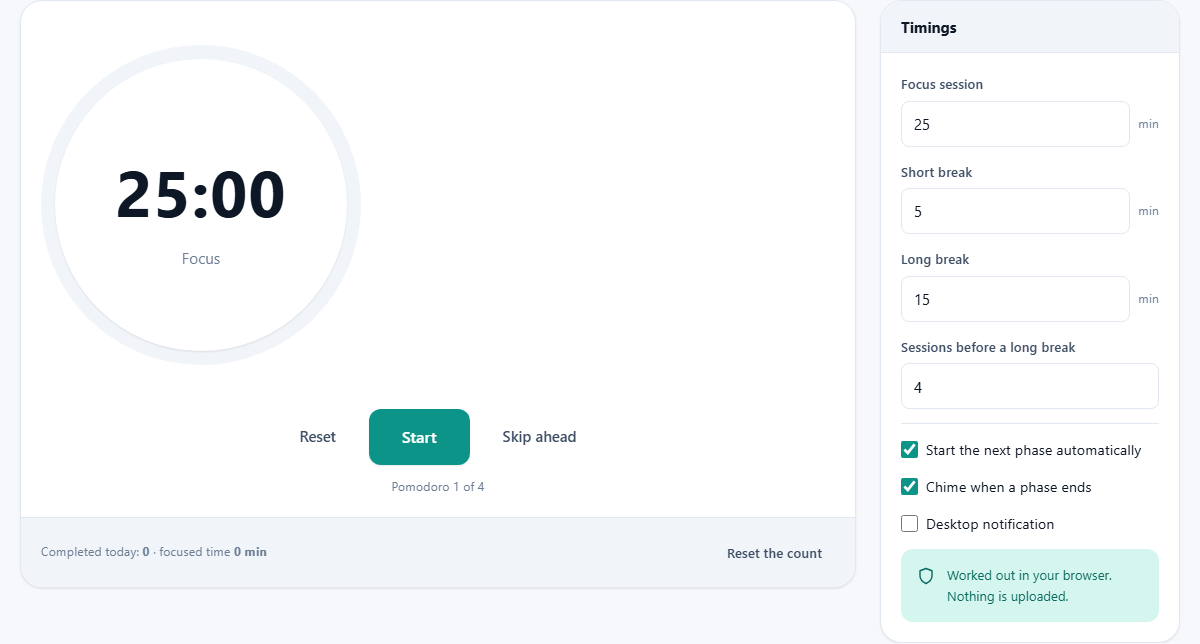
The timer opens showing 25:00 in a large ring with the word Focus underneath. Below the ring sit three buttons: Reset on the left, Start in the middle, and Skip ahead on the right. Press Start and the countdown begins. The ring fills as time passes, giving you a visual sense of how far through the session you are.
A pomodoro spent deciding what to work on is a wasted one. Choose your task before you touch the Start button. Write it on a piece of paper or say it out loud if that helps. The timer does not ask you what you are working on, because the decision is yours and adding a text box would only give you another thing to fiddle with instead of starting.
Breaks and the long break cycle
When the focus session ends, a chime plays and the timer switches to a five-minute break. The display changes colour and the label reads Break. After four focus sessions, the break becomes a long one, fifteen minutes by default. Then the cycle starts over.
The breaks are not optional extras bolted onto the sides of the real work. They are the core of the method. Standing up, looking out of a window, stretching, getting a glass of water: these are the things that keep the afternoon from collapsing into a fog of half-attention. A break spent scrolling your phone at the same desk is not a break. Leave the room if you can, especially on the long one.
The long break exists so your attention genuinely resets. Four rounds of focused work without a real pause leaves most people running on fumes. Fifteen minutes away from the screen is enough to come back ready for another full cycle. If you find that the long break is not restoring your energy, try making it twenty minutes or stepping outside for fresh air.
Adjusting the timings
The side panel has four number fields under the heading Timings. Focus session sets the length of the work stretch, defaulting to 25 minutes. Short break sets the rest period between rounds, defaulting to 5. Long break sets the extended rest, defaulting to 15. Sessions before a long break controls how many focus rounds happen before the long break arrives, defaulting to 4.
There is nothing sacred about any of these numbers. Deep technical work, like writing code or drafting a legal argument, often benefits from 45 or 50-minute sessions. Light administrative tasks, like clearing an inbox, may suit 15-minute bursts. Adjust the timings to match the kind of work you are doing. The rhythm matters more than the exact duration. You can also change the number of rounds before a long break. Some people prefer three shorter rounds with a break, while others push to five or six before stopping.
Auto-start, chime and desktop notifications
Three checkboxes sit below the timing fields. Start the next phase automatically, when ticked, means the timer rolls straight from a focus session into a break and from a break into the next focus session without you pressing a button. Some people prefer this because it removes the temptation to extend a break. Others prefer to start each phase manually so they have a moment to decide whether to continue.
Chime when a phase ends plays a sound at the transition. It is on by default. If you are wearing headphones and do not want an unexpected noise, uncheck it. Desktop notification, when turned on, asks your browser for permission to show an operating system notification when a phase ends. This is useful if you keep the timer in a background tab while working in another application.
How the timer stays accurate in a background tab
Browsers throttle timers in tabs you are not looking at. A naive countdown that fires every second will silently lose minutes when the tab is in the background. This timer avoids the problem by recording the target finish time as a real timestamp and checking the current time on each tick. Even if the browser delays a tick by several seconds, the displayed time jumps to the correct figure as soon as the tick fires.
The practical result is that you can start the timer, switch to another tab or another application entirely, and come back to find the time accurate. The chime may arrive a moment late because the browser waits for the tab to wake up, but the time shown is always right.
The daily count and focused time
At the bottom of the timer panel, a line reads Completed today followed by a number, and focused time followed by a total in minutes. Each time a focus session finishes, the count goes up by one and the focused time increases by the length of that session. A button labelled Reset the count sets both back to zero.
The count is stored on your device and resets each day. A stale count from last week would be misleading, so the timer deliberately does not carry it over. Most people manage between eight and twelve genuine pomodoros in a full working day. That number is a much better planning unit than hours at the desk, because it measures stretches of genuine attention rather than time spent sitting in a chair.
Dealing with interruptions
Interruptions are the enemy of the method, and the traditional rule for handling them is strict. If something comes up during a focus session, note it down and deal with it after the round ends. If it genuinely cannot wait, reset the pomodoro and start fresh rather than pausing it. A half-attended round is worth less than no round at all.
This sounds harsh, but the harshness is the point. Once you accept that an interruption costs you a full session, you start protecting your focus time more aggressively. You close chat windows. You put your phone face down. You tell people you will be free in fifteen minutes. The timer does not enforce any of this. It simply counts down and lets you discover for yourself how much of your day is actually uninterrupted.
Using the count to plan tomorrow
After a few days of tracking, you will know your natural daily capacity in pomodoros. If a writing task takes about three sessions and you average ten sessions a day, you can plan a realistic schedule for the week. This is far more honest than estimating in hours, because an hour at the desk is not the same as an hour of focused work and everyone knows it.
The daily count also reveals patterns. If your count drops every Wednesday, you might notice that Wednesday is your meeting-heavy day. If your last session of the day is always the one that gets interrupted, you might schedule lighter work for that slot. None of this requires a sophisticated tracking app. A simple number that resets each morning is enough.
Privacy and where your data stays
The timer runs entirely in your browser on your own device. Nothing is uploaded. The session count is stored locally and resets daily. There is no account, no login, and no server keeping a record of how many rounds you completed.
This matters more than it might seem. Productivity tools that require a login tend to become another source of distraction. You end up checking your statistics page instead of starting the next session. A timer that does nothing but count down and chime is deliberately boring, and that is exactly what makes it useful.