
How to plot formulas, find roots and measure area with a browser-based graphing calculator
A graph on its own shows shapes. The real work starts when you need exact numbers: where a curve crosses zero, where it changes direction, where two curves meet, and how much area sits between the curve and the axis. This article walks through every part of the graphing calculator, from typing a formula to reading the answers it produces, with enough background to understand what the numbers mean and when to trust them.
What the calculator does beyond drawing a line
Most graphing tools stop at the picture. You get a curve on a grid and then you squint at it, trying to read off the interesting points by eye. That is fine for a rough idea and hopeless for anything precise.
This calculator draws the curve and then works out the numbers behind it. It finds every place the first curve crosses the horizontal axis, every turning point, and every place the first two curves meet. It also reads the value at any point you choose and computes the signed area between two limits. Each answer is checked by putting it back into the formula, and that check is printed beside it so you can judge the accuracy yourself.
All of this runs in your browser. The formula never leaves your device, there is no server in the loop, and the page works offline once it has loaded.
Writing a formula the way you would on paper
The first input is labelled First formula, y = and it accepts the same shorthand you would write by hand. You can leave out the multiplication sign, so 2x means two times x, 3sin(x) means three times the sine of x, and x(x+1) works as you would expect. Powers use the caret symbol, so x^3 is x cubed.
The set of built-in functions covers the ground most people need. Sine, cosine and tangent are there, along with their inverses. Logarithms come in two flavours: log for base ten and ln for the natural one. Square root, absolute value, floor, ceiling, exponential, and the two-argument min and max round out the list. The constants pi and e are recognised by name.
Two more formula boxes sit below the first, labelled Second formula and Third formula. Both are optional. Filling in the second one makes the calculator find where the first two curves cross each other and list those meeting points in a table.
Moving around and zooming the view
Drag the graph to slide it in any direction. Scroll up to zoom in and scroll down to zoom out. Two buttons, Zoom in and Zoom out, do the same thing for anyone who prefers clicking.
Fit the curve adjusts the vertical range so the curve fills the canvas nicely. It keeps the horizontal range you set and stretches or shrinks the top and bottom to suit whatever is on screen. Start again puts everything back to the default view.
You can also type exact edges into the Left edge and Right edge fields. A checkbox labelled Fit the up-and-down range to the curve does the auto-fit by default. Turn it off and two more fields, Bottom and Top, appear so you can lock the vertical range manually. This is useful when you want the same scale on both axes or when you need to see a region the auto-fit skipped.
Crossings, turning points and meeting points
Below the graph you will find a table of crossings. These are the places where the first curve crosses the horizontal axis, which means the formula equals zero at those points. The calculator samples the curve across the visible range, finds every place the sign changes, and closes in on each one until the answer stops moving. It then puts that answer back into the formula and prints the check value beside it, so you can see how close to zero it really is.
A curve that touches the axis without crossing it is not listed as a crossing. A parabola that sits on the axis at its lowest point, for example, is reported as a turning point at height zero, which is the accurate description of what is happening.
Turning points are the peaks and valleys of the first curve. Meeting points appear when a second formula is entered and show where the two curves share the same height at the same position.
Reading values and measuring area
The field labelled Read the value at x = lets you type a specific position. The calculator evaluates every active formula at that point and shows the results. This is handy for checking a particular input or for comparing two formulas at the same place.
Two fields, Area from x = and to x =, define a range for the signed area under the first curve. The word signed matters here. Any part of the curve that sits below the axis counts as negative area, so a full wave of a sine curve sums to zero. If you need the total space between the curve and the axis regardless of which side, split the range at the crossings and add the pieces as positive numbers.
A table of values fills the bottom of the results. It divides the visible range into evenly spaced rows, and you can control the count with the Rows in the table field. The default is eleven, and you can go up to sixty.
Degrees, radians and the angle setting
A dropdown labelled Angles in lets you switch between Radians and Degrees. This changes what the sine, cosine and tangent functions expect as input. In radians, a full cycle of sin(x) stretches from zero to about 6.28. In degrees the same cycle runs from zero to 360.
The choice only affects the trigonometric functions. Everything else, including the exponential and logarithmic functions, stays the same regardless. If you are working from a textbook, match the setting to whatever the book uses. If you are exploring on your own, radians are the standard in mathematics and degrees are the standard in everyday angles and navigation.
Preset examples and what they show
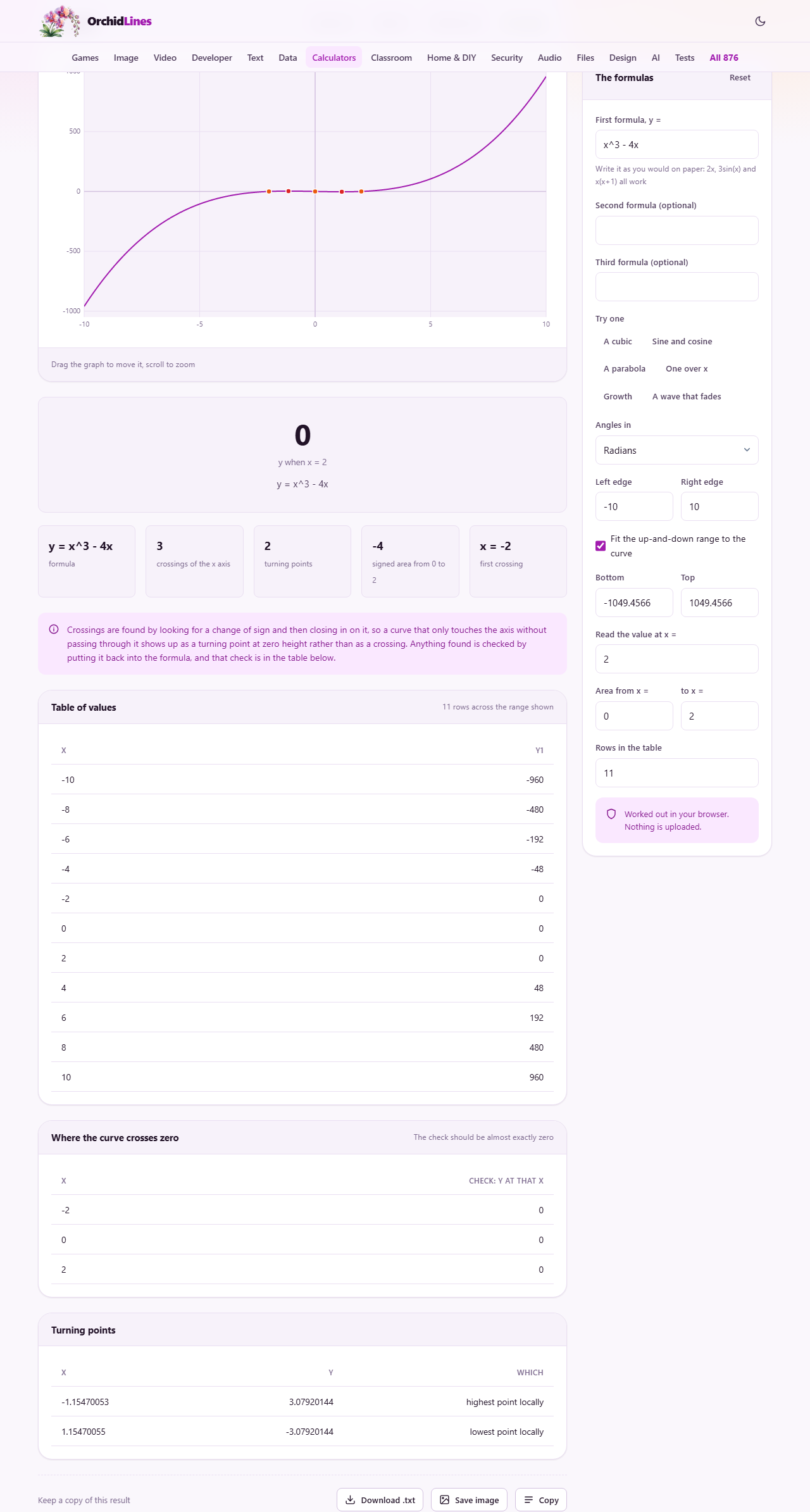
Six quick buttons under the formula boxes load ready-made formulas. A cubic shows a curve with two crossings and two turning points. Sine and cosine loads both at once so you can see where they meet. A parabola gives a classic U-shape with two roots. One over x demonstrates a curve with a gap at zero where the function is not defined. Growth puts an exponential on screen. A wave that fades combines an exponential decay with a sine, which is the kind of shape that comes up in physics and engineering.
These are not decoration. Each one exercises a different part of the calculator, so they double as a way to check that everything is working as expected. Try one, read the tables below the graph, and you have a quick feel for how the tool reports its findings.
Gaps, asymptotes and curves that misbehave
Not every formula produces a smooth line from edge to edge. One divided by x shoots toward infinity as x approaches zero from either side. The calculator handles this by lifting the pen rather than drawing a vertical stripe through the middle. That stripe is not part of the curve, and drawing it would make the graph lie about the shape.
The same happens wherever a formula produces a value that is not a real number, such as the square root of a negative input or the logarithm of zero. The curve simply has a gap there. If you see a gap you did not expect, hover over that region of the graph and the cursor readout at the bottom of the panel will show the coordinates, which can help you work out what went wrong.
Functions that grow very fast, like exponentials, can push the vertical range so far that the interesting part of the curve becomes a flat line at the bottom. Use Fit the curve to bring it back into view, or set the vertical limits by hand.
Numerical answers versus algebraic ones
Every answer this calculator gives is a decimal number, not a symbolic expression. A crossing at the square root of two is reported as 1.4142135624, not as a symbol. This is how graphing calculators have always worked. They close in on the answer by repeated narrowing until the digits settle, which is called a numerical method.
This approach shines when the formula has no neat closed-form answer, which is the case more often than not. A cubic with awkward coefficients, a transcendental equation mixing exponentials and sines, or anything where the textbook answer involves special functions all get the same treatment and the same precision.
If you need the answer in symbols instead, you need a computer algebra system. The numerical answer here tells you what the number is, which is usually what you need for practical work.