
Working out your grade point average and what the numbers mean
This article explains how a GPA is calculated, walks through each control on the calculator, and covers the details that trip students up most often: credit weighting, the difference between term and cumulative averages, switching between scales, and converting a ten-point CGPA to a percentage.
What a grade point average actually is
A GPA is a weighted average. Each subject you take earns a grade, and that grade is turned into a number. That number is then multiplied by the credits the subject carries. Add up all those products, divide by the total credits, and you have your grade point average.
The weighting is the part people forget. Two subjects with the same letter grade do not contribute equally if one carries more credits than the other. A five-credit core course pushes the needle five times as hard as a one-credit elective. This is why a bad mark in a small subject barely shows, while a bad mark in a heavy one can drag the whole average down noticeably.
Choosing the right scale before you start
The Scale selector offers four options. The 4.0 scale is the standard in most of the United States. The 10.0 scale is widely used across India. A 5.0 scale appears in some systems where honours or advanced courses can earn more than a 4.0. And a straight-percentage mode lets you enter raw numbers instead of letter grades.
Pick the scale before you enter any grades, because the grade options in each subject row change to match. On the 4.0 scale you see A, A-minus, B-plus and so on. On the 10.0 scale the letters and their point values follow the Indian grading pattern. Switching the scale after you have filled in a row does not break anything, but it can shuffle the letter assignments, so it is easier to get it right at the start.
Adding subjects and their credit weights
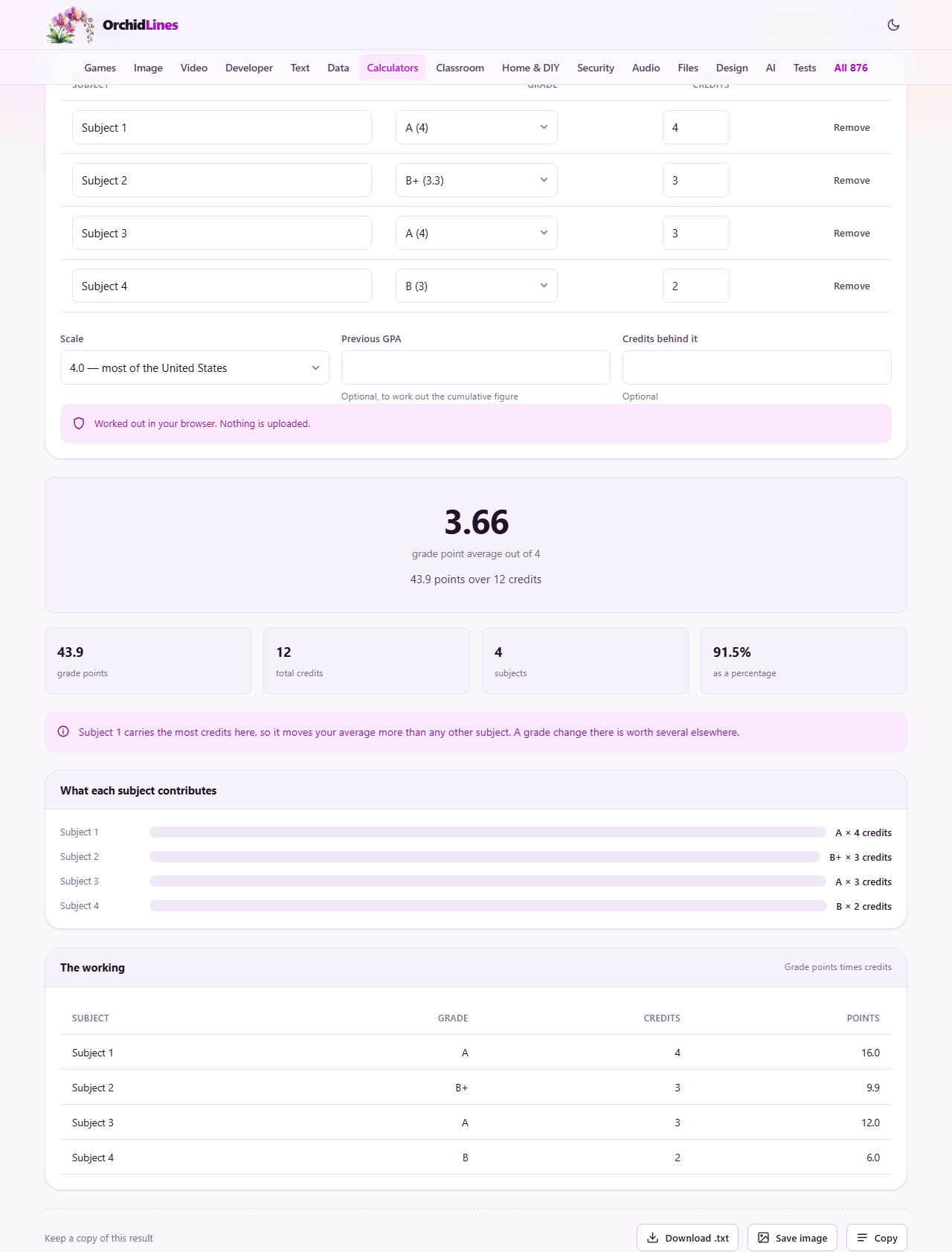
Press the Add a subject button and a new row appears. Each row has three fields: a name, a grade and a credit count. The name is only for your own reference and does not affect the calculation at all. It is there so you can tell which row is which when you have a full semester listed.
The grade is chosen from a dropdown that matches the scale you selected. The credits field takes a number, and this is the one that matters most. A four-credit subject counts twice as much as a two-credit subject. Get this number from your course listing or transcript. If you are unsure, check the syllabus. A wrong credit count will shift the average more than a wrong grade on a light subject would.
Reading the result as it updates
The result updates as you type. There is no calculate button to press. As soon as you have at least one subject with a grade and a credit count, the GPA appears below the subject list. It shows the number on your chosen scale, the total credits counted, and the sum of quality points, which is the total of each grade times its credits.
If you are on the 10.0 scale, a percentage equivalent appears as well, calculated by the common rule of multiplying the average by 9.5. Keep in mind that this conversion is approximate. Different institutions use different multipliers, and some have their own lookup tables. Always check your own institution's rule before putting that figure on a form.
Building the cumulative average across semesters
Most students care about two numbers: the term GPA for the current set of courses, and the cumulative GPA that stretches back to the start of their studies. The calculator handles both.
Below the subject list are two optional fields: Previous GPA and Credits behind it. Enter the cumulative average you had before this term and the total credits it was based on. The tool blends the new subjects into that history properly, weighting the old and the new by their respective credit totals. This gives a true cumulative figure rather than a rough average of two averages, which is a different and less accurate number.
If you leave those fields empty, the result is purely for the subjects you entered, which is your term GPA. Fill them in and the result becomes the cumulative figure. You can try both in seconds to see how much this term moves your overall standing.
Why a single strong semester cannot always rescue a low average
Credit weighting applies to whole semesters as well as to individual courses. If you have a cumulative GPA built on a hundred credits and you take fifteen credits this term, your new grades only account for about thirteen per cent of the total. Even a perfect term will raise the cumulative average by a limited amount.
This arithmetic is worth understanding early. The more credits that sit behind your current average, the harder it is to move in either direction. A student with thirty credits behind them can shift their GPA dramatically in one term. A student with ninety credits behind them cannot, no matter how well they do. Planning ahead, rather than counting on a rescue semester at the end, is the practical takeaway.
Weighted courses and the 5.0 option
Some high schools and universities score advanced or honours courses on a higher maximum. An A in a regular course might be 4.0, but an A in an advanced course might be worth 5.0. This rewards students for taking harder classes without penalising them for the difficulty.
If your institution uses this system, choose the 5.0 scale and every letter moves up with it, so an A is worth 5.0 rather than 4.0. The scale is a setting for the whole page, though, so a list that mixes 4.0 courses with 5.0 ones cannot be built out of letters. For that case switch to Straight percentages, which swaps each grade dropdown for a plain number box, and type the grade point each course actually earned.
Failed and repeated courses
Institutions disagree on what happens when you fail a course and retake it. Some keep the original grade in the cumulative average alongside the new one, which means the failure still pulls the number down even after you pass on the second attempt. Others replace the old grade entirely, which is more forgiving.
This calculator counts whatever you enter. If your institution replaces, leave the failed attempt out of the list and only enter the passing grade. If your institution keeps both, enter both rows with their respective credits. Either way, the tool does the arithmetic faithfully. The rule it cannot know is which policy applies to you, so check that detail with your registrar.
Trying different scenarios before results are final
One of the most practical uses of a GPA calculator is planning ahead. If you still have exams coming up, enter your best guess for each grade and see where the average lands. Then swap in your worst-case grades and check the floor. The gap between the two tells you how much room you have.
You can also try dropping a course. Remove it from the list and watch what happens to the average. If a low grade in a heavy subject is dragging you down, seeing the number without it can help you decide whether to withdraw before the deadline, if your institution allows that. The tool updates the moment you change anything, so testing half a dozen scenarios takes less than a minute.
Students applying to graduate programmes or scholarships often have a target GPA in mind. Enter your current subjects and adjust the grades until the cumulative figure hits the target. That tells you the combination of results you need, and whether the target is still realistic given where you stand today.
Your subject list stays on this device
The page saves your subject entries to your browser's local storage as you type. If you close the tab and come back later, the list is still there, ready for you to update as new results arrive. This means you can build your GPA across a term without re-entering everything each time.
Nothing is sent to a server at any point. Your grades, your credit counts and your cumulative history remain on your own device and nowhere else. The Reset button clears the saved copy and brings back the four example subjects, which is the quickest way to start a fresh list.