
Adding and subtracting lengths of time without losing seconds
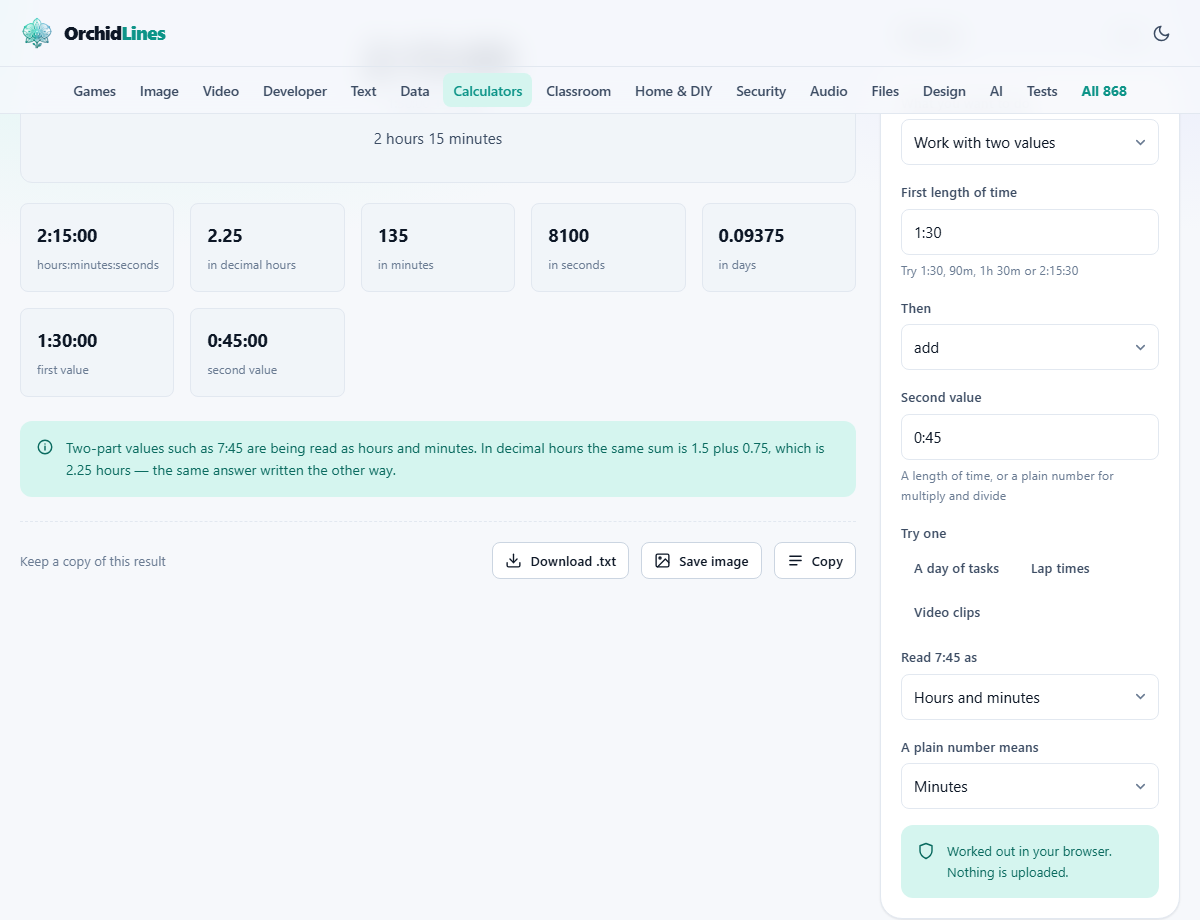
Hours and minutes look like decimal numbers and are not. Adding 1:30 and 0:45 gives 2:15, not 2.15 or 1.75 or any other figure a pocket calculator would show. This article walks through every control on the Time Duration Calculator, works through a real example with concrete numbers, and explains the places where time arithmetic trips people up.
Who needs a time calculator and why
Anyone who tracks hours runs into time arithmetic sooner or later. Freelancers totalling a week of logged hours, coaches adding up lap times, video editors measuring a cut list, payroll clerks converting timesheets into decimal hours for an invoicing system. The common thread is that a regular calculator treats the colon in 1:30 as something it cannot parse, and a spreadsheet handles durations only if every cell is formatted correctly.
This tool accepts a time in almost any format you are likely to have it -- 1:30, 90m, 1h 30m, or 2:15:30 -- and gives back every other format at once. It also handles bulk lists, so you can paste a column of times straight from a spreadsheet and get a total, an average, the longest entry, the shortest, and a running total down a table.
The two modes: two values or a whole list
The dropdown labelled What you want to do at the top of the panel offers two starting points. The default, Work with two values, shows two input fields and an operation selector. The second, Total a whole list, replaces both fields with a single text area where you can type or paste one duration per line.
When working with two values, the Then dropdown offers five operations. You can add two durations, take away the second from the first, multiply a duration by a plain number, divide a duration by a plain number, or ask how many times one duration fits into another. That last one answers questions like how many 45-minute lessons fit in a six-hour school day.
The list mode is built for pasting. Copy a column from a spreadsheet, drop it into the text area, and the tool reads each line. If a line has a label on it, like Design work, 2:15, the label is kept and shown beside the parsed value. Lines without a recognisable time in them are reported, not silently dropped.
Every way to type a time
Flexibility with input formats is the difference between a useful tool and an annoying one. The First length of time and Second value fields accept all of these: 1:30 for one hour thirty, 90m for ninety minutes, 1h 30m for one hour and thirty minutes, 2:15:30 for two hours fifteen minutes and thirty seconds. You can even type an overflowing figure like 1:75, which is read as two hours and fifteen minutes, because that is plainly what was meant.
Two settings below the main inputs resolve genuine ambiguity. The Read 7:45 as dropdown decides whether a bare colon means hours-and-minutes or minutes-and-seconds. On a timesheet it is almost always hours and minutes; beside a race result it is minutes and seconds. The A plain number means dropdown says whether typing 90 with no unit letter means ninety minutes, ninety hours, or ninety seconds. Minutes is the default, and it is the right answer most of the time.
A worked example: totalling a freelancer's day
Suppose you logged five tasks: Emails 0:35, Design work 2:15, Lunch 0:45, Client call 1:05, and Write-up 1:20. Switch to the list mode, paste those five lines, and the output shows a total of 6:00, or six hours. The average per task is 1:12, the longest is 2:15 (Design work), the shortest is 0:35 (Emails), and a running-total column shows how the day accumulated.
The decimal hours figure reads 6.00, which is the number a payroll or invoicing system wants. If the total had been 5:45, the decimal figure would be 5.75, not 5.45. Getting that conversion wrong -- typing 5.45 into a timesheet instead of 5.75 -- loses fifteen minutes every time it happens, and it happens a lot when people do the conversion in their heads.
You can also try this with the sample data built into the page. The Try one row offers three presets: A day of tasks, Lap times, and Video clips. Each fills the list area with realistic data so you can see the output before typing your own.
Understanding the output
Every result is shown in multiple forms at once. You always see the answer as hours, minutes and seconds, as decimal hours, and as a total number of minutes. For list mode, you also get the average, the longest and shortest entries, and a running-total column.
This matters because different systems want different formats. Payroll software wants decimal hours. A video editor wants minutes and seconds. A project tracker might want hours and minutes. Instead of converting by hand, the output puts every reading side by side so you take the one you need.
A negative answer is possible and is shown with a minus sign. If you take away a longer time from a shorter one, the result is negative. It usually means the two values are the wrong way round, but the tool does not stop you, because negative durations are real things in scheduling.
The 24-hour trap in spreadsheets
Add a column of hours in a spreadsheet and 25 hours often shows as 1:00. The cell is formatted as a clock time, and a clock rolls over at midnight. The spreadsheet fix is to put square brackets round the hours in the format string, which most people do not know about. The fix here is that nothing rolls over at all. A total is a length of time, not a time of day, so it keeps counting and says how many days it comes to.
This is a genuine source of billing errors. Someone adds up a long week, the cell quietly wraps past 24, and the total reads seven hours short. The person sending the invoice does not notice because the number still looks like a reasonable day. Pasting the same data into this calculator catches the problem immediately because 31:15 shows as 31:15, not 7:15.
Common mistakes to avoid
The biggest mistake is confusing decimal hours with hours and minutes. 7.75 hours is seven hours and forty-five minutes, not seven hours and seventy-five minutes. 7.45 hours is seven hours and twenty-seven minutes, not seven hours and forty-five minutes. The calculator shows both readings side by side, so you can pick the right one without doing the conversion in your head.
Another common error is mixing up the colon interpretation. If you are timing laps and type 1:30 expecting one minute thirty seconds, but the setting is on hours and minutes, you will get ninety minutes instead. Always check the Read 7:45 as setting before you start.
Finally, beware of averaging times by adding them and dividing by hand. 1:30 plus 1:00 is 2:30, not 2.30, so dividing by two gives 1:15, not 1.15. The list mode computes the average for you and sidesteps this entirely.
When this tool is the wrong choice
This calculator works with lengths of time, not times of day. If you need to know what time it will be three hours and forty minutes from now, that is a clock calculation and involves time zones and daylight saving. If you need to find the gap between two clock times -- say 9:15 AM and 4:45 PM -- subtract them first to get a duration, and then this tool can work with the result.
It also does not handle dates. The difference between two calendar dates measured in working days, accounting for weekends and holidays, is a different kind of problem entirely. And it is not a stopwatch or timer; it works with values you already have, not with live events.
Privacy and where the arithmetic runs
Every calculation happens in your own browser on your own device. Nothing you type or paste is sent to any server. You can confirm this by disconnecting from the internet after the page has loaded; the calculator still works exactly as before.
This matters particularly for timesheet data. The hours a team logged, the rates attached to those hours, and the client names in the labels are all things that belong to the people involved and their employers. Running the arithmetic locally means none of that data passes through anyone else's systems, and there is no account, no login, and no sign-up required to use the tool at any point.