
Pixels, DPI, and print sizes: getting a sharp print from a digital photo
A 12 megapixel photo sounds like more than enough for any print, until you try to fill a poster and the result comes out soft. The relationship between pixels, dots per inch, and print size is simple arithmetic, but the details around viewing distance, paper shape, and file metadata catch people out. This article covers the calculator's three modes, explains every control, works through examples, and discusses the places where the numbers mislead. All the maths runs on your own device.
The basic relationship between pixels and print size
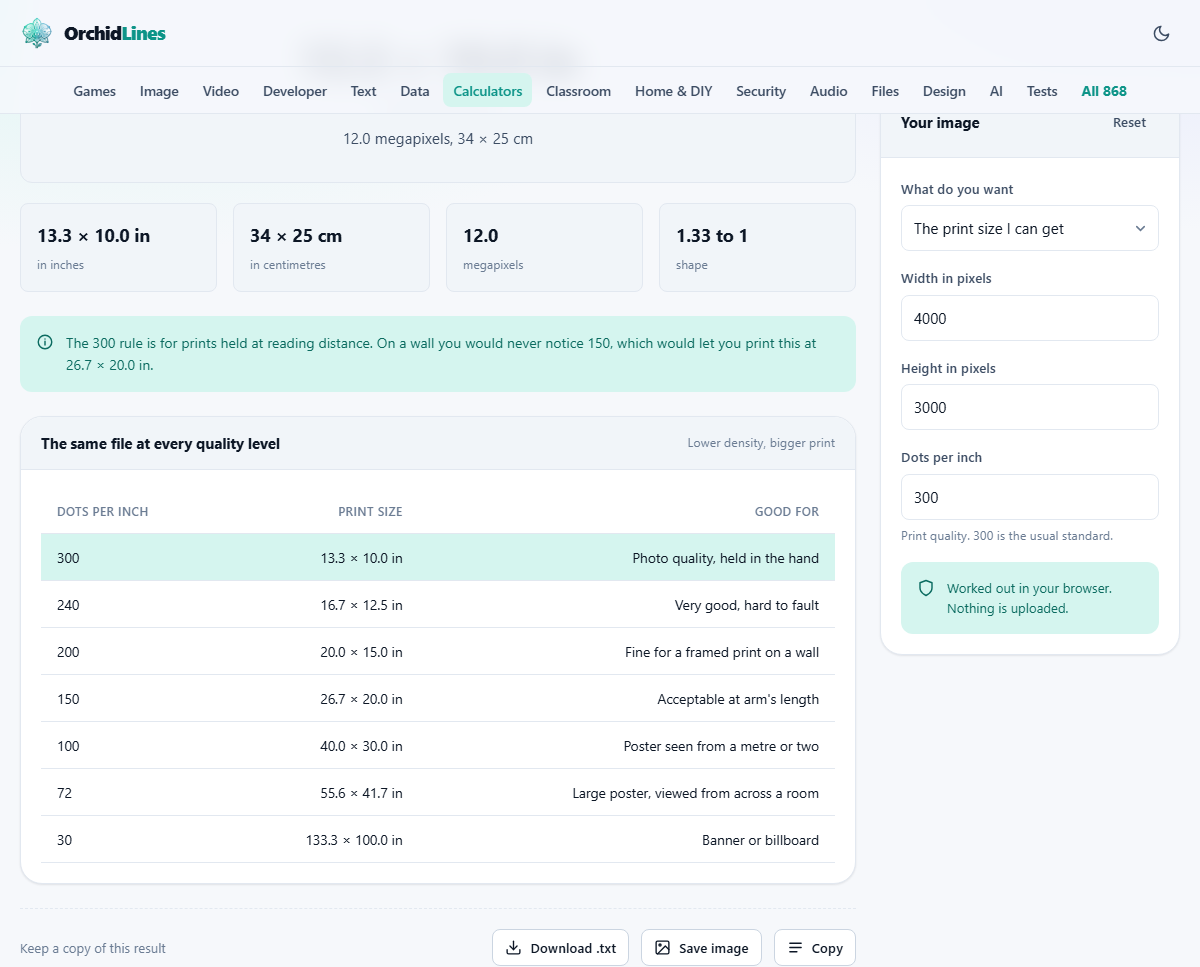
A digital image is a grid of pixels. A printer lays down dots of ink. Dots per inch, abbreviated DPI, tells the printer how many dots to squeeze into each inch of paper. Divide the pixel count by the DPI and you get the print size in inches. An image that is 4000 pixels wide, printed at 300 DPI, comes out 13.3 inches wide. Print the same image at 150 DPI and it doubles to 26.7 inches, but each dot now covers a larger area on the paper, so fine detail looks softer.
This is the entire formula. There is no way around it and no setting that creates detail where none exists. Upscaling a small image in software makes it bigger on screen but does not add new information; the printer just spreads the same pixels over more paper.
The three modes of the calculator
The dropdown labelled What do you want has three options. The print size I can get is the default. You enter the pixel dimensions and the DPI, and it tells you the largest print at that quality. The pixels I need for a size reverses the question: you name a paper size and a DPI, and it tells you how many pixels your image must have. The quality at a size I want takes pixel dimensions and a print size and reports the DPI you would get, so you can judge whether the result will look sharp enough.
Each mode shows and hides fields to match. In the first mode the print-size fields are output. In the second, the pixel fields become output. In the third, the DPI field becomes output. You can switch freely between them without losing any numbers you have entered.
The input controls
Width in pixels and Height in pixels take the dimensions of your image. You can find these in your camera settings, in the file properties on your computer, or by opening the image in any viewer. The calculator multiplies them together and shows the megapixel count for reference.
Dots per inch sets the print quality. The default is 300, which is the industry standard for photographs and documents held at reading distance. Lower values produce larger prints at lower quality. Higher values produce smaller but sharper prints, though anything above 300 is wasted on normal paper because the eye cannot resolve that much detail at reading distance.
Or pick a paper size is a dropdown with common formats: A6 through A0, the common photo sizes 4 by 6, 5 by 7, and 8 by 10, US Letter, and two poster sizes. Picking one fills in the print width and height automatically. If your size is not listed, leave this on Custom size below and type the numbers yourself. Print width and Print height take the dimensions, and Measured in lets you choose inches, centimetres, or millimetres.
Worked example: how big can a 12 megapixel photo print
A typical 12 megapixel camera produces images at 4000 by 3000 pixels. Enter those values and leave the DPI at 300. The calculator reports a maximum print size of about 13.3 by 10 inches, which is a little larger than an 8 by 10 photo and a comfortable size for a framed desk print.
Now change the DPI to 150. The print doubles in each direction to about 26.7 by 20 inches. At 150 DPI the dots are visible if you press your nose against the paper, but at normal wall-viewing distance of a metre or so the print looks perfectly fine. Drop to 75 DPI and you can fill a poster at 53 by 40 inches, suitable for a trade show banner seen from across a booth.
The calculator may also show a comparison table listing your print size at several DPI levels, so you can read off these figures without changing the input.
Worked example: what resolution do you need for A4
Switch the mode to The pixels I need for a size. Pick A4 from the paper dropdown, which fills in 210 by 297 millimetres. Leave the DPI at 300. The calculator reports that you need about 2480 by 3508 pixels, roughly 8.7 megapixels. Any modern phone camera exceeds that, so printing sharp A4 photos from a phone is well within reach.
For a 24 by 36 inch poster at 300 DPI, you would need 7200 by 10800 pixels, or about 78 megapixels. No consumer camera shoots that natively. But recall that a poster is viewed from several feet away, so 150 DPI is more than adequate, halving the requirement to about 19.5 megapixels, which many mid-range cameras deliver.
Viewing distance and why 300 DPI is not always the answer
The 300 DPI standard comes from the resolving power of the human eye at about 25 centimetres, roughly the distance you hold a book or a photograph. At that distance, dots closer together than about 300 per inch merge into smooth tones. Move further away and the threshold drops. At half a metre, 150 DPI looks sharp. At two metres, 75 DPI is enough. A roadside billboard printed at 10 to 15 DPI looks crisp from the far side of the street.
This means that demanding 300 DPI for a wall poster is wasteful. You either need a very large file or you make a smaller print than necessary. The right approach is to estimate the viewing distance and scale the DPI to match. As a rule of thumb, the required DPI halves each time the viewing distance doubles.
The DPI number stored inside a file
Image files carry a DPI tag in their metadata, often set to 72 or 96 by default. This tag is a suggestion to printers and layout software about how large to display the image. It does not change the pixel count, does not add or remove detail, and is not a measure of quality. A 4000 by 3000 image tagged at 72 DPI is identical in content to the same image tagged at 300 DPI. The only difference is that software reading the tag will lay it out at a different physical size on the page.
This is why changing the DPI in your image editor without resampling does not improve print quality. The pixels are the pixels. What matters is how many of them land on each inch of paper when you actually print.
When the photo does not fit the paper
Most cameras shoot at a 3:2 aspect ratio. Common paper sizes have different shapes: A4 is closer to 1.41:1, letter is about 1.29:1, and an 8 by 10 print is 1.25:1. When the shapes do not match, you either crop part of the image or leave white borders on two sides. The calculator flags this mismatch and shows how much of the image falls outside the paper, or how much border you would get, so you can decide whether to crop or to add margins before sending the job to the printer.
Commercial print shops usually ask for a few millimetres of bleed beyond the trim line. If you are sizing an image for professional printing, add that margin to your paper dimensions before checking whether your pixel count is sufficient.
Common mistakes when preparing files for print
The biggest mistake is assuming that a large file means a sharp print. A 20 megabyte JPEG might be 4000 by 3000 pixels at high compression, or 2000 by 1500 pixels at low compression. File size in megabytes tells you very little; pixel dimensions are what count.
Another frequent error is upscaling a small image and believing the extra pixels add detail. Photoshop or any other editor can resize a 1000-pixel-wide file to 4000 pixels wide, but the result is blurry because the software invents smooth gradients where real detail should be. The original pixel count sets the ceiling on how large you can print with acceptable quality.
Finally, mixing up centimetres and inches causes wrong estimates. An A4 sheet is 21 centimetres wide, not 21 inches. Entering the number in the wrong unit produces a DPI figure that is off by a factor of 2.54.
Privacy and device-only processing
The calculator runs entirely in your browser. No pixel dimensions, print sizes, or DPI values leave your device. You do not need to upload your image; you only enter the numbers. The page works offline after loading and does not ask for an account or store any data.