
How discount maths really works and why stacked offers never add up
A sale sign promises 20% off, then 10% more at the register. Most people add those and expect 30% off, but the real saving is only 28%. This article explains why, walks through every mode the calculator offers, shows a worked example for each, and points out the mistakes that cost shoppers and retailers alike. Every figure is worked out right on your own device.
What the calculator does
The Discount Calculator takes a price and a percentage and gives you the sale price, the amount saved, or the original price before a markdown. It also handles two discounts applied one after the other and tells you the single equivalent percentage. A separate mode works the other way round: you name the price you want to hit and it tells you the percentage needed to get there.
Results update as you type, so you can try several offers side by side without pressing any button. A currency selector lets you see the answer in your local symbol, and a tax field adds tax after the discount if your country charges it on top of the shelf price.
Choosing what to work out
The dropdown labelled What are you working out has five options. The sale price is the default: enter the full price and the discount percentage and you see what you pay. The price before the discount reverses the question: you know the sale price and the percentage, and it recovers the original. What percentage off this is takes two prices and tells you the discount rate between them. Two discounts one after the other handles stacked offers, and The discount I need to hit a price works backwards from a target.
Each mode shows only the fields it needs. When you pick two stacked discounts, a Second discount field appears. When you pick the target mode, the price field becomes the original and a new field takes the price you want to reach.
The controls on the panel
Price is the starting point in most modes. It accepts any positive number, including decimals for cents or pence. Discount is the percentage off, entered as a plain number without the percent sign. Second discount appears only in the stacked mode and works the same way.
Tax to add afterwards is optional. Leave it at zero when the shelf price already includes tax, which is the case in most of Europe and much of Asia. Set it to the tax rate when tax is added at the register, as in the United States. The calculator applies the discount first and then adds the tax on the reduced price, which is the order almost every point-of-sale system follows. The Currency dropdown changes the symbol on the output but does not convert between currencies.
Worked example: a simple percentage off
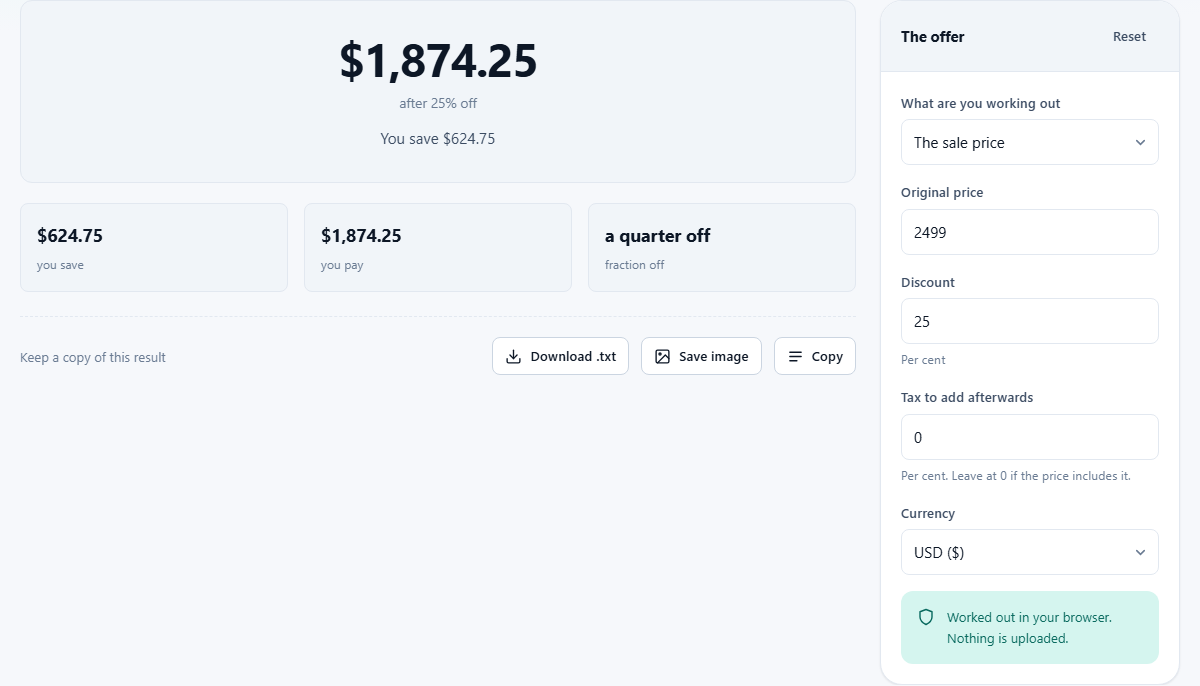
A jacket costs 2499 and the shop offers 25% off. Enter 2499 in the Price field and 25 in the Discount field. The sale price is 1874.25 and you save 624.75. That saving is the number that matters when you compare two offers on different items. A 30% discount on a cheaper item might save you less in money even though the percentage is bigger.
Now suppose tax is 8%. Put 8 in Tax to add afterwards. The tax applies to 1874.25, adding 149.94, for a total of 2024.19. Leaving the tax field empty would have shown 1874.25, which is the price before tax and the one you compare when shopping across different tax jurisdictions.
Why two discounts never add up to their sum
A sign reads 20% off, then a further 10% at the till. Most shoppers read that as 30% off, but it is not. The first cut takes the price from 100 to 80. The second cut takes 10% of 80, which is 8, bringing the total to 72. That is 28% off, not 30%.
The gap grows with larger numbers. Two 50% discounts in a row do not give you the item for free. The first halves the price to 50, the second halves it again to 25, and you still pay a quarter of the original. Select Two discounts one after the other, put 50 in each discount field, and the calculator shows 75% as the single equivalent. This is the only honest way to compare a stacked offer with a flat one from a rival shop.
The maths behind it is straightforward. If the first discount is d1 percent and the second is d2 percent, you pay (1 minus d1/100) times (1 minus d2/100) of the original. Multiply that out and you get 1 minus d1 minus d2 plus d1 times d2. That last term is what you keep back, so the discount you actually received is d1 plus d2 minus d1 times d2 - always a little less than the two added together.
Finding the original price and the percentage
Sometimes you only know the sale price and the advertised percentage. A friend paid 450 for a pair of shoes that were 25% off. What was the original price? Select The price before the discount, enter 450 and 25. The calculator divides 450 by 0.75 and returns 600. This reverse calculation catches inflated was-prices: if the shop claims the shoes were 800, the real discount from 800 to 450 is not 25% but 43.75%. You can check that by switching to What percentage off this is and entering 800 and 450.
The percentage mode is also useful for comparing unit prices. If one shop sells a bag of rice at 320 down from 400, and another sells the same brand at 290 down from 380, the first is 20% off and the second is 23.7% off. The deeper percentage may not be the cheaper bag, though, so always look at the final price as well.
Hitting a target price
Retailers sometimes need to work the other way. A shirt retails at 1200 and you want the clearance price to be 899 or less. Choose The discount I need to hit a price, enter 1200 as the price and 899 as the target. The calculator returns 25.08%, meaning you need at least a 25.1% markdown. This mode saves trial and error when setting sale prices across a large catalogue.
It is equally useful for personal budgeting. If you know a jacket costs 3500 and your budget is 2800, the calculator tells you the minimum discount to look for: about 20%. Armed with that figure you can scan sale racks efficiently and skip anything below it.
Common mistakes and how to avoid them
The most frequent error is adding stacked discounts. As shown above, the result is always less than the sum. Use the stacked mode instead of mental arithmetic.
A second mistake is ignoring the order of discounts. Two discounts applied in sequence give the same final price regardless of order, because multiplication is commutative. A 20% then 10% discount is the same as 10% then 20%. But when one of the two is a fixed amount rather than a percentage, the order does matter. This calculator works with percentages only, so the order is irrelevant here.
A third trap is comparing discounts across different base prices. Saying that 40% off is always better than 30% off is true only when the starting prices are the same. In practice they rarely are, and the amount you actually save is what counts. The calculator shows the saving in currency next to the percentage so you can judge both.
Tax and how it interacts with discounts
In countries where tax is added at the register, the discount applies before the tax. A 200 item at 25% off becomes 150, and then 8% tax makes it 162. If the tax applied first, the item would be 216 before the discount, then 162 after it. The final number is the same either way, which surprises people, but the receipt looks different and the shop remits less tax when the discount comes first. This calculator always discounts first and then adds tax, matching the way point-of-sale systems work.
In countries where the shelf price includes tax, you should leave the tax field at zero. The displayed price is already the final price, and applying a percentage to it gives the right answer without any separate tax step.
When this calculator is not the right choice
It handles percentage discounts on a single item. It does not calculate multi-buy offers like three for two, nor does it handle voucher codes that give a fixed amount off the total basket. Buy one get one free is 50% off only if you wanted two, and nothing off if you wanted one. For those situations you need to do the per-item cost by hand.
It also does not convert currencies. Changing the currency dropdown changes the display symbol but not the numbers. If you are comparing prices in different currencies you need an exchange-rate converter first and then this tool.
Privacy and where the maths runs
Every calculation runs entirely inside your browser. No prices, percentages, or currency choices are sent anywhere. You can open the page, turn off your internet connection, and it will keep working. The page does not ask for an account or store any data beyond your session.