
Finding an exact age or landing on the right date
Knowing your age in years is easy. Knowing it in years, months, and days, or working out what date falls 90 days from now, takes a bit more care. This article walks through the date and age calculator, explains both of its modes, covers the controls one by one, works through examples with real dates, and explains the calendar quirks that make month arithmetic harder than it looks.
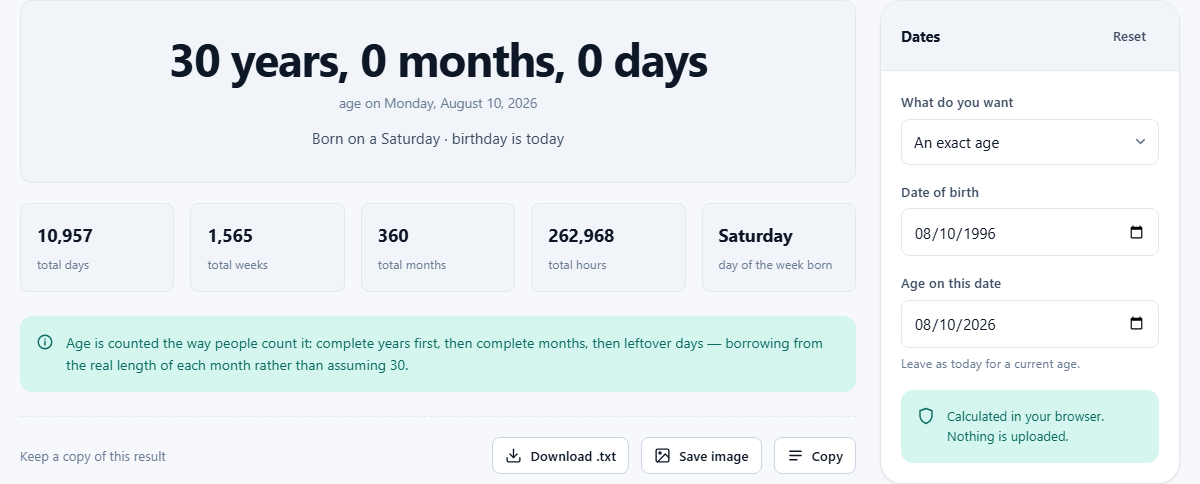
Two jobs, one page
The calculator has two modes, chosen from the What do you want selector. An exact age takes two dates and tells you the precise gap between them. Add or subtract time takes one date and moves it forward or backward by a number of days, weeks, months, years, or hours.
Both modes share the same result area and the same panel layout. Switching between them shows or hides the fields that belong to each job, so the page stays clean no matter which mode you are using. A Reset button at the top of the panel clears all fields back to their defaults whenever you want to start fresh.
Who reaches for a date calculator
Parents checking whether a child meets an age cut-off for school enrollment or sports leagues. HR departments verifying an employee's age on a policy date. Anyone filling in a form that asks for age in years, months, and days rather than just years. People curious about what day of the week they were born on.
The add mode serves a different crowd: project managers counting 90 days from a contract signing, lawyers working out statutory deadlines, and travellers figuring out which date falls six weeks before a departure. Calendar arithmetic is easy to get wrong by a day, and a wrong day on a legal deadline can matter a great deal.
Working out an exact age
Set What do you want to An exact age. Two date fields appear. Date of birth is the starting date. Age on this date defaults to today. If you want a current age, leave it alone. If you want an age on a specific future or past date, change it.
The result gives the age in years, months, and days. Below that, you see the total expressed in other units: total days, total weeks, and total hours. Both dates also show their day of the week, which is often the thing people actually came to find out. Someone born on a Tuesday may have spent decades not knowing it, and this answers it in a single glance.
A worked example: age at a school cut-off
Suppose a child was born on 18 July 2020 and the school year starts on 1 September 2026. Enter 18 July 2020 as the Date of birth and 1 September 2026 as Age on this date. The result shows 6 years, 1 month, and 14 days. The total is 2,237 days, or 319 weeks and 4 days.
If the school requires the child to be at least six by the start of term, this child qualifies with a month to spare. Change the second date to 1 September 2025 and the age drops to 5 years, 1 month, and 14 days, which is below the threshold. Being able to test different cut-off dates without mental arithmetic is exactly what the second date field is for.
Adding or subtracting time from a date
Switch What do you want to Add or subtract time. The Date of birth field changes its label and becomes a general starting date. Below it, a Direction selector offers Add or Subtract. Then two fields appear side by side: How much takes a number, and Unit offers Days, Weeks, Months, Years, or Hours.
Enter a starting date, pick a direction, type the amount, and choose the unit. The result shows the landing date, the day of the week it falls on, and the gap between the two dates expressed in several ways. If you enter a negative number in the How much field while the direction is set to Add, the tool subtracts instead, so it handles that edge case gracefully.
A worked example: a 90-day deadline
A contract is signed on 10 March 2026 and a clause gives 90 days to complete an inspection. Set the date to 10 March 2026, leave Direction on Add, enter 90, and choose Days. The result is 8 June 2026, a Monday. That is the deadline.
Now try the same exercise with months instead of days. Set How much to 3 and Unit to Months. The result is 10 June 2026, a Wednesday, which is two days later. Three months and ninety days are not the same thing, because months have different lengths. This is one of the places where mental arithmetic quietly goes wrong, and the calculator catches it.
Why months are the tricky part
Adding months runs into an old calendar problem. If you start on 31 January and add one month, there is no 31 February to land on. The date rolls forward into March. Every spreadsheet and calendar application handles it this way, and so does this tool. It is correct behaviour, but it surprises people who expect adding a month and then subtracting a month to always return to the same date. It usually does, but not always at the end of a long month.
Age calculations have a related quirk. The tool counts complete years first, then complete months, then remaining days. Because months vary in length from 28 to 31 days, the day portion of an age can change depending on which month is in play. Two people born exactly 60 days apart might show different day counts in their age breakdown, and both figures are correct according to how the calendar works.
Leap years and edge cases
The calculator uses the real calendar throughout, so 29 February is counted whenever it genuinely falls in the range. A person born on 29 February has a birthday that only exists every four years, and their age in years, months, and days reflects that correctly.
Adding one year to 29 February 2024 gives 1 March 2025, because 2025 has no 29 February. Adding four years gives 29 February 2028. These are the same results you would get from any standards-compliant date library, and they match what your phone calendar would show. The year 2100, by the way, is not a leap year despite being divisible by four, because century years must also be divisible by 400. The calculator handles that rule correctly, though very few people will need to test it.
Mistakes people make and how to avoid them
The most common problems are simple to fix once you know what to look for.
- Leaving the second date on today when you need a specific cut-off date. The default is helpful for a current age but wrong for a future eligibility check.
- Confusing calendar days with business days. This calculator counts every day, including weekends and public holidays. For deadlines that skip non-working days, a separate working-days tool is needed.
- Expecting months to be a fixed number of days. They are not. A month is whatever the calendar says it is, and that varies from 28 to 31.
- Entering a birth date in the wrong format. The date picker follows your browser's local format, so if it asks for day-month-year, do not enter month-day-year.
When to use a different tool
If you need a live countdown to a fixed date, the countdown timer on this site is a better fit. If you need working days between two dates excluding weekends and holidays, a dedicated business-days calculator handles that. And if you need to calculate age in a specific way for a legal jurisdiction that has its own rules about when a birthday counts, check the local statute rather than relying on any general-purpose calculator.
For everything else, from curiosity about the day you were born to deadline arithmetic for contracts, this is the right page.
Privacy and where your dates are kept
All calculations run inside your own browser. No dates are sent to any server. The page saves your most recent inputs in local storage so they are still there the next time you visit, but that storage belongs to your device and nobody else can read it.
For a date calculator, privacy matters more than you might expect. Dates of birth, contract dates, and legal deadlines are personal information, and they stay personal here. There is no account, no log, and no server-side record of anything you type. You can disconnect from the internet and the calculator carries on working, because nothing about the date arithmetic depends on any remote service.