
Building a live countdown to the moment that matters
Whether it is a product launch, a wedding, an exam, or simply the next New Year, a ticking clock on screen makes the wait feel real. This article explains the countdown timer, walks through every control, shows how the share link works without any server, and covers the time-zone catch that trips people up when they share across countries.
What the countdown does
The page shows a live timer that ticks down to any date and time you choose. Four boxes display the remaining days, hours, minutes, and seconds, and they update every second. When the target moment arrives, a brief message appears to mark it, and then the counter flips direction and starts counting upward, so it doubles as a time-since tracker.
The whole thing runs on the clock built into your browser. There is no server keeping time for you, no database of events, and no account to create. The countdown exists for as long as the page is open, or for as long as the link you copied is valid, which is forever.
Who uses a countdown timer
Teachers counting down to the end of a test period. Marketing teams tracking a product launch. Couples sharing a wedding countdown with guests. Students watching the days shrink before a final exam. Event organisers embedding a link in a newsletter so readers feel the urgency.
It also works for personal milestones: a holiday departure, a retirement date, a birthday. Anything with a fixed date and a reason to care about how far away it is becomes more tangible when a clock is ticking toward it.
Setting up your countdown
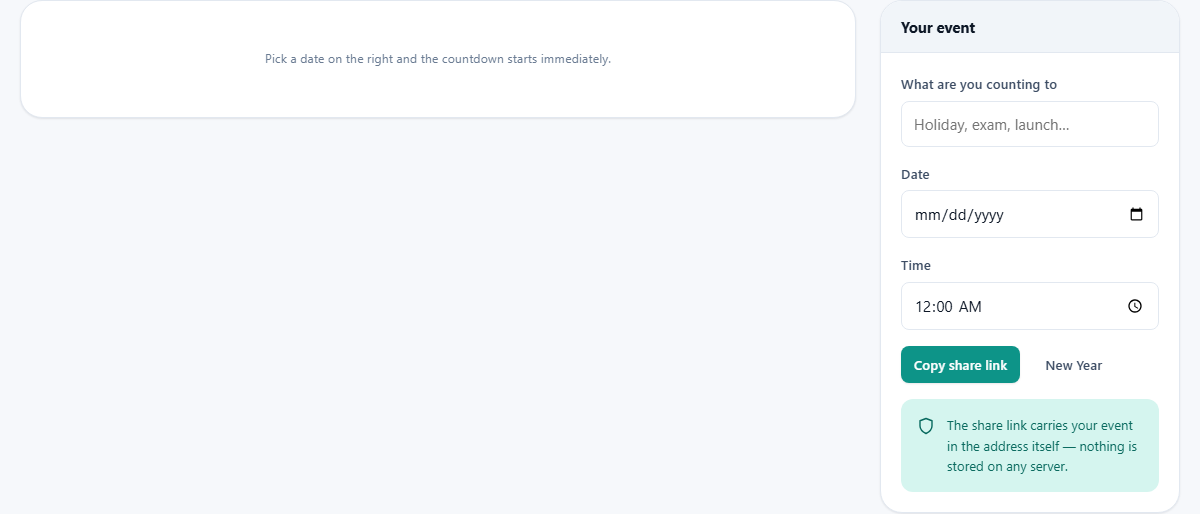
The panel on the right is headed Your event. The first field, What are you counting to, takes a short label up to 80 characters. This is optional but worth filling in, because the label travels with the share link and tells whoever opens it what the countdown is about.
Below that, Date opens a date picker. Choose any future date. Time defaults to midnight but can be changed to any hour and minute. The countdown starts the moment both fields have values. There is no start button to press; the clock simply appears on the left and begins ticking.
Two buttons sit beneath the fields. Copy share link puts a URL on your clipboard that carries the entire event inside it. New Year is a shortcut that fills in the next 1 January at midnight, because that is by far the most popular countdown people set.
How the share link works with no server
When you press Copy share link, the event name, date, and time are written into the URL itself as query parameters. The link is the countdown. Opening it fills the page in with exactly what you entered, and the clock starts ticking for whoever opens it.
Because nothing is stored on a server, there is no database of countdowns to maintain, no registration step, and no risk of a link going dead because a service shut down. The link works for as long as the page exists. You can email it, paste it into a chat, bookmark it, or print it on a poster as a QR code. Anyone who opens it sees the same countdown.
This also means there is nothing to delete. If you no longer want a countdown, you simply stop sharing the link. There is no dashboard of past events to clean up.
A worked example: counting down to a conference
Suppose your team is launching a product at a conference on 15 March next year at 9 in the morning. Type the event name, pick 15 March from the date picker, set the time to 09:00, and the countdown appears. The display might read 218 days, 14 hours, 22 minutes, and 8 seconds, ticking down live.
Press Copy share link and paste the URL into the team chat. Every person who clicks it sees the same countdown in their own browser. The event name appears at the top so they know what they are looking at, and the date and time sit just below it for reference. When the morning of the conference arrives, every screen that still has the page open shows a brief arrival message and then flips to counting time since the launch.
The time-zone trap
The date and time you enter are treated as local time, and they are shown in the local time of whoever is viewing. If you set a countdown for 9 AM and send the link to a colleague in a different country, they will see it counting down to 9 AM their time, not yours. For events that happen at a single moment everywhere, like a live broadcast, this creates the wrong answer.
The fix is simple: put the time zone in the event name. Instead of writing Product Launch, write Product Launch 9 AM GMT. That way the viewer knows which 9 AM you mean and can mentally adjust. The countdown itself cannot resolve time zones because it has no server to compare against, so the label is the only place this information can live.
What happens in a background tab
Browsers throttle timers in background tabs to save battery and CPU. That means the display might not update every second while you are looking at something else. But when you switch back, the counter recalculates from the actual system clock, so it catches up instantly. The numbers you see are always correct; they just might have paused briefly while the tab was hidden.
Your last event is also remembered in your browser's local storage. If you close the tab and come back later without a link, the same countdown is still running. That saves re-entering the details for a countdown you check every day.
Using it as a time-since counter
Set the date to something in the past and the counter runs upward from the start. This is useful for tracking how long ago something happened: how many days since a product shipped, how many weeks since a team formed, how long since you quit a habit.
The share link works identically for past dates. Send it to someone and they see the same upward count, ticking away from the same moment. The display labels adjust to make it clear the event has already happened rather than counting down to it.
Common mistakes and quick fixes
Most problems with this tool come down to one of a few simple things.
- Forgetting to name the event before sharing. The link still works, but the person who opens it sees a blank title and has to guess what it is counting toward.
- Sharing across time zones without saying which zone you mean. The countdown will show the right shape of time, but it may be aimed at the wrong absolute moment.
- Expecting the link to survive if the page moves. The URL points to a specific address. If the page is ever relocated, old links will stop working.
- Setting the time to midnight when the event is actually at a specific hour. Midnight is the default, and it is easy to leave it there out of habit.
When a different tool fits better
A countdown is the right choice when you care about the gap between now and a fixed moment. If what you actually need is the number of working days between two dates, skipping weekends and holidays, the date calculator or a working-days tool is more suitable. If you need recurring reminders rather than a single target, a calendar application is the better fit.
The countdown also does not trigger notifications. It is a page you look at, not an alarm that interrupts you. If you need to be woken up at the right time, set a phone alarm alongside the countdown.
Privacy and where your event data lives
Nothing is uploaded. The event name, date, and time live in two places: the URL you share and your browser's own local storage. There is no server, no analytics on your event, and no way for anyone other than the people you give the link to to know what you are counting toward.
That matters when the event is private, a medical appointment, a court date, a surprise party. The countdown works without leaving a trace on any system you do not control, and there is no account, no sign-up, and no record to delete later.