
Counting a cash drawer and splitting amounts into notes and coins
This article walks through both modes of the cash counter tool, explains the difference between the greedy method and the optimal one, covers every control on the panel, and shows a worked example of counting a till against its expected float.
Two jobs, one tool
Handling cash involves two opposite tasks. One is counting what you already have, note by note and coin by coin, then checking whether it matches the float it should hold. The other is going the other direction: starting with a total and working out the fewest pieces of paper and metal that add up to it.
Retail staff do the first when they close a register at the end of a shift. Bank tellers do it when they balance a drawer. Treasurers of small clubs and charities do it when they reconcile a cash box against a receipt book. The second direction has its own audience. Teachers use it when they set up a maths exercise about making change. Anyone splitting a sum for a cash gift, a market stall float, or a deposit envelope does it too.
The tool handles both. A dropdown at the top lets you choose the direction, and the rest of the panel adjusts to match. In counting mode you enter how many of each denomination you have. In splitting mode you enter a total and the tool breaks it down for you.
Choosing the mode and the currency
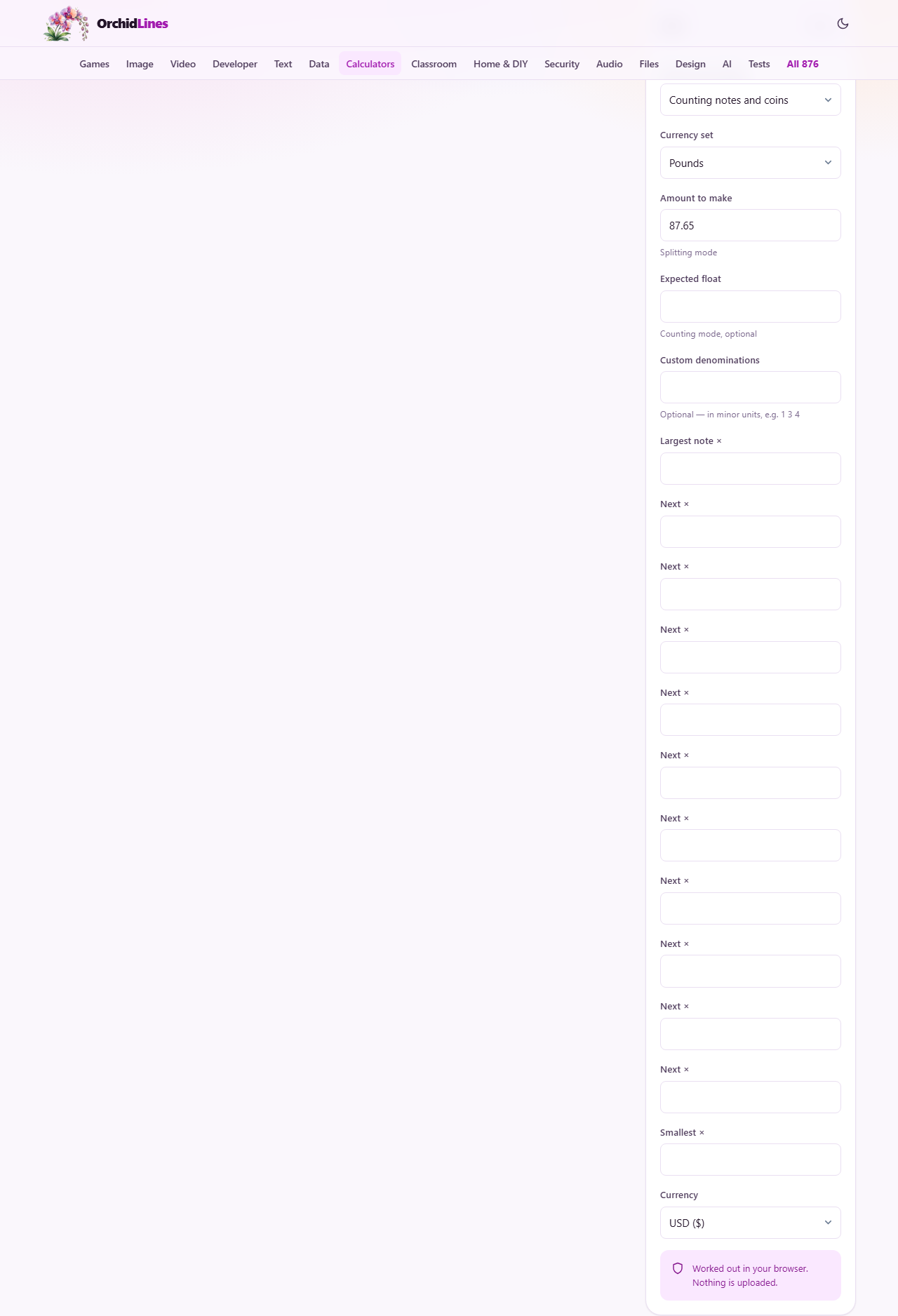
The first control, labelled What are you doing, is a dropdown with two choices: Counting notes and coins and Splitting an amount into notes and coins. The rest of the panel changes depending on which one you pick.
Below that, Currency set offers four built-in options: Pounds, Euro, Dollars, and Rupees. Each one loads the correct set of denominations for that currency. The tool shows a row of fields for each denomination, from the largest note down to the smallest coin.
If you want to explore a currency that does not exist, or test a historical system, the Custom denominations field lets you type your own values in minor units, separated by spaces or commas. Minor units means pence, cents, or paise. So for a system with only 1p, 3p, and 4p coins, you would type 1 3 4.
Counting mode in detail
When you choose Counting notes and coins, the panel shows a field for every denomination in the chosen currency. For Pounds, that starts at the fifty pound note and ends at the one penny coin. Each field is labelled with the denomination and waits for a count: how many of that note or coin you have.
Sort your cash into piles of the same denomination first. Count each pile once and enter the number. The tool multiplies each count by the face value and adds them up.
The Expected float field appears in counting mode. It is optional. If you type a number there, the result tells you how far over or short the drawer is. A shop that opens every register with 100 pounds in change can type 100 and instantly see whether the day's takings are right without doing the subtraction by hand.
If you leave Expected float blank, the tool still totals everything. It just does not compare against anything. This is fine if you only need a grand total, for example when bagging up loose change to take to a bank.
Splitting mode and the greedy problem
Switch to Splitting an amount into notes and coins and a field labelled Amount to make appears. Type a total and the tool tells you the fewest notes and coins that reach it.
Most people assume the answer is obvious: take the biggest denomination that fits, subtract it, repeat. That approach is called the greedy algorithm, and it works perfectly for every real-world currency because real currencies are designed so that it does. But with a custom set of denominations the greedy method can fail.
The classic example is coins worth 1, 3, and 4. To make 6, the greedy method picks 4, then 1, then 1, using three coins. But 3 plus 3 does the same job with two. The tool uses dynamic programming, which always finds the true minimum. When the greedy answer would have been different, the tool points out the difference so you can see the problem for yourself.
Splitting mode has a cap on the amount you can enter. The dynamic programming method builds a table of every value from zero up to the target, so very large amounts would be slow. Counting mode has no such limit because it is just multiplication and addition.
Worked example: closing a till
A small shop opens each register with a float of 150 pounds. At closing time the cashier sorts the contents into piles and counts them. They find two fifty pound notes, three twenty pound notes, four ten pound notes, six five pound notes, fifteen two pound coins, twenty-two one pound coins, eighteen fifty pence coins, ten twenty pence coins, five ten pence coins, twelve five pence coins, eight two pence coins, and four one penny coins.
They enter each count into the matching field, set the Currency set to Pounds, and type 150 in Expected float. The tool totals everything and shows the difference. The total comes to 331 pounds and 72 pence. Subtract the 150 pound float and the takings for the day are 181.72.
If the total had come in below 150, the tool would have flagged a shortfall. At that point the advice is simple: recount the bundles. A miscount on a single denomination, especially the twenties or the fifties, is far more common than a genuine discrepancy.
Custom denominations and the canonical trap
Every currency in active use around the world is what mathematicians call a canonical coin system. That means the greedy algorithm always gives the optimal answer. This is not an accident. Central banks design their denominations so that making change is straightforward. If they did not, cashiers would need a computer science degree.
But the Custom denominations field opens the door to non-canonical systems. Type 1 5 8 and try to make 10. The greedy approach picks 8 plus 1 plus 1, three coins. The optimal answer is 5 plus 5, just two. The tool shows both and marks the difference.
This makes it a teaching aid as well as a practical tool. Computer science courses use the coin change problem to introduce dynamic programming, and being able to type any set of denominations and see where the greedy method goes wrong is far more convincing than reading about it in a textbook. Try a few sets and the pattern becomes clear quickly.
Mistakes to watch for
The biggest source of error in counting mode is entering the wrong number for a high-value denomination. If you count fourteen twenty pound notes but type 15, the total is off by twenty pounds and the discrepancy looks real. Always count each pile twice before entering the figure.
In splitting mode, the main mistake is forgetting that the result assumes an unlimited supply of every denomination. In practice a till might be short of five pound notes. The tool gives the theoretical minimum, not a picking list constrained by what you actually have in the drawer.
Custom denominations need to be entered in minor units. If you want a system with coins worth 0.25, 0.50, and 1.00 of some currency, you enter 25 50 100, not 0.25 0.50 1.00. Getting this wrong produces results that look plausible but are off by a factor of a hundred.
One more thing to keep in mind: the Currency dropdown at the bottom of the panel sets the symbol used in the output. It does not convert between currencies or override the denomination set you chose above. If you pick Rupees as the currency set but leave the display currency on pounds, the denominations will be correct for India while the symbol in the result will be wrong. Match the two to avoid confusion.
Privacy and data handling
Everything happens in your browser. No till totals, no float figures, and no denomination counts leave your device. Nothing is stored between visits and there is no account to create. This matters if you are counting a business register, because cash figures for a shop are commercially sensitive information that should not travel across a network. Close the tab and the numbers are gone. Reopen the page tomorrow and every field is back to its default, with no trace of yesterday's count.