
Estimating video file sizes and working backwards to a bitrate
Before you export a video or upload one, two questions come up again and again: how big will this file be, and what bitrate should I set to stay under a size limit? This article covers both directions, explains the controls, walks through a concrete example, and discusses the places where the estimate differs from reality. Every calculation happens on your own device.
The formula behind every video file size
Video file size comes down to one multiplication. The total bitrate, measured in kilobits per second, multiplied by the duration in seconds, gives the size in kilobits. Divide by eight to get kilobytes, then by 1024 to reach megabytes. It sounds simple, but two details trip people up constantly.
The first is the factor of eight. Bitrate is measured in bits, but file sizes are measured in bytes. Forgetting that conversion inflates your estimate by eight times. The second is the audio track. A video file is not just video. The audio stream runs at its own bitrate the entire length of the clip, and on a long video it adds up to a meaningful fraction of the total. At 192 kbps, an hour of audio alone weighs about 86 megabytes.
This calculator handles both of those details for you, in either direction. You can enter a bitrate and get a file size, or enter a target file size and find out what bitrate will fit.
Choosing the direction with the mode dropdown
The dropdown labelled Work out has two options. File size from bitrate is for planning an export: you know the bitrate you want, and you need to know how large the resulting file will be. This is the default, and it is the right choice when you are deciding whether your hard drive has room for the export or how long the upload will take on your connection.
Bitrate for a target size is for the opposite situation: a platform imposes a maximum upload size, and you need to know what video bitrate to set in your encoder so the file comes in under that ceiling. Social media platforms, email servers, and course-hosting sites often enforce strict size limits, and this mode tells you exactly what bitrate to aim for.
Switching between the two modes shows and hides the fields that apply. In the first mode, the video bitrate field is active and the target size fields are hidden. In the second mode, the target size and its unit become visible. The Target in dropdown lets you choose between MB and GB, since some upload ceilings are stated in one and some in the other.
Filling in the duration and bitrates
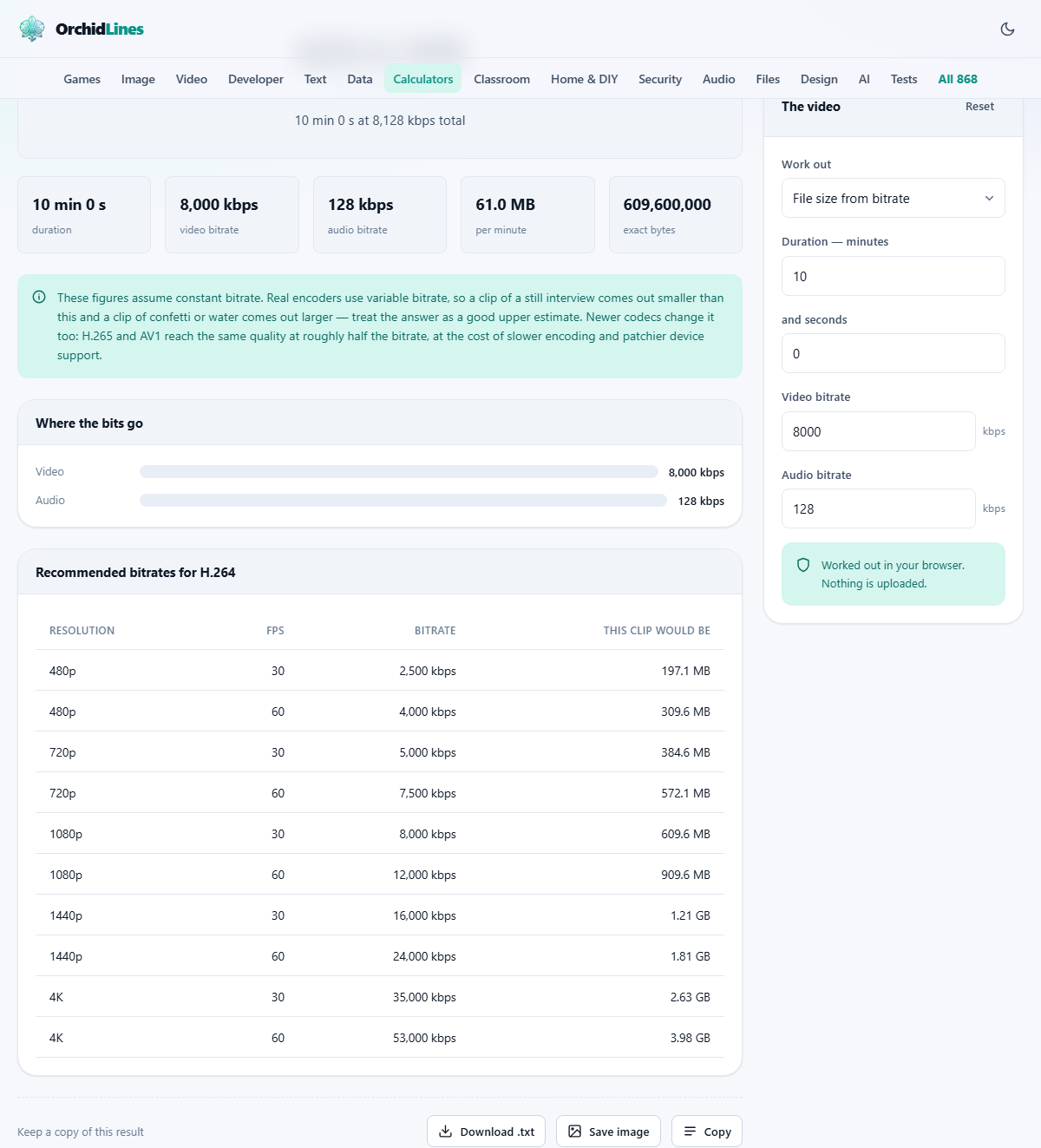
Two fields describe the length: Duration -- minutes and and seconds. A ten-minute clip with no extra seconds would be 10 and 0. There is no hours field, so a two-hour feature goes in as 120 minutes.
The field labelled Video bitrate accepts a value in kbps, which stands for kilobits per second. The default is 8000 kbps, a reasonable starting point for 1080p video at 30 frames per second using the H.264 codec. Higher resolutions or faster frame rates need higher numbers, and the reference table on the page lists recommendations for every common combination.
Audio bitrate is set separately and defaults to 128 kbps, which is the standard for stereo AAC audio. Most people leave this as it is. If your project uses high-quality audio at 256 or 320 kbps, or if it is a silent screencast at 0, adjust this field to match. The calculator adds the video and audio bitrates together before computing the total file size.
A worked example in both directions
Start with file size from bitrate. A ten-minute tutorial at 8000 kbps video and 128 kbps audio has a total bitrate of 8128 kbps. Ten minutes is 600 seconds, so the total is 8128 times 600, which gives 4,876,800 kilobits. Divide by 8 to get 609,600 kilobytes, which is 609,600,000 bytes, or 609.6 MB. The calculator reports that figure instantly and prints the exact byte count beside it so you can check the arithmetic yourself. It counts a megabyte as a million bytes, the convention used by drive manufacturers and video platforms, so a file manager that counts in binary units will call the same file about 581 MiB.
Now try the reverse. Suppose you need to upload to a platform that caps files at 100 MB. Set the mode to Bitrate for a target size, enter 100 in the Target file size field, and leave the Target in dropdown on MB. With the same ten-minute duration and 128 kbps audio, the calculator works backwards: 100 MB is 819,200 kilobits over 600 seconds, which is about 1365 kbps total. Subtract the 128 kbps audio and the video bitrate should be roughly 1237 kbps. That is well below the recommended range for 1080p, so you would either shorten the clip or drop the resolution to 720p where 1200 kbps still looks acceptable.
Using the reference table to judge quality
The page includes a table of recommended bitrates by resolution and frame rate, based on H.264 encoding. These numbers give you a sanity check: if the bitrate your target size demands is far below the recommendation for your resolution, the exported video will look poor. Blocky shadows, smeared detail on fast motion, and blurry text are all symptoms of a bitrate that is too low for the content.
Busy footage needs higher bitrates than calm footage. An interview with a fixed camera and a still background compresses very well because most of each frame is the same as the last. Confetti, water, fast camera pans, and grain in low light all create large differences between frames, and the encoder needs more bits to keep up. When the table gives a range, pick the top end for busy content and the bottom end for quiet content.
Newer codecs like H.265 and AV1 can match the same visual quality at roughly half the bitrate of H.264. But they encode more slowly and not every device can play them back. The recommendations on this page assume H.264, which is still the safe default for broad compatibility.
Why the real file is usually smaller than the estimate
The calculation assumes a constant bitrate throughout the entire video. Real encoders almost always use variable bitrate, which spends more data on hard scenes and less on easy ones. The total tends to come in under the constant-bitrate ceiling, sometimes noticeably so for footage that has long stretches of low motion.
This is a feature, not a fault. The estimate gives you a reliable upper bound. Your actual file will be at or below that figure, never above it. If a platform has a hard upload limit, aiming for that limit with this calculator means the real export will fit comfortably.
Mistakes that lead to wrong estimates
The most common error is forgetting the audio. Setting the audio bitrate to zero when your project does have an audio track makes the estimate smaller than reality, and the export overshoots. Check what your editing software is using for audio encoding and enter that value.
Another frequent mistake is confusing megabits and megabytes. Internet speeds are quoted in megabits per second, while file sizes are in megabytes. A 100 Mbps connection can download about 12.5 megabytes per second. If you enter a speed figure where a file-size figure is expected, the answer will be off by a factor of eight.
Finally, some people enter the container overhead or metadata size and wonder why the estimate does not match exactly. Container formats like MP4 add a small amount of data for headers, chapter markers, and subtitle tracks. This overhead is usually under one per cent and is not included in the bitrate calculation.
When to consider a different approach
This calculator deals in aggregate file size. It does not analyse individual frames or tell you whether a particular scene will look good at a given bitrate. If you need a visual comparison of different quality settings, the only reliable method is to encode a short sample at each bitrate and watch them side by side on the device your audience will use.
Streaming scenarios are also outside its scope. Adaptive bitrate streaming splits a video into small chunks at multiple quality levels, and the total storage needed is the sum of all those levels rather than a single figure. A streaming calculator would need to know the ladder of resolutions and the chunk duration.
- Use this tool for a quick pre-export or pre-upload size check.
- Use a test encode for visual quality decisions.
- Use a streaming calculator for HLS or DASH ladder planning.
Privacy and how the arithmetic runs
The calculation is pure multiplication and division, and it all runs in your browser. No video is uploaded. No file is read. You are entering numbers about a video, not the video itself, so there is nothing sensitive to protect in the first place. Press Reset to clear every field and start a new estimate.