
How the aspect ratio calculator keeps images and video the right shape
This guide covers every control on the aspect ratio calculator, explains the difference between fitting inside a box and covering one, walks through a resize with real pixel values, and lists the standard ratios for video, social media and print so you know which to pick before you export.
What an aspect ratio is and why it matters
An aspect ratio is the relationship between the width and height of a rectangle. A 16:9 image is always wider than it is tall by the same proportion, whether it is 1920 by 1080 pixels or 3840 by 2160. The numbers change but the shape stays the same.
Keeping this shape consistent is the whole point of the calculator. When you resize an image by changing only the width, the height must follow the same proportion or the picture looks squashed or stretched. That distortion is almost always wrong, and it is the one thing no viewer will overlook.
Anyone who works with images, video, screens or print layouts runs into this problem regularly. A designer scaling a banner for a website. A video editor exporting for a phone screen. A photographer preparing a file for a print lab that needs a 3:2 crop. The maths is simple division, but doing it by hand every time is slow and easy to get wrong.
The original size fields
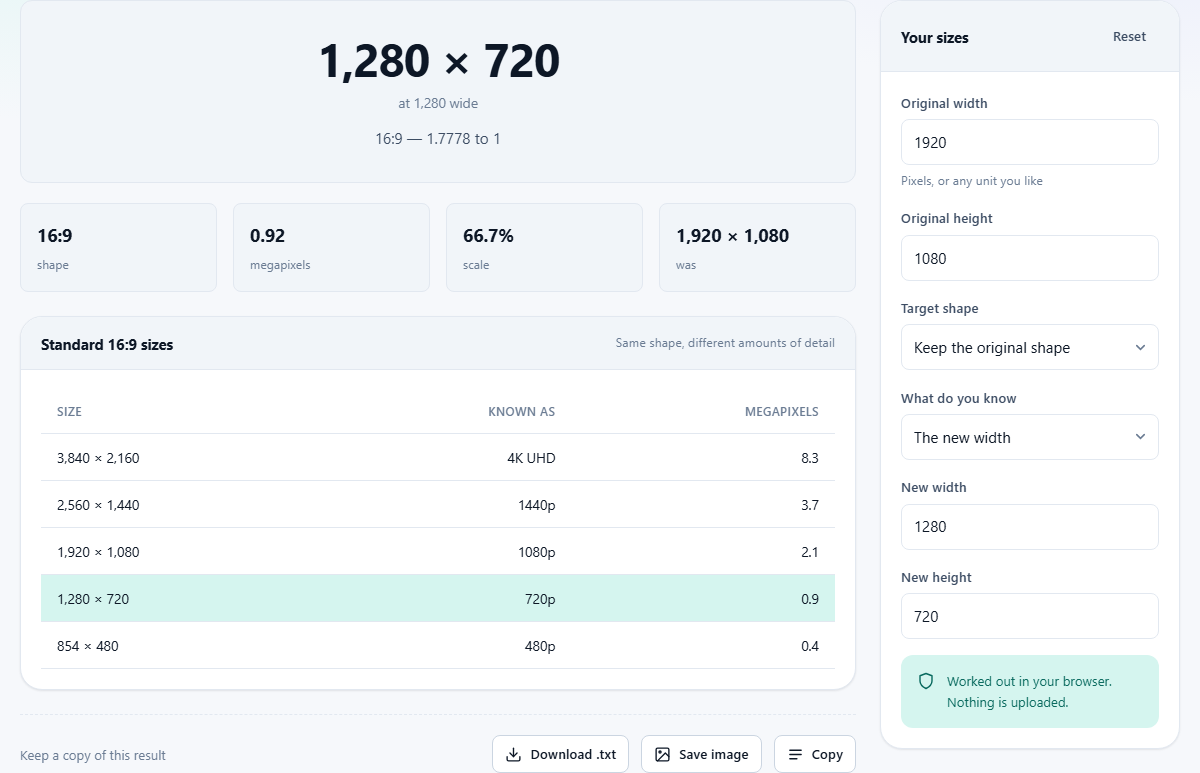
The settings rail is headed Your sizes and holds the main inputs. Original width and Original height describe the rectangle you are starting from. The hint under the width field says Pixels, or any unit you like, which is exactly right. The calculator works with pure numbers, so you can enter pixels, millimetres, inches or anything else as long as both sides use the same unit.
The default values are 1920 and 1080, which is standard full HD video. Changing either field recalculates the output instantly. You do not need to press a button; the page reacts as you type. The Reset button at the top of the panel throws away the copy of your numbers this browser had kept. The boxes hold on to what is in them until you reload, and after that the page opens at 1920 by 1080 again.
Target shape and the preset list
The Target shape dropdown starts on Keep the original shape, which preserves whatever ratio your width and height produce. Below it are eleven presets, each with a label explaining its common use.
16:9 is labelled widescreen video and covers standard YouTube, television and most laptop screens. 9:16 is labelled reels and shorts for vertical phone video. 4:3 is the classic screen ratio from older monitors and standard definition television. 3:2 is how most digital cameras shoot. 1:1 is a square, used for profile pictures and some social media posts.
21:9 is ultrawide, found on gaming monitors and certain cinema formats. 4:5 is a tall social post, the ratio Instagram uses for portrait images in the feed. 2:3 is portrait print, the shape of a standard photograph printed at four by six inches. 1.85:1 and 2.39:1 are cinema ratios, and 1.414:1 matches the shape of A4 paper.
Choosing a preset changes the ratio used for the calculation. The original width and height remain as they are, but the new size is worked out using the selected ratio instead of the original one.
The four calculation modes
The What do you know dropdown controls what you are providing and what the calculator finds for you. The new width is the default: you give a width and the tool works out the matching height. The new height does the reverse.
A box it has to fit inside is the third option. Here you provide both a maximum width and a maximum height, and the calculator returns the largest size that fits entirely within that space while keeping the ratio. The whole image is preserved, but there may be empty bands on two sides.
A box it has to cover is the fourth option. You again provide both dimensions, but now the calculator returns the smallest size that fills the entire space. The ratio is kept, but the parts that overflow the box are cropped away. The tool tells you how much would be cut, so you can judge whether the crop is acceptable before you make it.
A worked example: scaling a photo for a website banner
You have a photograph that is 4000 pixels wide and 2667 pixels tall. That is very close to 3:2. You need a banner that is 1200 pixels wide and must not be taller than 400 pixels.
First, enter 4000 in Original width and 2667 in Original height. Leave Target shape on Keep the original shape. Set What do you know to The new width. Enter 1200 in New width. The calculator returns a height of 800, because 1200 at 3:2 is 1200 by 800. But 800 is too tall for your 400 pixel limit.
Switch What do you know to A box it has to fit inside. Enter 1200 and 400. The result is 600 by 400, which fits inside the box but does not fill the width. If you want the full 1200 wide, switch to A box it has to cover. Now you get 1200 by 800, with the note that 400 pixels of height would be cropped. That means 200 pixels from the top and 200 from the bottom are lost.
You now have a clear choice: a smaller image that keeps everything, or a larger image that loses the top and bottom edges. Neither one stretches the picture.
Whole numbers, even numbers and video encoding
Many video encoders need both the width and the height to be even numbers. Some, especially older ones, want multiples of four or even sixteen. The calculator flags a result that comes out to an odd number, because feeding an odd pixel dimension to an encoder can cause it to fail or silently add a row of black pixels.
This matters most when you are doing maths between two ratios that do not divide cleanly. For example, fitting a 16:9 source into a 1:1 square at 1080 pixels gives 1080 by 1080, which is fine. But fitting a 3:2 source into a width of 999 gives 999 by 666, and 999 is odd. The flag is there to catch that before you commit to the export.
For images that are not going through a video encoder, odd numbers are perfectly fine. A JPEG or PNG does not care whether its sides are even.
Ratios that are not quite tidy
Real photographs rarely land on a perfect ratio. A camera that shoots at 6000 by 4000 is exactly 3:2. A screenshot at 1366 by 768 is not, and reducing it by hand gives the useless 683:384. The calculator handles that far better. It reports about 16:9 and adds that the real shape sits within 0.05 per cent of it, which is the thing you actually wanted to know.
The decimal ratio is shown alongside the simplified version. For 16:9, the decimal is about 1.78. For 3:2, it is 1.5. Knowing the decimal is useful when you are comparing two sizes that might be slightly different: if both round to the same decimal to two places, the difference will not be visible to the eye.
Common mistakes when resizing
The biggest mistake is scaling a small image up and expecting it to look sharp. The calculator will happily produce the numbers for a 400 pixel image stretched to 4000 pixels, but the result will be blurry. The maths is correct in both directions, but pixels are not created by scaling. Only shrinking preserves quality reliably.
Another mistake is using the wrong ratio for a platform. A reel uploaded at 16:9 will play, but it will have large black bars on the top and bottom because the player expects 9:16. The preset list is there to prevent exactly this kind of mix-up.
Confusing fit and cover trips people up too. Fitting shows the whole image with possible empty space. Covering fills the frame but crops. If you export a cover crop without checking what gets cut, you might lose heads in a group photo or important text at the edge of a graphic.
Privacy and how the calculation runs
The calculator does not touch your images at all. It works only with the width and height numbers you type in. No file is uploaded, no image is opened, and no data leaves the browser. The calculation runs on your own device, and the page works offline once loaded.
This makes it safe to use with any project, including client work under a confidentiality agreement. You are sharing numbers with a page that runs locally, not sending files to a third-party service. There are no cookies tracking your dimensions and no analytics on the values you enter. The page does keep the numbers now in the boxes, written to this browser's own local storage so they are still waiting next time you open it. Reset wipes that copy.