
How a browser alarm clock keeps time when the tab is in the background
This guide walks through every control on the online alarm clock, shows why it reads the real system clock instead of counting down, and covers the settings, quick timers, snooze, full-screen mode and desktop notifications that make it practical for cooking, studying and bedside use.
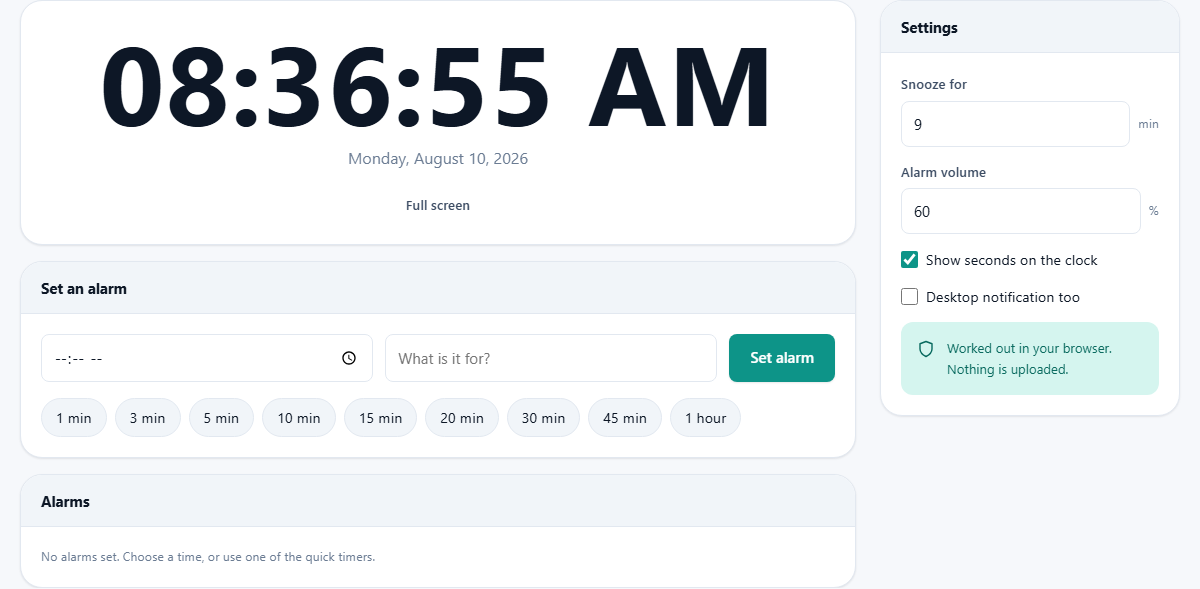
What the alarm clock does and who reaches for it
The page is a full-screen clock that can ring at a chosen time or after a chosen number of minutes. It runs entirely inside the browser tab and does not need anything installed. Once loaded, it even works with no internet connection.
People open it for dozens of reasons. A student timing a study block. A cook who needs to know when the rice has had twenty minutes. Someone who wants a visible clock on a spare laptop beside their desk. A traveller in a hotel room who does not trust the bedside clock and wants a backup alarm on a tablet.
Because it runs in the browser, it works on any device that has one. Windows, Mac, Linux, a Chromebook, an old tablet propped on a shelf. No app store, no account, no sign-up.
The clock face and the full-screen view
The large clock at the top of the page shows the current time, pulled from the device's own clock. Beneath it sits today's date. The display updates several times a second, so it never drifts.
Pressing Full screen expands the clock to fill the entire screen. The digits become large enough to read from across a room, which turns any laptop or tablet into a bedside clock. Press Escape or the same button again to leave full-screen mode.
Whether seconds are visible on the clock face is controlled by the Show seconds on the clock checkbox in the settings rail. Some people find the ticking digit distracting, and turning it off leaves a cleaner two-part display.
Setting an alarm by time
The Set an alarm panel holds two fields and a button. The first field is a time picker labelled Alarm time, where you choose the hour and minute. The second is a text field with the placeholder text What is it for?, where you can type a short label. The label is entirely optional, but it appears on the ringing screen, which helps when more than one alarm is active at once.
Press Set alarm and the new alarm appears in the Alarms list below, showing the target time, the label if you gave one, and a way to remove it. If the time you entered has already passed today, the alarm is set for tomorrow. That is almost always what someone means when they type a time that is behind the clock.
You can set several alarms at the same time. Each one sits in the list independently and rings on its own schedule.
Quick timers for common countdowns
Below the alarm fields is a row of chips for quick countdowns: 1 min, 3 min, 5 min, 10 min, 15 min, 20 min, 30 min, 45 min and 1 hour. Tapping any chip creates an alarm that many minutes from now and drops it straight into the list.
Quick timers are there for the jobs that do not need a clock time at all. A five-minute break. A ten-minute egg. A thirty-minute focus sprint. A chip picks up whatever is in the label box, and names the alarm after itself when that box is empty, so a bare tap on the ten-minute chip lands in the list as 10 minute timer next to its target time.
The settings rail: snooze, volume and notifications
On wider screens a settings panel sits to the right of the clock. On smaller screens it appears below the alarm list. It holds four controls.
Snooze for sets the number of minutes the snooze button adds when the alarm goes off. The default is nine, the traditional interval from old mechanical clock radios. You can set it to anything from one minute to sixty.
Alarm volume is a number box holding a percentage from five to one hundred, stepping in fives. It controls how loud the alarm sound plays. If your system volume is also turned low, both limits apply, so check the system slider too.
Show seconds on the clock toggles the seconds digit on the main display.
Desktop notification too asks the browser for permission to show a system notification alongside the sound. This is useful if you are working in another application and might miss the audio because your speakers are quiet. The notification pops up over whatever else is on screen.
When the alarm rings
At the target time a ringing overlay fills the page. It shows the alarm icon, the label you entered (if any), and the time it was set for. Two buttons sit at the bottom: Snooze and Stop.
Stop silences the alarm and closes the overlay. That alarm is finished and leaves the list.
Snooze silences the alarm but sets a new one for the snooze interval you chose in the settings. If snooze is set to nine minutes, pressing it means the alarm will ring again nine minutes later. You can snooze as many times as you like.
The alarm sounds even when the tab is in the background, behind other tabs or other windows. The page checks the real system clock four times a second rather than setting one long JavaScript timer. That matters because browsers throttle background tabs heavily and a single long timer can fire minutes late. Reading the real clock avoids the problem entirely.
A worked example: a morning alarm and a backup
Suppose you are staying somewhere without your usual alarm and it is eleven at night. You open the page and type 06:30 into the time picker. In the label field you type Wake up. You press Set alarm. The alarm list now shows an entry for 06:30 tomorrow morning.
For safety you set a second alarm at 06:45 with the label Last chance. You set Alarm volume to 100. You turn on Desktop notification too. You press Full screen so the clock fills the old tablet you are using. At 06:30 the alarm fires. You press Snooze. Nine minutes later it fires again. At 06:39 you press Stop, and you are awake. The 06:45 backup is still waiting in the list, but you can remove it now.
Total effort: about fifteen seconds of setup. No app to download, no account to create.
Common mistakes and how to avoid them
The most frequent problem is not hearing the alarm at all. This happens for three reasons. First, the browser tab might be muted, which you can check from the tab bar. Second, the system volume might be turned down or the device might be on silent. Third, some browsers block audio on a page you have not interacted with, but the act of setting an alarm counts as interaction, so this is rarely an issue if you tested it.
Closing the tab is the other common mistake. A browser alarm can only ring while the tab is open. Shut the tab, quit the browser or restart the machine and nothing will sound. Reopen the page before the alarm was due and it is still in the list, because it was saved here; reopen after that moment and it has been dropped, because an alarm that rings an hour late is worse than none. For anything that truly matters, set a phone alarm as a second line of defence.
Setting the wrong day catches some people out, but the tool handles it: any time that has already passed today is treated as tomorrow. That means typing 06:30 at eleven at night does the right thing without you thinking about it.
When a browser alarm is not the right choice
A browser alarm is a convenience tool, not a safety device. If your life depends on waking up, a phone alarm or a dedicated alarm clock is the right choice. Browser tabs can be closed by system updates, crashes, or a flat battery, and there is no recovery from that.
For alarms that need to repeat on a schedule, such as a daily medication reminder, a phone's built-in alarm app is better because it survives restarts and works without an open browser. This tool is best suited to one-off timers and countdowns where you are already at a computer.
Where alarms are stored and what happens on refresh
Pending alarms are saved in the browser's local storage, so refreshing the page does not lose them. If you close the tab and reopen it later, alarms that have not yet come due are still there. Any alarm that was supposed to ring while the tab was closed is quietly dropped rather than firing late and confusing you.
Nothing is sent to a server. The clock, the alarm list, your settings and the sound are all handled on your own device. The page works offline after the first load, and no personal data leaves the browser at any point.