
Build a scannable code for a link, a network, or a card
A square code is just a small piece of text drawn as a pattern that a phone camera can read. This page writes one for you from a link, a wifi login, a set of contact details, and more, then hands you a picture to download. This guide covers each type of code, every look setting, a full example, and the mistakes that stop a printed code from working.
What you can make here
A cafe can print a code that joins guests to the wifi with no typing. A market stall can point shoppers at its online shop. A tradesperson can put a code on a van that saves their number straight into a phone. A flyer can carry a code that opens a booking page.
All of these come from the same idea. You give the page some text, it draws the matching pattern, and you download the result to print or share. Because the text lives inside the pattern, the finished code needs nothing from us to keep working.
Choosing the type of code
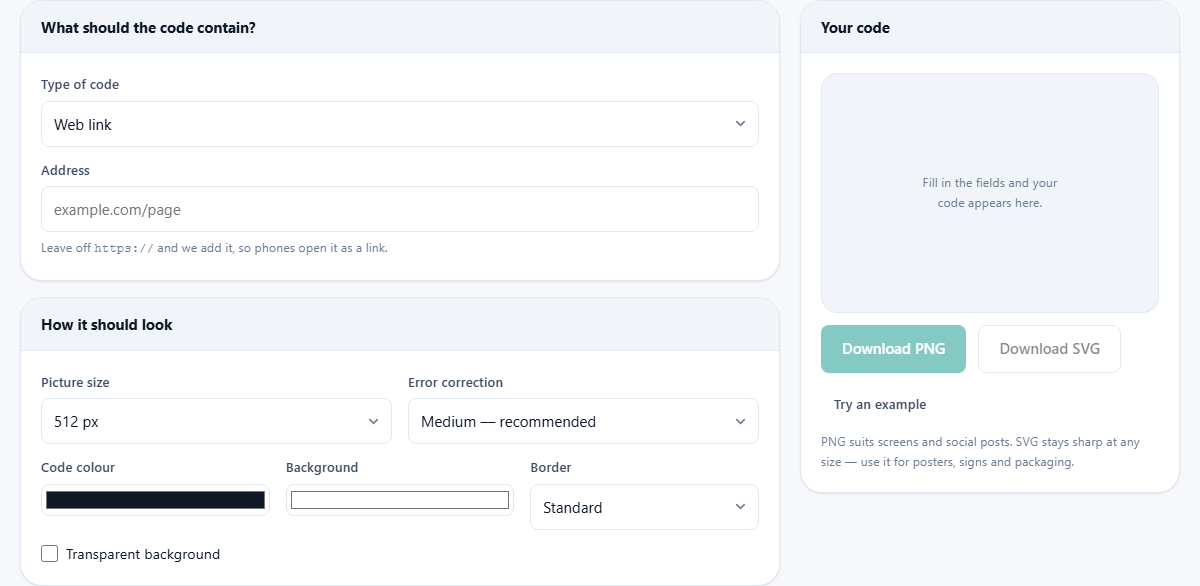
The Type of code menu sits at the very top and decides which boxes you fill in. Some codes are a single line of text, and some need several details fitted together in the exact shape a phone expects. Picking the right type saves you from getting that shape wrong by hand.
- Web link, for an address that opens a page.
- Plain text, for any words you like, with no special meaning.
- WiFi network, so a scan joins the network without typing a password.
- Contact card, which saves a name and details into the phone's contacts.
- Email, phone number, and text message, each of which starts the matching action on the phone.
Making a web link code
For the most common case, choose Web link and type the address into the Address box. You can leave off the leading part of the address, and the page adds it for you. That small step matters, because without it a phone treats the code as plain words rather than a link it can open.
The code redraws as you type, so you see it take shape at once. Keep addresses short where you can. A long address makes a denser pattern, and a dense pattern is harder for a camera to catch, especially in poor light.
Codes with several details
A wifi code asks for the Network name, a Security setting, and a Password. The security choice covers the modern types together, the older type, and an open network with no password at all. There is also a tick for a hidden network. The page joins these into the format a phone reads, so a guest scans once and is online.
A contact card offers a Full name with room for a Company, a Job title, a Phone, an Email, and a Website. Fill in only the parts you want to share. The email, phone, and text message types each take their own boxes, such as who to write to, a subject, and a short message, and the code sets that up ready to send.
Setting the look
Below the content, a second panel controls how the code appears. Picture size runs from a small screen size up to a large one meant for printing. Error correction sets how much of the pattern can be lost or covered while the code still reads, from the smallest and plainest up to the toughest, which survives a logo placed over the middle.
Two colour swatches set the code colour and the background. A Border menu adds a plain margin around the pattern in a few widths, from none up to wide. There is also a tick for a see through background, useful when you want to drop the code onto a coloured design so the paper or artwork behind it shows through.
A warning shows if your two colours are too close, since a pale code on a pale background will simply not read. The safe path is to keep the code dark and the background light. A dark code on white is what cameras expect, and it reads fastest of all.
Downloading the picture
Two buttons save the finished code. Download PNG gives you a flat picture that suits screens, email, and social posts. Download SVG gives you a version stored as shapes, which stays crisp at any size and is the one to use for anything printed, from a business card to a shop window.
The rule of thumb is simple. If the code will be seen on a screen, PNG is easy to handle. If it will be printed large, SVG keeps every edge sharp no matter how big you blow it up. There is a Try an example button too, which drops in a sample link so you can see the whole thing work before you type your own.
Adding a logo without breaking the code
A small logo in the centre of a code looks smart and still scans, and the reason is the error correction setting. The pattern carries spare copies of its data, so a part of it can be hidden and the rest can rebuild the message. At the toughest setting, a fair share of the code can be covered and it will still read.
The page does not paste the logo in for you, so the steps are yours. First raise the error correction to the highest level, then download the code. Open it in any image program and lay your logo over the middle. Keep the logo small, roughly a fifth of the width at most, and always scan the result with a phone before you use it.
A code from start to finish
Say you run a small cafe and want a wifi code for the tables. You pick WiFi network as the type. In Network name you write CafeMilo, you leave the security on the modern setting, and you type the wifi password into the Password box. The code appears on the right.
You want it printed clearly, so you set the picture size to the large printing option and leave the border on its standard width. Since you plan to drop your logo in the centre, you raise the error correction to the toughest level first. You press Download SVG, place the file on a table card, and print. A guest scans it and joins the wifi with no password to type.
Reading the status line
Under the code sits a line of small print that describes what was built. It names the version of the code, which grows as you add more content, the number of squares along each side, the way the text was packed in, and how many characters it holds.
You do not need to act on any of this, but it is a useful check. If the version climbs high and the pattern looks crowded, that is a sign your content is long. Trimming the text, or pointing the code at a short web address instead, brings the density back down and makes the code easier to scan.
Common mistakes and how to fix them
Most codes that fail in the real world fail for one of a few reasons. A code printed too small for the distance people scan from is the usual one. As a guide, make the printed code wider when people will stand further back. The plain margin around the pattern is part of the code, so never crop it off to save space.
- Weak contrast: keep the code clearly darker than its background, and heed the warning when it shows.
- A logo that swallows the pattern: keep it small and set the error correction high before you add it.
- Too much crammed in: for long text, put the words on a web page and point a short link at it.
- Never tested: always scan the finished code with a real phone before you print a batch.
When another tool suits better
This page builds codes. If you have a code in front of you and want to know what it holds, you need the reader elsewhere on the site, which turns a code back into its text using your camera or a picture.
One more thing to know. The address is written straight into the pattern, so it cannot be changed later without making a new code. If you need a link you can repoint after printing, a plain code is the wrong choice, and a redirect service would suit that job instead.
Everything is built on your machine
The code is drawn by the page itself as you type, right there in your browser. The words you enter, including a wifi password or a phone number, are turned into the picture on your own device and are never sent to us. Nothing you make is logged or counted.
This has two happy results. Your details stay private, and the codes never expire, because there is no link of ours sitting in the middle that could ever be switched off. Do remember that a wifi code carries the real password inside the image, so treat that file with the same care you would give the password itself.