
Read any code with your camera or a saved picture
This page reads the black and white codes on posters, packets, and parcels, and turns them back into the text they hold. You can point your camera at a code, drop in a photo, or paste a screenshot. Below you will find what each route does, a full walk through, the reasons a code sometimes will not read, and why none of your pictures ever leave your machine.
What the reader is for
A code on a table tent might join you to the wifi. A sticker on a shelf edge might hold a product number. A label on a box might carry a tracking string. Each of these is text hidden in a pattern, and this page pulls that text back out so you can read it, copy it, or act on it.
People reach for it to check where a poster code really points before tapping, to grab the digits under a shop barcode, or to read a code from a laptop that has no camera at all. It works on a phone and on a desktop alike.
Reading with the camera
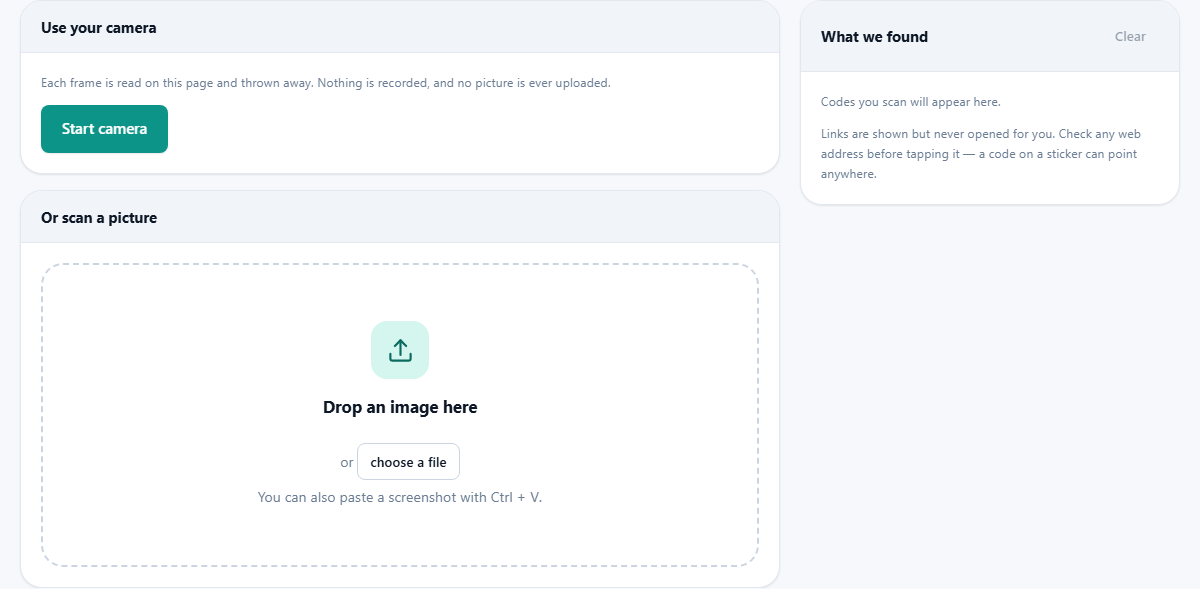
Press Start camera and your browser will ask to use the camera. Say yes, and a live view opens with a frame drawn in the middle. On a phone the reader picks the rear camera, so you can aim the back of the device at the code.
Hold steady and bring the code close enough to fill a fair part of the view. When it reads, the phone gives a small buzz and the text appears on the right. If the same code stays in view it is not added again straight away, so the list does not fill with copies. Press Stop camera when you are done, and note that the view also shuts off by itself if you switch to another tab.
Reading from a picture instead
No camera is needed. In the second panel you can drag an image onto the box, or press choose a file to pick one from your device. If a code is already copied, for instance a screenshot you just took, press Ctrl and V to paste it straight in.
The picture opens inside the page and is checked at a few sizes, so a small code in a large photo still has a chance. This route is often the easier one for a code that arrived by email or sits inside a document. Take a screenshot of it, paste, and read.
What the result shows
Each read appears as a card under the What we found heading. A small tag names the kind of code, such as QR Code or EAN-13. Where the reader can tell, it also labels what the text means: a web link, a wifi network, a contact card, an email address, a phone number, or a text message.
The full text is printed exactly as it was stored, so nothing is hidden or trimmed. A QR card may add its version and error level, and a product barcode shows its number. The time of each read is listed, and older reads stack up below the newest so you can look back over a short session.
Copying and opening safely
Every card has a Copy button that puts the text on your clipboard, ready to paste into a search, a note, or a form. When the text is a web link, an email, or a phone number, an Open button appears as well, which sends it to a new tab or the right app.
One thing the reader will never do is open a link on its own. It shows you the whole address and waits. Treat a code on a sticker the way you would treat a link from a stranger, and read where it goes before you follow it. A code can point anywhere, and the safe habit is to look first.
A read from start to finish
Imagine you want the barcode number off a tin in the kitchen. You press Start camera and allow the request, and the rear camera opens with the frame in view. You hold the tin so the bars lie roughly level and fill a good part of the picture.
A moment later the phone buzzes. A card slides in with a tag that reads EAN-13, the thirteen digits shown as plain text below it, and the time of the read. You press Copy and paste the number into a search box to find the product. To read a second item, you keep the camera running and bring the next barcode up to it.
If instead the tin held a square code with a web link, the card would show a QR Code tag, label it as a web link, and add an Open button beside Copy. You would read the address first, and only then decide whether to open it in a new tab.
Speed and steadiness
The camera view stays smooth because the reader works on a scaled down copy of each frame rather than the full picture. That keeps the preview quick and the battery cooler, while still catching a code that fills a reasonable part of the view.
If a code is far away and small, the picture route can beat the live camera, since a still photo can be checked more carefully than a moving one. When in doubt, take one clear photo and drop it in.
Keeping the results tidy
As you read one code after another, the cards build into a short list with the newest at the top. The reader keeps the last handful for you, so you can glance back at something you read a minute ago without scanning it again.
When you want a clean slate, press Clear at the top of the results panel. It empties the whole list in one go. This is worth doing before you start a fresh batch, so you never mix up an old read with a new one. The list is only held while the page is open, and it clears itself when you leave.
On a phone and on a desktop
On a phone the page is built for the small screen, and the camera route is usually the quickest. The rear camera is chosen for you, so you simply lift the phone to the code. You may be asked for camera permission the first time, and you only need to grant it once for the site.
On a desktop with a webcam the camera route works the same way, though a fixed webcam can be awkward to aim. With no webcam at all, the picture route covers everything: take a screenshot of the code, or save the image, then paste or drop it in. Nothing about the reader depends on having a camera.
Which codes it can read
The reader handles QR codes of every version and error level, which covers almost every square code you meet on a poster or a screen. It also reads the common bar patterns found on goods and packages.
- EAN-13 and UPC-A, the long barcodes on groceries and retail goods.
- EAN-8, the shorter version used on small packets.
- Code 128 and Code 39, the barcodes seen on parcels, tickets, and stock labels.
When a code will not read
The most common reason is that the code sits too small in the view. Move closer until it takes up a good share of the frame, and give the camera a second to focus. The next culprit is glare, when a code under shiny plastic bounces light back. Tilt a little so the bright patch slides off the code, and it usually reads at once.
Barcodes have their own rule. Unlike a square code, a barcode has no marks to say which way is up, so keep the bars level across the view and make sure the plain gaps at both ends are inside the frame. A torn or creased QR code often still reads, because these codes carry spare data to cope with damage. If a photo simply will not read, try a sharper or closer one.
Messages you might see
A short status line keeps you posted. When you start the camera it says it is asking for permission, then prompts you to point at a code. If you turn the permission down, it tells you so and points you to the picture route, which needs no camera at all.
When you feed it a picture with no code in it, it says none was found and suggests a closer or sharper photo. If you drop in a file that is not an image, it tells you plainly. None of these are dead ends. Each one names the problem and the next thing to try, so you are never left guessing.
When another tool suits better
This page reads codes. It does not make them. If you want to build a code of your own, for a link, a wifi network, or a contact card, use the code generator elsewhere on the site, which writes a fresh picture you can download.
It also does not save what it finds as a file. The results live on screen for the session, and you copy out the ones you want. If you need a permanent record, paste the text you copy into a document of your own.
Nothing you point at leaves your device
This is the part that matters most. Every frame the camera produces is checked for a code and then dropped. No video is recorded, and no photo you drop in is sent to a server. The reading happens entirely in the page, on your own machine.
You can prove it for yourself. Load the page, cut off the internet, and the reader still works, because it never needed a connection to do its job. That is why a code holding a wifi password or a private contact is safe to read here.