
Turn your own words into a printable puzzle
This page takes a list of words you type and lays them out as a word search or a word scramble you can print. You also get an answer key, and a check that every word you asked for is really in the grid. This guide walks through each setting, works one puzzle from start to finish, and shows how to fix the usual snags.
Who this is for
A teacher can build a spelling sheet from this week's list in a minute. A parent can keep a child busy on a long car trip. A host can drop the names of the guests into a puzzle for a birthday table.
It also suits a homeschool lesson, a Sunday club, or an activity hour at a care home. Anywhere you want a paper puzzle built from words that matter to you, rather than a generic sheet, this fits.
Word search or word scramble
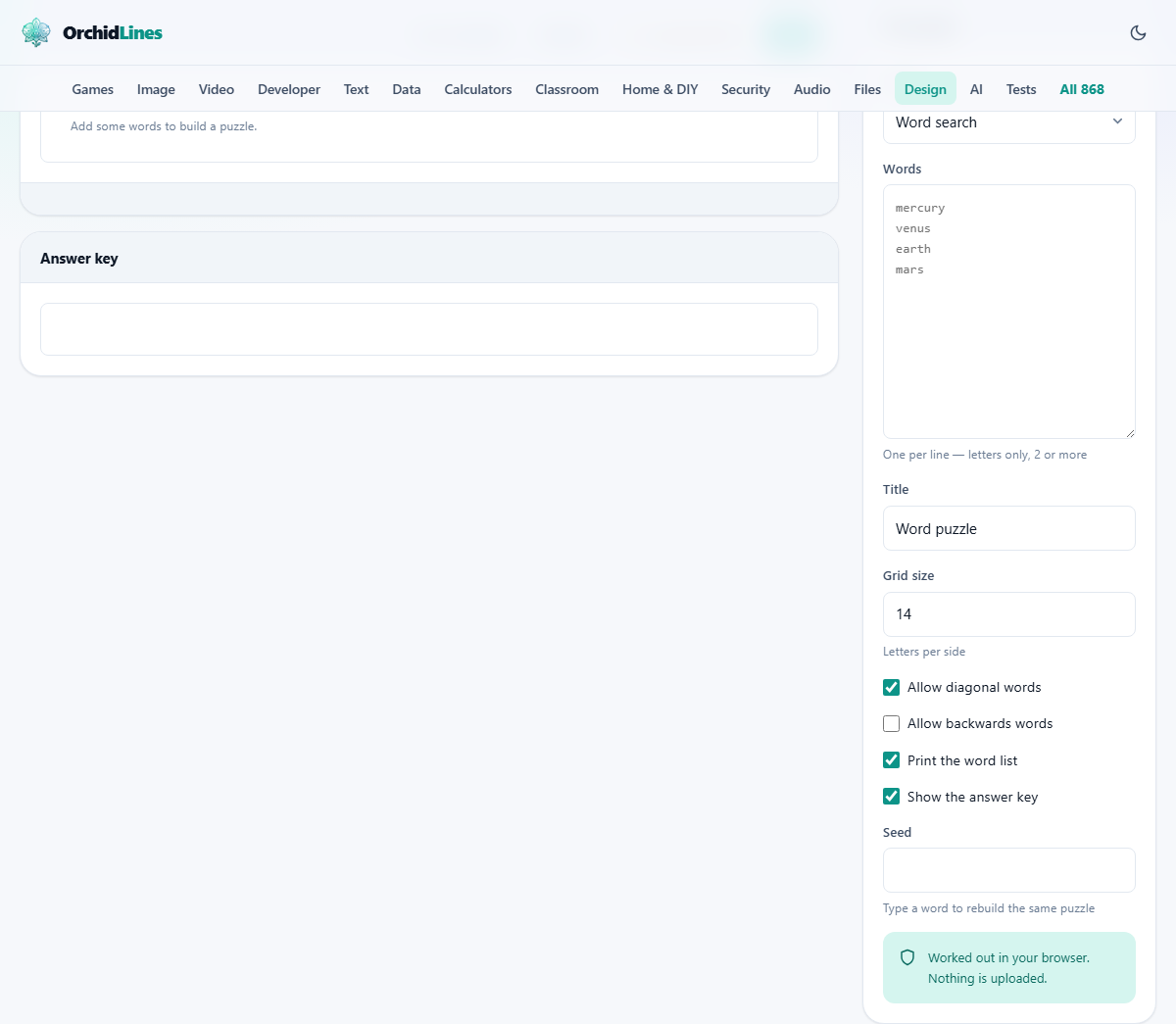
The Puzzle box at the top of the right rail holds two choices. A word search hides each word in a grid of letters, running across, down, or on a slant, and the solver rings each one. A word scramble jumbles the letters of each word and the solver writes the real word on the line beside it.
A search is the calmer of the two and reads well for younger children. A scramble is quicker to make and leans more on spelling. When you switch to a scramble, the grid settings tuck away, because a scramble has no grid.
Typing the word list
The Words box is where the puzzle comes from. Put one word on each line. The maker keeps only the letters, so anything else you type falls away. A pair like polar bear turns into POLARBEAR, and an entry with an apostrophe loses it.
Each word needs at least two letters to count. Very short words are easy to spot in a search and dull in a scramble, so three letters or more make a better puzzle. Give the Title box a name too, such as the topic or the class.
The grid and its size
Grid size sets how many letters sit along each side of a word search. It starts at 14, and you can pick anything from 6 up to 24. A bigger grid gives words more room and leaves more filler letters between them, which makes hunting harder.
The grid must be at least as wide as your longest word, or that word has nowhere to lie. If you have one long entry among short ones, raise the size a little so it fits without crowding the rest.
Turning the difficulty up or down
Three tick boxes shape how hard the search is. Allow diagonal words lets entries run on a slant and is on to begin with. Allow backwards words lets them read right to left or bottom to top, and is off at the start.
Print the word list decides whether the words to find are shown under the grid. Leave it on for a gentle puzzle. Turn it off and the solver must find the words with no clues at all, which is a real jump in difficulty. Change these before you reach for a larger grid, since direction matters more than size.
The answer key and the seed
Show the answer key controls the second sheet. When it is on, you get the same grid with every hidden word lit up, so marking is instant. In a scramble, the key simply lists each real word next to its jumble.
The Seed box makes a puzzle repeatable. Type any word into it and the same list will always build the very same grid. Leave it empty and each rebuild shuffles things afresh. The Rebuild button makes a new arrangement, and Try an example fills the list with a ready set so you can see the layout at once.
Reading what the maker tells you
The maker keeps you informed as you type. A short line above the sheet reports how the build went. For a search it reads something like 10 of 10 words placed, and if any word missed out, it adds which one and suggests a bigger grid or shorter words. For a scramble it counts how many words were jumbled.
A second line under the sheet shows the seed for this exact puzzle, as a plain number. Copy that number into the Seed box and you can bring the same grid back weeks later. This is how you print a fresh copy that matches the first one, or hand two groups the identical sheet.
A puzzle from start to finish
Say you teach a class about the sea. In the Words box you type shark, whale, dolphin, octopus, turtle, seahorse, crab, jellyfish, coral, and starfish, one per line. In the Title box you write Ocean Animals. You leave the grid at 14 and keep the starting ticks, so slants are allowed but backwards words are not.
The sheet appears with a header line for a name and a date, and the words dropped into the grid with random letters filling the gaps. A note reads 10 of 10 words placed, so nothing was left out. Below the grid sits the list of ten words to find, and a second sheet shows the answer key with each word highlighted. Press Print, and your browser's print box opens, where you can send it to a printer or save it as a PDF.
Building a scramble instead
Switch the Puzzle box to Word scramble and the same list becomes a spelling task. Each word has its letters shuffled and is printed on its own numbered line, with a blank space beside it to write the answer. The grid settings vanish, since a scramble does not use one.
Take the words apple, banana, cherry, and mango. The sheet might show them as a jumble such as PELAP for apple, one to a line, numbered one to four. The answer key repeats each jumble with the real word next to it. A scramble is a good warm up, a quick starter, or a filler for the last five minutes of a lesson.
When a word gets left out
If the note says a word could not be placed, it names the word rather than dropping it in silence. There are two usual causes. The word may be longer than the grid is wide, or the grid may have filled with other words before this one found a free run.
The cure is simple. Make the grid a couple of sizes bigger, or trim the list so there is more room, then rebuild. The maker never lists a word in the key that is not truly in the grid, so the sheet you hand out always matches its answers.
Common mistakes and quick fixes
A grid that looks too easy usually has too many words for its size, so they touch and overlap in obvious clumps. Drop a few words or grow the grid. A grid that looks empty has too few words, so add more or shrink it. Around a dozen words suit the starting size well.
- Nothing shows up: the Words box is empty, or every line was too short after the non letters were stripped away.
- The answer key is missing: the Show the answer key tick is off. Turn it back on.
- The same puzzle keeps changing: put a word in the Seed box to lock it in place.
Making an easy and a hard version
One list can serve a whole range of solvers. Keep the same words and build a gentle sheet first, with the word list shown and only across and down turned on. Then build a tougher one from the same words with slants and backwards runs on and the word list hidden.
This is handy for a mixed class or a family with a big age gap. If you want the two sheets to share a layout so they feel like a pair, set the same seed for both and change only the tick boxes. The words sit in the same spots, but the harder sheet hides the list and adds trickier directions.
When to pick a different tool
This maker builds word searches and scrambles only. If you want a crossword with numbered clues and a symmetrical grid, that is a separate kind of puzzle and is not built here. If you would rather people solve on a screen than on paper, the word games elsewhere on the site suit that better.
For a puzzle that stands on its own without your own word list, a ready made game is quicker. This page earns its keep when the words themselves are the point, such as a topic, a set of names, or a lesson.
Your words stay with you
The whole puzzle is built by code running inside this page. The list you type is read on your machine and used right there to lay out the grid. It is not sent to us or to anyone else, and no copy is kept once you close the tab.
Because none of it needs a server, the page keeps working with the internet switched off. That is handy in a classroom with patchy wifi, and it means a list of pupil names or private words never travels anywhere.