
Make study cards you can print double-sided or flip on screen
This page turns a simple list into study cards. You can print them as neat double-sided sheets, or run through them on screen in a flip mode. Here you will find out how to type the list, how each setting works, and the one printing step that goes wrong most often. A full example walks through it.
What the flashcard maker does
A flashcard has a prompt on the front and the answer on the back. This tool takes a plain list of those pairs and gives you two things from it. The first is a set of printable sheets, laid out so the backs land behind their fronts when you print on both sides. The second is a study mode that flips each card on the screen, with no printing at all.
It suits anyone learning by testing themselves. A language learner drilling new words, a student revising for an exam, a nurse memorising drug doses, or a parent making a quick set for a spelling test. You get the cards in a minute or two, and you choose whether to study on paper or on a device. Many people build the deck once and never print it, using only the on-screen flip.
Typing your cards
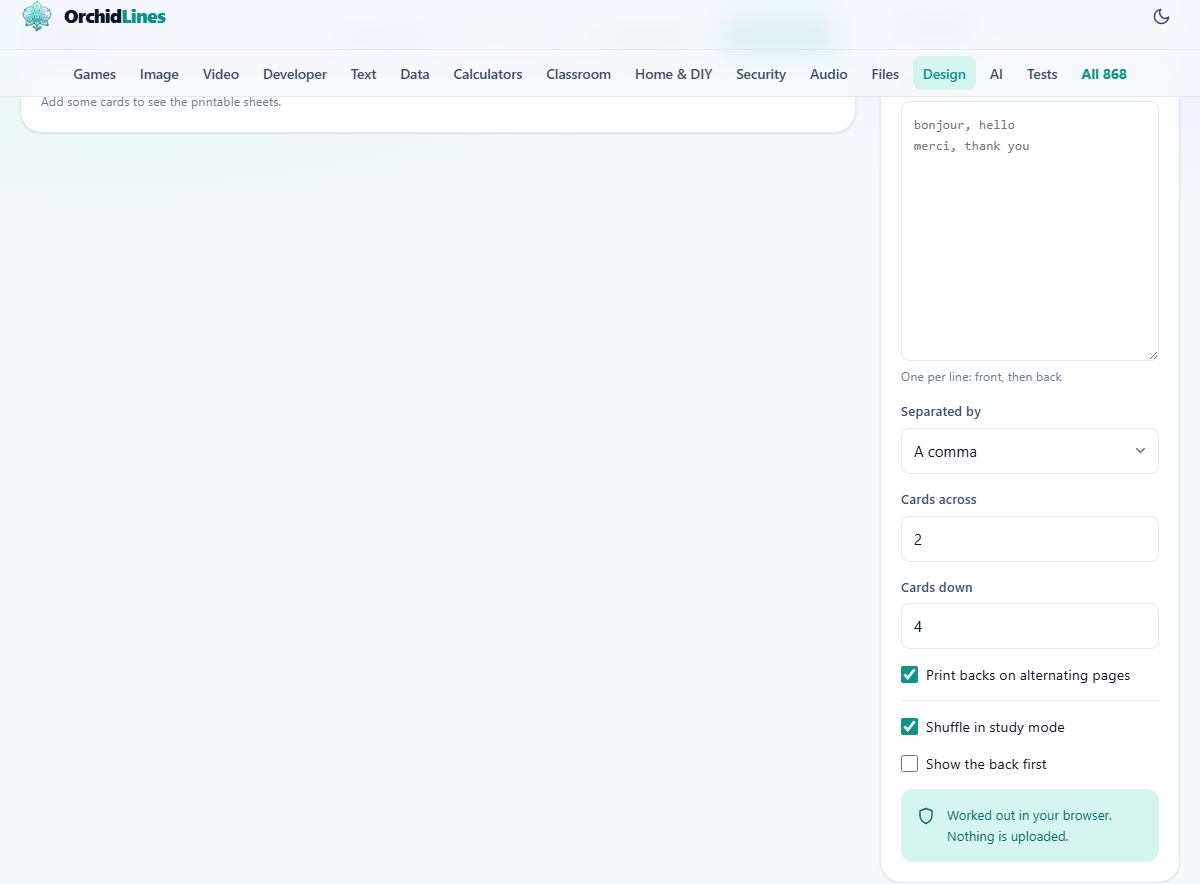
Type one card per line in the Your cards box. On each line put the front, then a separator, then the back. The Separated by menu chooses that separator, and you have three options: a comma, a tab, or a dash with a space on each side.
The split happens at the first separator only. So if you pick a comma and write a line that has more commas later in the answer, only the first comma divides front from back and the rest are left alone. If your prompts naturally contain commas, switch the separator to a tab or a dash so nothing splits in the wrong place.
Pasting from a spreadsheet
If your words already sit in two columns of a spreadsheet, you do not need to retype them. Copy both columns, set the Separated by menu to a tab, and paste into the box. A copied spreadsheet uses a tab between columns, so the whole set drops in as clean front-and-back pairs at once.
This is the fastest way to build a large deck. Keep the front column short and the back column to a single idea, and the cards will come out even and easy to read. You can still tidy any line by hand after pasting, since it is all just text.
Laying out the printed sheet
Two number boxes set the grid on each page. Cards across chooses how many sit side by side, from 1 to 4, and starts at 2. Cards down chooses how many stack top to bottom, from 1 to 6, and starts at 4. Multiply the two and you get the number of cards per sheet, which begins at eight.
Print backs on alternating pages is a tick box, on by default. With it on, the tool draws a page of fronts and then a matching page of backs, ready for double-sided printing. Turn it off and you get fronts only, which is handy if you just want prompts to cut out, or if you plan to write the answers yourself.
The double-sided trap
Here is the part that catches people. On the page of backs, each row is flipped left to right. That mirror is deliberate. When a printer turns the sheet over to print the second side, it flips the paper, and the mirrored row swings back into place so every answer sits exactly behind its own prompt.
For that to line up, you must print double-sided and set your printer to flip on the long edge. That is the setting the mirrored backs are built for. The safe move is to print a single test sheet first, cut one card, and check the answer is on the back of the right prompt before you commit a whole deck to paper.
Studying on screen
The Study mode button opens a full-screen flip card over the page. Click the card or press the space bar to turn it from front to back. Move to the next card with the right arrow key or the Next button, and go back with the left arrow or Previous. A small counter shows where you are, such as 3 of 8. Close the session with the Close button or the Escape key.
Two tick boxes shape the session. Shuffle in study mode is on by default, so the order changes each time and you cannot lean on the sequence to remember an answer. Show the back first flips the deck, showing you the answer and asking for the prompt, which is a good way to practise recall in the other direction.
The buttons and what comes out
Three buttons sit above the sheets. Try an example loads a ready-made deck so you can see how everything behaves. Study mode starts the on-screen session described above. Print the cards opens your browser's own print box.
There is no separate image or file download here. The printed sheets and the study session are the two outputs. When you press Print the cards, a short reminder appears about flipping on the long edge, and then the print box opens. From that box you can send the pages to a printer, or choose to save them as a PDF instead if you want a copy to print later.
A worked example
Press Try an example and the box fills with eight French words. The first line reads bonjour, hello, using a comma as the separator. The summary line updates to show eight cards and one sheet of paper, because two across and four down make eight per page.
On screen you now see a Fronts page with the French words and a Backs page with the English, its rows mirrored. Press Study mode and the first card appears; tap the space bar and it flips to the answer, then the right arrow brings up the next. To print instead, press Print the cards, set double-sided and flip on the long edge, run one test sheet, and the pair of pages become the two sides of one sheet of cards. Cut along the grid and the deck is ready to use.
Common mistakes and how to fix them
The most frequent error is the backs printing on the wrong cards, which almost always traces back to the flip edge. If the answers land upside down or behind the wrong prompts, change the printer to flip on the long edge and try the test sheet again. Different printers word this differently, so the one test page is worth the paper.
The second mistake is cramming too much onto a card. A card that lists three facts gets only half remembered. If a back has a small list on it, that is really several cards, and splitting them makes each one easier to learn. The third is a stray split from a comma inside your text, fixed by switching the separator to a tab or a dash.
Good habits for a deck
A few habits make any deck more useful, whatever the subject. None of them change a setting; they change what you type into the box, which is where the quality of a card really comes from.
- Keep one idea per card. If you can answer it in a single breath, it is the right size.
- Make prompts specific. A vague front can have more than one right back, which muddles your practice.
- Use both directions. Run the deck as normal, then turn on Show the back first to test recall the other way.
- Study small and often. A short run through a shuffled deck beats one long push the night before a test.
When another tool suits better
This tool is the quick end of studying: make cards, run through them, print them. What it does not do is schedule your review over days and weeks. There is no spaced repetition, where cards you find hard come back sooner and easy ones drift further apart.
That kind of long-term scheduling needs an account and a system that tracks your progress over time. If you are learning a large deck across months, a dedicated review app will handle the timing for you. For fast practice and printable cards, though, this page is the shorter path and asks nothing of you but the list.
Kept on your device
The cards never leave your computer. The list, the printable pages, and the study session are all built right here in the page, with nothing sent to a server and no sign-in required. Your card text is remembered in this one browser so it is ready the next time you open the tool.
Because that memory sits in a single browser, it does not sync to your other machines. If a deck took hours to build, copy the text into a note or a document as a backup. Clearing your browsing data would remove the saved list, and there is no copy stored elsewhere to bring it back.