
Getting an address onto a real envelope, in the right spot
The short help above walks you through choosing a size, typing the address, and printing. This guide fills in the rest. It covers every size and setting, explains the automatic position the sorting machines look for, shows how to run a whole list of envelopes in one go, and tells you what each warning means. A worked example and the usual traps close it out.
Printing straight onto the envelope
A sticky label is fine on a parcel. On a letter it can look like junk mail, and it peels at the corner. Printing the address onto the envelope itself looks like you meant it.
People reach for this for wedding invitations, Christmas cards, a run of letters from a small club, or a single formal reply. The tool lays the address out in millimetres on a page that is exactly the size of your envelope. Print at full size, and the words land where the preview shows them, with no fiddling in the print box.
Choosing the size and which way it turns
The Envelope menu lists the common British and American sizes next to their real measurements: DL, C6, C5, C4, C7/6, No. 10, Monarch, 6 by 9 inch, A2 and A7. Pick the one printed on the packet your envelopes came in.
If yours is not there, choose 'Something else'. Two boxes appear, Long side and Short side. Measure the envelope in millimetres and type both numbers in.
'Address runs along the' sets the direction. Long side is the ordinary wide envelope that most letters use. Short side stands it upright, for a tall envelope fed the narrow way.
Typing the address, and a whole list at once
Type the address in the Addresses box, one line per line, just as you want it printed. A name, a street, a town, a postcode, each on its own row.
To print several envelopes at once, leave a blank line between one address and the next. The tool then makes one envelope per page and prints them all in a single run. The preview shows the first, with a note telling you how many there are in total.
'Print a return address as well' adds your own address in a corner, and is on to begin with. Untick it if you do not want one. 'Last line in capitals' prints the town and postcode in capitals, which is what postal reading machines were trained to expect.
Where the address sits
The Address position menu has three settings. 'Where the post office expects it' is the safe default. It drops the block a little under half way across and a little under half way down, lined up on the left. That is the spot most sorting machines read.
'Centred' puts the block in the middle of the envelope. 'Where I say' unlocks two boxes, From the left and From the top, both counted in millimetres from the top left corner. Use these only when you have a reason, such as a pre-printed envelope with a gap to fill.
When a return address is showing, two more boxes appear so you can place it too, measured the same way.
The look of the writing
Typeface offers Plain sans, Serif, and Typewriter. Plain sans is the clearest for a machine to read. Serif looks more formal on an invitation. Typewriter gives an old-fashioned, evenly spaced look.
Address size and Return size are set in points, the same unit a word processor uses for type. The address starts at 12 point and the return at 9. Make the address bigger for an older reader if you like, but keep an eye on the warning line, because large type can push past the edges.
The keep-clear areas and the warning line
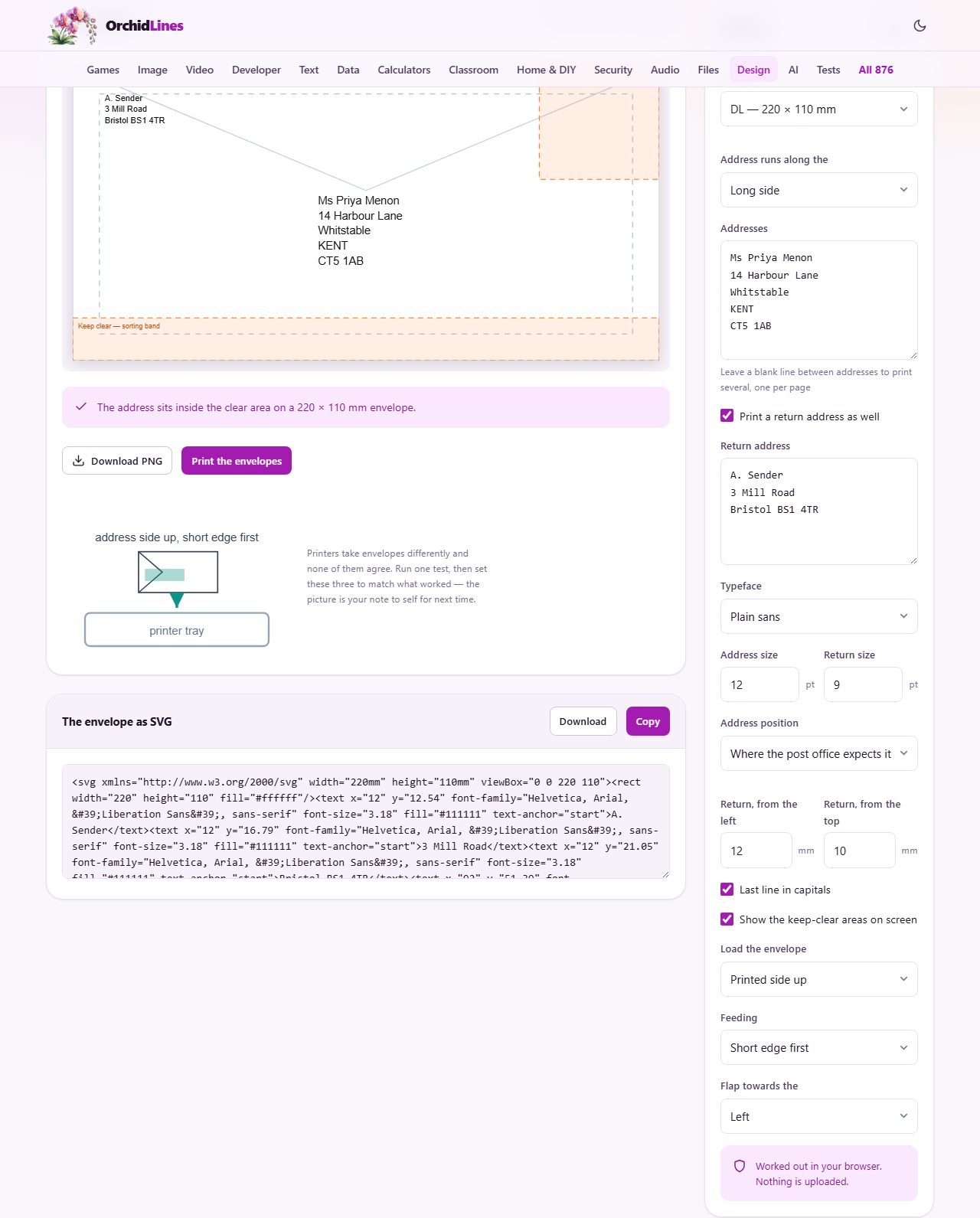
Tick 'Show the keep-clear areas on screen' and the preview marks two zones: a strip along the bottom and a box in the top right for the stamp. These guides show on screen only and are never printed.
The bottom strip is the one that counts. Sorting machines spray their own mark along the foot of every envelope. The tool keeps the bottom 16 millimetres clear, which covers both Royal Mail's 15 millimetre rule and the United States five eighths of an inch barcode zone. Put anything there and a machine may spray over it, or fail to read its own mark and pull the letter out for slow hand sorting.
Below the preview a line tells you whether the address is safe. When it is, you get a green tick. When it is not, an amber warning names the trouble:
- The address runs into the bottom sorting strip. Move it up, or make the type smaller.
- A line runs past the right edge of the printable area. Shorten it or reduce the size.
- The address starts less than 10 millimetres from the top edge. Move it down.
- The address overlaps the stamp corner. Shift it away from the top right.
- A line is wider than the whole envelope. Use a bigger envelope, or break it into shorter lines.
The feed picture is a note to yourself
No two printers take an envelope the same way, and nobody remembers theirs a year later. Three menus tame this. 'Load the envelope' is printed side up or down. 'Feeding' is short edge first or long edge first. 'Flap towards the' is left, right, the back of the tray, or the front.
As you change them, a small drawing updates to match your choices. It does not tell you the right answer for your printer, because there is no way to know that from here. So run one test envelope. When it comes out correct, set the three menus to match what you did, and the picture becomes your reminder for next time. It is worth writing on a sticker by the machine as well.
Printing, and the SVG you can keep
The 'Print the envelopes' button opens your browser's print box, with the page already set to the exact size of your envelope. A short reminder pops up: print at 100 per cent. A print box set to 'fit to page' shrinks everything a few per cent and shifts the address several millimetres, which is the usual reason a careful layout comes out low and to the left.
If you would rather keep a file than print right now, that same print box can save the envelope as a PDF instead.
The lower panel holds the envelope as an SVG, which is a text description of the drawing. Copy puts it on your clipboard, and Download saves it as envelope.svg. An SVG stays sharp at any size and opens in vector drawing programs, so it is handy if you ever want to tweak the layout by hand.
A worked example
You are posting a DL envelope to Ms Priya Menon. Leave the size on DL and the position on the default. In the Addresses box type five lines: Ms Priya Menon, then 14 Harbour Lane, then Whitstable, then KENT, then CT5 1AB.
Because 'Last line in capitals' is ticked, the postcode prints in capitals. The green line confirms the address sits inside the clear area on a 220 by 110 millimetre envelope. Leave your own return address in the corner.
Load one envelope, press Print the envelopes, and print at 100 per cent onto a plain sheet first. Hold that sheet against the real envelope up to the light. If it lines up, print for real. To send the same letter to a dozen people, paste all twelve addresses into the box with a blank line between each, and every envelope prints in one run.
Common mistakes
Most problems here are about the printer, not the layout. Check these first.
- The address prints low and to the left. The print box was set to fit the page. Put it back to 100 per cent.
- The printer jams on the envelope. A stack in the paper tray is the usual cause. Feed envelopes one at a time through a manual slot or rear tray.
- The address ends up upside down or on the back. The feed menus do not match how you loaded it. Run one test, then set them to match.
- A custom size comes out wrong. Long side and short side were swapped, or typed in the wrong unit. Both boxes are in millimetres.
- Part of the address is cut off. A line was longer than the envelope and tripped a warning. Shorten it or size it down.
When to use something else
This tool prints on the envelope. If you would rather run a sheet of sticky address labels through the printer, a label sheet maker is the better fit, since it lays many small labels across one page.
And if the part you care about is the letter inside, not the envelope, a letterhead tool handles the page itself. This one is only for the outside.