
Building a calendar you can actually print
The help panel above covers the first run through. This guide goes further: what each choice on the left does to the grid, how your day notes are stored, why the colour themes split into two kinds, and how to get a clean sheet on paper or a sharp image. A full worked example sits near the end, then the small mistakes worth avoiding.
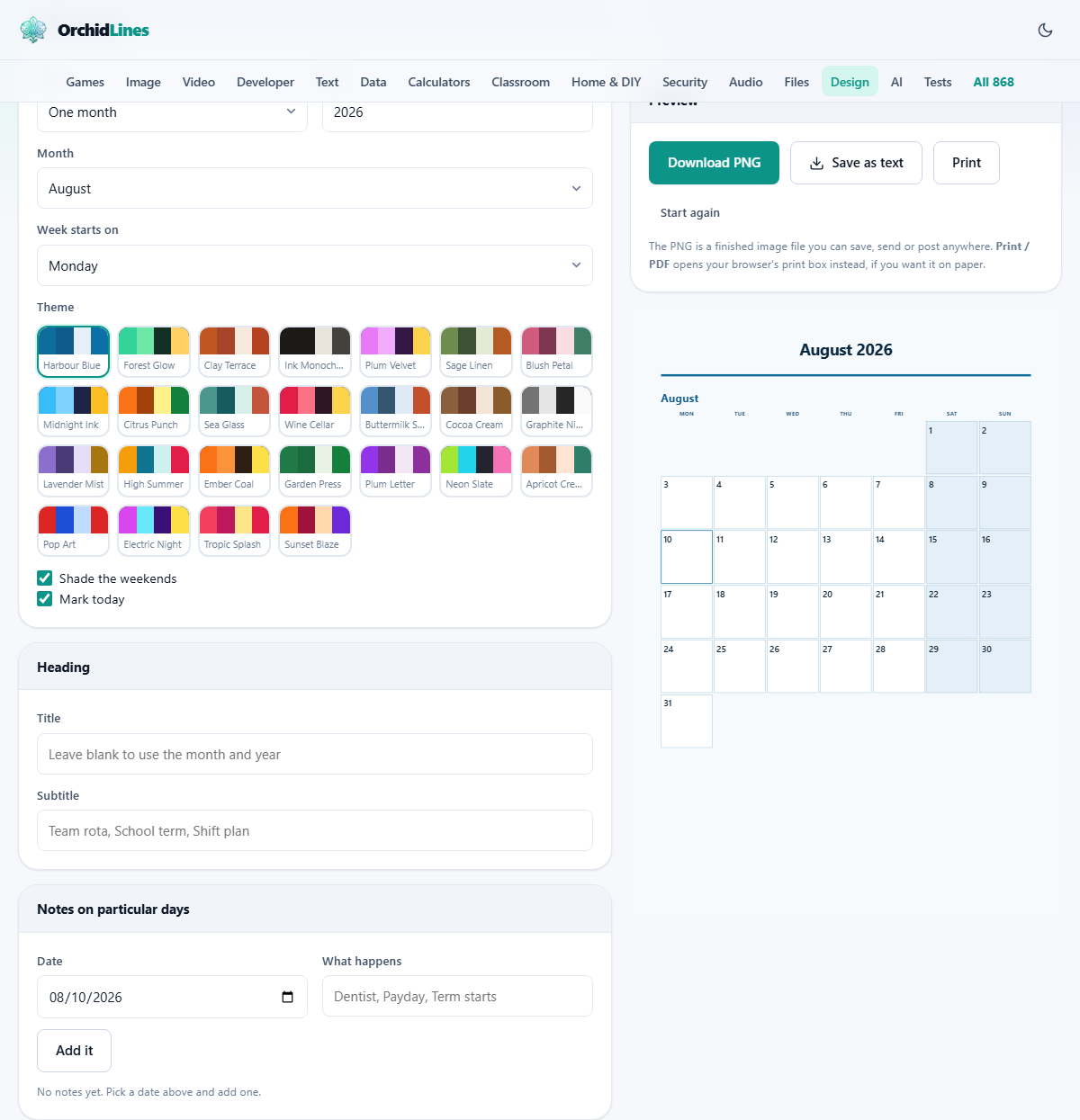
A calendar you shape to the job
A calendar is one of those things everyone needs slightly differently. A family wants a big month on the fridge with the swimming lesson and the bin day written in. A shift lead wants a rota that says who is on when. A teacher wants the term dates on one page. A small office wants the whole year on a wall to plan around.
This page makes all of those from the same few controls. You pick what to show, colour it, write on the days that need a note, and take away a picture or a printed sheet. There is no template to hunt for and no account to open.
One month, or the whole year
View is the first decision, and it changes the shape of everything. One month draws a single month in large squares, with room to write a line or two inside each day. That is the one to pick when people will add to it by hand.
Whole year fits all twelve months onto one sheet. The squares are small, so this is a sheet to look at rather than write in. It suits a wall planner or a page that lives in a folder for reference. Switch to the year view and the month box disappears, since it is no longer needed.
The year, the month, and where the week starts
Year takes any year from nineteen hundred to twenty-two hundred, so you can print last year for a record or next year to plan ahead. The number of days in each month is read from the real calendar, so a leap year gives February its extra day and an ordinary year does not.
Week starts on is a small setting that matters more than it looks. Monday first is normal across most of the world; Sunday first is usual in the United States and a few other places. It is not a cosmetic choice. It moves every date into a different column, so the wrong pick has readers looking at the wrong day of the week all month.
The colour themes
Theme is a row of colour swatches, and there are twenty-five of them. Each one sets the page colour, the day numbers, the weekend shade, the marker for today, and the rest, all at once, in a set of colours chosen to stay readable together.
They fall into two kinds. The light themes print cleanly on a home printer without soaking the page in ink. The darker themes are meant for saving as an image, where a deep background looks good on a screen but would drink a cartridge dry on paper. Pick a light one if the sheet is headed for the printer, and any one you like if it is headed for a screen.
Weekends, today, and the heading
Two tick boxes handle the small touches. Shade the weekends tints the Saturday and Sunday columns so the working week stands out. Mark today draws a marker on the current date, which is useful on a screen and easy to turn off for a printed sheet that will outlive today.
The heading has two boxes of its own. Leave Title empty and the calendar names itself from the month and year, so August prints as August with its year. Type your own and it takes over, whether that is Year Four Term Dates or Ward B Rota. Subtitle adds a smaller line under the title for the extra label, such as a team name or a plan name.
Writing notes onto the days
The notes panel is what turns a plain grid into your grid. Pick a day in the Date box, type a few words in the What happens box, and press Add it. The words appear inside that day's square, and the note joins a list below the button where you can remove any of them with the small cross. Pressing Enter in the text box adds the note too, so you can rattle through a run of dates without reaching for the mouse.
You can add as many notes as a month needs, and each one sits in its own day. To change a note, remove it and add the day again with new words. To clear a single day, find its row in the list and press the cross beside it.
Your notes are held in this browser as you go, along with the rest of the setup, so you can close the page and come back to it later. That copy lives on this device only. It is never synced anywhere, which is exactly what you want when the notes are private appointments or staff names, but it also means the saved image or PDF is your real keeper.
Getting it out: image, paper, or text
Three buttons sit above the preview. Download PNG writes a high-resolution picture of the calendar straight into your downloads, named after the month or year and the theme you chose. It is a finished image, ready to send in a message or post online.
Print calls up the print box your browser already has. From there you send the sheet to a printer, or change the destination to Save as PDF to keep a file. Save as text gives you the dates and your notes as a plain text list, with no colours, for pasting into a message or a document. Start again wipes the calendar and its notes and reloads a fresh page, after checking you mean it.
A worked example: a month of shifts
Say you run a small team and want August drawn up as a rota. Leave View on one month, set Year to the year you need, and set Month to August. Keep Week starts on Monday so the working week reads left to right. Choose a light theme, since this one is going on the wall by the door.
Leave Title empty so it prints as August with the year, and set Subtitle to Shift plan. Now add the notes: pick the pay date and type Payday, pick the stocktake day and type Stocktake, pick the bank holiday and type Closed. Each lands in the right square, and each shows up in the list below in case you want to change one.
When it looks right, press Download PNG for a copy to email round, or press Print and send it to the office printer. Next month, change Month to September, adjust the notes, and print again.
What makes a calendar easy to use
A calendar people can actually work with follows a few plain rules. If anyone will write on it, use the single month, because the year view has no room for a pen. Set the week start your readers expect, so nobody miscounts a day. Keep each note short, a word or two, so it fits the square and stays legible.
For a clean sheet on paper, choose a light theme, decide whether you want the weekend shading and the today marker, and print at normal scale. For a clean image to share, any theme works, and Download PNG gives you a crisp file at a large size that holds up when someone zooms in.
Quick answers to common snags
Most questions about a printed calendar come down to one of these, and each has a quick fix.
- The colours came out faint on paper. A draft or economy print mode dulls large tinted areas, so print in normal quality, or turn the weekend shading off for a plainer sheet.
- A note is too long for the square. Shorten it to a word or two, or move the detail up to the subtitle if it applies to the whole month.
- February looks wrong. Check the year, since the extra day only shows in a leap year, and the grid follows the real calendar.
- The notes were missing on another computer. They are kept in this browser on this device, so they do not travel to a different machine. Keep the image or PDF as the copy you share.
- A dark theme used a lot of ink. Those themes are built for a screen, so switch to a light one for anything headed to the printer.
Mistakes, other tools, and where it runs
The usual slip is the week start. Set it wrong and every date sits one column off, which is the kind of error nobody spots until a meeting is missed. Check it before you print. The other is reaching for the year view to write on, when the month view is the one with space.
If you want a single dated card rather than a grid, the certificate and card makers on this site fit those jobs better, and a full wall poster belongs in the design editor. Whichever you use, this calendar is drawn in the page in front of you. The dates you pick and the notes you add stay in this browser, on this device, and are sent to no server.