
Making stripes a scanner will actually read
The help panel covers the steps. This guide fills in the detail behind them: which of the five codes to choose, how your value is checked as you type, what each look setting does to a scan, how the batch box turns a spreadsheet column into a folder of images, and which download survives printing. A full example runs from the sample number to a saved file and on to a batch.
Two very different reasons to make one
There are really two jobs on this page. One is a product you intend to sell in shops. The other is your own things that you want to track: stock on shelves, tools in a cupboard, boxes in a store room.
The retail job is fussy. The number has to follow a strict format and, to be legitimate, has to belong to you. The internal job is relaxed by comparison: any code your own scanner can read is fine.
The tool handles both. It only needs to know which one you are doing, because that choice decides the barcode type, and the type decides every rule that follows.
Choosing the type
Barcode type lists five. Code 128 holds letters and numbers and packs them tightly, which is why warehouses and couriers rely on it. It is the sensible default for anything internal.
EAN-13 is the thirteen-digit code found on products across most of the world. UPC-A is its twelve-digit relative, used in North America. EAN-8 is the shorter code for small packs where a full-length one will not fit.
Code 39 is an older code, still seen on industrial and equipment labels. It carries capital letters, digits and a small set of symbols.
As you switch between types, the line just under the menu rewrites itself to spell out exactly what that type will accept. Read it before you type, and half the guesswork disappears.
The value, and the check digit
Value is where you type what the code should carry. The tool checks it as you type. If what you have does not fit the chosen type, you get a plain sentence explaining why, such as EAN-13 needing twelve or thirteen digits when you have only ten.
The retail codes end in a check digit, an extra digit worked out from the rest to catch a misread. You do not have to calculate it. Type the first twelve digits of an EAN-13 and the tool adds the thirteenth for you.
When it does that, the status line under the picture shows the finished number in full, so a digit you did not type is never a surprise at the printer.
While the value is still wrong, the two download buttons stay switched off. They come back to life the instant the value becomes something the type can encode.
Reading what the tool tells you
The messages are meant to be read, not dismissed. Each type has its own rules, and the tool spells the broken one out in words instead of throwing a blank error.
Say you choose EAN-13 and type an eleven-digit number. The message tells you the type wants twelve or thirteen digits and that you have eleven, so you know to add one rather than to start guessing. Add the missing digit and the picture appears.
Code 39 is stricter about characters than about length. Type a lower-case run and it is simply lifted to capitals, which the type does allow. Type a symbol it cannot hold, though, and the message names that exact character so you can strip it out.
None of this happens after the fact. The check runs on every keystroke, so a value is judged the moment it is complete, and you never have to press a button to find out it was rejected.
Setting the look
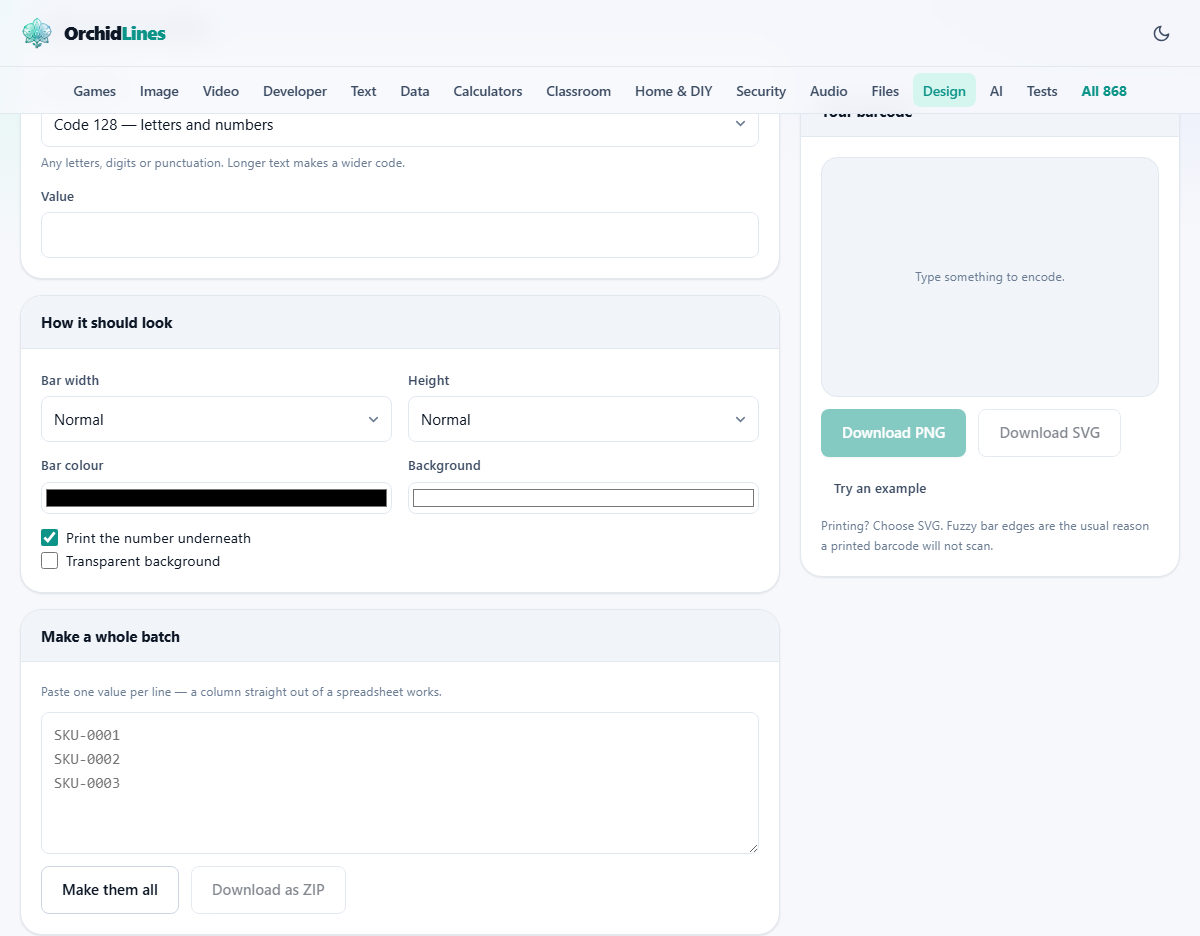
Bar width offers Thin, Normal, Thick and Extra thick. Wider bars survive rough surfaces and cheap scanners far better, so only go thin when space is genuinely tight.
Height offers Short, Normal and Tall. Taller bars are easier for a scanner to catch when the label is held at an angle.
Bar colour and Background will take any colours you like, but the safe pair is dark bars on a light ground. Scanners read by bouncing light off the label, and a red bar or a dark background often fails outright. Keep to black on white unless you have tested something else and know it works.
Print the number underneath shows the digits below the bars, so a person can key them in by hand if a scan ever fails. Transparent background drops the white fill, which lets the code sit directly on a coloured label without a white box around it.
What comes out, and which file to pick
The preview shows the code building as you type. Above the buttons a status line names the type and the pixel size, and adds the completed number whenever a check digit has been appended.
Download PNG saves an image, which is fine for a screen or a quick throwaway print. Download SVG saves a sharp, scalable version, and it is the one to choose whenever the code will be printed.
The reason is simple. A PNG blown up to fit a label gets fuzzy edges, and fuzzy edges are exactly what a scanner misreads. An SVG stays crisp at any size, so the bars keep their clean edges on paper.
Each file is named after the value it carries, so a folder full of them sorts and searches sensibly. The Try an example button loads a working number if you just want to watch the tool run once.
Doing a whole column at once
The real task is rarely a single code. It is a column of part numbers pasted straight out of a spreadsheet. The batch box is built for exactly that: one value per line.
Press Make them all and every line is drawn in turn. Any line that cannot be encoded is listed with the reason beside it, rather than being dropped in silence, so you can see at a glance what needs fixing before you commit.
Download as ZIP then saves the whole run as a single file called barcodes.zip, each image inside named for its value. That button stays disabled until at least one code in the batch has been made successfully.
A worked example, single then batch
Press Try an example. The type switches to EAN-13 and the Value box fills with 590123412345, which is twelve digits.
The status line reads EAN-13, gives the pixel size, and adds the completed number 5901234123457. That final 7 is the check digit the tool worked out from the twelve digits you were given.
Because these are going to be printed, you press Download SVG rather than PNG, and a file named 5901234123457.svg is saved to your downloads.
Now for the batch. You paste SKU-0001, SKU-0002 and SKU-0003 into the batch box on the left, switch the type to Code 128 so the letters and the dash are allowed, and press Make them all. Three codes appear together. Download as ZIP hands you barcodes.zip with the three images inside, one named for each part number.
Mistakes that stop a scan
- Inventing a retail number: the tool will happily draw any EAN-13, but a made-up one already belongs to some real company. To sell in shops the number must be one issued to you by GS1, the body that hands them out.
- Printing from a PNG that was scaled up: the bar edges blur and the scan fails. Use the SVG for anything printed.
- Coloured or low-contrast bars: they look smart on screen and read as nothing at the till. Go back to dark bars on a light background.
- Crowding the bars: the clear margin at each end is part of the code. A border or text jammed right against the bars is a very common cause of failure. Leave them room to breathe.
- The wrong count of digits: each retail type wants an exact number of them. The message tells you both how many you have and how many the type expects.
When a different code suits the job
If you want to hold a web address, a long piece of text, or anything a phone camera should read, this is the wrong shape entirely. A barcode here is a one-line stripe code for a number or a short reference. A QR code is the tool for links and phones.
If the code is destined for a staff pass, the ID card maker on this site can place a Code 128 stripe on the card itself, so you may not need this page as a separate step at all.
And if you need a rare industrial symbology that is not among the five listed here, you want a specialist encoder built for that format, rather than stretching this one to fit.
Your numbers stay with you
Everything is drawn inside this page, on your own device. The part numbers, the SKUs and any customer reference you paste are never sent anywhere on the way to becoming a barcode.
That is worth knowing, because a column of product codes can be commercially sensitive, and a supplier list even more so. Here it never leaves the browser, so making a thousand labels tells no outside service a single thing about what you sell.
There is no account to create and no connection required once the page has loaded, so the whole job, single code or full batch, works with the internet switched off.