
Giving every name a picture before anyone uploads one
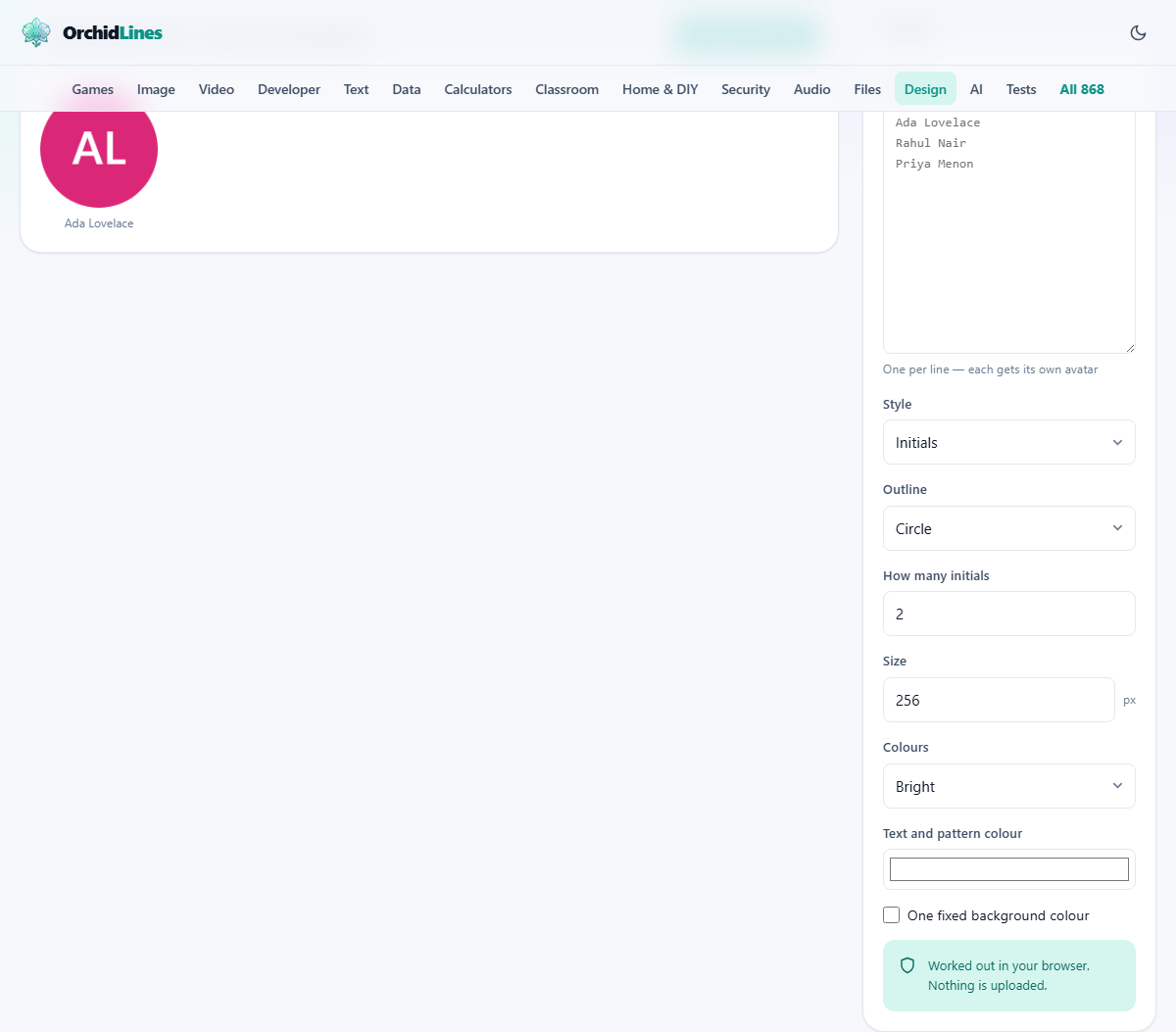
Above, the panel builds a set of avatars from a list of names. This guide explains the parts underneath: the three styles and their outlines, how the initials are chosen, why the colours never drift, what every size and colour control does, and how to save one avatar or the whole set. A run with three real names is worked through near the end.
The gap these fill
Almost every app has to show a person before that person has added a photo. A comment thread, a fresh account, a staff page, a chat list: each needs something in the little round slot on day one.
A blank grey circle looks unfinished, like a page that failed to load. A coloured disc with someone's initials looks like a decision instead. This page makes those, in bulk, from nothing more than a list of names.
Designers, developers and anyone assembling a directory reach for it. You paste the names once and walk away with a matching set of images, all built to the same recipe.
Three styles and three outlines
Style decides what goes on the disc. Initials draws one to three letters taken from the name. Identicon pattern draws a small symmetric block of squares. Simple shape draws one plain figure, such as a circle or a triangle.
Identicons and shapes suit usernames, handles and anonymous accounts, where letters would hint at a real name that is not actually known. Initials suit real people whose names you have.
Outline sets the frame around whichever style you pick: Circle, Rounded square or Square. A circle is the usual choice for a profile picture, while the squares sit more neatly in a grid or a tiled list.
The frame and the contents are separate choices. You can put initials inside a square or a shape inside a circle, mixing the two menus freely until the set looks right.
How the initials are picked
With the Initials style, How many initials sets how many letters to use, from one to three. It starts at two, which is the familiar look.
A name made of several words gives the first letter of each word. Ada Lovelace at two letters becomes AL. A single word gives its own first letters instead, so a lone Orchid at two letters becomes OR rather than a bare O.
Size matters more than it seems here. At the scale of a comment avatar, one strong letter is clearer than two cramped ones, and far clearer than three squeezed together. Drop to a single letter for anything that appears small.
The How many initials box only shows while the Initials style is selected. The other two styles have no letters to count, so the control hides itself rather than sitting there doing nothing.
Which style suits which list
The three styles are not just three looks; each fits a different kind of list. Thinking about the list first saves you flipping between them later.
Reach for Initials when you have real names and want people to recognise themselves at a glance. Two letters read as a person, and a colleague scanning a team page finds their own row instantly.
Reach for Identicon pattern when the list is usernames or accounts with no real name attached. The pattern gives each one a distinct, stable mark without pretending to spell anything. It is the friendlier choice for a comment section full of handles.
Reach for Simple shape when you want the lightest, calmest option, or when even a pattern feels too busy. One clean figure per person is quiet, and it still stays the same figure for the same name every time.
Why the colour never changes
Each avatar's colour is worked out from the name itself, not rolled at random. The same name always lands on the same colour, on any device, whether you make it today or a year from now.
That steadiness is the entire point. Rebuild the directory next year and every person keeps the exact colour they had, so nothing looks reshuffled or freshly generated. Random colours would scramble on every rebuild and betray that the set is not real.
Colours chooses the pool the tool draws from: Bright, Cool, Warm, Muted or Monochrome. The name decides which colour it takes within that pool, so switching pool restyles the whole set at once while keeping each person tied to a stable pick.
Overriding the colours
Text and pattern colour sets the colour of the letters, the identicon squares or the shape. It starts as white, which reads cleanly on the strong background colours the pools produce.
One fixed background colour throws away the per-name colouring and paints every avatar the same. Tick it when you want a single house colour across the whole set rather than a spread of them.
With that box ticked, Background colour appears and takes the one colour you want behind them all. It stays hidden the rest of the time, because while each name picks its own colour there is nothing for it to set.
Size, and saving what you make
Size is the width and height in pixels, from 32 up to 1024, in steps of 16, starting at 256. A value of 256 is plenty for most web use and stays crisp on sharp screens. Go larger only when the avatar is shown big somewhere in particular.
The heading above the grid counts what you made and states the size, for example three avatars at 256 by 256 pixels, and it invites you to click one to download it.
Click any single avatar and it saves as a PNG named after that person. Download all as ZIP saves the entire grid at once, as a file called avatars.zip, with each image named for its person. If two names would produce the same file name, the repeats are numbered so nothing is quietly overwritten.
The naming is worth the small effort it saves later. Because each file already carries the person's name, you can match an image to a record without opening it, and dropping the folder into your own app tends to line the pictures up with the right people on its own.
How many at a time, and how fast
The Names box takes up to 200 names in one go, one to a line, and draws every one of them into the grid below. Blank lines are skipped, so a stray empty line between names does no harm.
Every change redraws the whole set immediately. Switch the pool, nudge the size or swap the outline, and all the avatars update together, which makes it easy to try a few looks before you commit and download.
If you leave the box empty, the tool shows a single sample avatar so the page is never blank. Type over it and your real list takes its place at once.
A worked example: three teammates
Into the Names box you paste three lines: Ada Lovelace, Rahul Nair and Priya Menon. Style stays on Initials, Outline on Circle, How many initials on two, Size on 256 and Colours on Bright.
Three discs appear at once: AL, RN and PM. Each carries its own colour, fixed by its name, so the row already looks like a designed set rather than three random blobs.
The heading reads three avatars at 256 by 256 pixels, click one to download it. You click Ada's disc and a file named ada-lovelace.png drops into your downloads. Happy with the whole row, you press Download all as ZIP and receive avatars.zip holding all three.
A month later a fourth person joins. You paste all four names together, and the first three keep their exact colours while the newcomer is handed a colour of her own. Nothing about the earlier three shifts.
Where people trip up
- Expecting variety from a fixed colour: with One fixed background colour ticked, everyone shares one colour on purpose. Untick it to bring the per-name spread back.
- Three initials that blur at small sizes: reduce How many initials to one, or show the avatar larger. Three letters need room they do not have on a tiny disc.
- A control that seemed to disappear: How many initials only shows for the Initials style, and Background colour only shows once One fixed background colour is ticked. They hide when they do not apply.
- Wanting the same face in a different frame: change Outline, not Style. The frame is a separate menu from the contents, so the letters or shape stay put while the border changes.
When another tool is the better fit
These are placeholders, not photographs. Once a real face is available, use it, because a genuine portrait always beats initials for a real person. The tools that crop or clean up a photo belong to that job, not to this page.
If you need a proper brand mark rather than a person's stand-in, that is a different exercise with different tools. An avatar is a marker for someone, not a logo for something.
And if you only want a single avatar for yourself, this still does the job, but its real strength is turning a long list into a full matching set in one pass.
Names never leave your computer
A list of names is usually a list of real people, which makes it exactly the sort of data to keep close. Here it stays put. The letters, the pattern and the colour are all worked out inside this page, on your own device.
Nothing is sent away and nothing is written to a server. Contrast that with the avatar services that build each image from a web address: those receive every name you feed them, one request at a time. This page never watches a single name leave the browser.
There is nothing to sign into either, and no connection is needed once the page has loaded, so a whole directory of avatars can be generated with the internet switched off.