
Converting between YAML, JSON and XML without losing your data
YAML, JSON and XML are three ways of writing structured data. Developers switch between them constantly, and getting the conversion wrong means broken configuration files or lost values. This article explains when each format is the right choice, walks through every control on the converter, shows a real conversion with concrete data, and covers the traps that silently corrupt output.
Three formats for the same job
YAML is what configuration files tend to use. If you have edited a Docker Compose file, a GitHub Actions workflow, or an Ansible playbook, you have written YAML. It uses indentation instead of brackets, which makes it pleasant to read but sensitive to spacing mistakes.
JSON is what code and web services use. Every API response you have ever inspected in a browser is JSON. It is strict: everything is quoted, every bracket must close, and a trailing comma breaks the file. That strictness is its strength, because a JSON parser either reads the file correctly or rejects it. There is no grey area.
XML is the oldest of the three and still runs a lot of the world. Configuration files for older Java applications, RSS feeds, SOAP web services, SVG graphics and Microsoft Office documents are all XML under the surface. It is verbose but unambiguous, and every browser has a built-in parser for it.
When you need to convert and why
The most common direction is YAML to JSON. A developer writes a config file in YAML because it is easier to read, then needs to send the same data to an API that only accepts JSON. The structure is identical; only the punctuation changes.
JSON to YAML goes the other way: you fetched a response from an API and want to turn it into a config file. XML to JSON is common when working with legacy systems whose data you need in a modern format. And occasionally you need JSON or YAML converted to XML for an older system that insists on it.
This page handles all six directions. Paste any of the three formats and choose the target. The output appears while you type, so you can see at once whether your data survived the trip.
Every control on the page
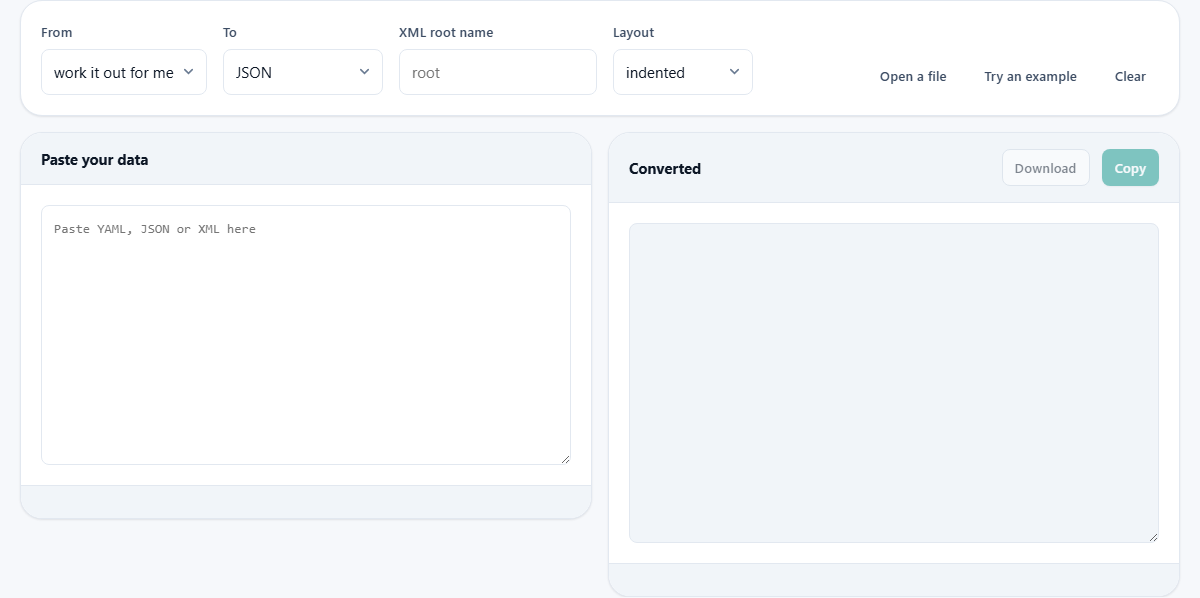
The From dropdown offers four options. The default, work it out for me, looks at the first character of your input and picks the format. Data starting with a curly brace or a square bracket is treated as JSON. Data starting with an angle bracket is treated as XML. Anything else is treated as YAML. You can override this by choosing YAML, JSON or XML explicitly, which is useful when your YAML happens to start with a bracket.
The To dropdown is where you pick the target format: JSON, YAML or XML.
XML root name is a text field that matters only when the output is XML. Every XML document must have exactly one top-level element wrapping everything else. If you do not name it, the tool uses root. When converting XML to XML, the original root name is kept automatically. This field only applies when converting from JSON or YAML into XML.
The Layout dropdown has two options. Indented produces output with line breaks and spacing, which is what a person wants to read. Compact strips every space and newline, producing the smallest possible output, which is what you want for a file that only machines will read. Compact JSON in particular is common as a payload in API requests.
Loading data and getting the result
You can paste text straight into the input box, or use Open a file to load a .yaml, .yml, .json or .xml file from your computer. Try an example fills the input with sample data so you can see what the conversion looks like. Clear empties both boxes.
The output appears in the right-hand panel. Copy puts it on your clipboard. Download saves it as a file with the correct extension for the target format. The status bar under the input box shows whether the input was valid or, if not, where the problem is.
A worked example with real data
Start with a small YAML file that describes a server. It has a key called server with nested keys for host, port and database. The host is db.example.com, the port is 5432, and the database is a list of two names: production and staging.
Paste this into the input with From set to work it out for me and To set to JSON. The output is a JSON object with the same structure. The host value is quoted, the port is a number, and the database list becomes a JSON array with square brackets. Indented layout puts each key on its own line. Switch to compact and the whole thing collapses to one line with no spaces.
Now change To to XML and set the XML root name to config. The output wraps everything in a config element. Each key becomes a child element. The database list produces two item elements inside a database element. Attributes from the original XML are prefixed with an at sign, which keeps them distinct from child elements of the same name.
What the YAML reader handles and where it stops
The YAML support covers the features that show up in real configuration files: key-value mappings, lists, nesting by indentation, inline lists and maps in square and curly brackets, comments, quoted and unquoted values, numbers, boolean values, null, and block text using the pipe and greater-than markers.
It deliberately does not support three things. Anchors and aliases, written with ampersand and asterisk, let one part of a YAML file refer to a block defined elsewhere. Explicit type tags force a value to be treated as a specific data type. Multi-document files, separated by lines of three dashes, hold several documents in one file. All three are genuinely used, especially in Kubernetes manifests, but rather than silently mangling them the page stops and tells you which feature it found.
The XML side is different. XML is parsed by the built-in parser in your browser, which is a complete and correct implementation. Any valid XML will be read without trouble.
The traps that break a conversion
In YAML, indentation is structure. A single misaligned space changes which key a value belongs to, and unlike JSON there are no brackets to make the grouping obvious. If a conversion fails or produces the wrong nesting, the indentation is almost always the cause. Use spaces, not tabs, and be consistent about how many.
In JSON, trailing commas are the most common error. A list that ends with a comma after the last item is technically invalid, though many editors tolerate it. This parser does not, and the status bar will point to the line where the extra comma sits.
In XML, unclosed tags and mismatched names are the usual culprits. An element opened as Item but closed as item, with a different capitalisation, is invalid XML. The parser reports the error with a line number.
How XML attributes are handled
XML has a feature that JSON and YAML lack: attributes on elements. An element like book with an attribute called id has both an attribute and possibly child elements. When converted to JSON or YAML, the attribute name gets an at sign in front of it, so id becomes @id. This is a common convention that keeps attributes visually distinct from child elements that might share the same name.
Going the other way, any key in JSON or YAML that starts with @ is turned into an XML attribute. Keys without the prefix become child elements. This round-trip behaviour means you can convert XML to JSON, edit the JSON, convert back, and the attributes survive.
When to use a different approach
If your file is a CSV or a spreadsheet, this is the wrong page. CSV is a flat table, not a hierarchical format, and the data tools section of the site has dedicated converters for those.
If your YAML uses anchors and aliases heavily, you will need a full YAML parser, which means a command-line tool like yq or a library in Python or Node. This page is honest about its limits rather than pretending to handle features it does not support.
For very large files, tens of megabytes or more, a browser-based converter works but may feel slow. A local tool running on your machine will handle those faster because it is not constrained by a browser tab's memory model.
Where the conversion happens
Configuration files often hold sensitive data: database passwords, API keys, server addresses. Pasting them into an online converter that sends the text to a server is a security risk people accept without thinking.
This converter runs entirely in your browser. The parsing, the conversion, and the output all happen on your own device. Nothing is sent anywhere. You can load the page, disconnect from the internet, and the converter still works, which is proof that no server is involved. Your data stays where it was.