
Turning a contacts export into a spreadsheet you can actually work with
Every phone and mail client can export contacts as a .vcf file, but almost nothing useful can be done with that file directly. This article explains how to turn a vCard export into a clean CSV that opens in Excel, Sheets or Numbers, covering each option on the page, a full worked example, the encoding trap that garbles accented names, and what happens to contacts that have six phone numbers.
Why you would want contacts in a spreadsheet
The reasons are practical. You want to mail-merge a letter to two hundred club members, and mail merge needs a spreadsheet. You are switching from one CRM to another and the old one only exports vCard. You want to find and delete duplicate entries, which is trivial in a spreadsheet and painful on a phone. Or you simply want a printed list of names and numbers as a backup.
A vCard file is text, technically, but awkward text. Long lines are folded across several physical lines. Older exports use an encoding called quoted-printable for accented characters. One contact can have six phone numbers, each with a different label. None of that is easy to read by eye, and none of it is what a spreadsheet expects. The conversion handles all of it and produces a flat table with clear column names.
Getting your contacts out of a phone or mail client
On Android, open the Contacts app, go to Settings and choose Export. The result is a .vcf file on your phone. On iPhone, the easiest route is iCloud: sign in to iCloud.com, open Contacts, select all, and use the gear menu to export a vCard.
In Google Contacts, there is an Export option in the left sidebar that offers vCard format. In Outlook, go to File then Export. Apple Contacts on a Mac has Export vCard under the File menu. In every case you end up with a file that usually ends in .vcf, and that is what this page reads.
Loading the file and what happens next
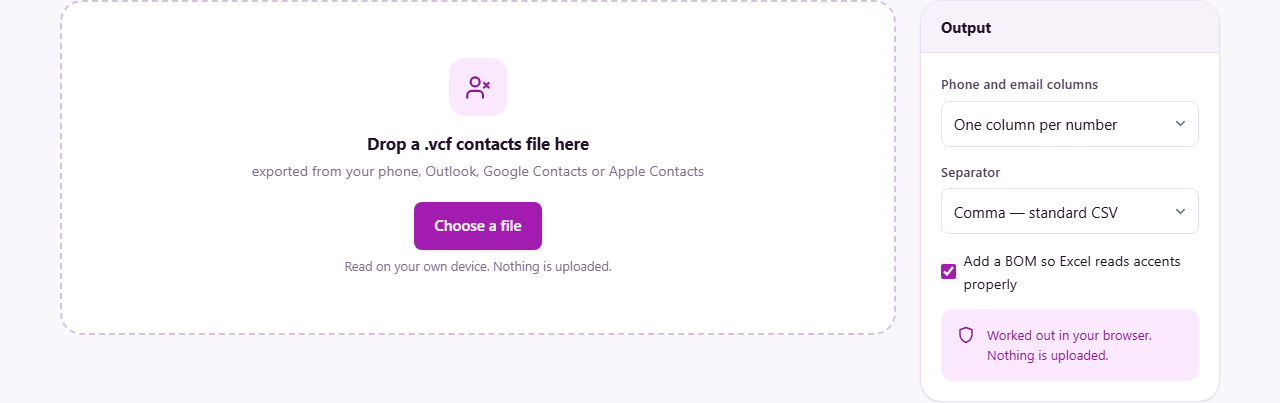
Drag the .vcf file onto the drop area, or click and choose it from your computer. Several files can be dropped at once, and they are merged into one table. The page reads each contact block, unfolds wrapped lines, decodes any encoded characters, and lays the result out in a table you can scroll through before downloading.
A summary line at the top tells you how many contacts were found. Below it, the table shows every field that appeared in the file. Names, phone numbers with their type labels, email addresses, companies, job titles, the first postal address, birthdays, websites and notes all come across. Photos, custom fields and app-specific extensions are skipped because they do not fit a flat table.
The output options explained
The Phone and email columns dropdown controls how multi-valued fields are handled. The default, One column per number, gives each phone number its own column with a label like Phone 1, Phone 1 type, Phone 2, and so on. The table grows as wide as your most-connected contact needs. Switch to Just the first of each if you only want one phone and one email per person, which makes a narrower sheet that works better for a mail merge or a simple printed list.
The Separator dropdown offers three choices. Comma is the standard CSV format and the right pick for most uses. Semicolon is what European installations of Excel expect, because those use the comma as a decimal point. Tab produces a tab-separated file, which some older tools prefer.
The Add a BOM so Excel reads accents properly checkbox is on by default and should almost always stay on. A BOM is a three-byte marker at the start of the file that tells Excel the text is UTF-8. Without it, Excel opens the file using whatever local encoding your operating system defaults to, and every accented name turns into garbled characters. No other program minds the BOM being there, so leaving it on costs nothing.
A worked example with a real export
Export your Google Contacts as vCard. The file is called contacts.vcf and contains, say, 83 contacts. Drop it on the page. The summary says 83 contacts found.
Scroll through the table. Most contacts have one phone number, but your colleague Priya has three: a mobile, a work number and a home number. With the default setting, her row has Phone 1 through Phone 3, each with a type column beside it showing mobile, work and home.
Everything looks right, so press Download CSV. The file opens in Excel. Column A is Full Name, column B is Phone 1, column C is Phone 1 type, and so on. Because the BOM was ticked, Priya's last name with its accent shows correctly. Sort by company, delete the contacts you no longer need, and save.
The encoding trap and how to avoid it
The single most common complaint about CSV files in Excel is garbled characters. A name like Jose appears as Jose, or worse, as a string of question marks. This happens because Excel, by default, does not assume UTF-8. It assumes whatever code page your version of Windows or macOS was set up with.
The BOM checkbox fixes this. When you see garbled names after opening a downloaded CSV, the cause is almost certainly that the BOM was unchecked. Download again with it ticked and the problem goes away. Google Sheets and Apple Numbers do not have this issue because they always assume UTF-8, but Excel still needs the hint.
Handling contacts with many phone numbers
Some people collect phone numbers. A contact might have a mobile, a work direct line, a work switchboard, a home number, a fax number and a second mobile for travel. In the vCard file these are all stored under the same contact, each tagged with a type.
The default One column per number setting preserves every number. The output has as many phone columns as the most phone-heavy contact requires, and contacts with fewer numbers simply have empty cells in the extra columns. The type labels, mobile or work or home, sit in the column next to each number so you know which is which.
If you do not need all of them, switch to Just the first of each. This keeps only the first phone number and the first email address. The sheet is much narrower, which is easier to print and easier to use for a simple task like a mail merge that only needs one number per person.
What is left out and why
Photos are skipped. A contact photo in a vCard file is stored as a base64 string that can run to tens of thousands of characters, and putting that into a CSV cell would be useless. Custom fields added by specific apps are also left out because their names and formats vary between apps and cannot be mapped to standard columns.
If your contacts file uses extensions from a particular app, those fields will not appear in the CSV. The things that do come across, names, phone numbers, emails, companies, titles, addresses, birthdays, websites and notes, cover what most people actually need from a contacts spreadsheet.
Common mistakes and how to fix them
Dropping a CSV file instead of a .vcf file is the fastest way to get confused. This page reads vCard format. If you have a CSV and want vCard, you need the CSV to Contacts tool, which goes the other direction.
Another pitfall is exporting from Google Contacts in the wrong format. Google offers three export options: Google CSV, Outlook CSV, and vCard. Choose vCard for this page. If you accidentally pick one of the CSV options, the file will not parse because it is already a spreadsheet, not a contacts file.
If your exported file is very old, it may use vCard version 2.1 with quoted-printable encoding for special characters. The page handles this, but the result is worth checking. Old exports sometimes have character encoding issues that no automated tool can resolve perfectly.
Where your contacts stay
A contacts export is a list of real people's names, phone numbers and addresses. It is personal data by any definition, and sending it to a server for processing is a risk most people would rather avoid.
This page reads the file entirely inside your browser. Nothing is uploaded. The table is built on your own device, and the CSV file is generated there too. You can prove this by loading the page, going offline, and converting a file anyway. A tool that works with no network connection cannot be sending your contacts to a third party.