
Turning a spreadsheet of names and numbers into a contacts file
Most people keep names in a spreadsheet at some point, and at some point they want those names on a phone. This article explains how to turn a CSV file into a vCard that any phone, mail client or address book will import. It covers every control on the page, walks through a full example with real values, and explains the one setting that saves hours of trouble when you travel.
Who needs this and when
A teacher has a class list in a sheet. An event planner has two hundred guests in a Google Sheet. A sales team keeps prospect details in Excel. A church has a congregation directory in a CSV export from old software. In every case the names are sitting in rows and columns, which is fine for sorting and filtering, but useless when you need to ring someone from your phone.
What ties all of these together is the last step: getting the list onto a device that makes calls and sends messages. Phones, Gmail, Outlook and Apple Contacts all speak the same language for this job, and that language is vCard. So the task boils down to turning rows into vCards, and that is exactly what this page does.
Getting your spreadsheet ready
The only firm rule is that the first row must be headers. After that, name your columns in plain language and the tool figures out the rest. A column called Name, Full Name or Contact Name all map to the same field. Phone, Mobile, Cell and Contact Number are all treated as a phone number. Email, E-mail and Email Address all land in the right place.
Beyond name and phone, the tool picks up first name, last name, company, job title, address and website. The matching is case-blind, so EMAIL works just as well as email. If a column name is not recognised it is quietly left out, and the status line tells you which columns were matched, so you can check before downloading.
You can paste your CSV straight into the input box or load it from a file. If you have never seen CSV before, open your spreadsheet in Excel or Sheets, choose Save As, pick CSV, and you have the file you need.
Walking through every control
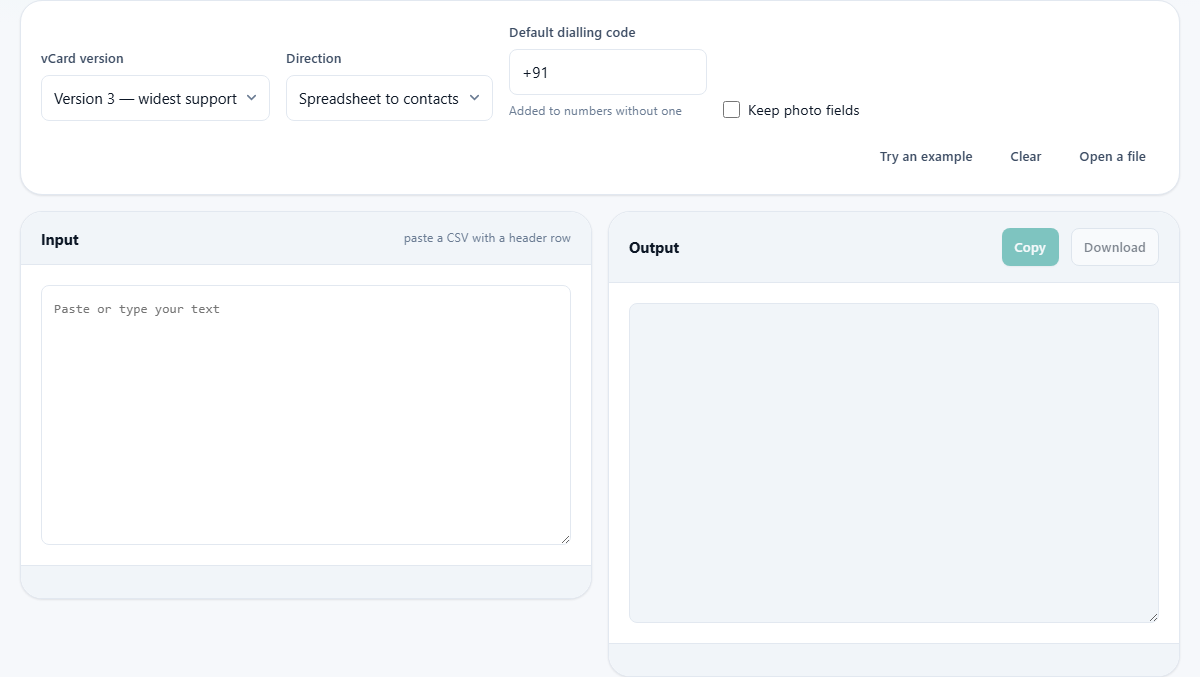
The vCard version dropdown offers two choices. Version 3 has the widest support and is the safe pick for anything you plan to import into a phone, Gmail or Outlook. Version 4 is the newer standard but a few older apps still stumble on it. Unless you know your target needs version 4, leave it on version 3.
The Direction dropdown is what makes this page do two jobs. Set to Spreadsheet to contacts it reads CSV and writes vCard. Flip it to Contacts to spreadsheet and it goes the other way, reading a vCard file and writing CSV. That reverse direction is covered in its own section below.
Default dialling code is the field that saves the most trouble. It holds a value like +91 or +1 or +44. Any phone number in your spreadsheet that does not already start with a plus sign gets this code added in front. A number stored as 98765 43210 only works inside the country it was saved in. Written as +91 98765 43210, it works from anywhere in the world and matches correctly on messaging apps.
The Keep photo fields checkbox is off by default, for good reason. Photos embedded in a vCard are stored as long strings of text, and they make the file enormous. A list of fifty contacts with photos can easily reach ten megabytes. Leave the box unchecked unless you specifically need the pictures.
The helper buttons
Try an example fills the input with a short sample CSV so you can see what the output looks like before touching your own data. Clear wipes both boxes so you can start fresh. Open a file lets you pick a CSV from your computer rather than pasting.
On the output side, Copy puts the vCard text on your clipboard, and Download saves it as a file. The file is what you will actually transfer to your phone or import into your mail client.
A worked example from start to finish
Say you have a CSV with four columns: Name, Phone, Email and Company. Five rows, five people. The first row is Anita Sharma, 98765 43210, anita@example.com, Sunrise Ltd. The dialling code is set to +91.
Paste the CSV and the output appears at once. Each person becomes a BEGIN:VCARD block. Anita's phone number, which had no country code, now reads +919876543210. Her name, email and company are each on their own line in the format the vCard standard requires. The status bar at the bottom reports five contacts converted.
Press Download. The file is called contacts.vcf. Transfer it to your phone by email, a messaging app, or a cloud drive. Open it, and your phone asks whether to import five new contacts. Say yes, and the job is done.
Reversing the direction
Sometimes you need to go the other way. You have a vCard export from a phone or mail client and you want the data in a spreadsheet so you can sort it, filter it, or mail-merge from it. Change the Direction dropdown to Contacts to spreadsheet, paste the vCard content, and the output is a clean CSV.
This is especially handy for cleaning up a contacts list. Export from your phone, convert to CSV, open in a spreadsheet, delete duplicates and fix typos at your leisure, then convert back to vCard and import the tidy version. Editing contacts one by one on a phone screen is slow. Editing fifty rows in a spreadsheet takes minutes.
Why international phone numbers matter so much
A phone number without a country code is a local number. It works inside one country and fails silently everywhere else. The person you are calling does not need to travel for it to fail. If they port their number to a carrier that routes through a different country, or if you are calling over a VoIP line that does not assume your country, the call does not connect and no error tells you why.
Messaging apps make it worse. WhatsApp, Signal and Telegram all match contacts by full international number. Store a number as 98765 43210 and the app may not find the person at all. Store it as +91 98765 43210 and it matches instantly.
This is why the Default dialling code field exists. It is not decoration. Setting it correctly before you download is the single most valuable thing you can do to a contact list, and it costs nothing.
Mistakes that waste your time
The most common mistake is a CSV without a header row. If the first row is data instead of column names, the tool treats those values as headers and the matching fails. Always make sure your first row says something like Name, Phone, Email.
Another frequent problem is merged cells or unusual formatting left over from Excel. Save the file as plain CSV before you paste it. Merged cells do not survive the CSV format and turn into blanks or duplicates.
People sometimes set the wrong dialling code and only notice after importing hundreds of contacts. Check the code before you download, not after. And watch for numbers that already have a code: the tool only adds one to numbers that lack a plus sign, so existing international numbers are left alone.
When this tool is the wrong choice
If you already have a vCard file and want to turn it into a spreadsheet, you want the vCard to CSV tool instead, which is the reverse of this page. The Direction toggle here does cover that case, but the dedicated page handles messy exports better, with options for multi-number columns and the BOM that Excel needs.
If your contact data is in a Google Sheet or Excel file online, export it as CSV first. This page reads plain text, not spreadsheet file formats directly. And if you need to merge two contact lists without duplicates, do that in the spreadsheet before converting, because vCard has no concept of a duplicate.
Where your data stays
Contact lists contain real personal information. Names, phone numbers, email addresses and home addresses are exactly the kind of data that should not be pasted into a random website and sent to a server somewhere.
This page does the conversion entirely on your own device. Your CSV is read by your browser, the vCard is built in the same browser tab, and nothing is uploaded anywhere. You can verify this yourself: load the page, disconnect from the internet, and it still works. A tool that works offline cannot be sending your contacts to anyone.