
Reshaping data between wide columns and long rows
A table with a column for every month is easy to read but impossible to chart, group, or feed into a pivot table. The reverse shape, one row per measurement with the month stored in a cell, is what those tools need. This article explains both directions of the Unpivot and Reshape tool, walks through a real reshaping job, and shows how to avoid the collision problem that silently eats rows when you go back the other way.
Why the shape of a table matters
There are two common ways to lay out the same numbers. Wide format puts each period or category in its own column: Jan, Feb, Mar across the top, one row per product. Long format uses just two columns for those values, typically called name and value, and repeats the product on every row. A table with five products and twelve months has five rows in wide format and sixty in long format.
Wide format is designed for reading. You scan across a row and see the whole year at a glance. Long format is designed for machines. A charting library, a pivot table, a SQL GROUP BY query, or a data visualization tool needs the category in a cell it can filter and group by, not hidden in a column heading. The heading is a label, not a value, and most tools cannot reach it. The Unpivot and Reshape tool converts between the two shapes, in both directions, entirely on your own device.
Going from wide to long
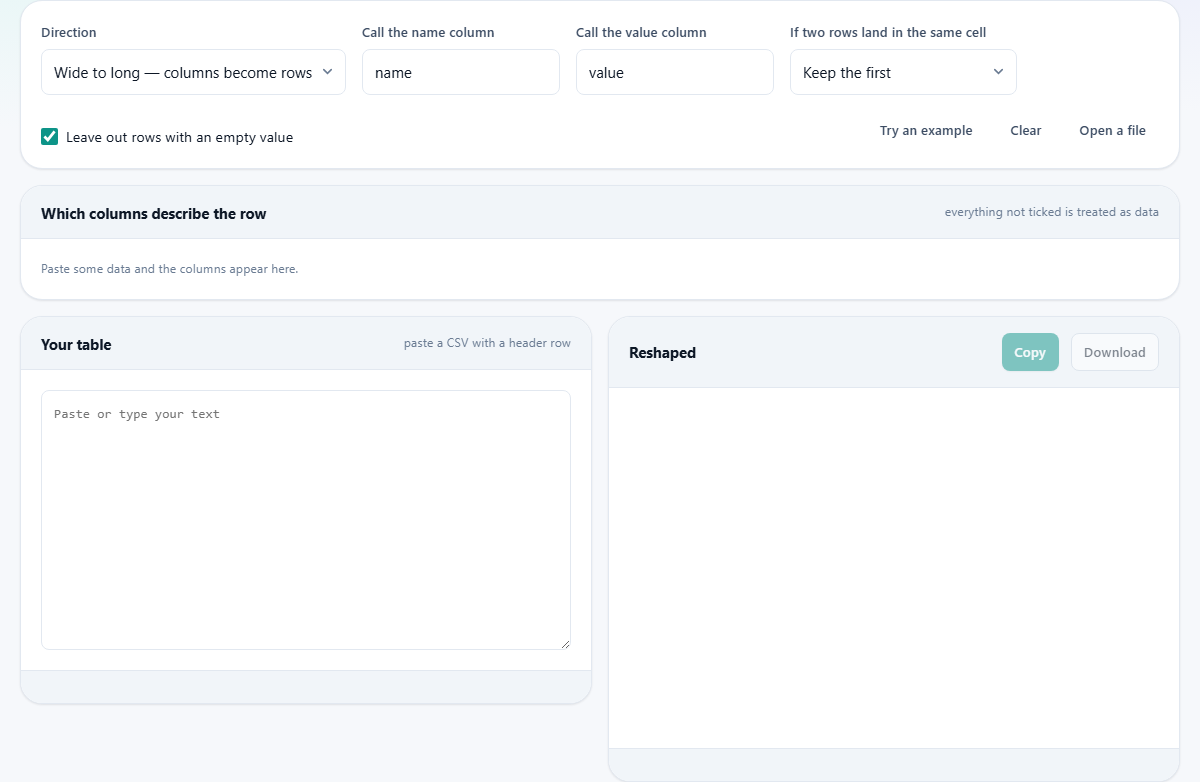
Set the Direction dropdown to Wide to long. Paste your CSV. It must have a header row, because the column headings are what become values in the new name column. Once the data appears, a panel labelled Which columns describe the row shows a checkbox for every column found in the header.
Tick the columns that identify each row. These are usually the first one or two: the product name, the region, the employee. Everything you do not tick is treated as a measured value. Those unticked columns are unpivoted: each heading becomes a row in the name column, and the cell value goes into the value column. The identifying columns are repeated on every resulting row so the data stays linked.
Naming the new columns
The Call the name column field sets what the heading column is called in the output. It defaults to name. If your column headings are months, you might change this to month. If they are survey questions, you might call it question. The label has no effect on the data, but a good name makes the output self-describing.
The Call the value column field does the same for the value side. It defaults to value. Change it to revenue, score, count, or whatever describes the numbers in the unpivoted columns. Downstream tools will use these names as axis labels and group headers, so a moment spent here saves confusion later.
A worked example: quarterly sales by region
Suppose you have a CSV with five columns: Region, Q1, Q2, Q3 and Q4. There are three regions: North, South, and West. Each cell holds a sales total. That gives you three rows and five columns in wide format.
Paste the CSV. In the column picker, tick Region. Leave Q1 through Q4 unticked. Set Call the name column to quarter and Call the value column to sales. The output has twelve rows. Each row has three fields: Region, quarter, and sales. North appears four times, once for each quarter. The data is now in the shape that a chart library needs to draw a grouped bar chart or that a SQL query can group by quarter.
The row count is a useful check. Three regions times four quarters should produce twelve rows. If you see a different number, you have ticked a column that should be a measurement, or left one unticked that should be an identifier.
Going from long to wide
Switch the Direction dropdown to Long to wide. Now the tool does the opposite: it reads a name column and a value column and builds one column per distinct name. The identifying columns form the row keys. The result is a compact grid that is easier for people to read.
This direction is where collisions happen. If two rows in the long data share the same identifying columns and the same name, both want the same cell in the wide table. Most tools pick one and discard the other without telling you, which means a row total at the bottom of your report is wrong by an amount you cannot trace. This tool reports the number of collisions and lets you choose what to do about them.
Handling collisions when casting to wide
The If two rows land in the same cell dropdown offers six options. Keep the first uses the earlier row and drops the later one. Keep the last does the reverse. Add them up sums the values, which makes sense when the duplicates represent parts of a total. Average them takes the mean. Count them writes how many rows collided rather than any of their values. Join them with a semicolon concatenates the values as text, which preserves everything at the cost of producing a cell that is no longer a single number.
If you are getting collisions and did not expect them, the data probably has a duplicate you did not know about. Check the input for rows where the identifying columns are identical. Adding another column to the identifying set may resolve the collision by making each combination unique.
Blank cells and the row count check
The Leave out rows with an empty value checkbox is on by default. Wide tables are usually sparse: a product launched in March has no values for January and February, and those empty cells would become rows that say nothing. Dropping them keeps the long output clean and shorter. Turn this off if the blanks carry meaning, such as a survey answer that was deliberately left empty.
Always check the row count after a reshape. For a wide-to-long conversion, the expected count is the number of original rows times the number of unticked columns, minus any blanks that were dropped. If the count is off, review which columns are ticked. A common mistake is to tick a data column by accident, which creates a much smaller output because those values become part of the identifier rather than being unpivoted.
Practical patterns for reshaping survey and financial data
Survey data is a classic use case. A spreadsheet from a form builder gives you one column per question: Q1, Q2, Q3, and so on. Each row is a respondent. To analyse the answers in aggregate, unpivot the question columns into a long format with a question column and an answer column, ticking only the respondent identifier. Now you can count how many times each answer appears for each question, build histograms, or feed the data into a dashboard.
Financial data follows the same pattern. A budget spreadsheet with a column per month is easy for a manager to fill in, but the accounting system needs rows. Unpivot the month columns, call the name column month and the value column budget, and the output is ready to import. If actuals are in a second set of columns, unpivot those separately and stack the results, or add a type column to keep both in the same table.
Common mistakes and when to use a different tool
The biggest trap when going wide to long is ticking too many columns. Every ticked column becomes part of the row identity, so ticking a data column collapses what should be many rows into very few. Start by ticking only the obvious identifiers and check the row count against what you expect.
Going long to wide with no collision handling is the second most common problem. If the output has fewer values than you expected, collisions ate the rest. Switch the collision dropdown from Keep the first to Add them up or Join them with a semicolon to find out where the duplicates are.
This tool reshapes data. It does not filter, aggregate, or chart. If you need to group timestamped data into daily or monthly buckets, the Time Series Resampler on this site does that directly and handles gaps properly. If you need summary statistics for a column of numbers, the Statistics Calculator is a better choice. All of these tools work on your own machine and never send your data anywhere.