
Grouping irregular timestamps into regular buckets for charts and reports
Sensor readings, server logs, and sales records rarely arrive at neat intervals. You get three entries in one minute and none for the next twenty, which makes any chart or comparison meaningless until the data sits on an even clock. This article explains every control in the Time Series Resampler, works through a practical example, and shows how the wrong settings can quietly produce numbers that look correct but are not.
What the tool does and who needs it
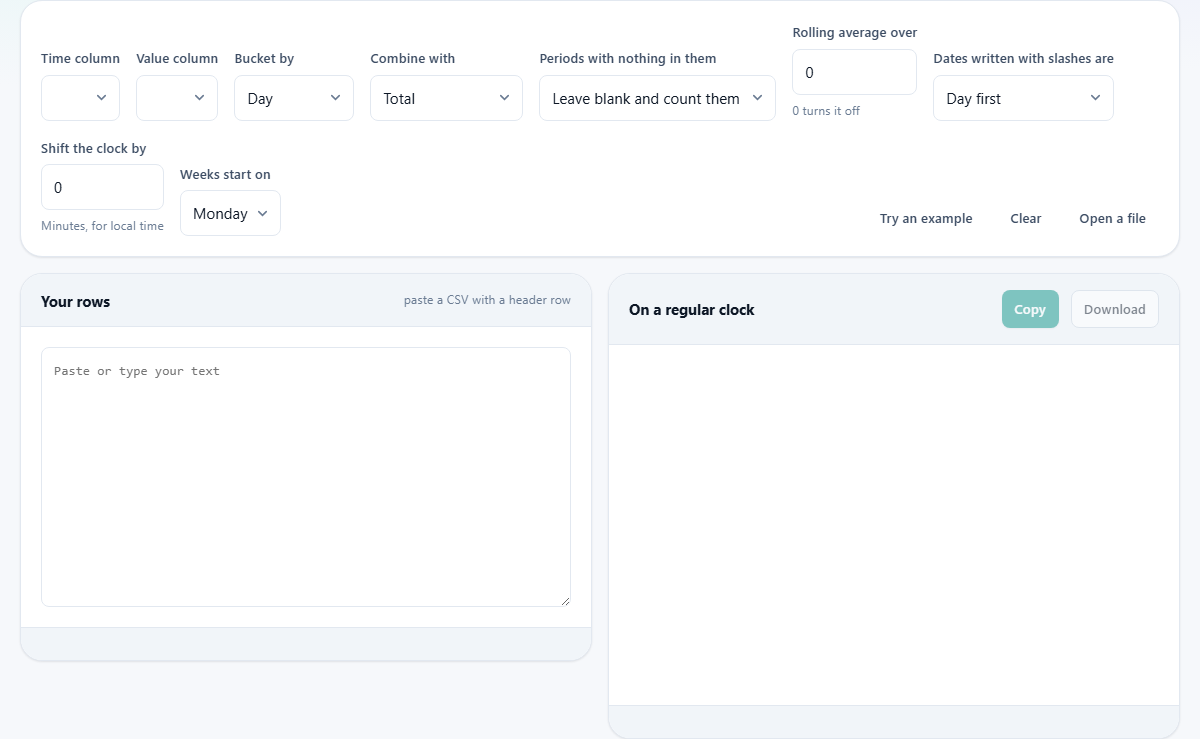
The Time Series Resampler takes a CSV with a timestamp column and a value column, groups the rows into regular periods, and combines the values in each period however you ask. The result is a table with one row per period, ready for a chart or a report. Gaps in the data are counted and shown rather than hidden.
Anyone who works with log files, sales exports, sensor data, or analytics dumps will recognise the problem. A daily summary of website visits means nothing if three of the days are missing and the tool quietly skips over them. This resampler makes those gaps visible so your totals and averages stay honest. Everything runs on your own device, and no data leaves your browser.
Choosing the time and value columns
When you paste a CSV, the Time column and Value column dropdowns fill with the column names from the header row. The tool tries to guess which is which based on the names. A column called timestamp, date, or time will be selected automatically for the time, and a column called amount, value, or count will be picked for the value. You can change either dropdown if the guess is wrong.
The time column must contain recognisable dates or timestamps. The tool understands ISO dates with dashes, dates with slashes in either day-first or month-first order, and plain numbers representing Unix timestamps in seconds or milliseconds. If your file uses a format it cannot parse, the status bar will tell you how many rows it had to skip.
Setting the period and the combination method
The Bucket by dropdown sets the size of each period: Minute, 5 minutes, 15 minutes, Hour, Day, Week, Month, Quarter, or Year. Every row whose timestamp falls inside a given period is combined into a single value for that period.
The Combine with dropdown decides how those rows are merged. Total adds them up, which is right for things you count, like sales or page views. Average divides the total by the number of rows, which is right for things you measure, like temperature or response time. Last value keeps only the final reading in the period, which suits a running balance or a meter reading. First value keeps the earliest reading. Smallest and Largest keep the extreme value. How many rows counts the entries without looking at the values at all.
Choosing the wrong combination method is one of the most common mistakes. If a busy hour has four readings and you pick Total instead of Average, that hour looks four times as high as a quiet hour with one reading, even if the actual levels were the same.
What to do with empty periods
The Periods with nothing in them dropdown is where the real decisions happen. Leave blank and count them keeps the period in the table but writes no value. The summary reports how many gaps there were. This is the safe default because it does not assume anything about why the data is missing.
Write zero fills the gap with zero, which is correct when no rows genuinely means nothing happened. If you are counting sales and there were no sales on a Sunday, zero is honest. But if you are measuring temperature and the sensor was turned off on Sunday, writing zero is a lie that drags down every average that touches that day.
Carry the last value forward copies the previous period's value into the gap, which suits things like account balances where the level stays the same until it changes. Leave the period out entirely drops empty periods from the table altogether, which makes the output shorter but hides the fact that the gaps exist.
Rolling averages, time zones and week start
The Rolling average over field smooths the output. Set it to 7 with daily buckets and each row shows the average of itself and the six days before it. The first few rows are left blank because a seven-day average over three days of data would be misleading. Set the field to zero to turn rolling averages off.
The Dates written with slashes are dropdown matters more than it looks. A date written as 03/04 is the third of April in most of the world and the fourth of March in the United States. If the first twelve days of a month look scrambled and the rest look fine, you have this setting the wrong way round. The tool defaults to Day first.
The Shift the clock by field moves every timestamp by a number of minutes before the grouping happens. Timestamps are often stored in UTC, and a day in UTC may not match a day in your local time. A sale at 11 pm in your time zone lands after midnight in UTC and gets counted on the wrong day. Put your UTC offset here and the days line up with the ones your business actually experienced. The Weeks start on dropdown lets you choose Monday or Sunday, which affects how weekly buckets are sliced.
A worked example with daily order totals
Imagine you export a month of orders from a shop. The CSV has columns for order_time and amount. Some days have dozens of orders, a few weekends have none. Paste the CSV, and the tool picks order_time for the time column and amount for the value column. Set Bucket by to Day and Combine with to Total.
The output shows one row per day. Most days have a figure. Two Sundays show blank because no orders came in. The summary at the bottom reports 2 periods with no data. Now set Periods with nothing in them to Write zero. Those two Sundays now show 0, which is correct for a shop that was genuinely open but had no business.
To see the weekly trend underneath the daily noise, set Rolling average over to 7. The first six days go blank, and from the seventh day onward each row shows the average of the last seven days. The result is a smooth line that reveals whether the business is growing or shrinking, without the weekend dips clouding the picture.
Mistakes that quietly produce wrong numbers
The most damaging mistake is ignoring the time zone offset. If your timestamps are in UTC and your business is in UTC plus five and a half, every evening's activity lands on the next day. Daily totals will be wrong by whatever fraction of your traffic happens between your midnight and UTC midnight. The error is consistent enough that nobody notices until a month-end comparison fails to match the accounting system.
Another trap is using Total when Average is the right choice, or vice versa. Think about what a period with ten rows should produce compared to a period with one row. If both periods had the same level of activity, the figures should be the same, and only Average does that. If ten rows means ten times as much happened, Total is correct.
Finally, be careful with Carry the last value forward on data that has large gaps. If the last real reading was a spike and the next five periods are empty, all five will carry that spike, which inflates every downstream average and total.
Getting the result and when to use something else
The Copy button copies the resampled table as CSV. The Download button saves it as a file for use in another tool or a spreadsheet. The output preserves the column headers and adds a period column labelled with the start of each bucket.
If your data is already on a regular clock and you just need summary statistics like the mean and standard deviation, the Statistics Calculator on this site is a better fit. If you need to reshape the table so that periods become columns, the Unpivot and Reshape tool can take the output of this one and pivot it into a wide format. Both run on your own machine with no data leaving the browser.