
Converting tables between CSV, Markdown, HTML and other formats
Tables move between formats all the time. A CSV from a database needs to become a Markdown table in a readme. An HTML table from a web page needs to become a LaTeX table in a research paper. Doing this by hand means fiddling with pipes, ampersands and angle brackets until the alignment looks right, and getting it wrong in exactly the places you cannot see. This article covers every option in the Table Converter, walks through a real conversion, and explains the limits you should know about.
What the tool does
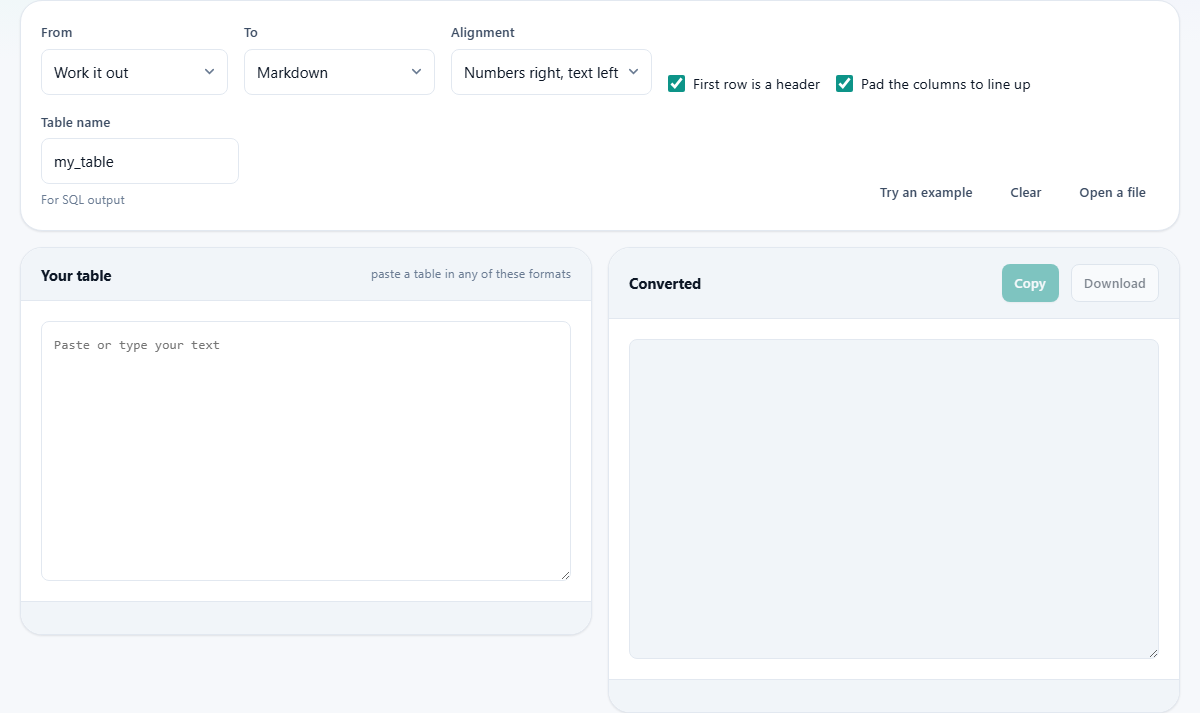
The Table Converter reads a table in one format and writes it out in another. It handles CSV, tab-separated text, Markdown, HTML, JSON, LaTeX, plain text boxes, and SQL insert statements. The conversion preserves the header row and the column alignment, and it escapes characters that would break the target format. You paste the source table on the left, pick your output on the right, and copy the result.
Developers writing documentation, researchers preparing papers, and anyone who has ever tried to paste a spreadsheet into a readme file will recognize the problem this solves. The work happens entirely on your own device. Your data stays in your browser and is never sent anywhere.
Input formats and automatic detection
The From dropdown defaults to Work it out, which looks at the text you pasted and guesses the format. If it starts with a pipe, it is treated as Markdown. If it contains angle brackets with td or th tags, it is treated as HTML. If it starts with a square bracket, it is treated as JSON. Everything else is tried as CSV or tab-separated text.
Automatic detection works well for clean input, but you can override it. If the tool guesses wrong, switch the From dropdown to the correct format and the output updates immediately. Copying a block straight from a spreadsheet gives you tab-separated text, which the automatic mode recognizes without any help.
Choosing the output format
The To dropdown offers eight choices. Markdown produces a table with pipes and dashes that renders in any Markdown viewer. HTML produces a table with thead, tbody, tr, and td tags. CSV gives comma-separated values. Tab separated gives the same thing with tabs instead of commas. JSON turns each row into an object in an array, with the header values as keys. LaTeX produces a tabular environment ready to paste into a TeX document. Plain text box draws the table with dashes and pipes for terminals and code comments. SQL insert statements writes one INSERT per row for loading into a database.
For the SQL output, a Table name field appears. It defaults to my_table, and you should change it to the real table name before you copy the result. The INSERT statements use the header row as column names.
Alignment and padding
The Alignment dropdown has four options. The default, Numbers right, text left, examines each column and right-aligns the ones that are entirely numeric. This is the convention that makes columns of figures line up on the decimal point, which is what people expect in a table of data. All left, All centre, and All right override this per-column logic and force every column the same way.
The Pad the columns to line up checkbox adds spaces so that every cell in a column is the same width. This makes no difference to how Markdown or HTML renders, but it makes the raw source far easier to read. If anyone will edit the Markdown by hand afterwards, leave this on. If you are generating output for a machine and want the smallest file, turn it off.
The header row checkbox
The First row is a header checkbox tells the tool whether to treat the first row as a header or as ordinary data. In Markdown output, the header row gets a separator line beneath it. In HTML, the header cells become th tags inside a thead block. In JSON, the header values become the keys for each object. In LaTeX, the header row is set in bold.
If your data genuinely has no header, untick this box. The output will treat every row the same way. For JSON output, the tool will generate numbered keys like col1, col2 instead of using header values. Most of the time, though, the first row is a header, and leaving the checkbox ticked gives the cleanest results across all formats.
A worked example: spreadsheet to Markdown readme
Suppose you have a table of three API endpoints in a spreadsheet. The columns are Endpoint, Method, and Description. You select the three rows plus the header in your spreadsheet and press Ctrl-C. In the tool, you paste into the left pane. The From dropdown stays on Work it out, which detects tab-separated text automatically.
Set To to Markdown, leave Alignment on Numbers right, text left, and leave Pad the columns to line up ticked. The right pane immediately shows a Markdown table with pipes, a separator line under the header, and every column padded so the pipes line up vertically. Copy the result into your readme, and it renders as a proper table in any Markdown viewer. The whole process takes about ten seconds.
Limits you should know about
Markdown tables cannot represent merged cells. If your source HTML has a cell that spans two columns, the content is placed in the first cell and the second cell is left empty. This is the best the format can do, not a bug. If merged cells carry meaning, stick with the HTML output.
Pipes inside cell values would break a Markdown table, so they are escaped automatically. You do not need to do anything about this, but it explains why a pipe character in your data shows up with a backslash in front of it in the Markdown output.
LaTeX output uses the tabular environment, which does not handle line breaks inside a cell well. If your cells contain long text that wraps, the LaTeX may need manual adjustment to the column widths. For simple data tables, the output is ready to compile as-is.
JSON output and how the keys are built
When you choose JSON as the output format, each row of the table becomes an object in an array. The keys are taken from the header row, so a table with columns Name, Age, and City produces objects like {"Name": "Alice", "Age": "30", "City": "London"}. Values are kept as strings because the tool cannot know whether 30 should be a number or a text value in your application. Parse them yourself if you need typed values.
If the First row is a header checkbox is off, the tool invents keys named col1, col2 and so on. This gives you valid JSON, but the keys carry no meaning. Whenever possible, keep the header checkbox ticked so the output is self-describing. The JSON output can be fed directly into APIs, scripts, or front-end code without further cleanup.
Getting the result out and when to use a different tool
The Copy button puts the converted table on your clipboard. The Download button saves it as a file, which is handy for large tables that are slow to paste. Both the input and output sides support loading a file from disk with the Open a file button.
If you need a full CREATE TABLE statement with typed columns and batched inserts rather than simple one-row-per-INSERT SQL, the CSV to SQL Script tool on this site is a better choice. It examines every value to determine column types and handles upserts, transactions, and NULL handling. The Table Converter is for quick format switches; the SQL tool is for serious database loading. Both run entirely in your browser, so your data never leaves your machine in either case.
Tips for clean conversions
Check your source data for trailing commas and extra blank lines before you paste. A trailing comma in a CSV row creates a phantom empty column, and a blank line in the middle of a table produces an empty row in the output. These are easy to miss in the source but obvious once the table renders in Markdown or HTML.
When converting from HTML to another format, strip any inline styles or classes from the source first if you can. The tool reads the cell text, not the formatting, so styles do not affect the result. But a cell with a lot of nested spans can sometimes make the raw pasted text look confusing. Pasting from a simple table works best.
If the same table needs to appear in multiple formats, paste it once, copy the Markdown output, then switch the To dropdown to HTML and copy that too. The input stays in place between format switches, so you can produce every version you need in under a minute.