
Reading a set of numbers properly with summary statistics
A column of numbers on its own tells you almost nothing. You need the centre, the spread, and the shape before those figures start to mean anything. This article explains each statistic the calculator produces, walks through every control on the page, and shows how to spot the situations where the average is misleading and the median is the figure you should trust.
What this calculator gives you
Paste a set of numbers and the Statistics Calculator returns the count, the sum, the mean, the median, the mode, the range, the variance, the standard deviation, the quartiles, the interquartile range, and a list of any outliers. A histogram appears alongside the figures so you can see the shape at a glance. All of this runs on your own device. Your numbers are never sent anywhere.
The tool is aimed at anyone who needs a quick summary without opening a spreadsheet formula or writing code. Students checking homework, analysts exploring a new data set, and anyone who wants to understand a column of survey results before drawing conclusions will find it useful.
Getting numbers into the tool
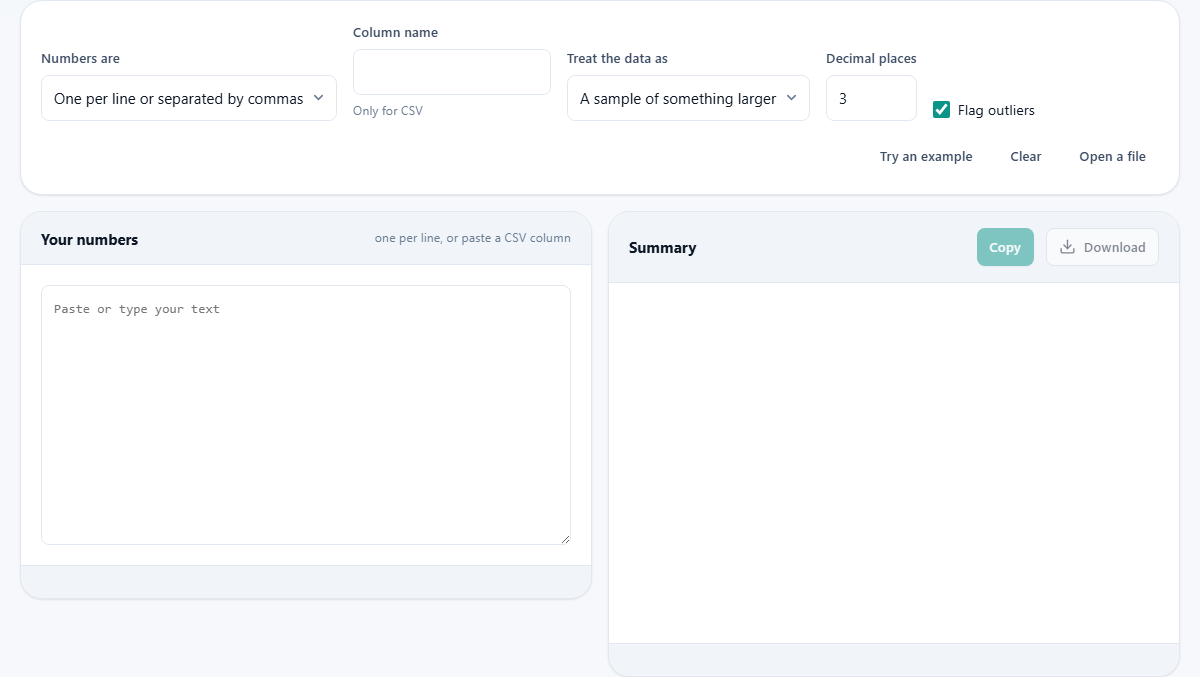
The Numbers are dropdown has two modes. The default, One per line or separated by commas, takes plain numbers. Type them, paste them from a list, or copy a column straight from a spreadsheet. Each number goes on its own line, or you can separate them with commas on a single line. Anything that is not a number is skipped quietly.
The second mode, A named column in CSV, lets you paste a full CSV table and point at one column by name. When you choose this mode, the Column name field lights up. Type the exact header and the tool pulls those values out, ignoring everything else. This is helpful when you have a file with ten columns and you only want the statistics for one of them. You can also load a file from disk with the Open a file button.
Sample or population and why it matters
The Treat the data as dropdown offers two choices: A sample of something larger and The whole population. Most of the time you want sample. The difference shows up in the standard deviation calculation. The sample formula divides by one fewer than the count, which compensates for the fact that a sample tends to cluster tighter than the full population. The population formula divides by the count itself.
In practice, once you have more than about thirty values the two results are close. Use population only when your numbers are truly everything there is, not a subset. Test scores for every student in a class are a population. Test scores for a hundred students chosen from ten thousand are a sample.
The Decimal places and Flag outliers controls
The Decimal places field sets how many digits appear after the point in every result. It defaults to three, which is fine for most work. Set it to zero for whole-number summaries, or raise it if your source data has many decimal places and you need the precision carried through.
The Flag outliers checkbox is on by default. When it is ticked, any value more than one and a half times the interquartile range below the first quartile or above the third quartile is marked as an outlier. The interquartile range is the gap between the 25th and 75th percentile, so this rule catches values that sit unusually far from the middle half of the data. The flagged values appear in the output, and the histogram highlights them.
Understanding the output: centre, spread and shape
The mean is the total divided by the count. It is the figure most people call the average, and it is sensitive to extremes. One very large or very small value can pull the mean away from where most of the data sits. Salary data is a classic case: a handful of high earners can drag the mean well above what most people actually earn.
The median is the middle value when every number is sorted from smallest to largest. It ignores how extreme the extremes are, which makes it a better description of the typical value when the data is skewed. When the mean and median are close to each other, the data is roughly symmetric. When they are far apart, something at one end is pulling the mean, and you should look at those outliers before you trust any average.
The mode is the value that appears most often. It can be useful for categorical-style data that happens to be numeric, like shoe sizes or rating scores, where the most popular value matters more than the mathematical middle.
Quartiles, variance and standard deviation
The first quartile is the value below which a quarter of the numbers fall. The third quartile is the value below which three quarters fall. The gap between them, the interquartile range, tells you how spread out the central half of the data is. A narrow interquartile range means the bulk of the values are tightly clustered. A wide one means they are scattered.
The variance measures how far each number is from the mean, on average. It is in squared units, which makes it hard to use directly. The standard deviation is simply the square root of the variance, bringing the number back into the same units as the original data. If you are measuring heights in centimetres, the standard deviation is also in centimetres, which is far easier to interpret. A small standard deviation means the values stay close to the mean. A large one means they are spread widely.
A worked example with monthly sales figures
Imagine you have twelve monthly sales totals for a small shop: 4200, 3800, 5100, 4600, 4400, 7200, 4900, 4700, 5300, 4100, 4500, and 4300. Paste them one per line. Leave the data treated as a sample and decimal places at three.
The output shows a count of 12, a mean of 4758.333, and a median of 4550. The mean is higher than the median, which tells you something is pulling it up. Look at the outlier list: 7200 is flagged. That was a holiday month with a promotion, and it sits well above the others. The standard deviation is about 870, which means most months fall within roughly 870 of the mean. The histogram shows a cluster between 3800 and 5300 with one bar sitting far to the right. All of this paints a picture that a single average never could.
Mistakes that lead to wrong conclusions
The most common mistake is reporting only the mean. Two data sets can share the same mean and look completely different. One might have every value near the centre while the other has values spread across a wide range. Always look at the standard deviation and the quartiles alongside the average.
Another trap is treating a small handful of values as solid evidence. Below about thirty numbers, most of these statistics are unstable. A single new value can shift the mean and standard deviation noticeably. With small sets, treat the results as a rough description rather than a firm conclusion.
Be careful with the outlier flag too. A flagged value is not automatically wrong. It is simply far from the rest. Whether to keep it, investigate it, or remove it is a judgement call that depends on what the numbers represent. Removing outliers without understanding them can quietly hide the most important thing in your data.
When a different tool would serve you better
This calculator works on one set of numbers at a time. If you need to compare two groups, run each set separately and compare the results side by side. If you need to see how a value changes over time rather than how a set is distributed, the time series resampler on this site is a better fit, because it preserves the order and the timestamps.
For data that is already in a CSV with many columns, you can point the tool at a single column by switching to CSV mode, but you will not get cross-column analysis like correlation or regression. Those tasks need a spreadsheet or a statistics package. What this tool does well is the quick, accurate summary of one variable, done privately on your own machine with no software to install. You can copy the results with the Copy button and paste them straight into a report or a message, and nobody else will have seen your numbers at any point in the process.