
Turning a spreadsheet into SQL statements your database can run
Moving rows from a CSV file into a database table is one of those jobs that sounds easy until you sit down to do it. You need the right column types, the right quoting style, and the right behaviour when a row already exists. This article walks through every control on the CSV to SQL tool, shows a worked example from paste to finished script, and covers the mistakes that trip people up most often.
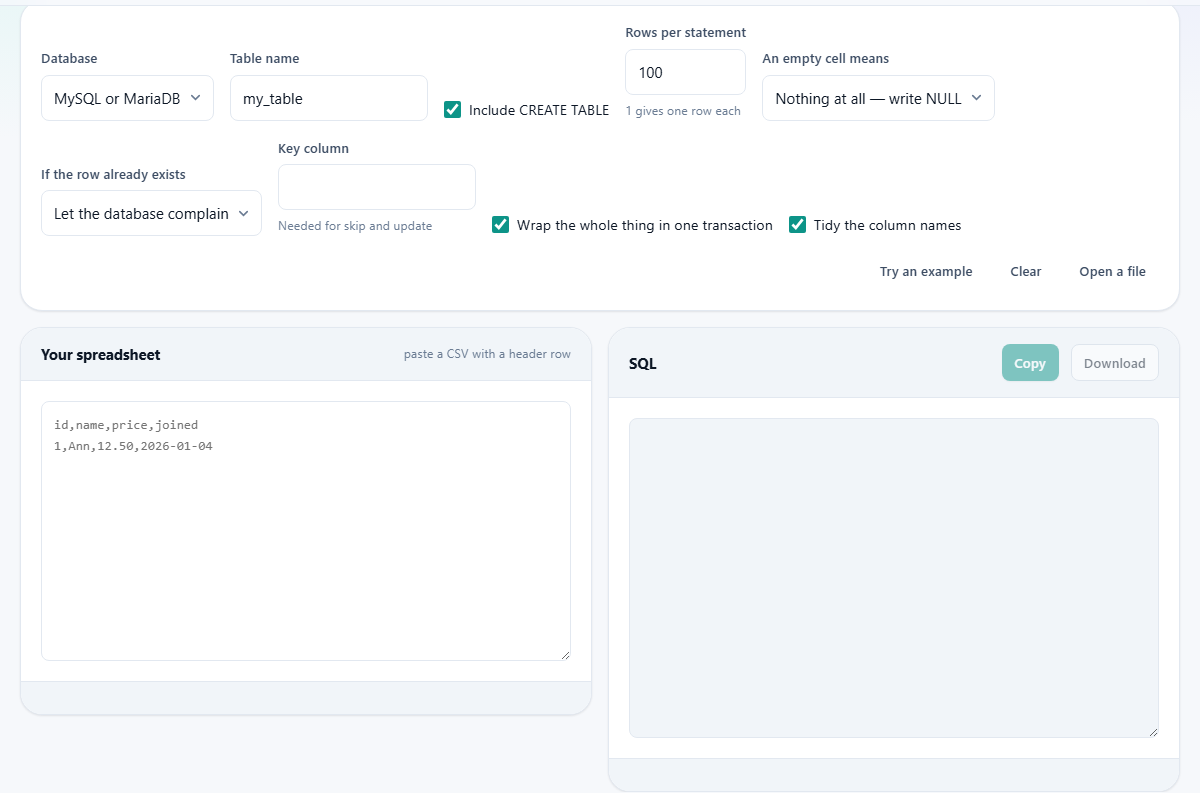
What the tool does and who needs it
The CSV to SQL Script tool reads a CSV file, works out what type each column should be, and writes a complete SQL script with a CREATE TABLE statement and batched INSERT statements. The script is ready to run in your database client. Analysts who get data as spreadsheets, developers setting up test data, and anyone migrating rows from one system to another will find it useful.
The whole process runs in your browser. Nothing is sent to a server, which matters when the spreadsheet holds customer records or financial figures. The CSV stays on your own device from start to finish.
Picking the right database
The Database dropdown offers four choices: MySQL or MariaDB, PostgreSQL, SQLite, and SQL Server. This setting controls more than you might expect. Each database uses different characters to quote column names, spells its types differently, and handles upserts with a different syntax. A script built for PostgreSQL will fail on MySQL, so get this right before you look at anything else.
MySQL wraps names in backticks, PostgreSQL and SQLite use double quotes, and SQL Server uses square brackets. The tool handles all of this for you, including reserved words like order or group that would be syntax errors without the quoting.
Naming the table and tidying the columns
The Table name field sets the name used in the CREATE TABLE and INSERT statements. It defaults to my_table, and you should change it to something meaningful before you run the script.
The Tidy the column names checkbox is on by default. When ticked, the header row is cleaned up: letters go to lowercase, and spaces become underscores. A column called First Name turns into first_name. This small step saves a lot of quoting later on, because a name without spaces and odd characters is far easier to use in every query you write afterwards. Turn it off if the column names must stay exactly as they are in the original file.
How the column types are decided
Every value in every column is examined. The tool picks the narrowest type that can hold all of them. If every value is a whole number, the column gets an integer type. If they look like money with two decimal places, it gets an exact decimal type rather than a floating point one, because floating point arithmetic drifts in ways that make totals wrong by small amounts nobody can track down. Dates become date columns, true and false values become boolean columns, and everything else falls back to text with a length that fits the longest value.
If even one value in a column does not fit the pattern, the whole column widens. A column of numbers with a single text entry in row forty becomes a text column. This is deliberate: losing data is worse than using a wider type. Check the type list above the script before you run it. A column of postcodes or phone numbers that came out as an integer means the leading zeros were already gone in the spreadsheet.
Batching, transactions and empty cells
The Rows per statement field controls how many rows go into each INSERT statement. The default of 100 is a good balance. One statement with a hundred rows loads much faster than a hundred single-row statements, because each round trip to the database has overhead. If your database complains that a statement is too large, lower this number. Setting it to 1 gives you one INSERT per row, which is the slowest but most readable option.
The Wrap the whole thing in one transaction checkbox ensures that either every row goes in or none do. If row four hundred has a problem, the entire load rolls back and the table stays as it was. For production data this is almost always what you want.
The An empty cell means dropdown has two options. Nothing at all writes NULL, which means the value is unknown. An empty piece of text writes a zero-length string, which means the value is known to be empty. The difference matters in later queries: a WHERE clause that filters for empty strings will miss NULLs, and vice versa.
Handling rows that already exist
The If the row already exists dropdown has three settings. Let the database complain is the default, and it means any duplicate key causes an error that stops the load. Skip it tells the database to ignore the new row and keep the old one. Update it performs an upsert: the row is inserted if it is new, or its other columns are overwritten if the key already exists.
Both Skip it and Update it require a Key column. Type the name of the column that has a unique index in your database. Without that index, the database has no way to know whether a row already exists, and it will simply add a second copy. The tool writes the correct upsert syntax for whichever database you chose: ON DUPLICATE KEY UPDATE for MySQL, ON CONFLICT DO UPDATE for PostgreSQL, INSERT OR REPLACE for SQLite, and a MERGE statement for SQL Server.
A worked example: loading a product catalogue
Suppose you have a CSV with four columns: sku, product_name, price, and launch_date. It has three hundred rows. Paste the CSV into the input area. Set Database to PostgreSQL, Table name to products, and leave Rows per statement at 100. Make sure Include CREATE TABLE is ticked.
The tool scans every row. The sku column is all text, so it becomes VARCHAR(12) sized to the longest SKU. The product_name column becomes VARCHAR(80). The price column has values like 29.95 and 149.00, so it becomes NUMERIC(6,2), an exact decimal that adds up correctly. The launch_date column becomes DATE. The output pane shows the CREATE TABLE followed by three INSERT statements, each holding a hundred rows, wrapped in BEGIN and COMMIT.
Now set If the row already exists to Update it and type sku in the Key column. The INSERT statements change to include ON CONFLICT (sku) DO UPDATE SET, listing every column except the key. You can run this script repeatedly as the catalogue changes, and existing products get their prices and names refreshed.
Common mistakes and when to choose something else
The most common mistake is running the script against the wrong database engine. A PostgreSQL script run in MySQL fails on the first line because the quoting characters are different. Always match the dropdown to the database you are targeting.
Another frequent problem is forgetting the key column when using the skip or update options. The script will run, but without a unique index the database just keeps adding rows. Check that the index exists before you load.
This tool writes INSERT statements. If your database supports a bulk loader, such as COPY in PostgreSQL or LOAD DATA in MySQL, that route will be faster for truly large files with millions of rows. For files up to a few hundred thousand rows, batched inserts work well and have the advantage of running in any SQL client without special permissions. Also keep in mind that the Include CREATE TABLE checkbox can be turned off if the table already exists and you only need the inserts. Leaving it on when the table is already there will produce an error on the CREATE line, so adjust this setting to match your situation.
Getting the result out
The Copy button puts the full script on your clipboard so you can paste it into a database client. The Download button saves it as a file, which is better for large scripts that might be slow to paste. Because the script is built in pieces rather than held as one string in memory, it handles files with hundreds of thousands of rows without trouble.
Everything here runs on your own machine. The CSV never leaves your browser, the types are worked out locally, and the SQL is assembled locally. Close the tab and there is nothing left behind.