
Running SQL queries on a CSV file without installing a database
You have a CSV file and a question about the data inside it. A spreadsheet can answer simple questions with filters and pivot tables, but once you need a GROUP BY with a HAVING clause or a sorted top-ten, SQL is faster. This article explains how to paste a CSV, write a SELECT statement against it, and get a result table you can copy or download -- all without installing anything or sending your data anywhere.
Who this is for
Anyone who knows basic SQL but does not have a database handy. That includes analysts who received a CSV export and need a quick answer, developers debugging a data pipeline whose output is a flat file, and operations staff who want to count, group, or filter a spreadsheet without writing a formula.
The tool handles the part of SQL that answers real questions: picking columns, filtering rows, grouping, aggregating, sorting, and limiting. It does not provide joins across multiple files, subqueries, window functions, or anything that writes. If you need those, load the file into a real database. If you want to know which five customers spent the most last quarter and the file is open in front of you, this is much faster than setting a database up.
Getting the data in
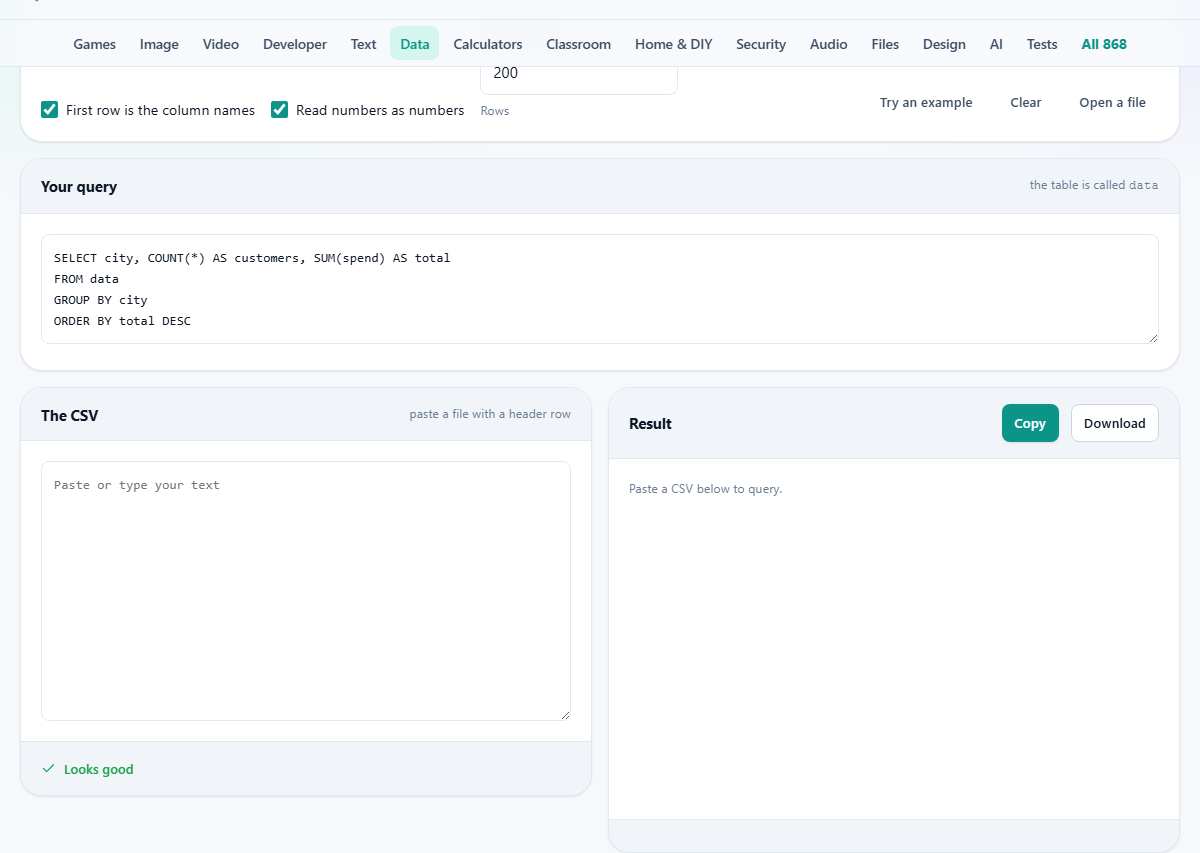
Paste your CSV into the text area labeled The CSV, or click Open a file to pick one from disk. The Try an example button loads a sample so you can experiment with the query box before using your own data. Clear empties everything.
Two checkboxes sit above the input. First row is the column names is on by default and treats the top row as column headers. Turn it off for files that have no header, in which case columns are named c1, c2, c3, and so on. Read numbers as numbers is also on by default and tells the parser to treat anything that looks like a number as a number rather than text. This affects sorting and comparisons, which is discussed in a later section.
Writing a query
The query goes in the text area labeled Your query. The table is always called data, because there is only one file and therefore only one table. A placeholder hint shows a sample query to get you started.
You can use SELECT with a column list or with an asterisk to select all columns. WHERE filters rows using the usual comparison operators: equals, not-equals, greater-than, less-than, LIKE for pattern matching, and IN for a set of values. AND and OR combine conditions. GROUP BY groups rows by one or more columns. HAVING filters groups after aggregation. ORDER BY sorts the result, with ASC and DESC for direction. LIMIT caps the number of rows returned.
Aggregate functions include COUNT, SUM, AVG, MIN, and MAX. You can alias columns with AS to give them friendlier names in the output. Column names that contain spaces must be wrapped in double quotes, exactly as standard SQL requires.
Reading the result
The right-hand panel titled Result shows the output as a table. Each column header matches the names or aliases in your SELECT clause. The footer shows how many rows the query returned and how long it took.
Two buttons appear above the result. Copy puts the result on your clipboard as tab-separated text, ready to paste into a spreadsheet. Download saves it as a CSV file. Both respect the column order and aliases you specified in the query.
The Show at most field, which defaults to 200, limits how many rows the page renders. This is a display limit, not a query limit. If your query returns ten thousand rows, only the first two hundred appear on screen, but Download produces the full set. To limit the query itself, use LIMIT in your SQL statement.
A worked example with a sales file
Suppose you paste a CSV with columns product, region, quantity, and unit_price. To find total revenue by region, sorted highest first, you write: SELECT region, SUM(quantity * unit_price) AS revenue FROM data GROUP BY region ORDER BY revenue DESC. The result table shows one row per region with a revenue column.
To see only regions where total revenue is above 50,000, add a HAVING clause: SELECT region, SUM(quantity * unit_price) AS revenue FROM data GROUP BY region HAVING revenue > 50000 ORDER BY revenue DESC. The result now excludes smaller regions.
To find the top five products by quantity sold, you write: SELECT product, SUM(quantity) AS total FROM data GROUP BY product ORDER BY total DESC LIMIT 5. Five rows come back, one per product, sorted from highest to lowest.
Text versus numbers and why it matters
When the Read numbers as numbers checkbox is on, a column that contains values like 9, 42, and 100 is treated as numeric. Sorting puts them in numerical order: 9, 42, 100. When the checkbox is off, the same values are treated as text. Text sorting is alphabetical, which puts 100 before 42 and 42 before 9, because the comparison goes character by character and the digit 1 comes before 4.
This difference also affects comparisons. The condition WHERE amount > 50 behaves as you expect when amount is numeric. When amount is text, the comparison is alphabetical and gives unexpected results. If your query returns strange rows or a strange sort order, check whether the number box is ticked.
Columns that contain a mix of numbers and text, such as a product code column with values like A100, B200, and C300, are treated as text regardless of the checkbox. The checkbox only applies to columns where every non-blank value looks like a number.
Column names with spaces and special characters
CSV files from spreadsheets often have column names with spaces, such as First Name or Order Date. In SQL these must be wrapped in double quotes. A query selecting first and last names would look like: SELECT "First Name", "Last Name" FROM data WHERE "First Name" LIKE 'J%'. The double quotes tell the parser the space is part of the name, not a separator between two tokens.
If you forget the quotes, the error message will say it cannot find a column with that name. The fix is always the same: add double quotes around any column name that is not a single unbroken word.
Common mistakes
Forgetting the table name is the most common error. The table is called data, always. A query like SELECT * FROM orders will fail because no table called orders exists. Replace it with SELECT * FROM data.
Writing GROUP BY without including the grouped column in the SELECT is another frequent mistake. If you write SELECT SUM(amount) FROM data GROUP BY region, the result has one row per region but no column showing which region each total belongs to. Add region to the SELECT clause.
Using single quotes around column names instead of double quotes will not work. Single quotes in SQL are for string values. Double quotes are for identifiers like column names. Mixing them up produces a query that compares every row to a fixed string rather than reading a column.
What this tool does not support
There are no joins because there is only one table. If you need to combine two CSV files, merge them in a spreadsheet first, paste the combined file, and query it. There are no subqueries, no window functions like ROW_NUMBER or RANK, no CASE expressions, and no INSERT, UPDATE, or DELETE statements. The tool reads data; it does not modify the source file.
For anything beyond this feature set, loading the CSV into SQLite, PostgreSQL, or another database is the right next step. But for the kind of question that starts with 'how many' or 'which ones' or 'what is the total', a SELECT statement against a single table covers a remarkable amount of ground. Most day-to-day data questions fall into exactly that shape, which is why this stripped-down subset is useful far more often than you might expect.
Privacy and where the query runs
Both your file and your query stay in your browser. Nothing is uploaded. Nothing is sent to a database server. The SQL parser and execution engine run entirely on your own device, which makes this safe for exports that contain customer names, financial figures, or anything else you would not paste into an online database tool.