
Fixing a CSV file that your spreadsheet refuses to open
A broken CSV is one of the most frustrating problems in everyday data work. The file looks fine when you open it in a text editor, but the spreadsheet scrambles the columns, loses rows, or simply refuses to load it at all. This article explains the four faults that break most files, walks through every control on the repair tool, and shows how to turn a damaged export into a clean file that any program will accept.
The four things that break CSV files
Nearly every broken CSV comes down to one of four problems. The wrong separator is by far the most common. A file exported in France or Germany typically uses semicolons because the comma is already the decimal point. Open that file in a program expecting commas and every row appears as a single giant column.
The second fault is unescaped quotes. The CSV rule is simple: if a value contains a quote mark, that quote must be doubled, and the whole value must be wrapped in quotes. Software that fails to do this produces a line the reader cannot parse, because it cannot tell whether a quote is ending a value or sitting inside one. A single badly quoted line can scramble every row that follows it.
The third problem is rows with the wrong number of fields. Some rows have too few, usually because trailing empty columns were dropped. Some have too many, usually because a value contained the separator and was never quoted. The fourth is line breaks inside a value, such as a street address that spans two lines. That is perfectly legal when the value is quoted, but unquoted line breaks split one row into two.
Pasting the broken file
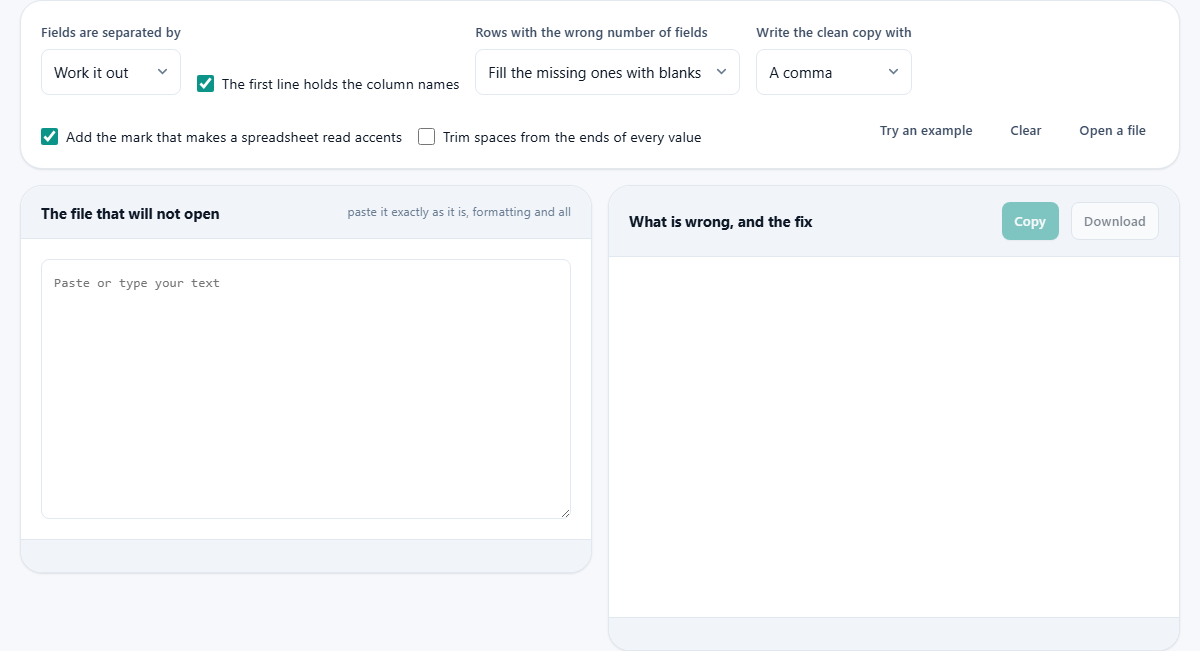
The input area is labeled The file that will not open, and the hint says to paste it exactly as it is. That last part matters. Do not tidy the file first. Do not open it in another program to clean it up. The stray quotes, the odd separators, and the unexpected line breaks are the evidence. Removing them before the repair tool sees the file hides the fault.
You can also click Open a file to load the file from disk, or press Try an example to see a deliberately broken sample. The Clear button empties both panels.
Choosing the separator
The Fields are separated by dropdown defaults to Work it out. In that mode the tool tries a comma, a semicolon, a tab, and a vertical bar, and keeps whichever gives the most rows with a consistent field count. If your file shows up as one enormous column, the automatic choice was wrong and you should set the separator by hand.
The single biggest clue is the origin of the file. If it came from a system in continental Europe, try the semicolon. If it came from a database export, try the tab. If it was exported from a Unix pipeline, try the vertical bar. Once the separator is right, the columns fall into place and the real problems become visible.
Handling rows with the wrong field count
The dropdown labeled Rows with the wrong number of fields offers four strategies. Fill the missing ones with blanks pads short rows so they have the same number of columns as the header. This is the safest default because no data is discarded. Add columns for the extra ones widens the table so the extra values have somewhere to go. Drop the extra ones trims long rows back to the expected width. Leave them alone and just report does nothing except list the rows so you can inspect them yourself.
Short rows are usually harmless. They typically mean the exporting system omitted trailing empty fields. Long rows are more serious. A row with extra fields usually means a value contained the separator character and was not quoted. Before accepting the automatic fix for a long row, look at the original line. The extra field is often a comma inside a company name or an address.
The output controls
The Write the clean copy with dropdown lets you pick the separator for the repaired file. The choices are a comma, a semicolon, and a tab. Pick whichever the receiving program expects.
Two checkboxes sit below. The first, Add the mark that makes a spreadsheet read accents, is on by default. It adds a byte-order mark at the start of the file. Those three bytes tell Excel and other spreadsheets that the file is encoded in UTF-8, so names with accents, umlauts, or non-Latin characters display correctly instead of turning into nonsense. Leave it on unless you know the receiving system dislikes the mark.
The second checkbox, Trim spaces from the ends of every value, is off by default. Turning it on strips leading and trailing whitespace from every cell. This is useful when the export padded values to a fixed width, but leave it off if trailing spaces might be meaningful in your data.
The checkbox labeled The first line holds the column names tells the repair tool whether the first row is a header. When it is on, the header row is used to determine the expected field count and is not treated as data.
Reading the problem list
The right-hand panel, titled What is wrong, and the fix, shows two things. At the top is a list of every problem found, with the line number and a snippet of the offending content. Below that is the clean copy of the file, ready to copy or download.
Each problem entry tells you exactly what went wrong. A line about an unescaped quote gives you the position within the line where the parser lost track. A line about a ragged row tells you how many fields it has versus how many were expected. Reading these entries from top to bottom tells the story of the file: where it was fine, where it broke, and whether the break was a one-off or a pattern.
When you see thousands of broken rows starting from a particular point, look at the line just before that point. A single unescaped quote can throw the parser out of alignment for the rest of the file, producing a cascade of errors that all trace back to one line.
A worked example with a European export
Suppose you receive a file from a German system. You paste it in and the profiler shows one column with hundreds of characters per row. The automatic separator detection chose the comma, but the file actually uses semicolons because German numbers use commas as decimal separators. You change the dropdown to A semicolon, and the columns separate correctly.
Now the problem list shows three rows with six fields instead of the expected five. Looking at the snippets, each long row has an address field containing a semicolon that was never quoted. The tool has split that address across two columns. You set the ragged-row strategy to Leave them alone and just report, go back to the source system, fix the export, and run it again. This time the file is clean.
You set the output separator to a comma, leave the accent mark on, and download the result. The file opens perfectly in a spreadsheet on your machine.
Common mistakes when repairing
The most common mistake is accepting the clean copy without reading the problem list. The repair tool does its best, but a row where a value contained the separator cannot always be fixed automatically. If an address had a comma in it and the value was never quoted, the tool cannot know which comma was the separator and which was part of the address. It guesses, and sometimes the guess is wrong. The problem list shows you which rows were affected so you can check them.
Another mistake is trimming spaces when they matter. Some systems use fixed-width fields padded with spaces. Trimming is correct in that case. But if a field genuinely contains a space at the end, trimming it changes the data. When in doubt, leave the trim box off and handle spacing in the program that receives the file.
When repair is not enough
If a file has two different separators in it, perhaps because two exports were pasted together, the repair tool picks whichever separator explains the majority of rows and flags the rest. The honest answer is that the file needs to be split into two pieces and each one handled separately. The problem list makes that easy because it shows which rows disagree.
Files that are not CSV at all, such as fixed-width text or XML that was given a .csv extension, cannot be repaired into valid CSV. If the tool reports that every row has a different number of fields and no separator makes sense, the file is probably not a delimited format in the first place.
Privacy and where the processing happens
The file is read and rewritten entirely in your browser. Nothing is uploaded to a server. This matters especially for broken files, which may contain data you have not yet inspected and do not want leaving your machine. The clean copy is assembled locally and downloaded directly to your computer.