
Converting a bank CSV export into a QIF file your accounts program will accept
Your bank gives you a CSV download and your accounting software wants a QIF file. The format change is the easy part. The hard part is making sure that every amount, every date, and every sign came through correctly. This article explains each control on the converter, walks through a real statement from paste to download, and shows how to use the balance check to prove the conversion lost nothing.
What QIF is and why it still matters
QIF stands for Quicken Interchange Format. It is a plain text format for exchanging financial transactions that has been around since the early days of personal finance software. Each transaction sits on a few lines, with a letter at the start of each line saying what follows: D for the date, T for the amount, P for the payee, M for a memo, and so on.
It is old and simple, and that simplicity is exactly why it still works. Almost every accounting program can import QIF, from Quicken to GnuCash to Wave to dozens of others. When a bank offers only a CSV download and your software does not read CSV directly, QIF is the bridge. It has no fields for currency, no way to carry account balances, and no mechanism for preventing duplicate imports, but it gets transactions from one place to another reliably.
Pasting the bank export and mapping the columns
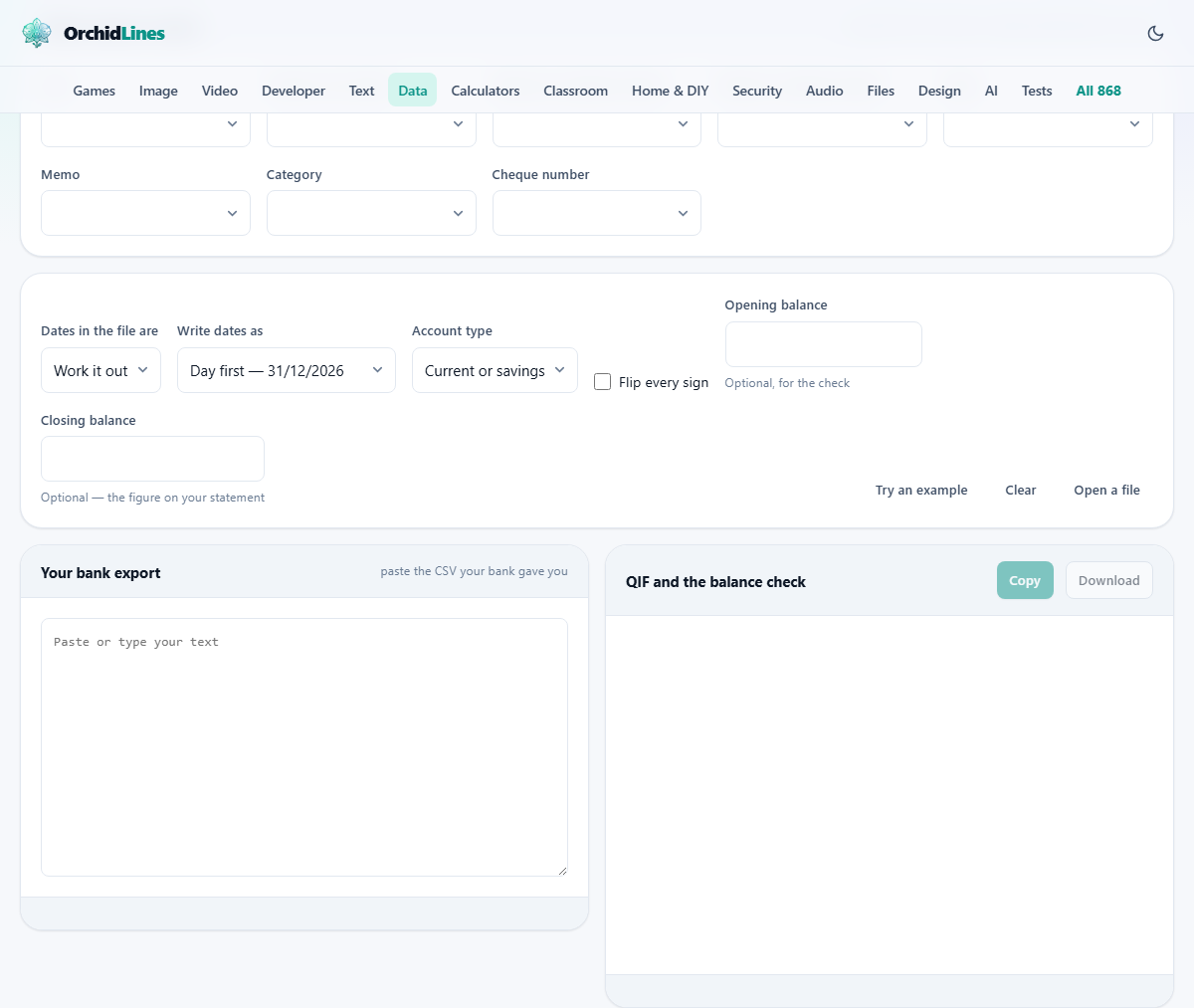
Start by pasting the CSV your bank gave you into the text area labeled Your bank export, or click Open a file to pick the downloaded file. The header row is read, and the tool guesses which column is which based on common names like Date, Amount, Description, and Payee.
The guesses appear in the panel called Which column is which. Eight dropdowns let you correct any assignment. The Date dropdown picks the column holding transaction dates. The Amount, one column dropdown is for banks that put credits and debits in a single column with positive and negative signs. The Money out, separate column and Money in, separate column dropdowns are for banks that use two columns instead. Pick whichever arrangement matches your export.
The Payee and Memo dropdowns map the descriptive fields. Category maps to the QIF category line, and Cheque number maps to the transaction number. Any dropdown can be left empty if the column does not exist in your export.
Handling dates correctly
Dates are the most dangerous part of any bank-file conversion. A line reading 03/04/2026 could be the third of April or the fourth of March, and the QIF format has no field to say which interpretation is correct. The program reading the file simply guesses, and it will not warn you when it guesses wrong.
The Dates in the file are dropdown has four choices. Work it out lets the tool examine the values and determine the order, which works when any date has a day above twelve. Day first, Month first, and Year first let you override it when you know the answer. The Write dates as dropdown controls how dates appear in the QIF output. Find the matching setting in your accounting software, set it here, and then import a few rows and check that a mid-month transaction lands on the correct day.
Year-first dates in the form 2026-12-31 are the one format nothing can misread. If your accounting program accepts them, use them.
The sign flip and account type
Credit card statements often list purchases as positive numbers because they increase what you owe. When you import those into accounting software, spending should be negative. If the first row of your result shows income where you expected a purchase, tick the Flip every sign checkbox and every amount is reversed.
The Account type dropdown sets the QIF header that tells the accounting program what kind of account the transactions belong to. The choices are Current or savings, Credit card, Cash, Other asset, and Other liability. Pick the one that matches the account in your program. Getting this wrong does not break the import, but the transactions may land in a default account rather than the one you intended.
Using the balance check
Two text fields sit below the account type: Opening balance and Closing balance. Both are optional but enormously valuable. Type in the starting and ending figures from your bank statement. The tool adds up every transaction amount and compares the result against the difference between your two figures.
If the totals match to the penny, the conversion did not lose or double anything. If they disagree, there is a problem. The most common causes are a row whose amount could not be read, a date outside the statement period, or a pending transaction the bank included that does not appear in the settlement figures. The tool lists the rows that failed so you can look at each one.
A discrepancy of a few pence often means a rounding difference in how the bank wrote the number. A discrepancy of a large round amount usually means a whole transaction was missed or counted twice. Either way, finding it here is vastly easier than finding it after import.
A worked example with a current-account export
Imagine a bank CSV with columns Date, Description, Money In, Money Out, and Balance. You paste it in. The tool maps Date to the date column, Description to the payee, Money In to the credit column, and Money Out to the debit column. The single-amount column is left empty because this bank uses two columns.
Dates in the file are left on Work it out, and the tool sees 15/06/2026 in the data, so it knows the day comes first. Write dates as is set to Day first to match the accounting program. Account type stays on Current or savings. Opening balance is 1,240.50 and closing balance is 987.33.
The result panel shows each transaction as a QIF record and a green line at the bottom confirming the total matches. You press Download, import the file into a fresh test account, look at the first few entries, and confirm everything sits in the right week. Only then do you import into the real account.
How the tool reads unusual amounts
Bank exports write numbers in many styles. An amount like (12.34) with brackets is read as negative. A trailing minus sign, as in 12.34-, is also understood. Numbers using a comma as the decimal separator, common in continental European exports, are handled too. The tool tries each style until one produces a valid number.
When both a credit column and a debit column have a figure in the same row, the tool flags that row. One of the two values is unexpected, and you need to look at it. A blank in both columns means the row had no amount at all, which is also flagged.
Common mistakes and how to avoid them
The single most common mistake is importing the same QIF file twice. QIF has no transaction identifiers, so the accounting program has no way to know the rows already exist. It merges them in, doubling the month. Always import into an empty test account first, look at the result, and only then merge or replace.
Another frequent error is leaving the date order wrong. Everything looks fine for the first twelve days of each month because 03/04 is a valid date both ways round. The error only surfaces weeks later when a payment sits in the wrong period. Import a handful of transactions first and check one that falls after the twelfth.
Forgetting to check the sign is the third trap. A card statement where all purchases are positive will show as income after import. One glance at the first transaction tells you whether to tick the flip box.
When QIF is not the right format
QIF carries no currency field, so if your accounts program handles multiple currencies, each import is assumed to be in the default. OFX is the more modern alternative that can carry currency, account identifiers, and transaction IDs, but far fewer tools generate OFX from raw CSV data. If your accounting software supports CSV import directly, that may be simpler than converting at all.
For very large statement files covering years of history, consider splitting the CSV by month first and importing each month separately. That makes the balance check easier and keeps each import small enough to review by eye.
Privacy and where the data stays
Your bank statement is read and converted entirely in your browser. Nothing is sent to a server. No transaction data, no account numbers, no payee names leave your device. The QIF file is assembled locally and downloaded directly to your computer. You can verify this by disconnecting from the internet after the page loads: the conversion still works exactly the same way.