
Summarising a spreadsheet with a pivot table and no spreadsheet
A pivot table takes a flat list of records and groups them into a summary: totals by region, counts by month, averages by product line. This guide explains every control on the page, walks through a sales example with two grouping dimensions, covers the six aggregation modes, and warns about the mistakes that produce a number that looks right but means something else entirely.
What a pivot table does and who reaches for one
Raw data is a list of events. A hundred sales, a thousand survey responses, ten thousand log entries. Each row records one thing that happened. That detail is valuable but impossible to read as a story. Nobody scans five hundred rows and spots the trend.
A pivot table compresses those rows into a summary. Instead of five hundred individual sales, you see total revenue per region, or average order size per month, or a count of transactions per salesperson. The summary is what goes into the report, the slide deck or the email to a manager. The raw data stays behind as the source of truth.
Spreadsheets have built-in pivot table features, but they require dragging fields between zones, configuring refresh settings and often end up on a separate sheet where they lose contact with the original data. This page does the same job with a paste, two dropdown picks and an instant result.
Pasting the data
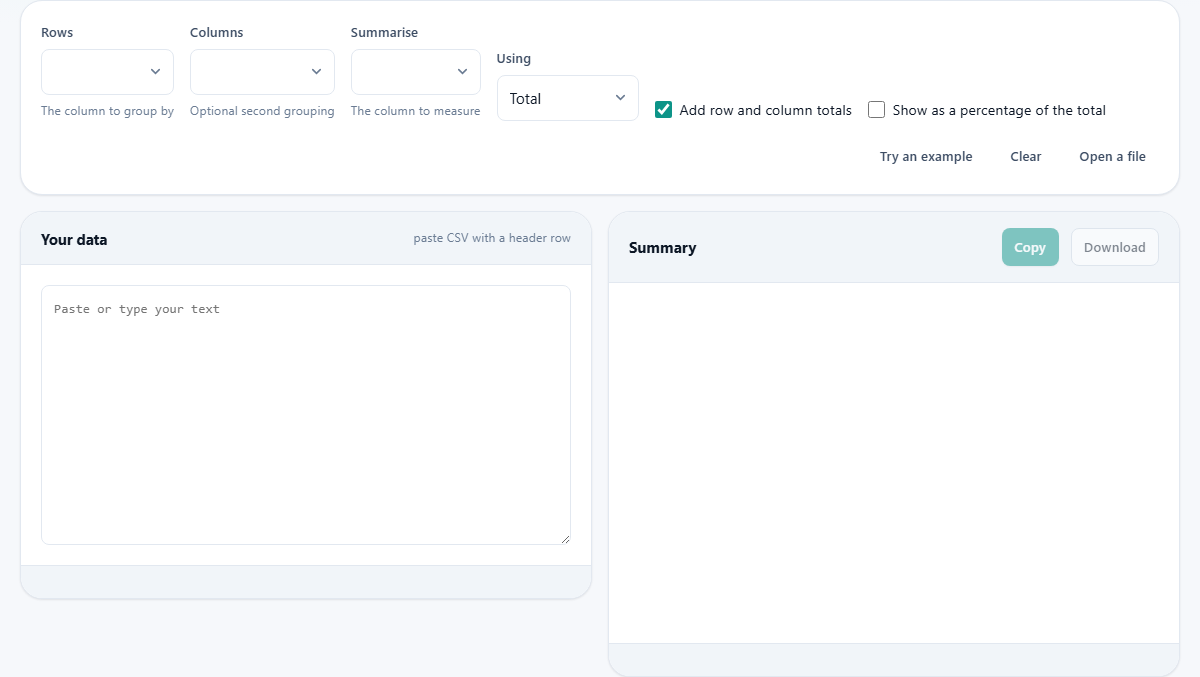
The left panel is labelled Your data. Paste CSV text with a header row, or click Open a file to load a CSV from disk. The header row is essential because the column names fill the dropdown menus above. Without a header, the first record becomes the dropdown labels and its values are never summarised.
Try an example loads a small dataset so you can see the controls in action before using your own file. Clear empties the input and the output.
The four dropdown controls
Four dropdowns sit above the input panel and together they define the summary.
Rows picks the column whose values become the row labels of the summary. If you choose Region, you get one output row per region. This is the primary grouping dimension and the one control you must set.
Columns picks an optional second grouping dimension. If you also choose Month, the summary becomes a grid with regions down the side and months across the top. This is the pivot part: a second category is turned from rows into columns. Leave it empty for a simple one-dimensional summary.
Summarise picks the column whose values are being measured. If you are totalling revenue, choose the revenue column here.
Using picks the aggregation function. The six choices are Total, Count, Average, Smallest, Largest and Distinct values. Total adds up the numbers. Count counts how many rows fall in each group. Average divides the total by the count. Smallest and Largest find the extremes. Distinct values counts how many different entries appear in the measured column.
Totals and percentages
Two checkboxes sit below the dropdowns.
Add row and column totals is on by default. It appends a total row at the bottom and, when columns are in use, a total column on the right. These let you verify that the summary adds up to the grand total you expect, which is a useful sanity check on any grouped report.
Show as a percentage of the total converts every cell from a raw number to a share of the grand total. Instead of seeing that Region A sold twelve thousand, you see that Region A accounts for forty per cent of all sales. Percentages make comparison between groups easier, especially when the absolute numbers are large and hard to hold in your head.
A worked example: sales by region and quarter
Suppose you have a CSV of two hundred sales records. Each row has columns for date, region, salesperson, product and revenue. You want to know how much revenue each region brought in per quarter.
Set Rows to region. Set Columns to quarter (if your data has a quarter column) or to the date column if quarters are embedded in the dates. Set Summarise to revenue and Using to Total. The output is a grid with regions down the left, quarters across the top, and the total revenue in each cell.
Turn on Add row and column totals. The bottom row now shows the total for each quarter across all regions, and the right column shows the total for each region across all quarters. The bottom-right cell is the grand total, which should match the sum of the revenue column in the raw data. If it does not, something was not parsed as a number.
Now tick Show as a percentage of the total. The same grid reappears, but each cell now reads as a fraction of the grand total. You can see at a glance which region-quarter combination contributed the most.
Count and distinct: when you do not need numbers
Not every summary involves adding up a numeric column. Count simply tallies how many rows belong to each group. It works on any column, including text. If you group a list of support tickets by status and use Count, you get the number of tickets that are open, closed, pending and so on. No numeric column is needed at all.
Distinct values counts how many different entries appear in the measured column within each group. If you group customers by city and measure distinct values on the product column, you learn how many different products each city bought, rather than how many total purchases were made. The distinction matters: a city with a hundred orders for the same product has a distinct count of one.
Numbers that look right but are not
The most dangerous output from a pivot table is a number that seems reasonable but is subtly wrong. Two mistakes account for most of these.
The first is averaging an average. If the measured column already holds a rate, a percentage or a per-unit score, averaging it across groups gives a number that does not account for the different sizes of those groups. The average of ninety per cent from one sale and ten per cent from a thousand sales is not fifty per cent by any meaningful measure. Where possible, total the two underlying numbers separately and divide at the end.
The second is totalling a column that contains currency symbols, thousands separators or other non-numeric characters. The parser reads the column as text and produces a total of zero without raising an error. If your total comes out unexpectedly small or exactly zero, check whether the column contains symbols that need to be stripped first.
How blank values are handled
Rows where the grouping column is empty are not dropped. They are collected under a group labelled (blank) and included in the totals. This is deliberate. Dropping blank groups would make the total of the summary smaller than the total of the raw data, and that mismatch is the kind of thing that takes an hour to debug in a report.
If you do not want blanks in the output, filter them out of the CSV before pasting. But check the count of blank rows first, because a large number of blanks usually means a data quality problem upstream that is worth fixing at the source.
Getting the result out
The right panel shows the summary as a rendered table. Copy puts the CSV version on your clipboard. Download saves it as a CSV file. Both include the header row and, if enabled, the total row and column.
The CSV output is ready to open in any spreadsheet. It is also ready to paste into another tool on this site. For instance, you could pivot a dataset here, copy the summary, and paste it into the Markdown Table Editor to turn it into a table for a README.
When this tool is not the right fit
This page handles one value column and up to two grouping columns. If you need to summarise several value columns at once, or group by three or more dimensions, a spreadsheet pivot table or a SQL GROUP BY query gives you more flexibility.
If the dataset is very large, in the tens of thousands of rows, the browser will handle it but the text area will become slow to scroll. At that scale, loading the file into a database or a data analysis tool is a more comfortable experience.
For data that updates regularly and needs a refreshable summary, a live connection in a spreadsheet or a dashboard tool is a better long-term solution. This page is best for one-off analysis where the answer is needed now and the setup time for anything heavier is not worth it.
Privacy and local processing
The data stays on your own device throughout. It is parsed and grouped inside the browser with no server involved. There is no account, no upload and no network call once the page has loaded. Closing the tab discards everything.
That makes it safe for sensitive data. Salary figures, patient counts, revenue numbers or anything else that should not leave the building can be summarised here without a compliance conversation. The summary is yours to export and share as you see fit.