
Joining two CSV files on a shared column without a spreadsheet
Two files that share a column can be combined into one wider table, the same way a database join or a VLOOKUP works. This guide explains every control on the page, walks through a concrete example with customer and order data, covers the matching options that fix the most common failures, and shows how to read the unmatched list so nothing slips through.
The problem this solves
Sooner or later, everyone who works with data has two files that belong together. A list of customers in one file and their orders in another. A roster of employees in one export and their training records in a second. A product catalogue from the warehouse and a price list from the finance team. The column that links them might be an email address, an order number, a product code or any other identifier that appears in both.
A spreadsheet can do this with a VLOOKUP or an INDEX-MATCH formula, but setting that up for a one-off comparison is slow and error-prone. This page does the same job by pasting both files, naming the shared column, and reading the merged result. Rows that failed to find a partner are listed separately rather than quietly vanishing, which is where most lookup formulas let people down.
The two input panels
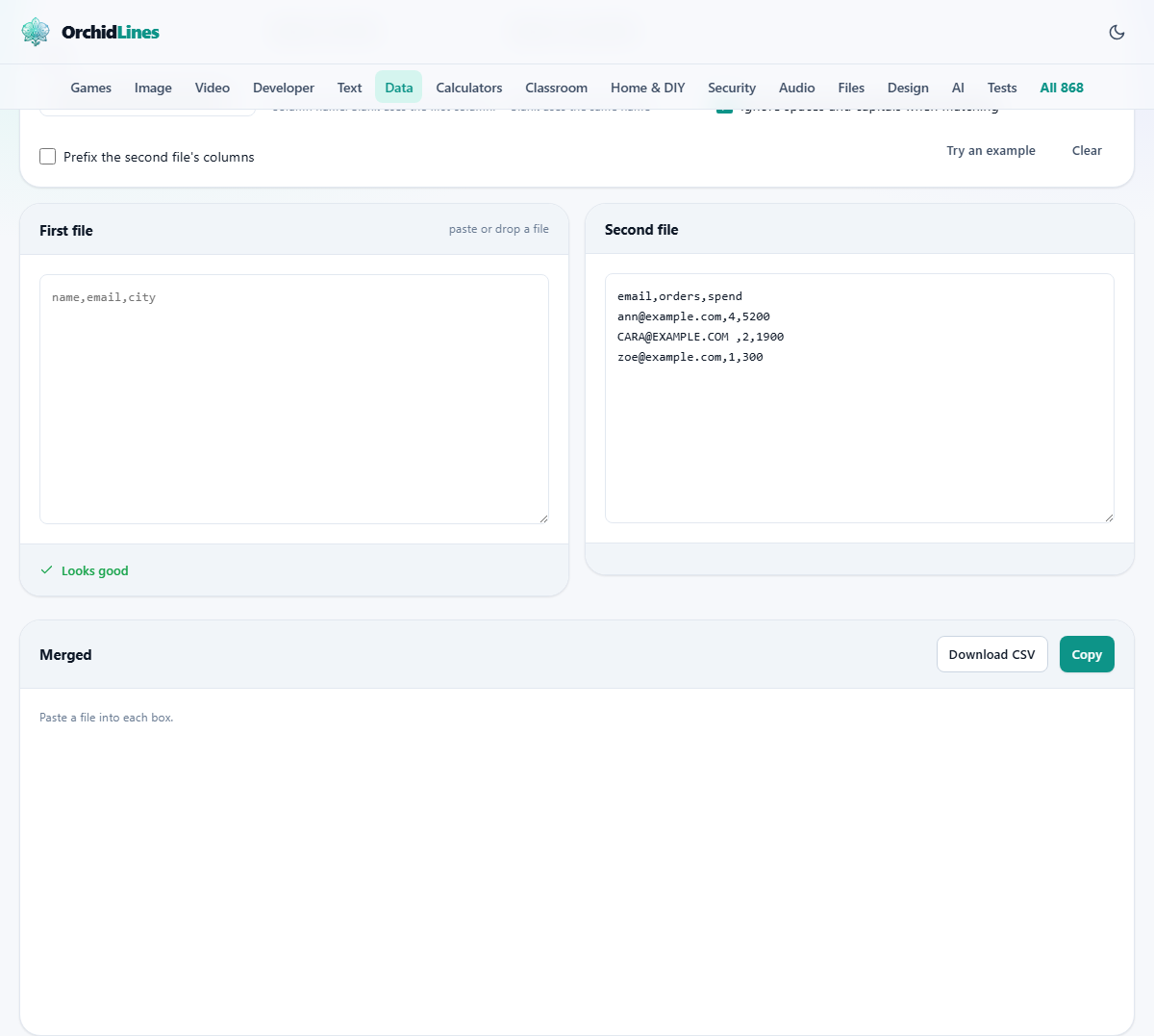
The page has two text areas side by side. The left one is labelled First file and the right one Second file. Paste CSV text into each, or drop a file onto either panel. Both files need a header row, because the column names are what the merge uses to line things up.
Try an example loads a small pair of sample files so you can see the layout before using your own data. Clear empties both panels and the output.
Choosing the key columns
Above the text areas sit the matching controls. Match on, first file takes the name of the column in the first file that holds the shared identifier. Match on, second file takes the name of the corresponding column in the second file. If both files call the column the same thing, you only need to fill in the first box and leave the second blank.
If you leave both blank, the merge uses the first column of each file. That works when both files start with the same identifier column, which is common for exports from the same system.
The Keep dropdown and what each mode does
The dropdown labelled Keep controls which rows survive the merge. It offers three choices.
Every row from the first file is the default and the most common need. Every row from the first file appears in the output. Where a match exists in the second file, the extra columns are filled in. Where no match exists, those columns are left blank. This is a left join in database terms.
Only rows that match keeps just the rows where both files had a value for the key. Anything that appears in only one file is dropped. This is an inner join, and it is the right choice when you only want the overlap.
Every row from both files keeps everything. Rows from the first file that had no match get blanks in the second file's columns, and rows from the second file that had no match get blanks in the first file's columns. This is a full outer join and gives the widest possible picture.
Matching options and column prefixes
The checkbox labelled Ignore spaces and capitals when matching is on by default. It trims whitespace from both ends of every key value and compares in lower case. This catches the most frequent reason for failed joins: one system exports an email as ANN@EXAMPLE.COM with a trailing space and the other stores it as ann@example.com. To a computer those are different strings. To a person they are the same customer.
What the option cannot fix is a number that one system exported as 00123 and the other as 123. Leading zeros are lost when a CSV is opened in a spreadsheet and the column is read as a number. Check the unmatched list for those.
Prefix the second file's columns adds a label to every column name taken from the second file. Without it, two files that both have a column called name would overwrite each other in the output. The prefix keeps both, so you see name and the prefixed version side by side.
A worked example with customers and orders
The first file is a customer list with three columns: email, name and city. It has four rows: alice@example.com in London, bob@example.com in Paris, carol@example.com in Berlin, and dave@example.com in Tokyo.
The second file is an order log with three columns: email, product and total. It has three rows: alice@example.com bought a Keyboard for 85, carol@example.com bought a Monitor for 340, and eve@example.com bought a Mouse for 25.
Set Match on, first file to email and leave the second box blank. Leave Keep on Every row from the first file. The merged output has five columns: email, name, city, product and total. Alice's row shows Keyboard and 85. Bob's row shows blanks in product and total because he had no orders. Carol's row shows Monitor and 340. Dave's row also has blanks.
Eve does not appear in the output because she is not in the first file. The unmatched list shows her row, so you know she was in the order log but not in the customer list. That is the kind of finding a silent VLOOKUP would have hidden.
Duplicate keys and row multiplication
If a key value appears more than once in the second file, every matching row is paired with the first file's row. A customer who placed three orders produces three rows in the merged output, one per order. The tool warns when this happens, because an unexpected jump in row count usually means the key column was not as unique as expected.
Watch the summary line after the merge. It shows how many rows went in from each file and how many came out. A merged result that is larger than either input is a sign that duplicate keys produced combinations. That may be exactly what you wanted, or it may mean you picked the wrong key column.
Reading the output
The Merged panel shows the result as a table. Copy puts the CSV text on your clipboard. Download CSV saves it as a file. Both include the header row.
Below the merged table, unmatched rows are listed when they exist. These are the rows from one or both files that found no partner. In a left join, only unmatched rows from the second file are shown. In a full join, unmatched rows from both sides appear. Reviewing this list is the step most people skip and most people should not.
Mistakes that produce a wrong result quietly
Several errors look like they worked but gave bad data.
- Picking the wrong key column. If both files have an id column but the ids are unrelated, the merge matches rows that have nothing to do with each other.
- Leaving matching off when the data has mixed case. A key of ABC and abc will not match unless the ignore option is ticked.
- Not checking the unmatched list. A merge that matched 95 out of 100 rows looks successful until someone asks about the five that vanished.
- Merging files with different line endings or encoding. The parser handles common formats, but a file saved with unusual encoding may split rows in unexpected places.
When a different approach works better
If you need to merge on two columns at once, or apply conditions beyond equality, a database query or a scripting language gives you more control. This page handles one key column per file, with optional case-insensitive and whitespace-trimmed matching.
If the two files have the same columns and you just want to stack the rows on top of each other, a merge is the wrong operation. Copy one file's rows below the other's in a text editor, or use a CSV concatenation tool instead.
Privacy and where the files stay
Both files are read and joined entirely inside the browser on your own device. Nothing is uploaded. There is no account and no server processing. The page works offline once loaded, and closing the tab discards the data.
For files that contain customer records, financial figures or anything else you would not paste into an online service, that local processing is the point. The merge happens on your machine and the result stays there until you choose to save it.