
Building Markdown tables without counting pipes by hand
Markdown tables look tidy when they are finished and miserable while they are being typed. This guide explains what the editor does, walks through every control on the page, covers importing from spreadsheets and existing Markdown, and shows a worked example of a table built from scratch, aligned and exported.
Why editing Markdown tables by hand is painful
A Markdown table is a grid of cells separated by pipe characters, with a mandatory separator row of dashes below the header. The format is simple to read but awful to write. Add one long word to a header cell and the pipes in every row below it stop lining up. Delete a column and you have to hunt through every line to remove the matching pipe. Insert a row in the middle and you count pipes to make sure the cells land under the right heading.
The editor on this page gives you a spreadsheet-style grid to type into and writes the finished Markdown out as you go. It also reads existing Markdown tables back in, which is the part that saves the real time. A table already in a README can be pasted in, edited visually, and pasted back without touching a single pipe character.
The grid and its controls
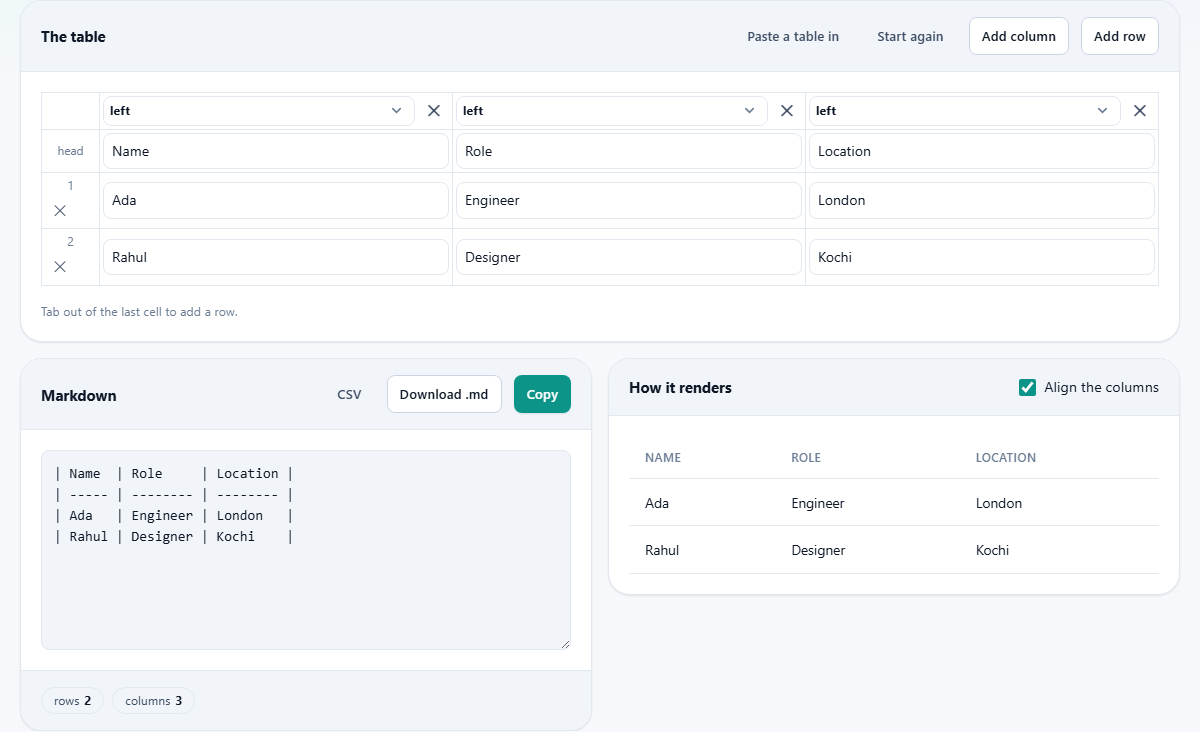
The upper panel is labelled The table and holds the editable grid. Each cell is a plain text field. Type into any cell and the Markdown output below updates live.
Add column puts a new column on the right side of the grid. Add row puts a new row at the bottom. There is also a shortcut: pressing Tab in the last cell of the last row automatically adds another row and moves the cursor into it, so you can keep typing without reaching for a button.
Above each column sits a dropdown for alignment. The choices are left, centre and right. Picking one writes the colon markers into the separator row of the Markdown output. Right-aligning a column of numbers is the single quickest way to make a table look professional.
Start again clears the grid entirely and resets it to a small empty table, ready for new data.
Importing an existing table or spreadsheet
Paste a table in opens a box that accepts three kinds of input. You can paste a Markdown table and the editor will parse the pipes, the separator row and the alignment colons, then fill the grid with the cell values. You can paste CSV text and the editor will split on commas. Or you can paste tab-separated text, which is what you get when you copy a block of cells from Excel, Google Sheets or any other spreadsheet.
The last of these is the most useful shortcut. Select the cells in your spreadsheet, copy, click Paste a table in on this page, and paste. The whole table arrives in the grid at once, ready for alignment tweaks and export.
The Markdown output panel
The lower left panel shows the generated Markdown text. It updates after every keystroke in the grid, so you always see the current state.
Copy puts the Markdown on your clipboard, ready to paste into a README, a wiki page or a pull request description. Download .md saves the same text as a file. CSV exports the raw cell data as comma-separated values, which is handy when you want to bring the table back into a spreadsheet.
The checkbox labelled Align the columns controls whether the source Markdown is padded with spaces so that the pipe characters line up vertically. With it on, the raw text is easy to read in a code editor. With it off, each row is as short as it can be, which makes version-control diffs cleaner. A one-word edit in an aligned table changes every line, because every line gets re-padded. In a compact table, only the changed row is touched.
The rendered preview
The lower right panel, labelled How it renders, shows the table drawn as HTML the way a Markdown renderer would display it. This is the view your readers will see on GitHub, GitLab, Obsidian or any static site generator that supports the format.
If a cell looks wrong in the preview, fix it in the grid rather than in the Markdown text. The Markdown panel is read-only precisely to prevent the grid and the output from getting out of step.
A worked example: a feature comparison
Suppose you are writing a README for a command-line tool and need a table comparing three output formats. The columns are Format, Human readable, and File size.
Click Add column once to get three columns. Type Format, Human readable and File size into the header cells. Add two rows. In the first data row type JSON, Yes and Large. In the second type CSV, Mostly and Small. In the third type Binary, No and Tiny.
Set the third column to right alignment using the dropdown above it. The Markdown panel now shows a clean table with colons on the right side of the separator dashes for that column. The preview shows the file-size values pushed to the right edge of their cells.
Copy the Markdown and paste it into your README. Later, when someone asks you to add a fourth format, paste the whole table back into the editor, add a row, type the values, and copy the updated version out. No pipe counting required.
Pipes, line breaks and other edge cases
A literal pipe character inside a cell would break the table structure, because every pipe in a Markdown table marks a cell boundary. The editor escapes pipes automatically, replacing them with a backslash-pipe sequence in the output. You can type a pipe into a grid cell and it will survive the round trip.
Line breaks inside a cell are a different story. The Markdown table format is strictly one row per line, so there is no way to put a newline inside a cell. If you type one, it becomes a space. Some Markdown renderers accept a raw HTML line-break tag in a cell, and the editor will pass that through untouched if you type it, but it is renderer-specific behaviour rather than part of the standard.
Where the format works
The table syntax used here is GitHub Flavored Markdown, which is also supported by GitLab, Obsidian, Hugo, Jekyll, Docusaurus, MkDocs and most static site generators. If you are writing for any of these platforms, the output will render correctly without changes.
The format does have limits. It cannot merge cells horizontally or vertically, cannot nest a table inside another table, and cannot style individual cells with colours or fonts. For those needs, write HTML directly. But for a comparison chart, a list of options, a set of API parameters or a changelog summary, a Markdown table is the right weight.
Common stumbles and how to avoid them
A few problems come up often enough to list.
- Editing the Markdown text directly instead of using the grid. The Markdown panel is read-only. Change the grid and the output follows.
- Leaving aligned mode on for a file under version control. Every edit re-pads every row, making the diff touch lines that did not change. Turn off Align the columns for repositories.
- Pasting a table that uses a different separator style, such as plus signs at intersections. The importer expects pipes and dashes. Reformat the table before pasting.
- Expecting cell colours or merged cells. The format does not support either. Use an HTML table for those.
When a Markdown table is the wrong choice
If the table has more than about eight columns it will scroll horizontally on narrow screens, and readers on phones will have a bad time. A narrower table or a list of key-value pairs may communicate the same information more clearly.
If the data changes often and has hundreds of rows, a spreadsheet shared as a link is easier to maintain than a table pasted into a document. This editor is at its best for small, stable tables that live inside written content.
Privacy and data handling
Every keystroke stays inside the browser on your own device. The grid, the Markdown and the preview are all generated locally. There is no server, no account and no upload. The page works offline once it has loaded, and closing the tab discards everything.
If the table contains internal data you would rather not paste into an online service, this is a safe place to build it. Nothing leaves your machine unless you copy the result and put it somewhere yourself.