
Turning a spreadsheet into a stack of personal letters
A mail merge takes one template and one list of people and produces a finished document for every row. This guide walks through each control on the page, shows a complete example with real placeholder names, explains how to handle blanks and conditional paragraphs, and covers the mistakes that send double-brace placeholders out in the actual post.
Who needs a mail merge and why
Any time the same letter goes to more than a handful of people with different details filled in, a mail merge saves the afternoon. Schools send fee reminders. Small businesses send quotes. Conference organisers send acceptance letters. Clubs send renewal notices. The alternative is editing each copy by hand, and by the fifth one the mistakes start creeping in.
Office suites have built-in merge features, but they come with setup steps, data source connections and print dialogues that assume you will do this every week. If you have a CSV from a registration form and a letter to write once, this page gets it done faster. Paste the rows, write the template, step through the preview, and print or download the lot.
Feeding in the rows
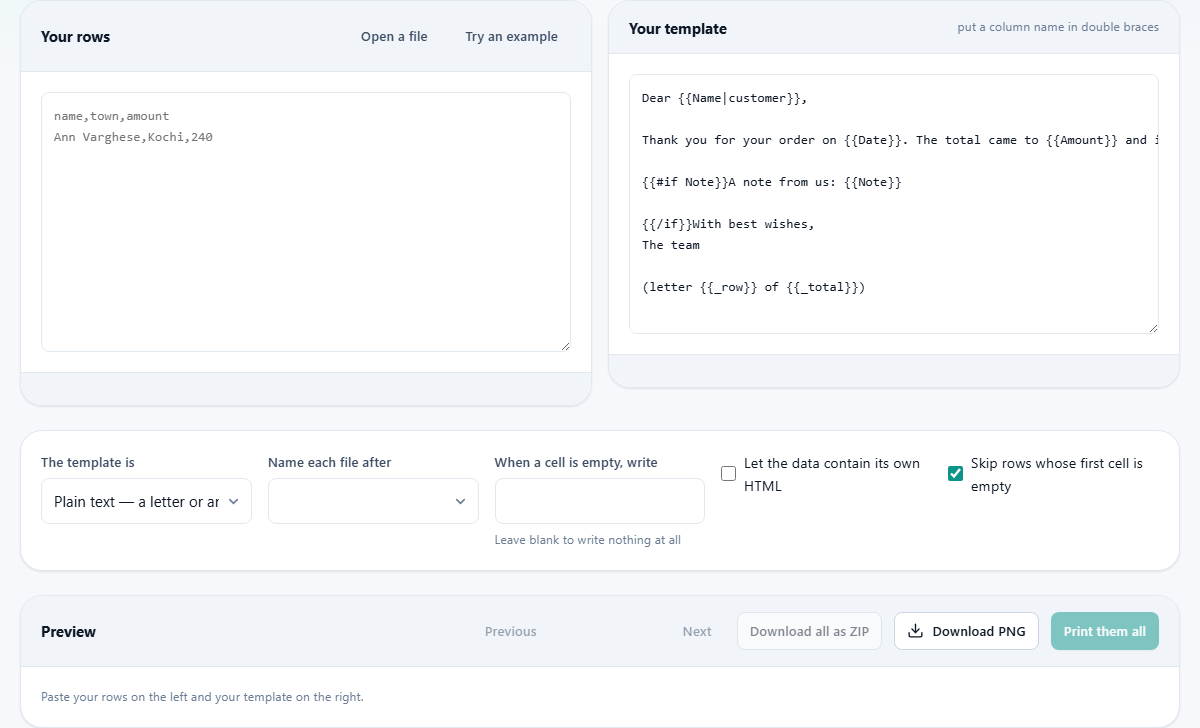
The left panel is labelled Your rows. Paste your data there as comma-separated text with the column names on the first line. That first line matters because those names become the placeholders you write in the template. If the spreadsheet calls the column First Name, you will write First Name inside double braces in the letter.
Open a file reads a CSV or TSV file straight from disk instead. Try an example loads a small sample so you can see how the pieces connect before using your own data. The status bar at the bottom reports how many rows were found and whether anything looked wrong with the parsing.
Writing the template
The right panel is labelled Your template. Type the letter exactly as it should read, and wherever a personal detail belongs, write the column name inside two opening braces and two closing braces. If the CSV has columns called name, town and amount, the template might start with Dear followed by the name placeholder in braces, then a comma and a new line.
Spelling has to match the column header exactly, though capitals and trailing spaces are forgiven. The page compares loosely, so First Name in the template still finds a column called first name. But a header with a trailing space that you cannot see will still match, which is one less thing to debug.
The options panel
Below the two text areas sits a row of settings that control how the merge behaves.
The template is has two choices. Plain text is the default and suits letters and emails. HTML lets you write markup with your own headings, colours and layout, which is how certificates and styled pages are made. Each record still prints on its own page regardless of the choice.
Name each file after picks which column supplies the filename when you download a zip. If the list has a name column, each file can be called by that person's name instead of a number.
When a cell is empty, write sets a global fallback for missing values. Leave it blank and nothing appears where the placeholder was. Type a word like Member and every empty cell is replaced with that word. You can also set a fallback per placeholder by writing a vertical bar and the fallback inside the braces themselves.
Let the data contain its own HTML is off by default. Turning it on stops the page from escaping angle brackets in cell values, which matters only when the template is set to HTML and the data itself carries tags.
Skip rows whose first cell is empty is on by default. It catches the trailing blank rows that spreadsheets like to export at the end of a file.
Previewing, printing and downloading
The Preview panel shows one finished document at a time. Previous and Next step through the records, and the counter between them tells you which one you are looking at and how many there are in total. Check a few from the middle and at least one from the end, because errors tend to cluster where nobody scrolls.
Print them all opens the browser's own print dialogue with a page break between each record. The controls and the rest of the site are hidden, so only the letters print. If a single letter is too long for one sheet it will spill onto a second page and double your paper, so trim the template until each record fits.
Download all as ZIP builds one file per row, named after whichever column you chose in the options. The zip is assembled inside the browser and downloaded in one go.
Conditional blocks and per-placeholder fallbacks
Sometimes a paragraph should only appear when a certain column has a value. A note about a discount only makes sense for the people who earned one. To make a block conditional, open it with a hash followed by the word if and the column name inside braces, and close it with a slash followed by the word if inside braces. Everything between the two tags appears only when that cell is not empty.
Per-placeholder fallbacks work inside the braces. Write the column name, then a vertical bar, then the word to use when the cell is blank. If the column is called title and some rows have no title, writing the placeholder with a bar and the word Friend after it means those people get Dear Friend instead of Dear followed by nothing.
A worked example with three rows
Suppose a music school is sending recital invitations. The CSV has four columns: name, instrument, time and teacher. Three rows follow: Priya who plays violin at 10:00 AM with Ms Rao, James who plays cello at 11:30 AM with Mr Das, and Anika who plays flute at 2:00 PM but whose teacher cell is empty.
The template reads: Dear followed by the name placeholder, then a line saying the instrument recital is at the time given. A conditional block wraps a sentence about the teacher, so Anika's letter skips that line entirely. The fallback on the teacher placeholder is set to your teacher, so if the conditional block were removed, Anika's letter would say your teacher instead of leaving a gap.
Stepping through the preview shows three finished letters. Priya's mentions Ms Rao, James's mentions Mr Das, and Anika's omits the teacher sentence. The warnings panel is empty because every placeholder matched a column. If instrument had been misspelled in the template, the page would list it and refuse to leave the raw braces in the output.
The placeholder that never got replaced
The single most common mail merge disaster is a placeholder that does not match any column, so the braces themselves appear in the finished letter. It happens for one of two reasons. Either the template says First Name but the spreadsheet header says FirstName without the space, or somebody renamed a column after the template was written.
This page handles the problem by listing every placeholder it could not resolve. It does not silently leave the braces in the output the way many tools do. Before a real run, check that list. Then step to the last record as well as the first, because formatting problems at the bottom of a list are invisible if you only look at record one.
Mistakes that waste paper and goodwill
Beyond the unmatched placeholder, a few other errors come up regularly.
- A greeting that reads Dear followed by a comma and nothing else, because the name column was empty and no fallback was set. Set a global fallback or use a per-placeholder one.
- Printing without checking the last page. If the template is longer than one printed page, every record uses two sheets and the paper bill doubles.
- Forgetting that the first line of the CSV must be headers. Without headers, the first person's details become the column names and their letter is never produced.
- Pasting from a spreadsheet that added quotes around fields with commas. The parser handles standard CSV quoting, but a hand-edited file with mismatched quotes will split rows in the wrong place.
When a different tool is the better choice
This page builds documents. It does not send them. If the goal is to send a hundred personalised emails, use it to generate the text for each person and then paste or feed the results into whatever sends the mail. Nothing on this site contacts a network.
For a merge that needs arithmetic, conditional formatting or multiple tables per letter, a word processor with a proper data-source connection will give you more control. This page is strongest when the job is a simple letter, a certificate or a notice with a few personal fields.
Privacy and where the data lives
The spreadsheet, the template and every finished document stay inside the browser on your own device. No rows are sent to a server. There is no account and no upload. Once the page has loaded it works with the network cable unplugged.
That also means the page cannot save your work between sessions. Download the zip or print while the tab is open, because closing it loses everything. If the list contains anything sensitive, this is exactly the right property to have.