
How to Open and Read an ICS Calendar File Without Importing It
Someone sends you a calendar file. Your instinct is to double-click it, but that imports it straight into your calendar before you have seen what is inside. This guide explains how the Calendar File Viewer lets you read, sort and export the events from any ICS file without touching your actual calendar, and why that matters more than it sounds.
What the tool does and who reaches for it
The Calendar File Viewer opens an ICS file and shows the events as a readable list. You see titles, dates, times, locations, durations, attendee counts and recurrence rules, all laid out plainly. Nothing is added to your calendar. Nothing is uploaded to a server.
People reach for this when a meeting invite arrives and they want to check the details before accepting. Or when they export a full year from Google Calendar and need to confirm the dates are correct before sending it to someone else. Or when they find an old backup file and want to know what is in it without importing hundreds of events into a live calendar.
Anyone who subscribes to a public calendar feed has another reason. A subscription URL points to an ICS file, and downloading it and reading it here is the only way to see how many events are about to appear in your calendar before you commit to the subscription.
Loading a file
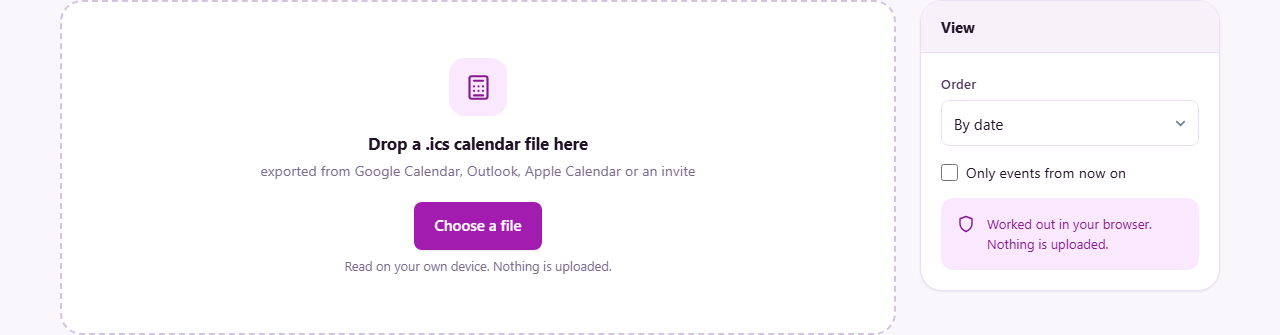
Drag an ICS file onto the drop zone, or click the zone and choose a file from your device. Files with the extension .ics or .ical are accepted, as well as anything with the MIME type text/calendar.
You can load more than one file at a time. All the events from every file are merged into one list and shown together. This is useful when you have separate files for work and personal calendars and want to see both in one place.
After loading, the drop zone is replaced by the list of events. Press Another file to go back to the drop zone and load a different file.
Reading the event list
Each event shows its title, date and time. If a location is present, it appears below the title. If a description is present, it is shown too. Attendee counts are listed when the file includes them, which is common in meeting invites.
All-day events have no time attached. They display just a date. This is not missing data. It is how the ICS format marks an event that spans the entire day, like a birthday or a public holiday.
Repeating events appear once, with the recurrence rule translated into plain English. Instead of reading the raw RRULE line from the file, you see something like every 2 weeks on Monday, 20 times. This tells you what the rule means without having to decode the format yourself.
Sorting and filtering the events
The Order dropdown in the side panel offers three choices. By date sorts the events in order of when they happen, which is the default and the most natural way to read a schedule. By title sorts them alphabetically, which is useful when you are looking for a specific event by name. As they appear in the file leaves them in the order the ICS file stored them, which sometimes follows the order they were created rather than when they occur.
The checkbox Only events from now on hides anything in the past. Turn it on when you have a year-long export and only care about what is coming up. Turn it off when you want the full picture, for instance when reviewing an old backup.
Exporting to CSV
Press Download CSV to get a spreadsheet of every event. Each row is one event. The columns cover every field the file carries: title, start date, start time, end date, end time, location, description, attendees, recurrence rule and any other properties present in the original.
The CSV opens directly in Excel, Numbers or Google Sheets. From there you can sort, filter, make charts, or paste the data into another system. A large calendar export with hundreds of events becomes manageable once it is in a spreadsheet with filters on each column.
This is also a way to move data between calendar systems. Export from one as ICS, view it here, download as CSV, and then use a CSV-to-calendar tool to import the edited version into a different calendar application.
Worked example: checking a subscription before you subscribe
A sports league publishes a calendar subscription link for the season fixtures. Before you subscribe, you want to know how many events it contains and whether the times are in your local zone.
Open the link in your browser and save the file it returns. It is an ICS file. Drag it onto the Calendar File Viewer. The list shows 38 match events spread across nine months, each with a title, a date, a kick-off time and a stadium name in the location field.
Set Order to By date and tick Only events from now on. You see the 24 matches still to come. The times all say UTC, and the tool converts them to your local zone, so you can check whether the kick-off times make sense in your time zone.
Now press Download CSV. Open the spreadsheet. You can see every event at a glance, confirm the dates, and decide whether you want all 38 or only the home matches. If you are happy, go ahead and subscribe to the original link in your calendar application.
How time zones are shown
Times marked as UTC in the file are converted to your local zone so you can read them naturally. Events that carry a named time zone like America/New_York or Europe/Berlin are shown as written in the file. This is because resolving every possible zone correctly needs a full time zone database, and the tool keeps things simple by trusting the zone name the file already carries.
For a meeting invite from another country, the times may be in the organiser's zone rather than yours. Check the original invite if the time looks wrong. The tool shows you exactly what the file contains, so you can tell whether the problem is in the data or in the reading.
Common mistakes and things to watch
The biggest trap is not checking a file before importing it. Calendar applications add every event the moment you open the file, and most of them have no clean undo. A file with 500 events imported into your main calendar is 500 events to delete one at a time.
Another common surprise is that repeating events show up only once. The file stores one event plus a rule, not hundreds of individual entries. This is expected behaviour, not missing data.
People sometimes expect a live view that expands every repeat into a separate row. The tool describes the rule instead of expanding it, which keeps the list short and matches how the data is actually stored.
When this tool is not the right one
If you have a spreadsheet of events and want to create a calendar file from it, you need the CSV to Calendar tool instead. That one goes in the opposite direction, from a table to an ICS file.
If you need to edit individual events inside an ICS file, change times, move dates or delete attendees, a calendar application is the right place. This tool reads and exports. It does not edit the file.
If you want a live connection that stays up to date, you need a calendar subscription rather than a one-time file import. This tool works on a snapshot, not a feed.
Why privacy matters more here than usual
A calendar file is a detailed record of your life. It says who you meet, where you go, and when you are busy or free. A single export from a work calendar reveals meeting titles, room bookings, attendee lists, and recurring commitments across months or years.
Everything in this tool runs on your own device. The file is parsed in your browser. No data is sent to any server. There is no account, no log, and no copy stored anywhere. Close the tab and the events are gone. When the data is this personal, processing it locally is not just a convenience. It is the only responsible option.