
How to Turn a Spreadsheet of Events Into a Calendar File
You have a list of dates in a spreadsheet and you want them in your calendar without typing each one by hand. This guide covers every control on the CSV to Calendar tool, shows exactly which columns you need, walks through a full example from a shift rota in a spreadsheet to an imported calendar, and explains the time zone trap that ruins imports for people in different countries.
What the tool does and who uses it
The CSV to Calendar tool reads a spreadsheet where each row is an event and writes an ICS file. ICS is the standard calendar exchange format. Google Calendar, Outlook, Apple Calendar and nearly every other calendar application can import it.
Teachers use it at the start of a term to import a timetable with dozens of lessons. Managers use it for a shift rota that covers thirty people across a month. Event organisers use it to share a schedule of talks and workshops with attendees. Students use it when a university publishes exam dates as a spreadsheet and expects everyone to copy them by hand.
The pattern is always the same. Someone already has the dates in a table. The job is to move them into a calendar without retyping, and an ICS file is the standard bridge between the two.
Setting up your columns
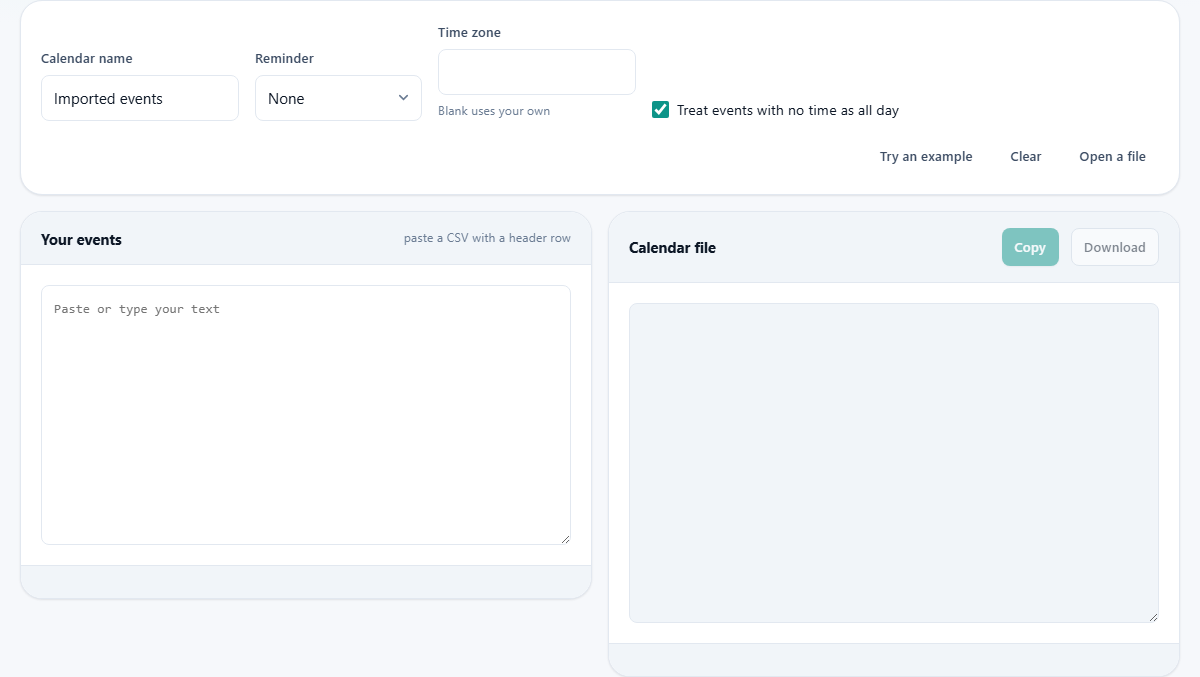
Paste your data into the Your events box on the left. It expects a CSV with a header row. The header names tell the tool which column is which.
You need at least two columns: a title and a date. The title appears as the event name in your calendar. The date sets which day it falls on. Beyond those two, everything else is optional.
A start time column sets the time the event begins. An end time column sets when it finishes. If you leave the end time blank, the event is given a default length of one hour. A location column fills in the location field that most calendars show under the title. A description column adds a block of text to the event body, useful for agendas or notes.
A repeat column lets you mark an event as recurring. Set it to daily, weekly, monthly or yearly and the calendar application treats it as a repeating event rather than a single one. This saves you from having fifty rows for a weekly team meeting.
Naming the calendar
The Calendar name field sets the name that appears inside the ICS file. When you import the file, some calendar applications use this name to label the group of events. The default is Imported events, but changing it to something like Spring Term or Night Shifts makes it easier to find later.
This name also matters when you need to undo the import. If you put all the events into a calendar with a clear name, you can delete that entire calendar in one step instead of hunting through your main calendar for each event.
Adding a reminder
The Reminder dropdown adds an alert to every event in the file. The choices are None, 10 minutes before, 30 minutes before, An hour before and A day before.
The reminder applies to all events equally, which is usually what you want for a rota or a set of deadlines. If you need different reminders for different events, import the file first and then adjust individual events in your calendar application afterwards.
Getting the time zone right
The Time zone field is blank by default, which means the tool uses your own local time zone. That works perfectly when you are the only person who will use the file.
Problems start when you send the file to someone in a different time zone. An event at 9 in the morning with no named zone is read by the importing application using whatever zone it is in. Your 9 AM in London becomes 9 AM in New York, which is four hours off.
To avoid this, type the zone name into the field. Use the standard names like Europe/London, America/New_York or Asia/Kolkata. The tool writes the zone into the ICS file, and every calendar application that reads it places the event at the correct local time.
All-day events are the exception. A birthday or a holiday should carry no time zone at all, because the date is the same everywhere. The checkbox Treat events with no time as all day handles this automatically. When an event has a date but no start time, it becomes an all-day event with no zone attached.
How dates and times are read
The tool is flexible about date formats. Year-month-day is the safest and avoids any confusion between day and month. But common forms like day/month/year and month/day/year are understood too. The tool reports how it read the first date, so you can confirm it interpreted your format correctly before you download the file.
Times can be in 24-hour format like 14:30 or 12-hour format like 2:30 PM. Both are accepted. If you use 12-hour format, include AM or PM so the tool knows whether you mean morning or afternoon.
If a date cannot be parsed at all, the tool skips that row and tells you which one failed. Check the status line at the bottom of the input panel for any warnings. A single badly formatted date will not stop the rest of the file from converting.
Worked example: a shift rota
Suppose you manage a team and your rota spreadsheet has four columns: title, date, start, and end. The first row after the header reads Night Shift, 2026-09-01, 22:00, 06:00. The second reads Day Shift, 2026-09-02, 08:00, 16:00. There are thirty more rows covering the whole month.
Paste the data into the left box. Set Calendar name to September Shifts. Set Reminder to An hour before so everyone gets a nudge. Type your time zone, say Asia/Kolkata, into the Time zone field.
The right side fills with the ICS output. Each event is a VEVENT block with the title, the start time, the end time, the time zone and the alarm. The stats line reports how many events were found.
Press Download to save the ICS file. Open Google Calendar, go to Settings, then Import, and choose the file. The thirty-two shifts appear in a group called September Shifts. If anything looks wrong, delete that calendar and adjust your spreadsheet.
Mistakes that cause bad imports
Importing the same file twice creates duplicate events. Calendar applications almost never detect that an event already exists, so you get two copies of everything. The safest approach is to import into a brand-new calendar. If the import is wrong, delete the whole calendar and try again.
Leaving the time zone blank and sending the file to someone far away is another common problem. The events show up at the right time of day in the wrong time zone. Always set the zone when the file will be shared.
Mixing up day and month in ambiguous dates like 03/04/2026 can shift every event by weeks or months. Use year-month-day format to remove the ambiguity entirely.
When this tool is the wrong choice
If you already have an ICS file and want to see what is in it, you need a viewer, not a creator. The Calendar File Viewer on this site reads an existing ICS file and shows the events as a list.
If your events come from a live system that changes, a one-time import will go stale. You need a calendar subscription feed rather than a static file.
If you need complex repeating rules, like every second Tuesday except bank holidays, the simple daily, weekly, monthly and yearly options here will not cover it. Build the file manually or use a calendar application that supports advanced recurrence.
Your data stays on your own device
Nothing you paste or load leaves your browser. The ICS file is built right here on your own machine. There is no upload, no server, and no account. A shift rota, a list of appointments or a set of personal deadlines stays private from the moment you paste it to the moment you close the tab. For a file that lists where you will be and when, running the conversion on your own device is the only approach that makes sense.