
How to View and Convert GeoJSON, GPX, KML and CSV Map Data
Route files and coordinate lists come in four formats that do roughly the same job but never agree on the details. This guide covers how the Map Data Viewer reads each one, what the plot shows you before you commit, how thinning shrinks a dense track, and what to watch out for when converting between GeoJSON, GPX, KML and a plain CSV of coordinates.
What the tool does and who uses it
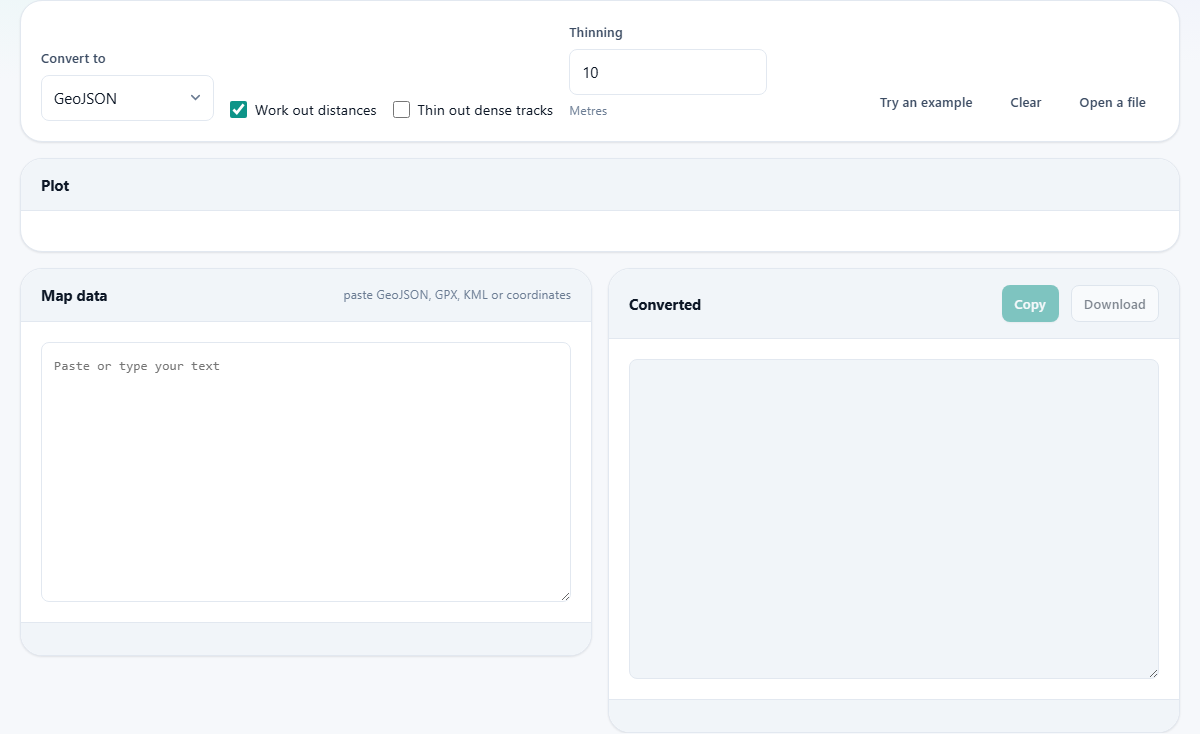
The Map Data Viewer reads geographic data in four common formats: GeoJSON, GPX, KML and CSV. It plots the points and lines on screen so you can see the shape of a route or a set of locations, works out total distances along the path, and converts between the four formats.
Runners and cyclists use it to check a GPX file from a sports watch before uploading it anywhere. Developers use it to convert a KML export from one mapping service into GeoJSON for a web application. Field workers use it to turn a spreadsheet of site coordinates into a GPX file they can load onto a handheld device. Anyone who has ever received a file of coordinates and needed to know what was in it before doing anything else will recognise the need.
Getting data in
Paste your data into the Map data box on the left. The tool detects the format automatically. A GeoJSON object, a GPX file with XML tags, a KML file, or two columns of numbers labelled latitude and longitude are all recognised without any setting.
You can also press Open a file to load a file from disk, or drag one onto the input box. Try an example drops in a sample route so you can explore the controls without needing a file of your own. Clear empties both sides and removes the plot.
Reading the plot
Once data is loaded, a plot appears above the text boxes. It draws the coordinates against each other with the aspect ratio corrected for latitude so the shape is not stretched at high latitudes.
This is not a map. There are no streets, no satellite images, and no tiles fetched from an outside server. That is a deliberate trade. The point of this tool is that nothing leaves your device, and loading map tiles from a provider would break that promise. What the plot does give you is enough to answer the first question most people have: is this the route I think it is, and does it look right?
A stray point on the other side of the world is obvious in the plot. So is a track that doubles back on itself or a set of points that clusters in one corner instead of spreading across a city. For a quick sanity check, the shape is all you need.
Converting between formats
The Convert to dropdown lets you pick the output format. GeoJSON is the standard for web maps and programmatic use. GPX is what watches, cycling computers and handheld GPS devices read. KML is the format Google Earth uses. CSV of coordinates writes one row per point with latitude, longitude and any elevation or name that was present.
Tracks, routes and waypoints all carry across during conversion. A GPX file with three tracks and two waypoints becomes a GeoJSON FeatureCollection with five features. Going the other way, each GeoJSON feature becomes a track or waypoint in the GPX output depending on whether it is a line or a point.
Press Copy to put the converted text on your clipboard, or press Download to save it as a file.
Working out distances
The checkbox Work out distances is on by default. When it is active, the tool adds up the straight-line distance from each point to the next along the route, using the curved surface of the earth rather than flat geometry. The result appears in the stats bar below the output.
For a hiking track or a cycling route, this gives a reasonable total distance. It will not match a car odometer exactly, because GPS points do not land precisely on the road, and small wobbles in the recorded path add up. But it is close enough for most planning and review.
Turn it off if your data is a set of unconnected points rather than a route. In that case, adding up distances between them in the order they appear in the file does not mean anything.
Thinning dense tracks
A sports watch records a point every second. On a two-hour run, that is over seven thousand points. Most of them sit on the same straight stretch of road and add nothing to the shape of the route. The checkbox Thin out dense tracks removes those redundant points.
The Thinning field sets how aggressive the reduction is, measured in metres. A value of 10 means any point that is less than 10 metres away from the straight line between its neighbours is dropped. Raise the number and more points are removed. Lower it and more are kept.
Thinning can reduce a file by 80 to 90 per cent in size while keeping the shape of the route almost unchanged. That matters when you need to send the file to someone, embed it in a web page, or load it onto a device with limited storage.
Worked example: converting a GPX track to GeoJSON
You recorded a morning walk with a phone app and exported it as a GPX file. The file is 1.2 MB and contains a single track with 4800 points.
Open the file using the Open a file button. The plot draws the route immediately. You can see it starts near a park, loops through a neighbourhood, and returns. The stats line reports a total distance of 5.3 kilometres.
Set Convert to to GeoJSON. The right side fills with a GeoJSON FeatureCollection containing one LineString feature. The coordinates are longitude first, then latitude, which is the GeoJSON convention and the reverse of how most people say them.
Now tick Thin out dense tracks and leave Thinning at 10 metres. The output shrinks from 4800 coordinate pairs to around 380. The plot looks almost identical. The distance changes by a few tens of metres because the simplified path cuts corners slightly. Download the result and it is a fraction of the original size, ready for a web page or an API.
Common mistakes and fixes
The single most common problem is coordinates appearing in the wrong place. In GeoJSON, the order is longitude first, then latitude. In everyday speech and in CSV files, people write latitude first. If your points show up in the middle of the ocean, try swapping the two columns.
Elevation data from consumer devices is often unreliable. A watch might report a climb of 300 metres on a route that is almost flat. Treat elevation totals as a rough guide, not a measurement.
Forgetting to thin a dense track before sharing it creates files that are much larger than they need to be. The extra points add weight but no useful detail.
When this tool is not the right fit
If you need a real map with streets, labels and terrain underneath your route, you need a mapping application. This tool plots the shape of the data, not a map of the world.
If you need to edit waypoints, split tracks, or merge multiple routes into one, a dedicated GPS editor is a better choice. This tool converts and views. It does not edit the geometry.
Files larger than about 20 or 30 megabytes may slow down or run out of memory, because the tool runs entirely in your browser. For very large datasets, a command-line tool that reads the file in chunks is more practical.
Privacy and why there is no map
A route file is a record of everywhere you went and when you were there. That is sensitive data by any measure. Every step of this tool runs on your own device. The file is not uploaded. No map tiles are fetched, which means no tile server learns which coordinates you are looking at. Close the tab and nothing remains.
The absence of a map behind the plot is not a missing feature. It is the whole point. A shape on a blank canvas tells you what you need to know about the file without revealing the file to anyone else.