
How to Join Two Lists When Nothing Matches Exactly
You have a list of customers from one system and a list from another. The same people are in both, but the names are spelled differently, the columns are in a different order, and there is no shared identifier. This guide explains every setting on the Fuzzy Match and Join tool, walks through a worked example with real names and scores, and covers the judgment calls that keep the joined result trustworthy.
What fuzzy matching is and when you need it
Fuzzy matching compares two pieces of text and returns a score that says how similar they are. A perfect match scores 100. A name with a missing letter might score 95. Two completely different names score close to zero. The tool uses that score to pair up rows from two separate lists.
The typical case is a merge that should be simple but is not. A CRM export and an invoicing export. A mailing list and a registration list. A set of company names from a directory next to a set of company names from a tax filing. The people or businesses are the same, but the text is never quite identical. One list says J. Smith, the other says John Smith. One says Acme Ltd, the other says Acme Limited.
Rather than comparing every row by hand, the tool scores all likely pairs and presents them sorted by confidence. You accept the obvious ones, reject the wrong ones, and spend your time only on the borderline cases in the middle.
Pasting or loading your two lists
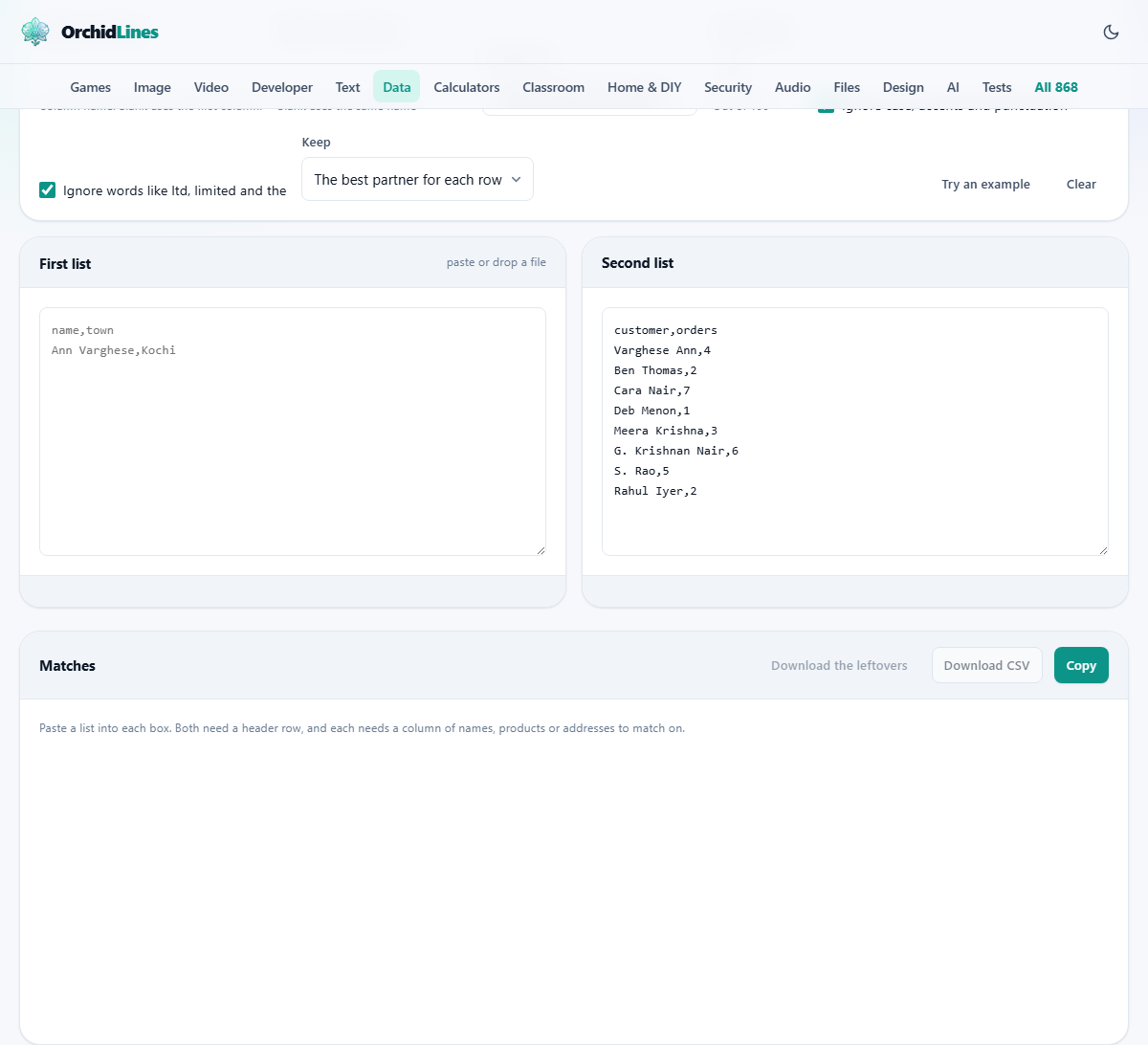
Each list goes into its own box. The First list box is on the left, the Second list box is on the right. Both need a header row so the tool knows which column holds the values to compare.
You can paste directly from a spreadsheet or from a CSV file. Dragging a file onto either box also works. Press Try an example to load a small pair of lists so you can see the controls working before committing your own data. Clear empties both boxes and the results.
Telling the tool which columns to compare
The Match on, first list field takes the name of the column that holds the text you want to match. Leave it blank and the first column is used. The Match on, second list field does the same for the other side. Leave that one blank and it uses the same column name as the first.
This means that if both lists have a column called name, you can leave both fields blank and matching starts immediately. If one list calls it customer and the other calls it contact, type each name into the right field.
Choosing a comparison method
The Compare by dropdown offers three algorithms, each suited to a different kind of text.
Whole string, typo tolerant is the default. It treats the text as a single sequence and scores how close the characters are, allowing for swapped or missing letters. It works well for personal names and short product names.
Words in any order breaks the text into words, sorts them, and then compares. This is valuable for company names where the same words appear in a different order. Smith and Jones Associates versus Associates Smith and Jones scores poorly as a whole string, but scores very well once the words are sorted.
Character edits counts the minimum number of changes needed to turn one string into the other. It is the strictest measure and works best for short codes, part numbers and identifiers where every character matters.
Setting the threshold and cleaning up text
The Accept above field takes a number between 40 and 100 and acts as a cut-off. Any pair scoring above this number is automatically ticked as a match. Pairs below it are still shown, but left unticked for you to judge.
Eighty-five is a good starting point for personal names. Company names with common suffixes tend to need a lower threshold, around 80, once you turn on the suffix filter.
The checkbox Ignore case, accents and punctuation normalises the text before comparison. Ann Varghese and ann varghese are treated the same. So are Rene and Rene with an accent. This is on by default, and there is rarely a reason to turn it off.
The checkbox Ignore words like ltd, limited and the strips common business suffixes and articles. Two names that differ only by Ltd versus Limited will then match at 100 instead of being penalised for the spelling difference.
Best match or every match
The Keep dropdown has two options. The best partner for each row pairs each row from the first list with at most one row from the second list, choosing the highest-scoring partner. This is what you want when each customer appears once in each list.
Every pair above the score keeps all pairs that score above your threshold, even if that means one row from the first list matches several rows from the second. This is useful when you suspect duplicates within one list, or when a parent company in one list should link to several branches in the other.
Worked example: matching a mailing list to a sign-up list
Your first list has three rows. The name column reads Ann Varghese, Robert James and Maria Santos. Your second list has three rows too. The customer column reads Varghese Ann, Rob James and Marie Santos.
Paste the first list into the left box. Paste the second list into the right box. Type name into Match on, first list. Type customer into Match on, second list. Leave Compare by on Whole string, typo tolerant and set Accept above to 85.
The results panel shows three pairs. Ann Varghese matched to Varghese Ann might only score 68 because the whole string is reversed. Robert James to Rob James scores around 82 because three characters are missing. Maria Santos to Marie Santos scores 93 because only one letter differs.
Only the last pair is above 85, so only it is ticked. You look at the other two. The first pair is clearly the same person with the name reversed. Change Compare by to Words in any order and the score jumps above 95, now ticked automatically. The second pair, Robert versus Rob, is a judgment call. Tick it if you are sure, and move on.
Press Download CSV to get the joined rows. The rows that found no partner are listed separately, because those are the ones that will cause trouble later if you ignore them.
Mistakes that lead to bad joins
Setting the threshold too low is the most common error. At 60, John Smith will match Jane Smith with a high enough score to be ticked, and two branches of the same firm on the same street will look like one. A high score does not prove it is the right person. It only proves the text is similar.
Short strings are another trap. A two-letter or three-letter value matches far too many other short values. If your matching column contains initials or abbreviations, try matching on a longer field instead, or combine two columns before pasting.
Forgetting to look at the unmatched rows is perhaps the most damaging mistake. Those are the records that will be missing from your final data, and they are easy to overlook because the matched pairs are the part that feels finished.
When fuzzy matching is the wrong approach
If your two lists share a reliable identifier such as an email address, an account number or a tax ID, use an exact join instead. Fuzzy matching is for text that was typed by humans and varies.
If the stakes are high, such as merging medical records, financial accounts or legal filings, treat every accepted pair as a suggestion rather than a fact. A human should verify each one against a second piece of information like a date of birth or a postal code.
Your data stays in your browser
Both lists are read and compared entirely on your own device. Nothing is sent to a server. Calendar entries, customer names, employee lists and business contacts stay in this tab and disappear when you close it. There is no upload, no account, and no record of what you matched. For anyone dealing with personal data, that is not a nice extra. It is the reason to do the matching here rather than in an online service that keeps a copy of both lists on somebody else's server.