
How to Turn Nested JSON Into Flat Spreadsheet Columns
Any time you pull data from an API or export a log file, the result is nested. Fields sit inside fields, and lists sit inside those. A spreadsheet has none of that structure. This guide walks through each control on the Nested JSON Flattener, shows what the three list modes actually produce, runs through a full example from a raw API response to a clean CSV, and explains the traps that catch people on the way back.
What the tool does and who reaches for it
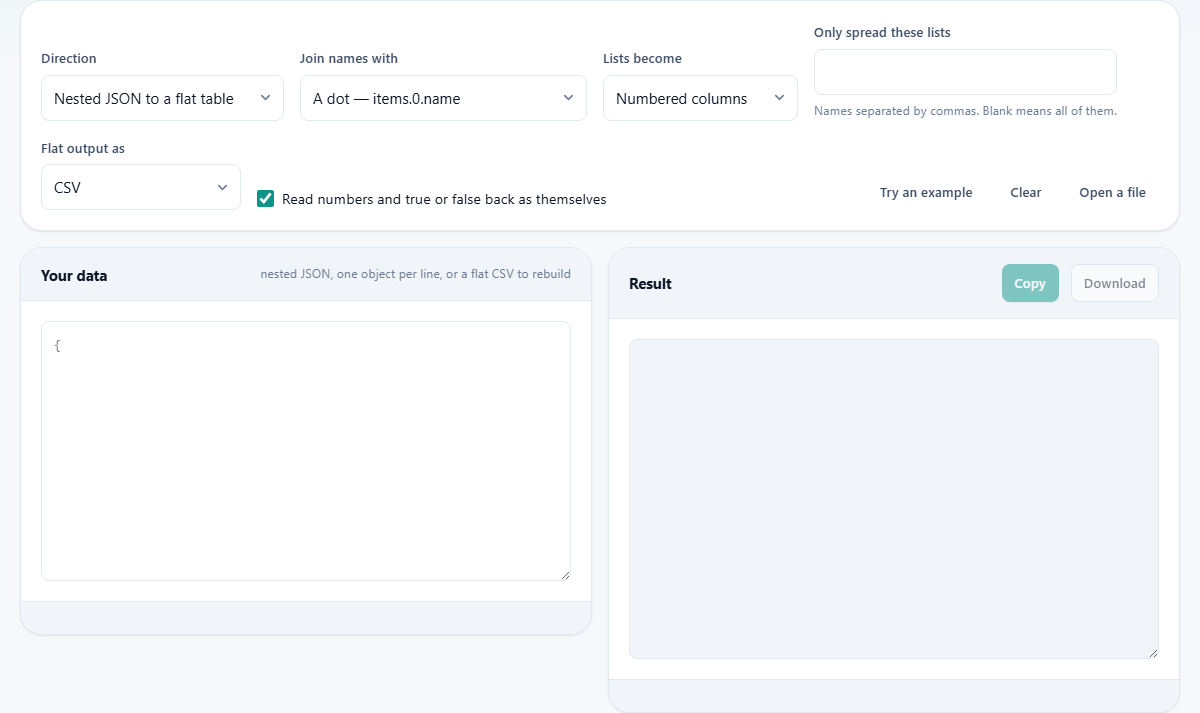
The Nested JSON Flattener takes a JSON object, or a whole array of them, and gives every value a column name built from the path that leads to it. A field called name inside an object called user becomes a column called user.name. A second item in a tags list becomes tags.1. The result is a flat table where each row is one record and each column is one value.
The reverse is built in too. Switch the Direction dropdown to Flat CSV back to nested JSON, paste a table whose column headers carry path names, and the tool rebuilds the nesting from those dots.
People who use this tend to sit between two systems. A developer pulling records from a REST endpoint and handing them to a colleague who lives in spreadsheets. An analyst who received a JSON export and needs it in rows and columns for a pivot table. A support engineer reading application logs where each entry is a deeply nested object with arrays inside arrays.
Getting your data into the tool
Paste into the Your data box on the left. It accepts a JSON array wrapped in square brackets, a single JSON object on its own, or JSON lines, which is one complete object per line with no commas between them. Bulk exports and server logs often arrive in that last format, and the tool reads it without any extra setting.
You can also press Open a file to load a file from disk, or drag a file straight onto the box. Try an example drops in a small sample so you can see the controls working before you commit your own data. Clear empties both sides and resets the status line.
Choosing the direction
The Direction dropdown has two choices. The first, Nested JSON to a flat table, is the default. It reads nested structures from the left box and writes flat rows on the right.
The second, Flat CSV back to nested JSON, does the opposite. Paste a CSV whose column names contain dots, slashes or double underscores, and each row comes back as a single nested object. This is useful when someone edits the flat version in a spreadsheet and you need to send the corrected data back to a system that expects nesting.
The round trip works because the column names carry the full path. Nothing is lost during flattening, so nothing needs to be guessed during rebuilding.
How lists are handled
This is where most of the thought goes. The Lists become dropdown gives three choices, and each one shapes the output in a different way.
Numbered columns is the default. A list of three tags becomes three columns named tags.0, tags.1 and tags.2. Each record stays as one row. This works well when every record has a short list of the same length, but it falls apart when one record has forty items. Your table ends up with forty item columns and every other row is mostly empty.
Extra rows spreads the list downward instead. A record with three tags becomes three rows, and every other field in the record is copied into each of those rows. The row count grows, but the column count stays sensible. This is the shape most charts and pivot tables expect.
One cell, values joined is the compact option. All items in a list are joined into a single cell with a separator. You get no extra rows and no extra columns, but the individual values are no longer in their own cells, so filtering and formulas cannot reach them.
Controlling which lists spread and how paths are joined
The Only spread these lists box lets you name specific lists, separated by commas. When you leave it blank, every list in the data is spread. When you name just one, say items, only that list gets extra rows. Every other list in the same record falls back to numbered columns. This matters because spreading two lists at once produces every combination of their items, and row counts multiply fast.
The Join names with dropdown sets the character placed between path parts. The default is a dot, which gives columns like user.name. If your data already has keys that contain a literal dot, the flattened column looks the same as a nested path, and the rebuilder cannot tell them apart. Switch to a slash or two underscores and the ambiguity disappears.
Output format and type handling
The Flat output as dropdown offers three choices. CSV is the default and opens in any spreadsheet. Tab separated does the same job but uses tab characters, which some older systems and paste targets prefer. One flat object per row writes each row as a complete JSON object with flat keys, which is useful when the next step is a script rather than a person.
The checkbox labelled Read numbers and true or false back as themselves affects the rebuild direction. When you go from flat back to nested, it decides whether the string 42 stays as a string or becomes the number 42 in the rebuilt JSON. Leave it on unless your data contains values that look like numbers but must stay as text, such as postal codes with a leading zero or phone numbers that start with a plus sign.
Worked example: from an API response to a CSV
Suppose you have a JSON array of two orders from a shop API. The first order has id 101, a customer object with name set to Priya and city set to Kochi, and an items list where each entry has a product and a price. The second order has id 102, a different customer, and a different set of items.
Paste this into the left box with Direction set to Nested JSON to a flat table and Lists become set to Numbered columns. The right side shows a CSV with columns like id, customer.name, customer.city, items.0.product, items.0.price, items.1.product, items.1.price. Each order fills one row.
Now change Lists become to Extra rows. The output reshapes. Each item gets its own row, and the order-level fields repeat beside it. The columns shrink to id, customer.name, customer.city, items.product, items.price. Two orders with two items each give you four rows. This is the layout you need if you want to sort by product or sum all prices.
Press Copy to put the result on your clipboard, or press Download to save it as a file. The filename matches the output format you chose.
Mistakes people make and how to fix them
The most common mistake is pasting invalid JSON. A trailing comma after the last item, a missing closing brace, or a single quote where the format needs a double quote will stop the parser. The status line under the input box tells you where the error is.
Another is choosing Numbered columns when the lists vary wildly in length. If most records have two items and one has fifty, the table ends up with fifty item columns and most cells are empty. Switch to Extra rows and the problem vanishes.
Forgetting the dot ambiguity catches people who rebuild. If the original data had a key called user.name with a literal dot in it, the flattened column looks exactly like a key called name inside a user object. When you rebuild, the tool splits on the dot and creates nesting where the original was flat. Use a slash or underscores for the join character whenever your source keys might contain dots.
When this tool is the wrong choice
If your JSON is already flat with no nested objects and no lists, there is nothing to flatten. You just need a plain JSON to CSV converter, which is a simpler job.
If you need to reshape the data, merge fields, rename columns, or run formulas during the conversion, this tool will not help. It walks the structure mechanically. It does not filter, rename or calculate.
Very large files beyond tens of megabytes may slow down or run out of memory. The tool runs entirely in your browser, so the limit is your own machine. For files of that size, a command-line tool with streaming is a better fit.
Your data stays on your own device
Nothing you paste or open is sent to a server. The flattening and rebuilding happen inside this browser tab, using your own processor and your own memory. Close the tab and the data is gone. There is no account, no upload, and no record of what you processed. For anyone working with customer records, financial exports or internal application logs, that is the point.