
Converting fixed-width reports and exports into usable CSV files
Fixed-width text is a format where columns line up by character position rather than by commas or tabs. Bank statements, mainframe reports, government data exports and older accounting systems still produce files in this layout. This article explains how the tool detects column boundaries, walks through every control on the page, and shows a complete worked example of turning a fixed-width staff report into a clean CSV ready for a spreadsheet.
What fixed-width data looks like and where it comes from
Open a fixed-width file in a text editor and you see neat columns of text with spaces between them. Each column starts at the same character position on every line. The name column might run from position 1 to 20, the department from 21 to 35, and the salary from 36 to 45. There are no commas, no tabs, and no quote marks. The only thing separating the columns is the fact that they are always in the same place.
This format was standard on mainframes and minicomputers where everything was printed on paper at a fixed width. It survives today in bank statement exports, government data files, legacy accounting reports, and any system old enough to have been designed for a dot-matrix printer. Many organisations still receive data in this format every month.
Pasting your text without losing the spacing
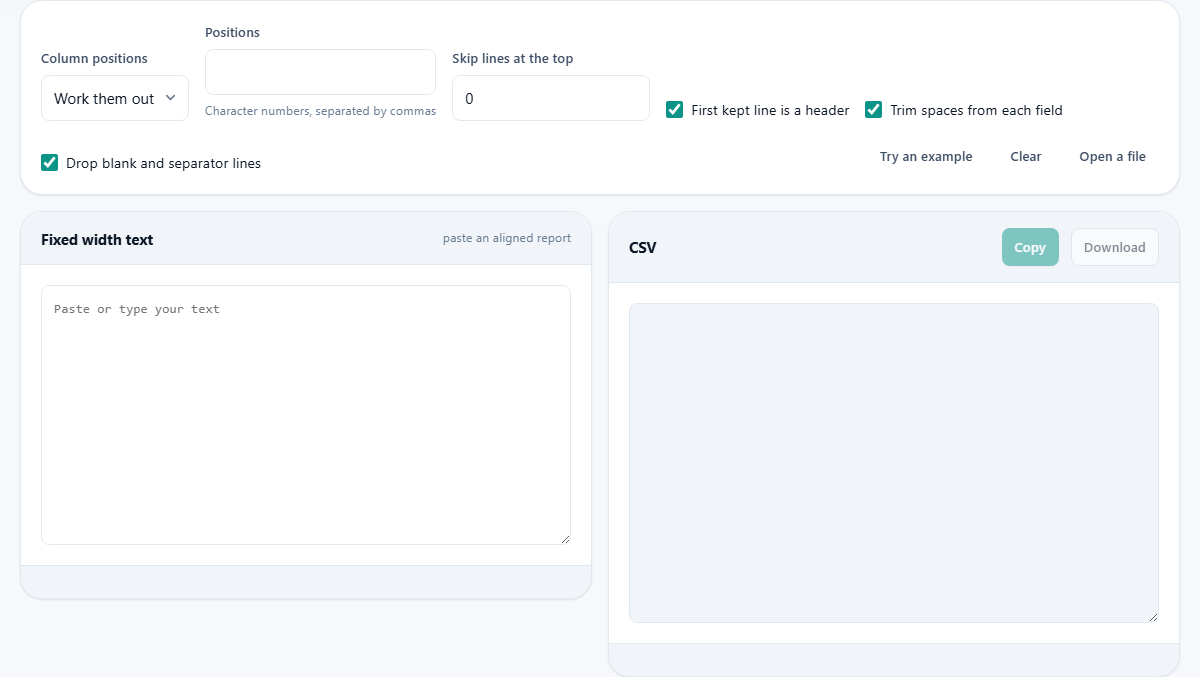
The left panel is labelled Fixed width text. Paste your report directly into this box, or press Open a file to load a text file from your device. The critical thing is to keep the original spacing intact. Fixed-width data has no other structure. If the spaces get collapsed or changed during copying, the columns disappear and nothing lines up any more.
Be careful about copying through a word processor or a rich text editor. Some applications collapse runs of spaces into a single space, which destroys the column boundaries. Copy from a plain text editor, a terminal window, or directly from the source file to keep the spacing correct. The Try an example button loads sample data so you can see the format before using your own.
How the automatic boundary detection works
When Column positions is set to Work them out, the tool scans every line of your text and looks for character positions that are a space on every single line. A run of always-blank positions between two columns is where the boundary sits.
This works well on clean data where the columns are neatly separated by at least one blank position. The tool splits the text at those boundaries and shows you the resulting CSV on the right side.
Why the automatic guess sometimes merges two columns
The guess fails when one row has an unusually long value that fills the gap between two columns. If every name is 15 characters or shorter except one that is 22 characters long, that one row reaches into the space that separates the name column from the next. Because the boundary position is no longer blank on every line, the tool cannot see the break and merges the two columns.
Long names and large monetary amounts are the usual cause. A column that holds values up to 999 works fine until a row contains 1000000 and the extra digits spill into the gap. When this happens, the fix is simple: switch to manual mode and tell the tool exactly where the columns start.
Setting column positions by hand
Change Column positions to I will type them. The Positions field becomes active. Type the character numbers where each new column begins, separated by commas. For example, typing 1,21,36 means the first column starts at position 1, the second at position 21, and the third at position 36.
You do not need to know these numbers from memory. Look at the data in the left panel and count the character position where each column starts. If the columns are clearly visible, this only takes a few seconds. Some fixed-width files come with a layout document or a record specification that lists all the positions. If you have one of those, type the numbers in directly and the conversion is instant and perfectly accurate.
Skipping header and separator lines
Many fixed-width reports start with a title, a date, column headings, and a row of dashes before the actual data begins. These extra lines confuse the boundary detection because they do not follow the same spacing as the data rows.
Use the Skip lines at the top field to skip past them. If the report has two title lines and one row of dashes before the data, set this to 3. The tool will ignore those three lines and start processing from the fourth.
After skipping, the first line that remains is treated as a header if First kept line is a header is ticked. The values on that line become the column names in the CSV output. Untick it if your data starts immediately with no column labels at all.
Trimming spaces and dropping blank lines
Fixed-width fields are padded to their full width with spaces. A name column that is 20 characters wide will have trailing spaces after every name shorter than 20 characters. The Trim spaces from each field tick box removes those trailing and leading spaces, which is almost always what you want.
The Drop blank and separator lines tick box removes rows that are entirely blank or contain only dashes and spaces. These are common in formatted reports as visual separators between sections, but they would become useless empty rows in your CSV.
A worked example: a staff report from an old system
Your HR system exports a staff list that looks like this when opened in a text editor. The first two lines are a report title and a date. The third line has column headings: Name, Department, Start Date, Salary. The fourth line is a row of dashes. The actual data starts on line five.
Paste the whole thing into the left panel. Set Skip lines at the top to 2 to skip the title and date. The tool now treats the column headings as the header row and the dash line is caught by Drop blank and separator lines.
With Work them out selected, the tool detects three boundaries and splits the data into four columns. The CSV on the right shows proper comma-separated output with the column names from the heading row. The salary column, which was right-aligned with leading spaces in the original, is now trimmed and clean.
Press Download to save the CSV. Open it in a spreadsheet and the four columns are ready to sort, filter and chart. The whole process takes less than a minute.
Watch for numbers with leading zeros
Account codes, postal codes and employee numbers often have leading zeros in fixed-width files. The CSV will preserve them because they are written as text. However, if you open the CSV in a spreadsheet, the spreadsheet may strip the leading zeros by treating the column as a number.
To prevent this, import the column as text rather than as a general or number type. Most spreadsheet programs let you choose the column type during import. This is not a problem with the conversion itself but with how the spreadsheet reads the result.
When this tool is the wrong choice
If your file uses commas or tabs between columns, it is already a delimited file and this tool will not help. Use a plain CSV tool or open it directly in a spreadsheet.
If the file has no consistent column positions - some lines are indented differently, or the columns shift partway through the file - it is not really fixed-width data. It might be a log file with variable formatting, and a text extraction or pattern matching tool would serve better.
Very large files with millions of lines may be slow in the browser. For those, a command line conversion tool or a database import with a column specification file is more practical.
Privacy and local processing
The conversion runs entirely in your browser on your own device. Your text is not sent to any server. This is worth knowing because fixed-width files from banks and government systems often contain personal data like names, account numbers and salary figures. Everything stays on your machine and nothing is stored after you close the tab or clear the text.