
Pulling emails, links and phone numbers out of messy text
Somewhere inside a long email thread, a pasted web page or a log file sit the six email addresses, four URLs and two phone numbers you actually need. Picking them out by hand takes forever and you will miss one. This article explains every pattern the data extractor runs, shows you how to control the output format, and walks through a real example of cleaning contact details out of a forwarded email chain.
The everyday problem this solves
A supplier sends you an email chain with twelve replies. Buried across those replies are the email addresses of everyone involved, a couple of links to shared documents, and a phone number somebody mentioned once. You need all of those in a clean list.
A developer pastes a chunk of server logs. Somewhere in there are the IP addresses of every client that connected in the last hour. Scrolling through hundreds of lines to find them is slow and unreliable.
A researcher copies the text of a web page. It contains dozens of links to sources, mixed in with navigation, footers and sidebars. The useful links need to be separated from the noise and put into a document.
In each case, the job is the same: take a block of unstructured text and pull out the structured bits. That is exactly what this tool does.
The thirteen types of data it can find
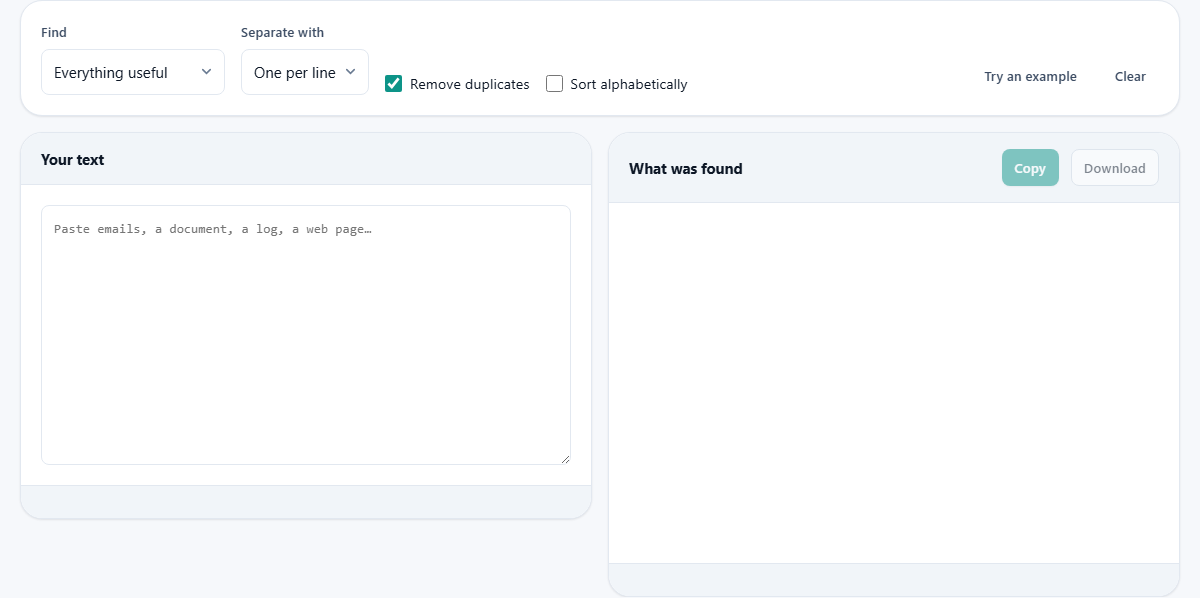
The Find dropdown lists every pattern the tool knows. The default, Everything useful, runs all twelve main patterns at once and groups the results by type. You see a section for emails, another for URLs, another for phone numbers, and so on.
The full list of specific options is: email addresses, web addresses, phone numbers, IPv4 addresses, IPv6 addresses, dates, prices, hashtags, mentions, numbers, hex colours, and UUIDs. Each one is a separate pattern tuned for that kind of data.
- Email addresses - standard user@domain format.
- Web addresses - anything starting with http or https.
- Phone numbers - sequences of 7 to 15 digits, with or without country codes and separators.
- IPv4 and IPv6 - network addresses in dotted or colon notation.
- Dates - common date formats like 2025-03-15 or 15/03/2025.
- Prices - numbers with currency symbols attached.
- Hashtags and mentions - words prefixed with a hash or at sign.
- Hex colours - six-digit codes like those used in web design.
- UUIDs - the long hyphenated identifiers used by databases and APIs.
Choosing a single type for a clean output
When you only need one kind of data, change Find to that specific type. The output is then a plain list with no section headers, ready to paste straight into another tool. For email addresses you probably want commas as the separator, so you can paste the result into the To field of an email. For a spreadsheet, one per line is the better choice.
Picking a single type also means the output is not cluttered with matches you do not care about. A log file might produce hundreds of IP addresses and dates, but if you only want the IPs, filtering to just that type keeps the result short and focused. You can always run the extraction again with a different selection, so there is no cost to starting narrow and widening later.
How deduplication and sorting work
The Remove duplicates tick box is on by default. A long email thread mentions the same six addresses dozens of times across all the quoted replies. Without deduplication you get every single mention. With it on, you get just the six unique addresses. The count at the bottom shows both numbers so you can see how much repetition was removed.
Sort alphabetically is off by default, which means results appear in the order they were found in the text. Turn it on to get them in alphabetical or numerical order, which is useful when you want to scan a list of names or addresses quickly.
Controlling the output separator
The Separate with dropdown offers four choices: one per line, commas, semicolons, and spaces. The right choice depends on where the output is going.
One per line is best for pasting into a spreadsheet. Each value lands in its own row. Commas work well for email addresses going into a mail client's To or CC field. Semicolons are used by some older mail clients instead of commas. Spaces are occasionally useful when you need to pass a list of values as command line arguments.
The separator only affects the downloaded or copied text. The on-screen display always shows one item per line for readability.
A worked example: cleaning contacts from an email chain
You receive a forwarded thread with 15 replies about a project. You need the email addresses of everyone involved. Copy the entire thread and paste it into the text area on the left.
Set Find to Email addresses only. Leave Remove duplicates on. Set Separate with to Commas. The output panel immediately shows a list like: alice@example.com, bob@company.co.uk, carol@agency.net. The count might say 3 unique out of 47 total, because each person appeared in every reply header.
Press Copy to put the list on your clipboard, then paste it into the CC field of your reply. The whole job took about ten seconds and you did not miss anyone who was buried in the middle of the chain.
If you also need the links from the thread, switch Find back to Everything useful. The output now has sections for emails, web addresses, and anything else that was present. Press Download to save the full extraction as a text file.
Why bare numbers are left out of the everything mode
When you run Everything useful, the numbers pattern is deliberately skipped. The reason is overlap. Every price contains a number. Every date contains numbers. Every phone number is a number. Running the bare number pattern on top of those would re-match almost everything already listed and fill the output with duplicates that are not useful.
If you specifically need plain numbers - quantities, measurements, reference codes - switch Find to Numbers. That runs only the number pattern and gives you a clean list without interference from the other types.
When the phone number pattern misses or over-matches
Phone numbers are the hardest type to extract reliably. The pattern looks for sequences of 7 to 15 digits, allowing common separators like dashes, spaces and brackets. That covers most formats worldwide, but some very short local numbers fall below the 7 digit minimum and will not be caught.
On the other side, order reference numbers and account codes often have enough digits to look like phone numbers. Dates written without separators can also slip through. If you see odd entries in the phone list, that is why. Glance through the results before relying on them. The pattern has no way to tell whether a ten-digit string is a real phone number or a purchase order reference. A quick scan of the list catches the false matches that no rule can prevent.
Handling large amounts of text
The tool handles a few hundred thousand characters without any trouble. Only the first 400 matches of each type are shown on screen, but the download contains every match. If you are working with a very large log file or a long document, use the Download button rather than Copy to make sure you get the complete set.
There is no file size limit set by the tool. The practical limit is how much text your browser can hold in memory, which is generous on any modern computer or phone.
Responsible use and legal considerations
Extracting email addresses from your own inbox or your own company documents is normal office work. Scraping them from public web pages to build an unsolicited mailing list is illegal under data protection and anti-spam laws in most countries. The tool cannot tell the difference between those two activities. You can, and should.
Privacy and how your text stays on your device
Every pattern match runs inside your browser. Your text is not sent to any server at any point. This is especially important when the text contains client names, internal discussions, salary details, or other sensitive material that should not leave your device. You can disconnect from the internet after the page loads and the tool works identically. Nothing is stored after you close the tab or clear the text.