
Converting between Excel workbooks and CSV files without uploading anything
CSV is the universal data format that every tool can read, but the file you actually receive is usually an Excel workbook. Going the other way, a CSV full of numbers opens in Excel as a single column of text unless you build a proper workbook. This article covers both directions, explains what happens to formulas and dates along the way, and walks through a real example of pulling three sheets out of a workbook into separate CSV files.
Why you keep needing to convert between these two formats
Excel is what people send. Monthly reports arrive as workbooks. Finance exports from accounting software land as xlsx files. HR sends a spreadsheet with three tabs. But the system you need to import into wants a CSV. A database import tool, a mailing platform, a data cleaning script - they all expect plain comma-separated text.
The other direction comes up just as often. You have a CSV from an export or a script, and a colleague asks for it as an Excel file. If you just rename it from .csv to .xlsx, it will not open at all because the file structure is wrong. If you open the CSV directly in Excel, it may put everything into one column, or treat postcodes as numbers and strip their leading zeros. Building a real workbook file avoids all of those problems because each cell gets the right type from the start.
Opening an Excel file and choosing a sheet
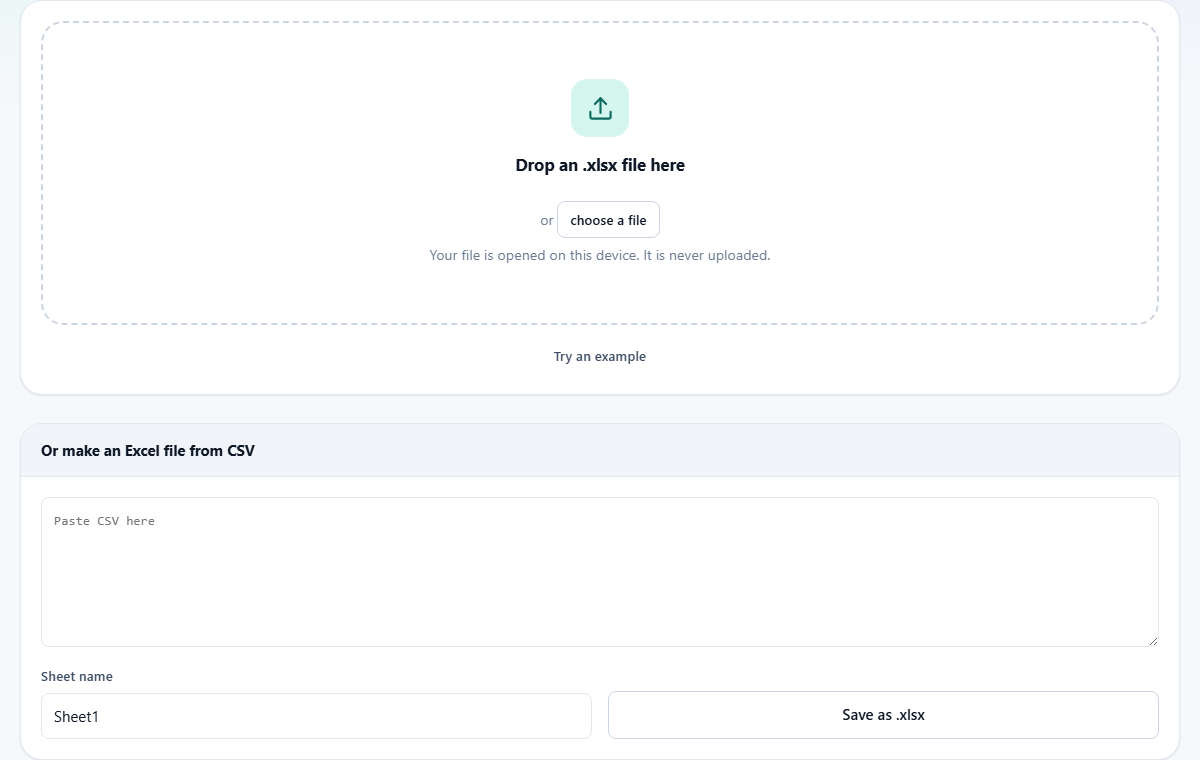
Drag an xlsx file onto the drop zone, or press choose a file to browse your device. The tool reads every sheet in the workbook and lists them in the Sheet dropdown. It also shows a preview of the first few rows so you can check you are looking at the right data before saving anything.
If the workbook has several sheets - a common setup for monthly reports where each month gets its own tab - you can switch between them with the dropdown and preview each one. The Try an example button loads a small sample workbook so you can see how it works before using your own file.
Saving one sheet or every sheet at once
The Save dropdown has two choices. Just this sheet downloads a single CSV file for whichever sheet is selected. Every sheet as a ZIP packages every sheet in the workbook into a ZIP archive, with one CSV file per sheet. The file names inside the ZIP match the sheet names from the workbook.
Press Save as CSV to start the download. The conversion happens on your device and the file goes straight to your downloads folder. Nothing is uploaded to any server.
What happens to formulas, dates and formatting
A cell that contains a formula gives you its last calculated value. CSV has no way to store a formula, so the tool captures the result the formula produced rather than the formula itself. In practice this is what you want, because the point of a CSV is usually to freeze the numbers for import into another system.
Dates are trickier. Excel stores dates as a number counting days since a base date in 1900. A cell that shows 15 March 2025 is actually stored as 45731. When the tool writes the CSV, you get that number. If you open the CSV in a spreadsheet, format the column as a date and the human-readable version comes back.
Cell formatting - bold text, colours, borders, merged cells, column widths - is not preserved. A CSV is plain text and cannot carry any of that visual information. If you need the formatting for a presentation or a printed report, keep the original xlsx file and use the CSV only for the data import step where looks do not matter.
Building an Excel workbook from CSV
The lower panel on the page works in the opposite direction. Paste your CSV into the text area. Give the sheet a name using the Sheet name field - it defaults to Sheet1 but you can type anything up to 31 characters.
Press Save as xlsx to download a real Excel workbook. The important difference from simply renaming a CSV is that numbers are written as numbers. Excel can add them up, sort them properly, and chart them without you having to fix anything. Text stays as text, so postcodes with leading zeros keep their zeros and are not silently turned into plain integers.
This is the fastest way to hand a CSV to somebody who only speaks Excel. No account, no upload, no waiting for a cloud service to process the file. The download starts immediately because the workbook is assembled on your own device.
A worked example: pulling apart a quarterly report
Your finance team sends a workbook called Q2-report.xlsx. It has three sheets: Revenue, Expenses and Headcount. You need each one as a separate CSV to feed into a reporting script.
Drop the file onto the page. The Sheet dropdown shows all three names. Click through each one and the preview confirms they contain the data you expect. Set Save to every sheet as a ZIP. Press Save as CSV. You get Q2-report.zip containing Revenue.csv, Expenses.csv and Headcount.csv.
Open Revenue.csv in a text editor to confirm it looks right. The first row is the column headers, and the remaining rows are values. A column that was a SUM formula in the workbook now shows the plain total. A date column shows numbers like 45600 - open it in a spreadsheet and format as a date if you need human-readable dates.
Why old xls files are not supported
The xlsx format introduced in 2007 is a ZIP file containing XML documents. A browser can unzip it and read the XML without any special library. The older xls format from before 2007 is a binary compound document with its own internal file system. Reading it would need a very large amount of code for a format that almost nobody creates any more.
If you have an old xls file, the simplest fix is to open it in any spreadsheet program and save it as xlsx. That takes a few seconds and produces a file the tool can read. Free spreadsheet programs can do this conversion just as well as a paid copy of Excel, so there is no cost barrier.
Common problems and how to fix them
If a column of dates shows up as large numbers like 45000 or 44900, that is normal. Excel stores dates internally as a day count. Import the CSV into a spreadsheet and format the column as a date to get readable values back.
If numbers have lost their leading zeros - a postcode like 01onal showing as 1234 - the CSV itself is fine, but the spreadsheet that opened it stripped the zeros. Import the column as text rather than as a number to keep them.
If the preview looks right but the downloaded CSV has odd characters, check whether the workbook contains characters outside basic ASCII. The CSV is written in UTF-8, which handles every language, but some older tools expect a different encoding. Most modern software reads UTF-8 without any special settings, but a legacy import might need you to specify the encoding by hand.
Comparing this tool with other approaches
You could open the file in Excel and save each sheet as CSV yourself. That works, but it requires Excel to be installed, it is slow for workbooks with many sheets, and you have to repeat it every time a new file arrives. The tool here does the same job without any installed software.
Online converters exist too, but they require you to upload your file to someone else's server. If the workbook contains salary data, client details or anything you would rather not share, that is a real concern. This tool keeps everything local.
Privacy and data handling
Your file is read entirely by your browser. It is never uploaded to any server and never leaves your device. You can open the page, disconnect from the internet, and the conversion still works exactly the same way. No account is needed and no data is logged. Closing the tab discards everything the tool was holding. This makes it safe to convert workbooks that contain salary figures, client contact details, or any other data you would not want to hand to an online service.