
How to find and remove duplicate rows in a CSV file
Duplicate rows creep into data files in dozens of ways. A form gets submitted twice, two systems export the same customers, or somebody pastes the same block into a spreadsheet a second time. This article explains every control on the deduplication tool, walks through a realistic example with a mailing list, and covers the traps that cause people to miss duplicates or delete the wrong copy.
Where duplicate rows come from
The most common source is merging lists. You have customers in a CRM and customers in a mailing platform. Export both, paste them into one file, and every person who appears in both systems is now listed twice. The same thing happens when you combine monthly exports without checking whether last month's records are still in this month's file.
Form double-submits are the second big source. A user clicks the submit button, the page is slow, they click again, and two identical rows arrive. Payment gateways guard against this, but contact forms and surveys usually do not.
Less obvious is the almost-duplicate. The same customer signed up with a capital letter in their email one time and lowercase the next. A phone number appears with a space in one record and without it in another. These are the same person, but comparing entire rows treats them as different.
Getting your data in
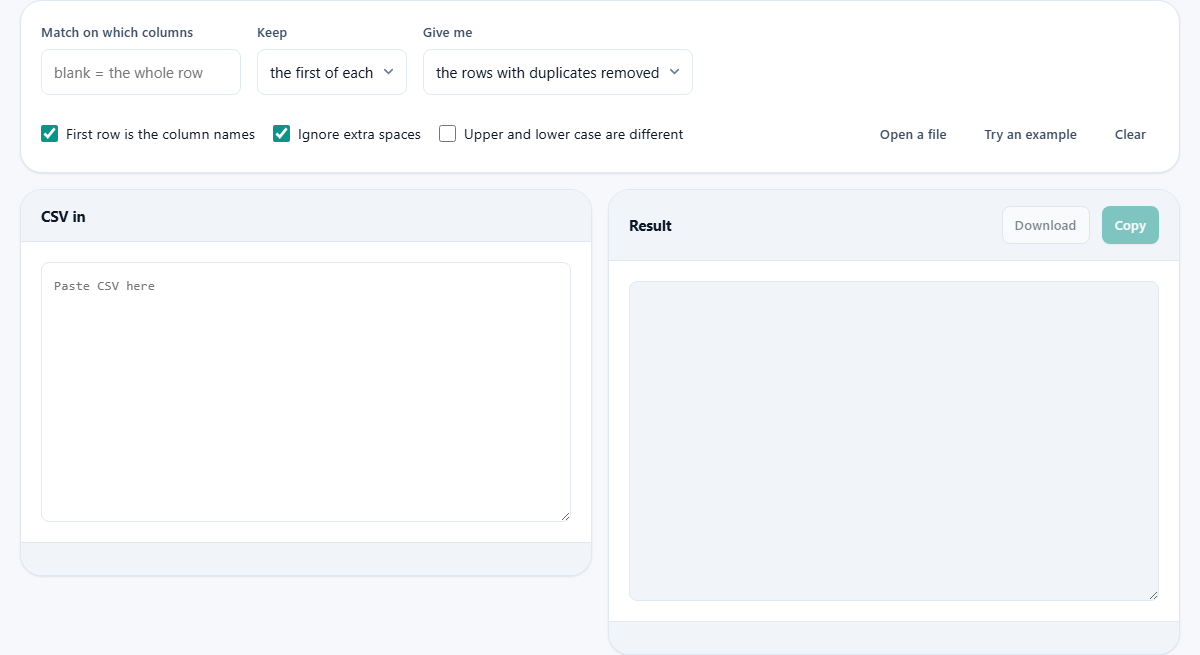
Paste your CSV into the left-hand box labelled CSV in. You can also press Open a file to load a CSV or TSV file from your device. The tool reads the file locally and does not upload it anywhere.
If the first row contains column names like email, name, city, leave the First row is the column names tick box checked. If your file starts straight with data and has no header, untick it so the first row is treated as a record rather than as labels.
Choosing what makes a row a duplicate
The field labelled Match on which columns is the most important control on the page. Leave it blank and the tool compares every field in the row. Two rows must be identical across every single column to count as duplicates.
That sounds sensible but rarely finds anything. The same person entered twice almost never produces two perfectly identical rows. One record has a middle name, the other does not. One has a signup date of January, the other February. Comparing everything treats them as different people.
The fix is to type the column name that actually identifies a person. For a mailing list, that is usually email. Type email into the box and the tool ignores every other column when deciding whether two rows match. The rest of the data is still carried through to the output, but it is not part of the comparison.
You can name more than one column, separated by commas. Typing email,phone would require both to match before two rows count as duplicates.
The three check boxes that change what counts as the same
Ignore extra spaces is on by default. It strips leading and trailing whitespace from each field before comparing. This catches records where one system padded a name with a trailing space. Without it, those two records look different even though a human would call them identical.
Upper and lower case are different is off by default. That means sam@example.com and SAM@Example.com count as the same address, which is how email actually works. Turn it on only if your data genuinely uses case to distinguish records, which is rare outside of programming contexts.
First row is the column names tells the tool whether to treat row one as headers or as data. Getting this wrong either loses your header row or tries to match on column labels instead of real records.
Keeping the first or the last copy
The dropdown labelled Keep offers two choices: the first of each and the last of each. When your file is sorted by date, the last row for a given person is usually the most recent and therefore the most accurate version.
If your file is not sorted, or if the order does not matter, the first is a safe default. The key point is that the tool always keeps exactly one row per unique matching key. It never drops both copies.
Seeing the duplicates before removing them
The Give me dropdown has three options. The default, the rows with duplicates removed, gives you the clean output. But it is often worth switching to only the rows that repeat first. This shows you every row that appeared more than once, so you can inspect them before deleting anything.
The third option, only the rows that appear once, gives you the opposite: everything that was already unique. This is useful when you want to find records that exist in one list but not another. Paste the combined file, match on the identifying column, and the unique rows are the ones with no counterpart.
A worked example with a mailing list
You have a CSV with four columns: name, email, city, signup_date. It has 500 rows, but you suspect duplicates from a form that was submitted twice by several people.
Paste the CSV. Type email into Match on which columns. Leave Keep on the first of each. Leave Ignore extra spaces on. The status bar updates immediately: it might report 500 rows in, 487 out, 13 duplicates found.
Switch Give me to only the rows that repeat. You see 26 rows - the 13 duplicate pairs. Scan the list to make sure they really are duplicates and not two different people who share an email address by accident. Switch back to the rows with duplicates removed, and press Download to save the clean version.
If instead you want the most recent signup for each person, change Keep to the last of each. The file must be sorted by signup_date for this to work as you expect.
Using column numbers instead of names
If your file has no header row, you cannot type email because there is no column called that. Instead, type the column number. The first column is 1, the second is 2, and so on. You can combine them with commas, like 1,3 to match on the first and third columns together.
Untick First row is the column names first, so the tool knows it is looking at data rather than labels.
Mistakes that cause the tool to miss duplicates
The most common mistake is comparing whole rows when you should compare on a key column. Two records for the same person with different signup dates look completely different when you compare everything. Always think about which columns define a unique record and type those column names into the Match on which columns box.
Leaving case sensitivity on when your data has mixed capitalisation is another trap. If one record says London and another says london, they will not match unless you leave the case box unticked. Email addresses are a classic example because people type them with random capitalisation and the mail server treats them all the same.
Forgetting to trim spaces catches people too. A field that looks empty might contain a single space, and a name with a trailing space will not match the same name without one. Leave Ignore extra spaces ticked unless you have a specific reason not to.
When this tool is not the right choice
If your duplicates differ on the key column itself - one record says john@gmail.com and the other says j.smith@company.com for the same person - no column comparison will find them. You need a fuzzy matching tool or manual review for that kind of deduplication.
Very large files with millions of rows may push against the browser's memory limit. For those, a command line tool or a database query is more practical. Files of tens of megabytes and several hundred thousand rows are handled comfortably.
Privacy and how your data is handled
Everything runs inside your browser on your own device. Your CSV is never sent to any server. You can disconnect from the internet after the page loads and the tool still works exactly the same way. This matters when your data is a client list, a staff directory, or anything else you would not want to paste into an online service.