
How to compare options fairly with a weighted decision matrix
Choosing between three flats, four laptops or two job offers is hard because several things matter at once and they pull in different directions. A weighted decision matrix lays everything out in a grid, weights the criteria, scores each option, and produces a ranking you can explain to someone else. This article walks through every control on the page, shows a full worked example with real numbers, and explains the flip point that tells you whether the winner would survive you changing your mind.
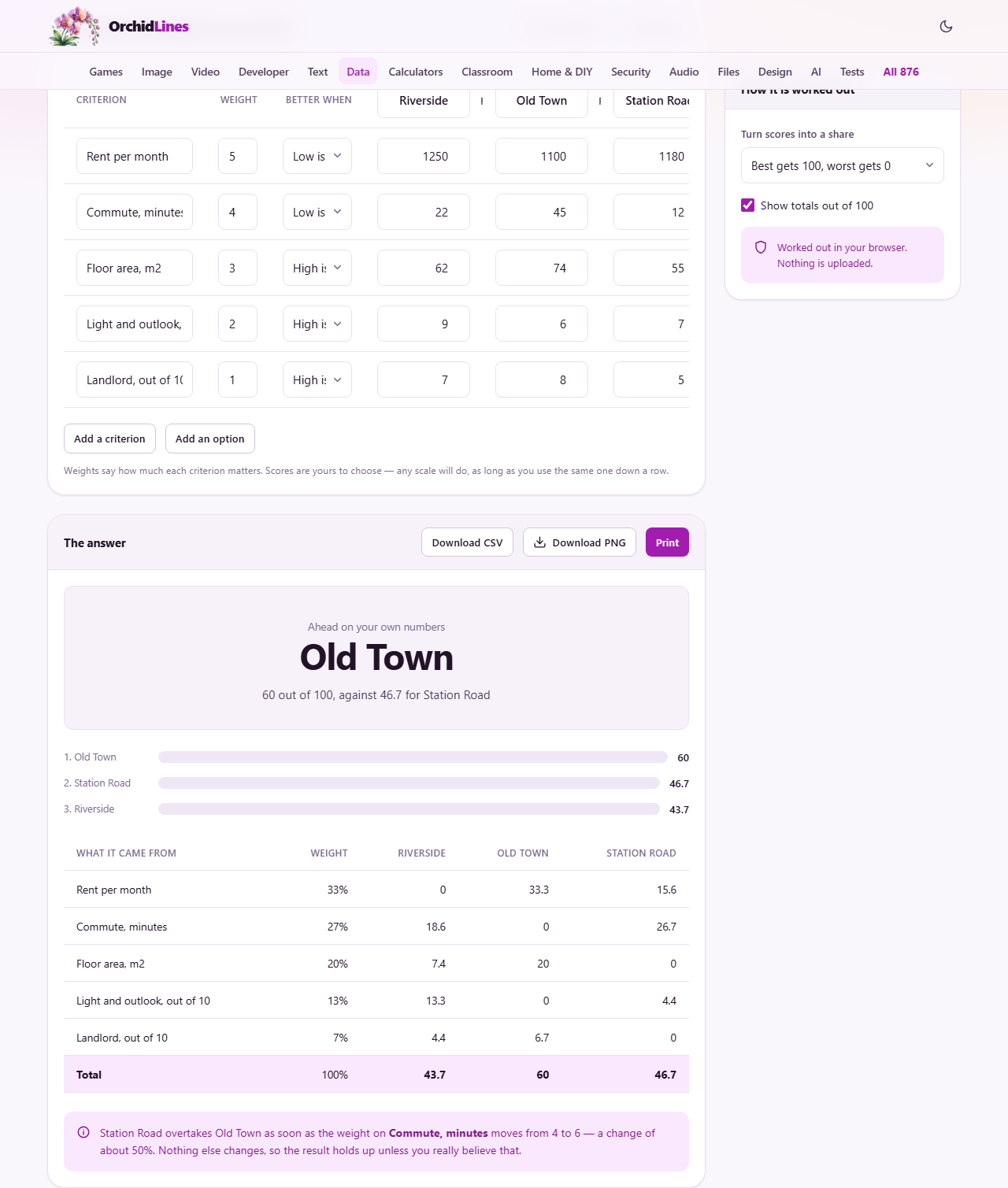
When a decision matrix saves you from guessing
Some choices are obvious. One flat is cheaper, closer and nicer. No grid needed. The tool earns its keep when trade-offs cross each other. The cheapest laptop has a dim screen. The nearest flat has a noisy road. The best supplier is the slowest. Your gut knows something matters more, but it cannot multiply and add at the same time, and that is exactly what the grid does.
Project managers use matrices to pick vendors. Students use them to compare universities. Teams use them to choose which feature to build next. The common thread is always the same: several options, several criteria, and a need to show the working so somebody else can agree or push back.
Setting up your criteria and weights
Each row in the grid is one thing you care about. Price, battery life, distance from the station, warranty length - anything at all. Press Add a criterion to get another row. Give each row a weight. The weight says how much that criterion matters relative to the others.
Weights are ratios, not percentages. Giving price a 5 and battery life a 3 means price matters about twice as much. You could just as well write 50 and 30, or 10 and 6. Only the ratios count, so use numbers that feel natural to you.
Each row also has a direction. For price and commute time, a low number is good. For screen quality and storage, a high number is good. Set this per row using the direction control, or the ranking will come out the wrong way round.
Scoring each option honestly
Add your options across the top with Add an option, then fill in every cell. Use real figures whenever you have them. If laptop A costs 800 and laptop B costs 1100, type those actual prices. The grid handles the rest.
Where there is no number - how much you like the design, say - score out of ten. The scale does not matter as long as you keep the same one all the way along the row. A 7 for design on laptop A must mean the same thing as a 7 on laptop B.
Do not mix two different units in one row. Price in one cell and a score out of ten in the next cell of the same row will break the maths. Different rows can happily use different units because each row is turned into a share before the weights are applied.
How the normalisation setting changes the answer
The dropdown labelled Turn scores into a share controls how raw scores become comparable numbers. The default, Best gets 100 worst gets 0, stretches each row so the top score maps to 100 and the bottom to 0. That reads well, but it has a side effect. Adding a new option that is terrible on price can shift every other option's normalised price score, and occasionally reorder the top two.
The second choice, Everything as a share of the best, divides every score by the row's best. A weak newcomer changes nothing because it does not move the leader. Neither method is wrong. They answer slightly different questions, and knowing which one you picked is the important thing.
The third option, Use my numbers as they are, skips normalisation entirely. Choose this only when every row already uses the same scale, such as all scores out of ten.
- Best gets 100, worst gets 0 - good for most comparisons but sensitive to new options.
- Share of the best - stable when you add or remove an option.
- Raw numbers - only safe when every row uses the same scale.
Reading the answer and the flip point
The result panel shows each option's total score and rank. If the Show totals out of 100 tick box is on, the top option gets 100 and the rest are scaled to match. This makes the gap between first and second easy to read at a glance.
Below the ranking is the flip point. This is the weight at which the second-placed option would draw level with the winner, with everything else held still. If that weight is close to the one you already set, the two options are nearly a draw and a small change of heart would reverse them. A flip point far from your current weight means the winner is solid.
This single number is the most useful part of the whole exercise. It tells you whether the result is a clear answer or a coin toss dressed up in arithmetic.
A worked example: choosing a laptop
Suppose you are comparing three laptops. Your criteria are price (weight 5, lower is better), battery life in hours (weight 4, higher is better), and screen quality out of ten (weight 3, higher is better).
Laptop A: 800, 10 hours, screen 8. Laptop B: 1100, 14 hours, screen 9. Laptop C: 950, 8 hours, screen 7. You type these values into the grid. With the default normalisation, the tool turns each row into a 0 to 100 share. On price, A is cheapest so it scores 100, C scores 50, and B scores 0. On battery, B leads with 100, A gets 33, C gets 0. On screen, B leads with 100, A gets 50, C gets 0.
After weighting, A comes out on top because its price advantage on the heaviest criterion outweighs B's lead on battery and screen. The flip point might show that reducing the price weight from 5 to 3.8 would make B the winner. That tells you the result is fairly firm but not beyond question.
Exporting and printing your grid
Press Download CSV to save the grid as a comma-separated file. Open it in any spreadsheet to keep a record, email it to a colleague, or feed it into another tool. The CSV includes the criteria, weights, scores and the final ranking.
Press Print to get a clean printout of the grid and the ranking on one page. This is handy for a meeting where you want to walk people through the reasoning on paper rather than sharing a screen.
Common mistakes and how to avoid them
The most common error is adding a criterion after seeing the result because the winner was not the one you hoped for. If you find yourself doing this, the grid has stopped being a tool and started being a justification. Set all the criteria and weights before you score anything.
Another frequent mistake is leaving the direction wrong. If price is set to higher is better, the most expensive option wins on that row. Always check the direction arrow makes sense for each criterion.
Mixing units inside a single row is a third trap. Pounds and a score out of ten in the same row will skew the normalisation. Keep one unit per row and let the tool handle the comparison across rows.
When a matrix is the wrong approach
A weighted matrix works for decisions where every option can be measured on the same set of criteria. It does not help when the choice depends on one hard constraint. If you cannot afford laptop B at all, no amount of weighting will make that comparison useful. Rule it out first, then compare the rest.
It also struggles with things that do not sit on a scale. How you feel about a city, whether you trust a supplier, whether a design excites you - these are real inputs to a decision, but forcing them into a number out of ten can hide more than it reveals.
Privacy and where your data lives
The entire calculation runs in your browser on your own device. No data is sent to any server at any point during the process. The grid is saved automatically as you type, stored only in your browser's local storage on that device, so you can close the tab and come back the next day to the same numbers and the same ranking. Clear the grid with Start again if you want to remove it completely.