
Converting between CSV and JSON without losing data along the way
CSV is the language of spreadsheets. JSON is the language of web APIs and modern software. Moving data from one format to the other sounds easy until a comma inside a name splits a row in half, or a postcode loses its leading zero. This article covers how the CSV to JSON tool handles those tricky cases, walks through a real conversion in both directions, and explains every setting on the page.
Why these two formats keep meeting
A marketing team exports a contact list from their CRM. It arrives as a CSV file. The developer building the email tool needs it as JSON. A data analyst downloads API results in JSON and wants to open them in a spreadsheet. A student scrapes a table from a website and gets JSON back, but the assignment needs a CSV for the chart tool.
These conversions happen every day across every industry. They are simple in principle - rows become objects, columns become keys - but the details are where files break. A good converter handles quoted fields, mixed separators, nested values and character encoding without the user having to think about any of it.
Choosing the direction
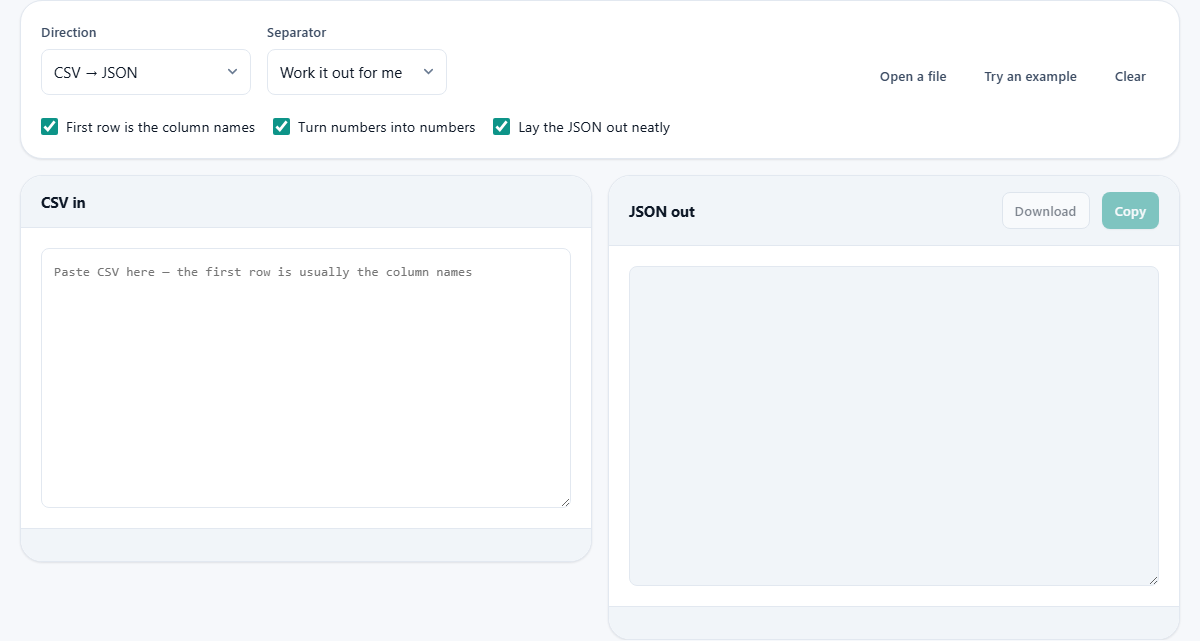
The Direction dropdown at the top has two options: CSV to JSON and JSON to CSV. Picking one changes the labels on both text boxes and the name of the downloaded file. If you chose CSV to JSON, the left box says CSV in and the right says JSON out. Switch to JSON to CSV and they swap.
You can change direction at any time. If you paste JSON into the left box while CSV to JSON is selected, just flip the dropdown to JSON to CSV and the conversion runs in the right direction.
Loading your data
Paste text straight into the left box, or press Open a file to pick a file from your computer. The file is read locally by your browser and never sent to a server. The Try an example button loads a small sample so you can see the output format before pasting your own data.
If your CSV was copied from a spreadsheet, it arrives as tab-separated text. The page handles this automatically. You do not need to convert tabs to commas first.
The separator setting and automatic detection
The Separator dropdown defaults to Work it out for me. The tool looks at the first few lines and decides whether the file uses commas, semicolons, tabs or pipes. It gets this right almost every time.
If it guesses wrong, pick the separator by hand. Semicolon-separated files are common across much of Europe, where the comma is already used as the decimal mark. Tab-separated files come from database exports and from copying a range in most spreadsheet software. Pipe-separated files are rarer but show up in some data feeds.
Three checkboxes that shape the output
First row is the column names should be ticked when the CSV starts with a header row, which most files do. When ticked, the JSON objects use those headings as keys. When unticked, the keys are numbered: column 0, column 1, and so on.
Turn numbers into numbers controls whether values that look like numbers become JSON numbers. With it on, the string 42 becomes the number 42 in the JSON. Values with a leading zero, a plus sign, or spaces are left as strings, so postcodes like 01onal and phone numbers like +44 7700 900000 survive.
Lay the JSON out neatly adds line breaks and indentation to the output. Turn it off if you need compact JSON for an API call where every byte counts. The difference is cosmetic - the data is the same either way.
A worked example: CSV to JSON
Suppose you have a small product list: name, price, in_stock followed by rows Widget 9.99 true, Gadget 24.50 false, Bolt 0.75 true.
Paste it with First row is the column names ticked and Turn numbers into numbers ticked. The right box shows a JSON array of three objects. Each object has three keys: name as a string, price as a number, and in_stock as the text true or false.
Notice that 0.75 kept its leading zero because it is a decimal number, not a zero-padded string. The tool only strips leading zeros from values that would lose meaning, like 007 becoming 7. A decimal like 0.75 is left alone because removing the zero would change the number.
A worked example: JSON to CSV
Now flip Direction to JSON to CSV. Paste this JSON: an array of two objects, one with keys city and population, the other with keys city, population and country. The first object has no country field.
The CSV output has three columns: city, population, country. The first row leaves the country cell empty because the original object had no such key. The tool collects column names from every object, not just the first one, so nothing is dropped.
How commas inside values are handled
The hardest part of CSV is that a comma can mean two things. It usually separates columns, but inside quotation marks it is just punctuation. A name written as Reyes, Daniel is one field if it is quoted, two fields if it is not.
Simple converters split on every comma and break quietly. This tool reads the quotation marks properly. A quoted value can contain commas, line breaks and even quotation marks of its own (doubled up as two in a row). All of these survive the round trip.
This matters most with address fields. A single cell might hold 12 High Street, Floor 3, London and that should stay as one column, not three. If your conversion is splitting addresses into pieces, the source file is probably missing its quotation marks, and the fix is to re-export it with quoting turned on.
What happens to nested JSON
A JSON value can be a string, a number, true, false, null, a list, or another object. CSV cells can only hold flat text. When the tool hits a list or an object inside a JSON value, it writes it into the cell as a JSON string rather than throwing it away.
That means a cell might contain the text [1, 2, 3] or {"x": 10}. It is not pretty, but the data is preserved. If you need to flatten nested JSON into separate columns, you would do that in a script or a spreadsheet after the conversion.
Downloading for Excel and character encoding
Press Download to save the result as a file. The downloaded file includes a small marker at the start called a byte order mark. This tells Excel that the text is encoded as UTF-8, which is the standard that supports accented characters, Asian scripts and emoji.
Without that marker, Excel on some systems guesses the wrong encoding and accented characters turn into nonsense. The Copy button does not add the marker because the clipboard does not need one. If you plan to open the file in Excel, always use Download rather than Copy and paste.
Common mistakes and quick fixes
The output looks wrong or has too many columns. Your CSV probably has unquoted commas inside a value. Re-export the source file with proper quoting, or switch the separator to something that does not appear in the data, like a tab.
All values are strings even though they are numbers. Check that Turn numbers into numbers is ticked. If the values have currency symbols or percent signs, those make them text, not numbers. Strip the symbols before converting.
The JSON has no key names, just numbered columns. First row is the column names is unticked. Tick it and the headers from your first row become the JSON keys.
When to use something else
This tool handles flat tables. If your JSON is deeply nested with objects inside lists inside objects, the CSV output will be cluttered with stringified values. A dedicated JSON flattening tool or a short script would serve better.
For very large files - hundreds of megabytes - the browser may run out of memory. There is no server queue to offload to, so the limit is whatever your device can hold. A command-line tool like jq or csvkit handles larger volumes without loading everything into the page at once.
Privacy and where your data stays
The conversion runs entirely in your browser. Nothing is uploaded, nothing is logged, and no server is involved. You can load the page, disconnect from the internet, and keep converting files for as long as the tab is open. This makes it safe for confidential data that must not travel over a network. Whether you are converting a list of customer orders, a payroll extract, or a medical dataset, the data never touches another computer. Close the tab and it is gone.